
When your MacBook Air 15-inch M4 won't connect to WiFi, drops the connection frequently, or shows "No Internet Connection" despite being connected, here's how to fix it.
Toggle WiFi Off and On
Click the WiFi icon in the menu bar and toggle it off. Wait about ten seconds, then turn it back on. This simple refresh of the wireless adapter clears out most temporary glitches and is the first thing I'd try.
Restart Your MacBook Air
Click the Apple menu > Restart. A full reboot reloads the WiFi driver and clears any cached network states that might be causing the problem. It's a surprisingly effective fix for random connection drops.
Forget and Rejoin Your Network
Go to System Settings > WiFi. Click the information button (the i in a circle) next to your network name and select Forget This Network. Confirm, then rejoin the network by selecting it from the list and entering the password again. This creates a brand new connection profile, which can resolve authentication or configuration errors.
Renew Your DHCP Lease
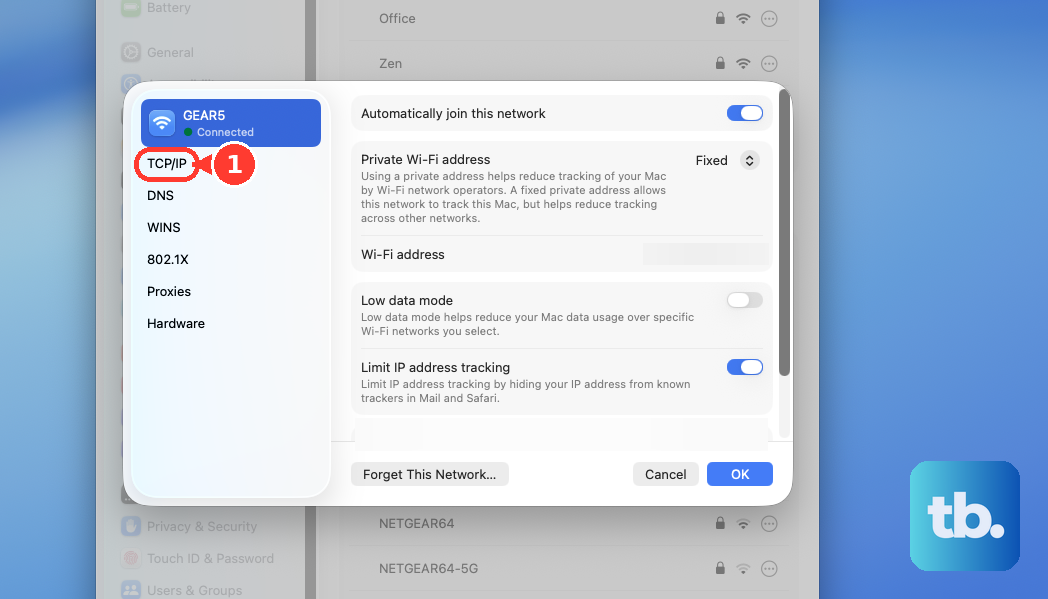
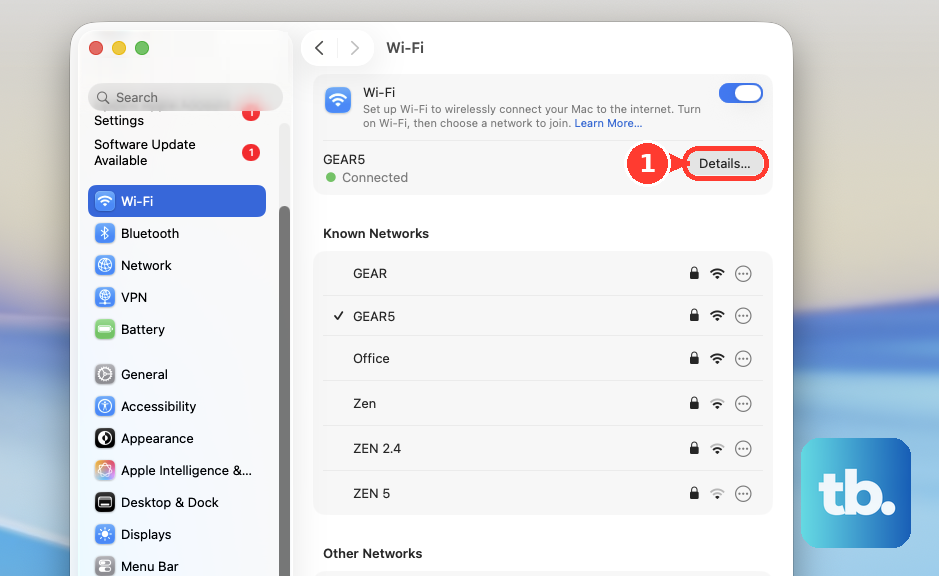
If you're connected to WiFi but have no internet, this is a great next step. In System Settings > WiFi, click Details next to your connected network, then go to the TCP/IP tab. Click the Renew DHCP Lease button. This asks your router for a fresh IP address, clearing up conflicts that can block web access.
Change Your DNS Servers
Sometimes the WiFi works, but the DNS servers your Mac is using are slow or down. In the WiFi Details window, go to the DNS tab. Remove any existing servers listed and add new ones like 8.8.8.8 and 8.8.4.4 (Google) or 1.1.1.1 (Cloudflare). Click OK and try browsing again.
Check for macOS Updates
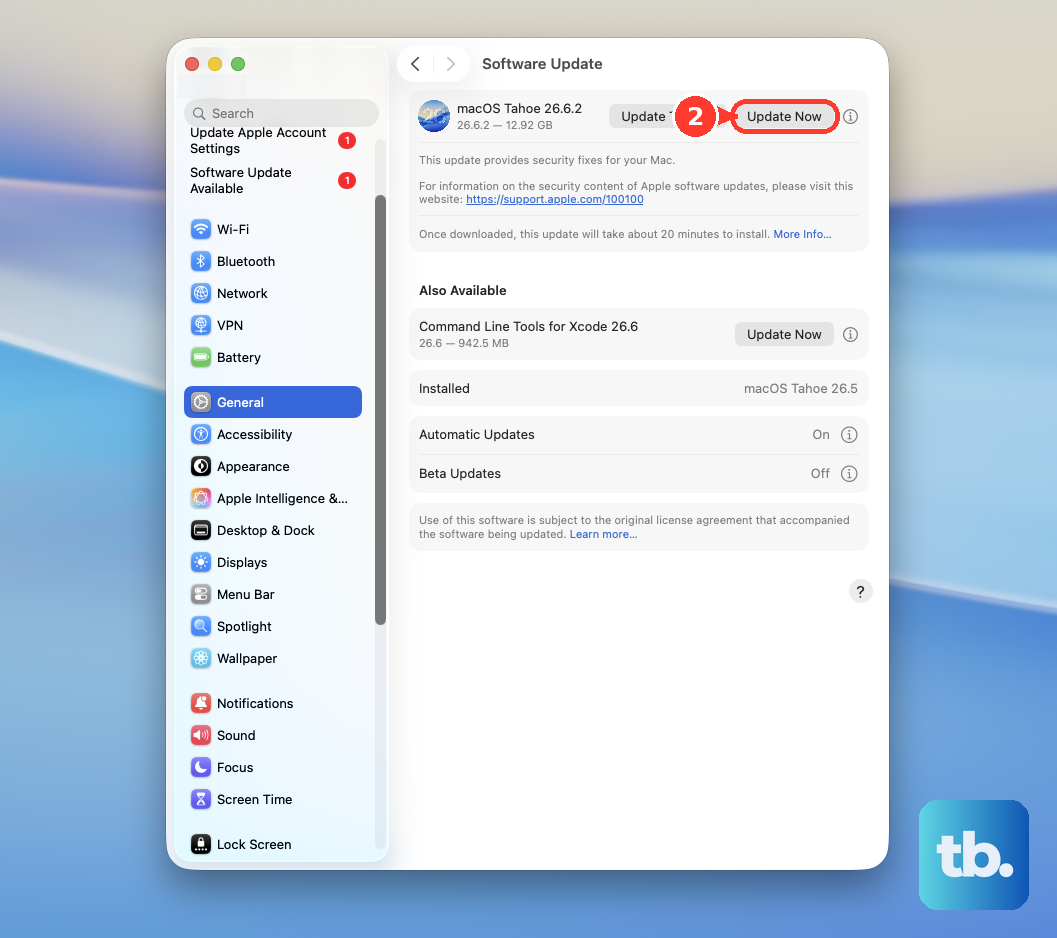
Apple frequently releases updates that include fixes for wireless connectivity. Go to System Settings > General > Software Update to check for and install any available updates. Making sure you're on the latest version of macOS Tahoe is a key step.
Delete Network Configuration Files
If the issue persists, corrupted preference files might be the culprit. Open Finder, press Command + Shift + G, and type /Library/Preferences/SystemConfiguration/ into the box. Move the files named com.apple.network.identification.plist, com.apple.wifi.message-tracer.plist, and NetworkInterfaces.plist to your desktop (not the Trash, as a safety backup). Restart your Mac. macOS will create fresh, default versions of these files.
Create a New Network Location
This is a more thorough reset than forgetting a single network. Go to System Settings > Network. Click the three-dot menu button next to the network service list and select Locations > Edit Locations. Click the plus (+) icon to add a new location, give it a name like "Fresh Start," and click Done. Finally, select your new location from the same menu. This loads a completely clean slate of network settings.
Run Wireless Diagnostics
Your Mac has a built-in tool for this. Hold down the Option key on your keyboard, then click the WiFi icon in the menu bar. Select Open Wireless Diagnostics from the menu. Follow the on-screen assistant; it will scan your environment for interference and can generate a detailed report of your WiFi issues.
You can also check your signal strength this way. Just holding Option and clicking the WiFi icon will show details like RSSI. If your signal is weak (consistently below -70 dBm), you might need to move closer to your router.











