
When your MacBook Air 15-inch M4 gets too warm, it's usually the system working hard or something preventing it from cooling down properly. The M4 chip is powerful, but that 15-inch display and demanding tasks can generate heat, especially if airflow is blocked since this model doesn't have a fan.
Check What's Using Your CPU
Open Activity Monitor from your Utilities folder and click the CPU tab. Click the "% CPU" column header to sort from high to low. Any process consistently using a high percentage is likely the culprit generating heat. You can select it and click the stop (X) button to quit it.
I'd start here because a single runaway app or browser tab is often the cause. The kernel_task process sometimes shows high usage when the system is managing heat, which is normal, but it can also indicate a deeper software issue.
Manage Your Apps and Browser Tabs
Video editing, gaming, or having dozens of browser tabs open, particularly ones playing video, will push the M4 chip. Close applications you're not actively using. For browsers, try using tab suspender extensions or simply bookmark pages to revisit later instead of keeping them all open.
Since the MacBook Air 15-inch has a larger, brighter display than the 13-inch model, it naturally uses more power to run it. Intensive tasks on this bigger screen can lead to more noticeable warmth.
Update to the Latest macOS
Head to System Settings > General > Software Update. Apple frequently releases updates that improve power management and fix bugs causing excessive CPU usage. After a major update, like to macOS Tahoe, Spotlight might reindex your files, which can cause temporary heat for a few hours.
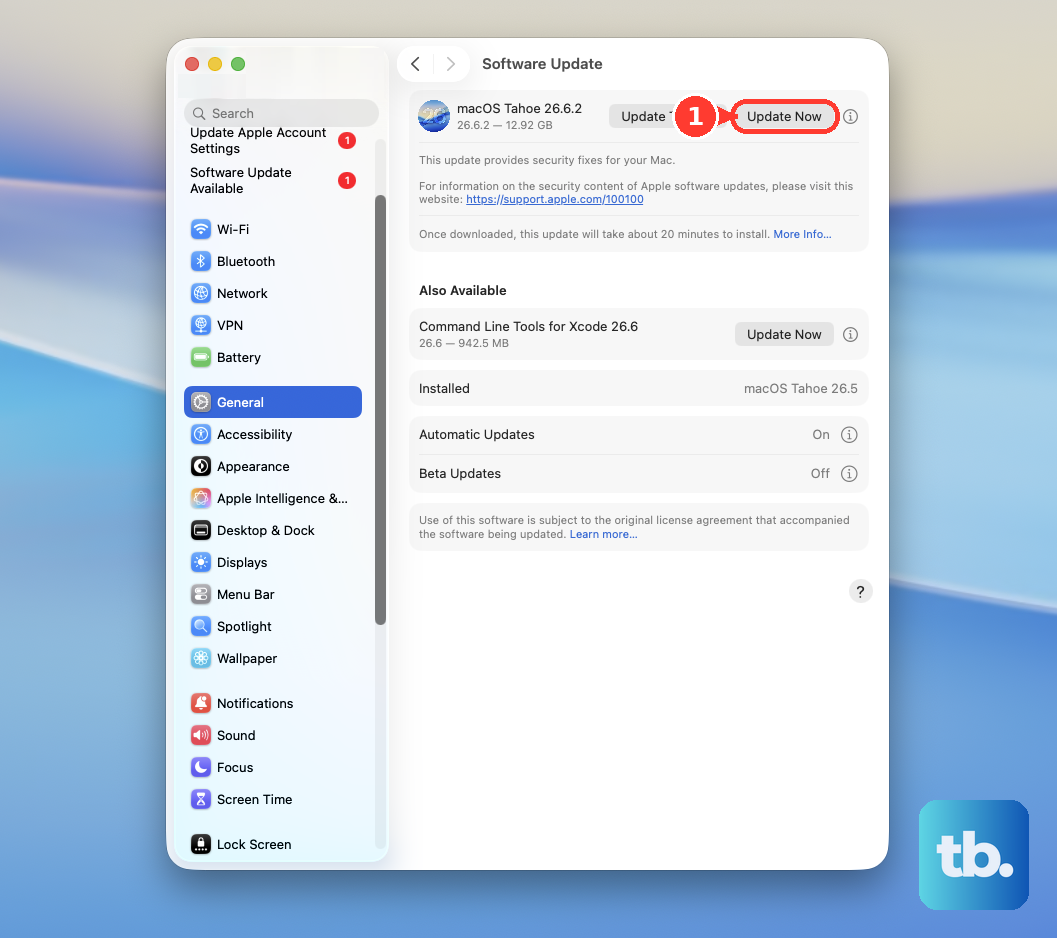
Let that indexing process finish. If your MacBook is still running hot afterward, checking for another update is a good next step, as follow-up patches are common.
Let Your MacBook Breathe
This is critical for the fanless MacBook Air design. Never use it on a soft surface like a bed, blanket, or your lap if it's covered by fabric. These materials block the subtle vents and trap heat against the aluminum chassis.
Always place it on a hard, flat desk or table. You can slightly elevate the back of the laptop with a stand or even a book to allow more air to circulate underneath. This simple change makes a big difference.
Run Apple Diagnostics
Shut down your MacBook Air. Press and hold the power button as you turn it on, but keep holding until you see the startup options window. Press and hold Command (⌘) + D on your keyboard.
This boots into Apple Diagnostics, which will check for any hardware issues that could be related to thermal sensors or other components. It only takes a minute and can rule out a hardware problem.
Adjust Your Display Settings
The beautiful 15-inch Liquid Retina display is a major source of power draw. Lowering the screen brightness is one of the most effective ways to reduce heat and save battery. You don't need it at 100% indoors.
You can also try temporarily turning off features like True Tone and Auto-Brightness in System Settings > Displays to see if it helps. The speaker quality can also vary with the display angle, as the grilles are integrated into the hinge area, so be mindful of that if you're propping it up.
Check Your Battery Health
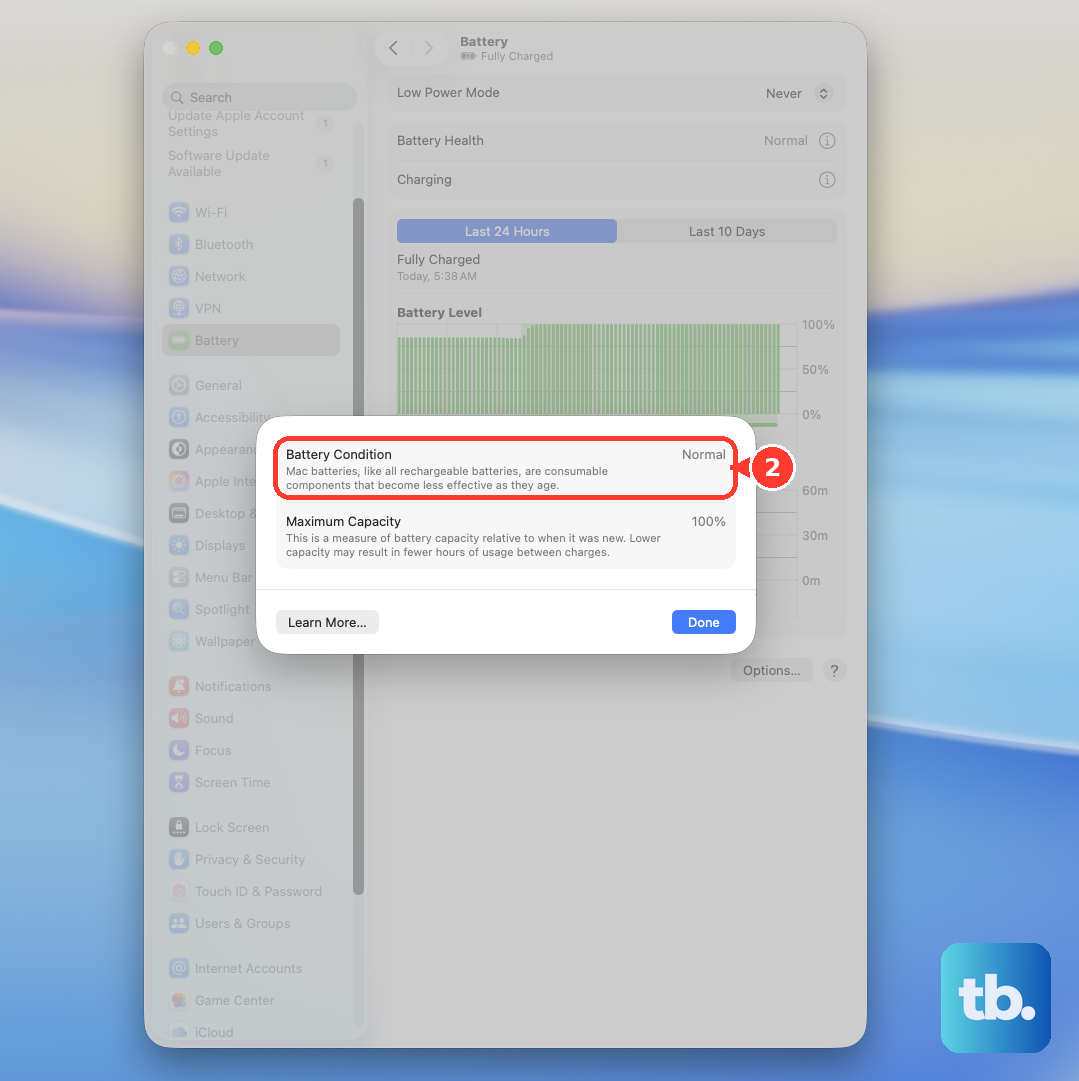
Go to System Settings > Battery > Battery Health. A battery that is degraded or failing can sometimes generate excess heat during charging and use. If the status here says "Service Recommended," it could be a contributing factor to your thermal issues.
For Apple Silicon Macs like the M4, functions handled by the NVRAM/PRAM on older Intel Macs are reset automatically. If you're experiencing persistent glitches alongside the heat, a simple restart often clears these management settings.
Try a Different Web Browser
If your main activity is web browsing, your browser choice matters. Google Chrome is notorious for high CPU and energy use on macOS. Safari is deeply optimized for Apple silicon and is significantly more energy-efficient.
Switching to Safari for everyday browsing can lead to a cooler laptop and longer battery life. If you must use Chrome, try disabling unnecessary extensions and hardware acceleration in its settings.
Reset the System Management Controller
For Apple Silicon Macs, the SMC functions are integrated. The equivalent reset is to simply shut down your MacBook Air, wait about 30 seconds, and then turn it back on. This can clear temporary power and thermal management states.
If you're coming from an older Intel Mac, you might look for the old key combination. On your M4 MacBook Air, a full shutdown and restart is the correct method to reset these low-level controls.