
When the sound on your MacBook Air 15-inch M4 suddenly cuts out, it can be jarring, especially when you're trying to watch something or join a call. The good news is this is almost always a quick software or settings fix you can handle yourself.
Check the Menu Bar and Keyboard
First, look at the sound icon in the top-right menu bar. If you see a line through the speaker, your Mac is muted. Click the icon and drag the slider up. You can also just press the volume up key on your keyboard a few times to make sure the volume isn't set to zero.
Verify the Audio Output
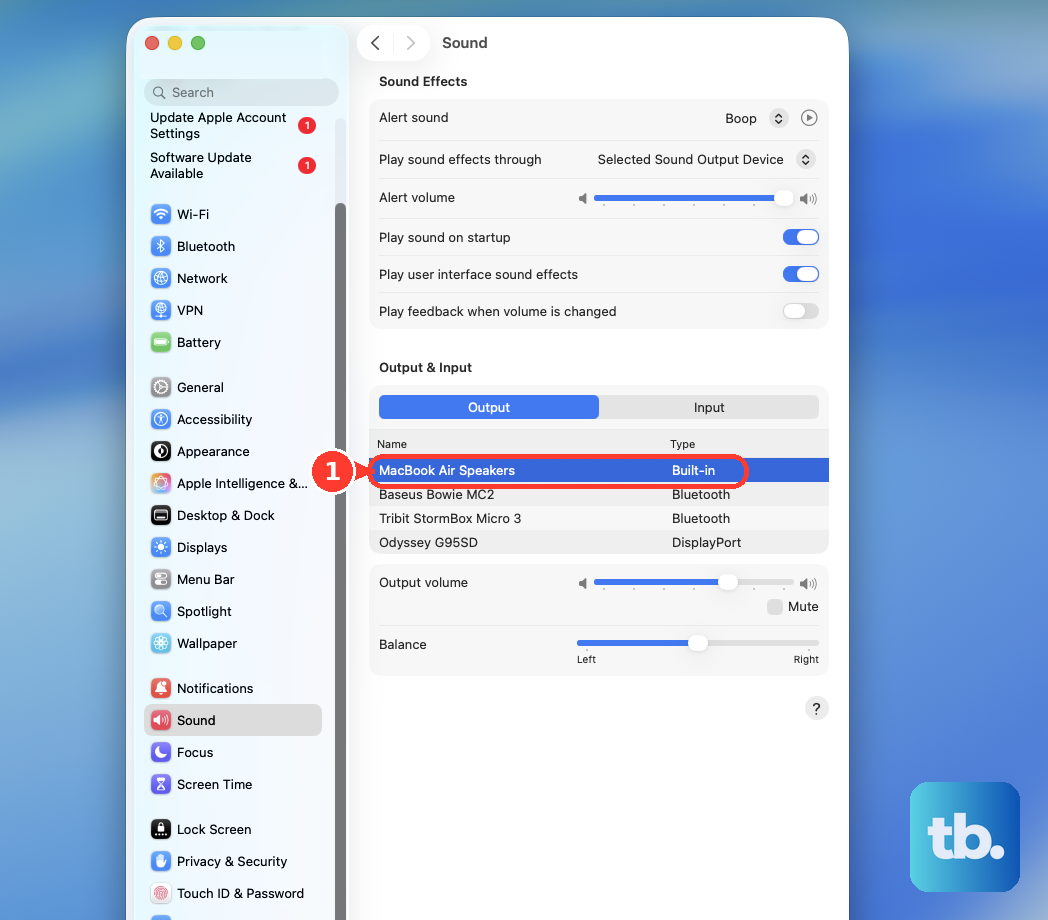
Head to System Settings > Sound > Output. Your Mac might be trying to send sound to a device that isn't there anymore, like a disconnected Bluetooth speaker or an external monitor. Make sure "MacBook Air Speakers" is selected in the list. I've seen this happen a lot after unplugging from a TV or taking off headphones.
Restart Your MacBook Air
This is the classic fix for a reason. Click the Apple menu > Restart. A full reboot clears out any temporary glitches in the audio system, particularly if the sound stopped working after the laptop woke from sleep. It only takes a minute and solves the issue most of the time.
Restart Core Audio in Terminal
If you don't want to restart everything, you can just restart the audio service. Open Terminal from your Utilities folder, type sudo killall coreaudiod, and press Enter. Type your password when prompted. The sound should come back within a few seconds as the service reloads.
Check for App-Specific Issues
Sometimes the problem isn't system-wide. If sound is missing from just one app, like Safari or Zoom, check that app's own volume controls. Also, take a quick look in System Settings > Sound to see if "Play sound effects through" is set to a different device than your main output.
Disconnect Bluetooth Devices
If you've ever paired headphones or a speaker, your Mac might still be connected to them. Go to System Settings > Bluetooth, find any audio devices in the list, and click the "Disconnect" button next to them. This forces audio back to your laptop's internal speakers.
Run Apple Diagnostics
This is a good step to rule out a hardware problem with the speakers. Shut down your MacBook Air, then turn it on and immediately press and hold the Power button. Keep holding until you see the startup options window, then press Command (⌘) + D to start Apple Diagnostics. It will check your system and report any issues.
Update macOS
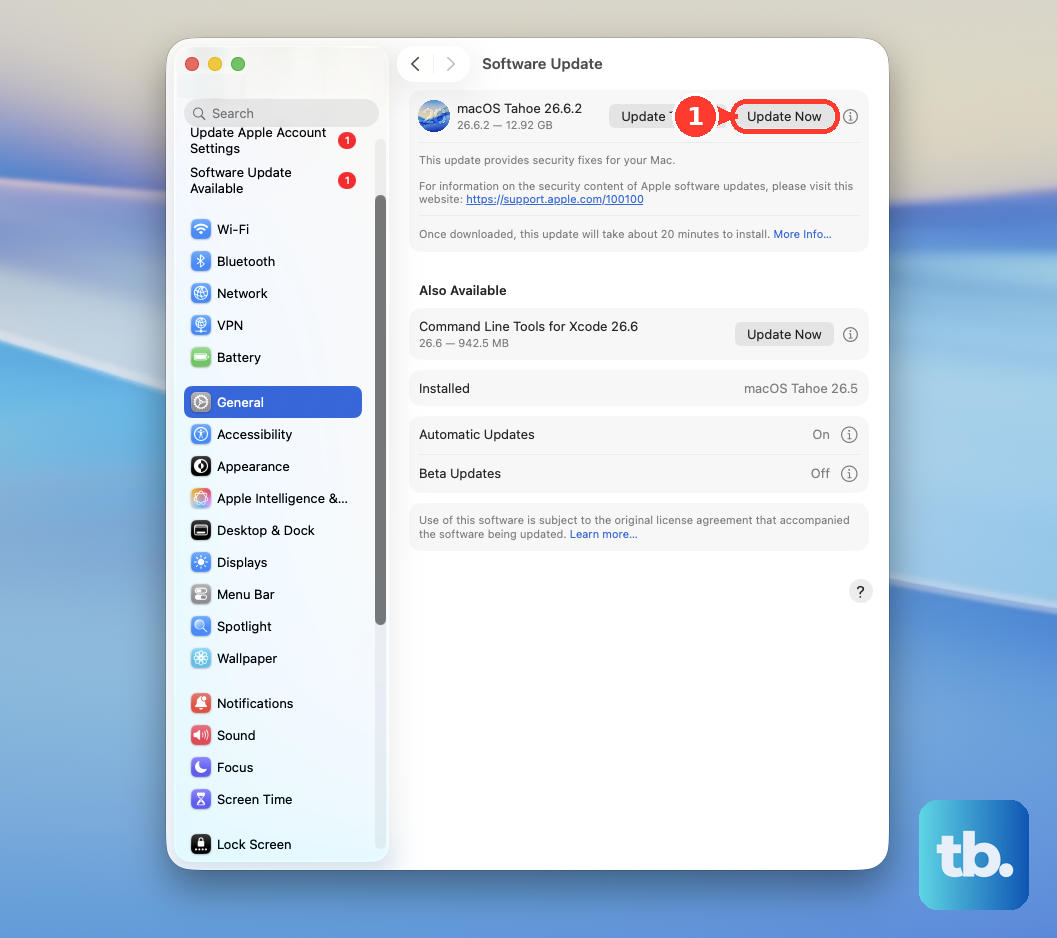
Audio bugs are common fixes in software updates. Make sure you're running the latest version of macOS. Go to System Settings > General > Software Update. If there's an update available for macOS 26 Tahoe, installing it could resolve the sound problem immediately.
For Apple Silicon Macs like your M4, the old NVRAM reset procedure isn't necessary. A standard restart manages those settings automatically now. If you've tried all these steps and the speakers are still silent, it's worth noting that the speaker quality can be affected by the display angle, so try adjusting the lid slightly to see if that makes a difference.