
When your MacBook Air 15-inch M4's battery seems to vanish faster than expected, it can be a real frustration. The larger, beautiful display is a battery powerhouse in itself, so managing its energy use is key to getting through your day.
Check Battery Health and Usage
Start by clicking the Apple menu > System Settings > Battery. Here, you can see a detailed breakdown of your battery usage over the last 24 hours or 10 days, which is incredibly useful for spotting trends. Also, check the Battery Health status; if it says "Service Recommended," the battery has degraded significantly and may need replacement.
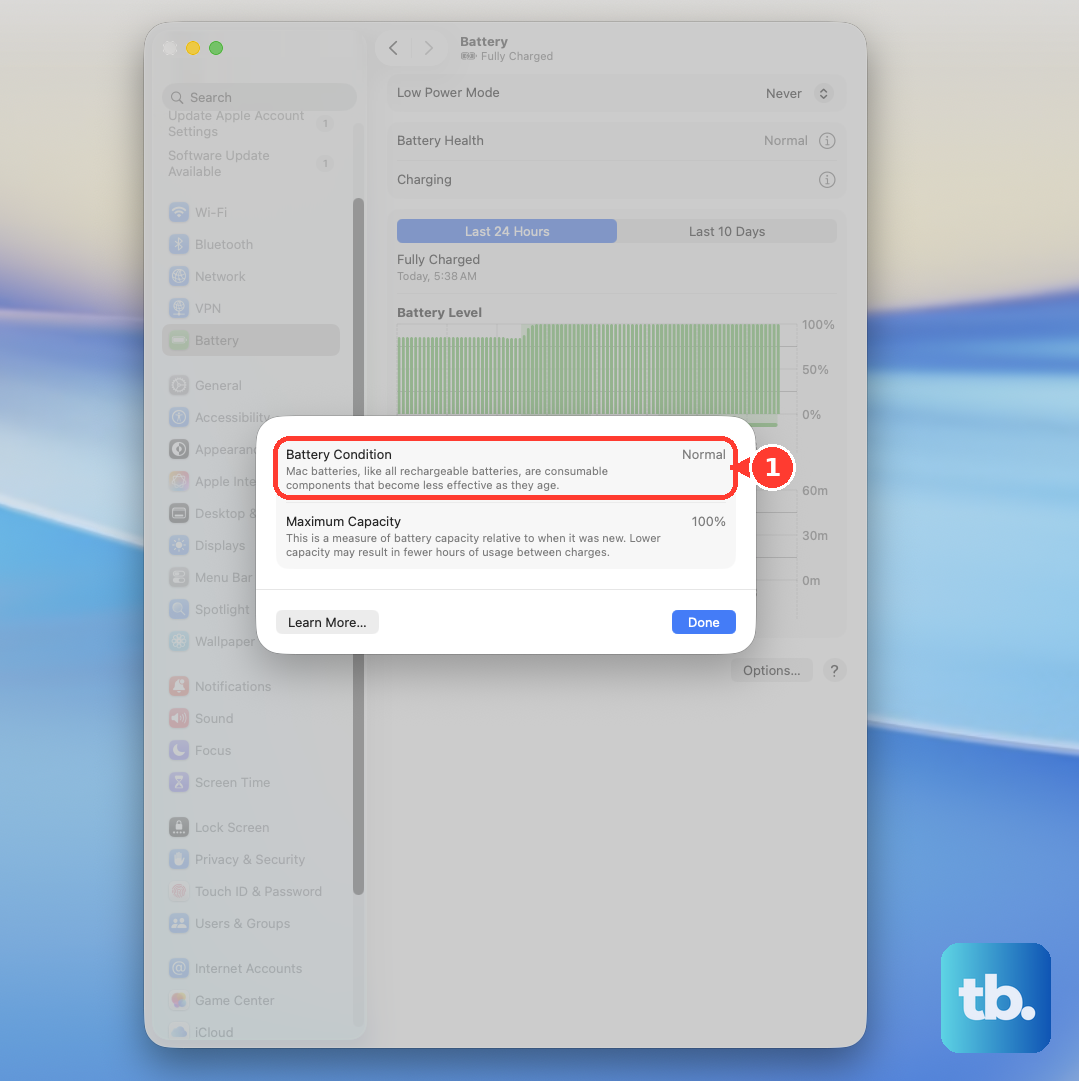
For more technical details, you can check the cycle count by going to Apple menu > About This Mac > More Info > System Report > Power. The M4 chip is very efficient, but a high cycle count over 1000 can indicate normal wear that reduces overall capacity.
Use Activity Monitor to Find Energy Hogs
Open Activity Monitor from your Utilities folder and click the Energy tab. This is your mission control for battery drain. Sort by "Energy Impact" to see which apps are using the most power right now.
Pay special attention to the "Preventing Sleep" column. Any app marked "Yes" is actively keeping your Mac awake, even when the lid is closed or it's idle. I'd start by quitting any apps here that you don't actively need running.
Manage Your Display Brightness
The 15-inch Liquid Retina display is stunning but consumes a lot of power. Simply lowering the brightness a few notches using the F1 key can make a noticeable difference. You can also enable Automatically adjust brightness in System Settings > Displays to let the ambient light sensor handle it for you.
Also, consider reducing the screen's refresh rate if your model supports ProMotion. Go to System Settings > Displays > Refresh Rate and select a lower setting, like 60Hz, when you're trying to conserve battery.
Disable Unnecessary Wireless Features
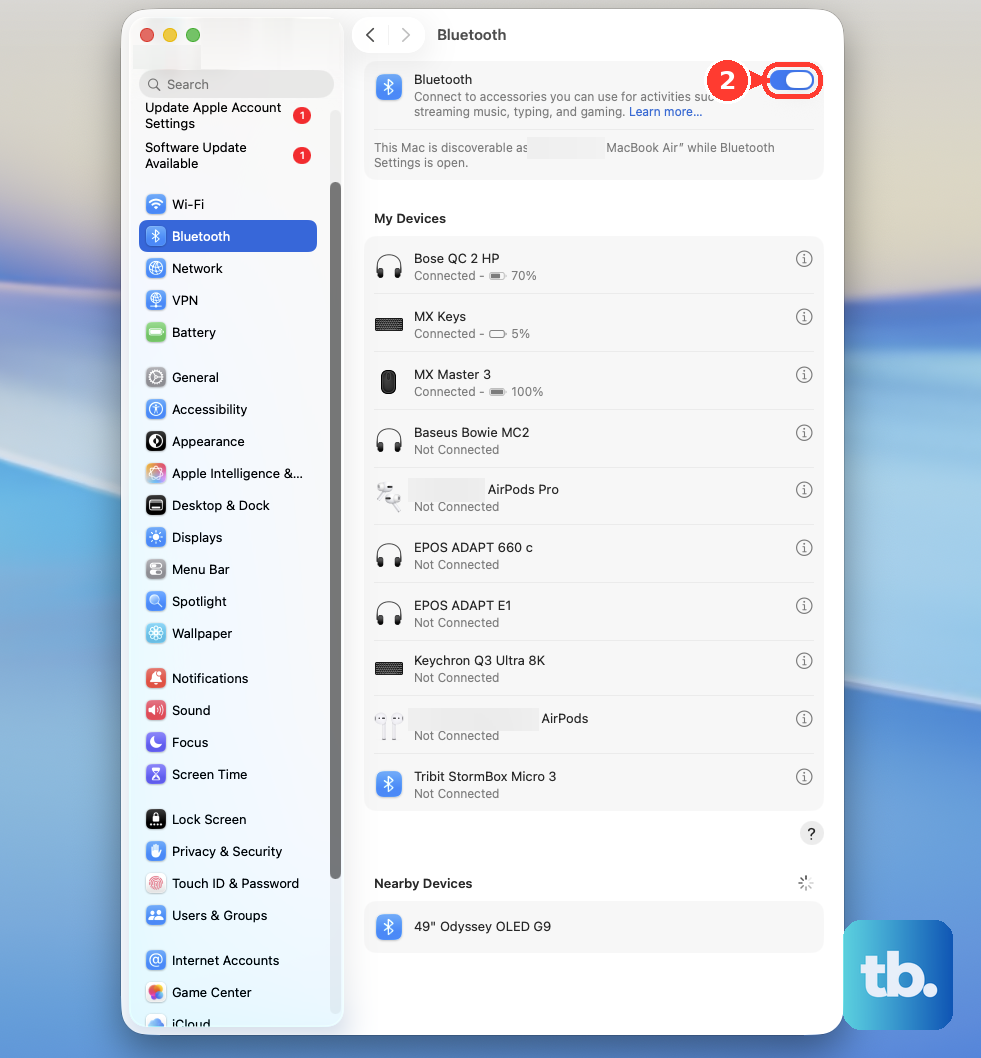
If you're not using them, turn off Bluetooth and Wi-Fi. Go to System Settings > Bluetooth and toggle it off. For Wi-Fi, you can click the Control Center icon in the menu bar. Background scanning for networks and devices uses more power than you might think.
Also, review Location Services in System Settings > Privacy & Security > Location Services. Disable it for apps that don't genuinely need to know where you are, as constant GPS pings can drain the battery.
Control Background App Activity
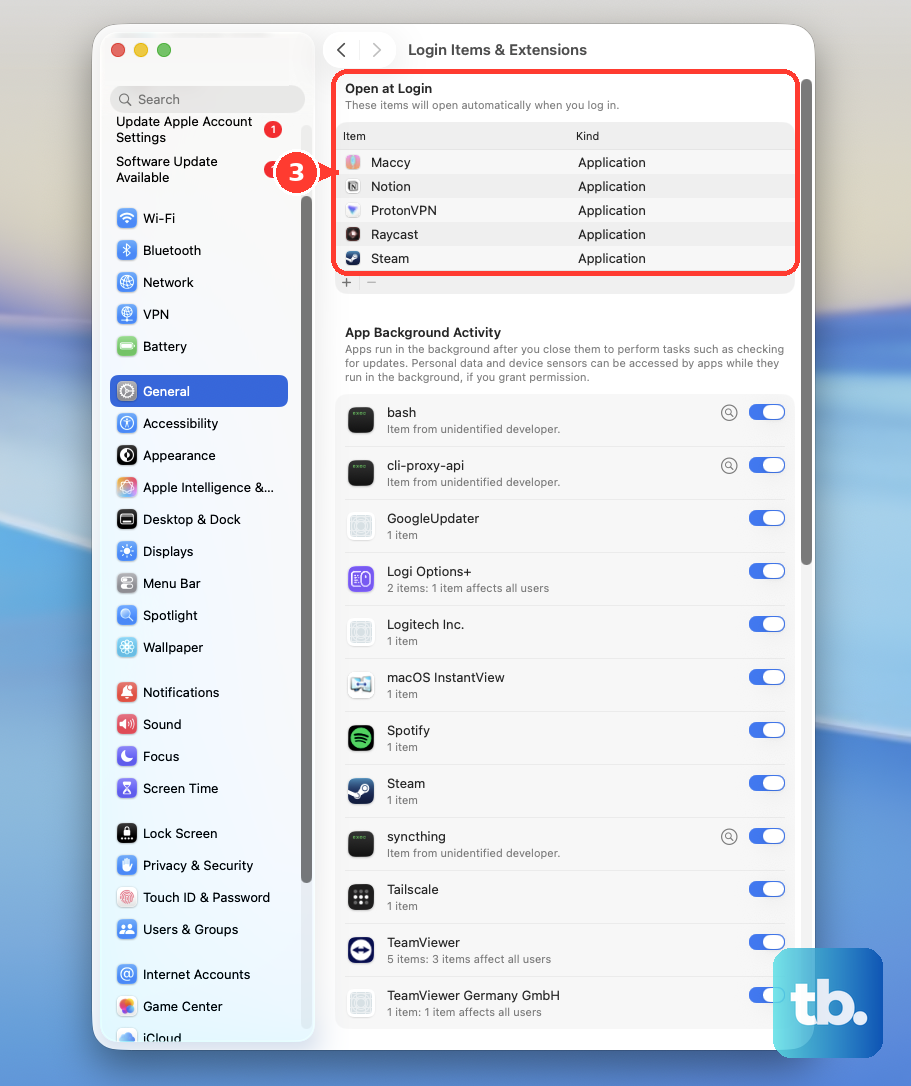
Head to System Settings > General > Login Items & Extensions. Remove any apps here that launch at startup but don't need to run constantly in the background. Each little menu bar utility or auto-updating cloud service adds up to a constant, silent drain on your battery.
For web browsers, which are often the biggest culprits, check their settings for background processes. In Safari, go to Safari > Settings > Advanced and ensure "Keep Safari windows open when quitting Safari" is unchecked if you don't need it.
Enable Low Power Mode
Your MacBook Air has a built-in Low Power Mode. Find it in System Settings > Battery. You can turn it on now, or set it to activate automatically when on battery power.
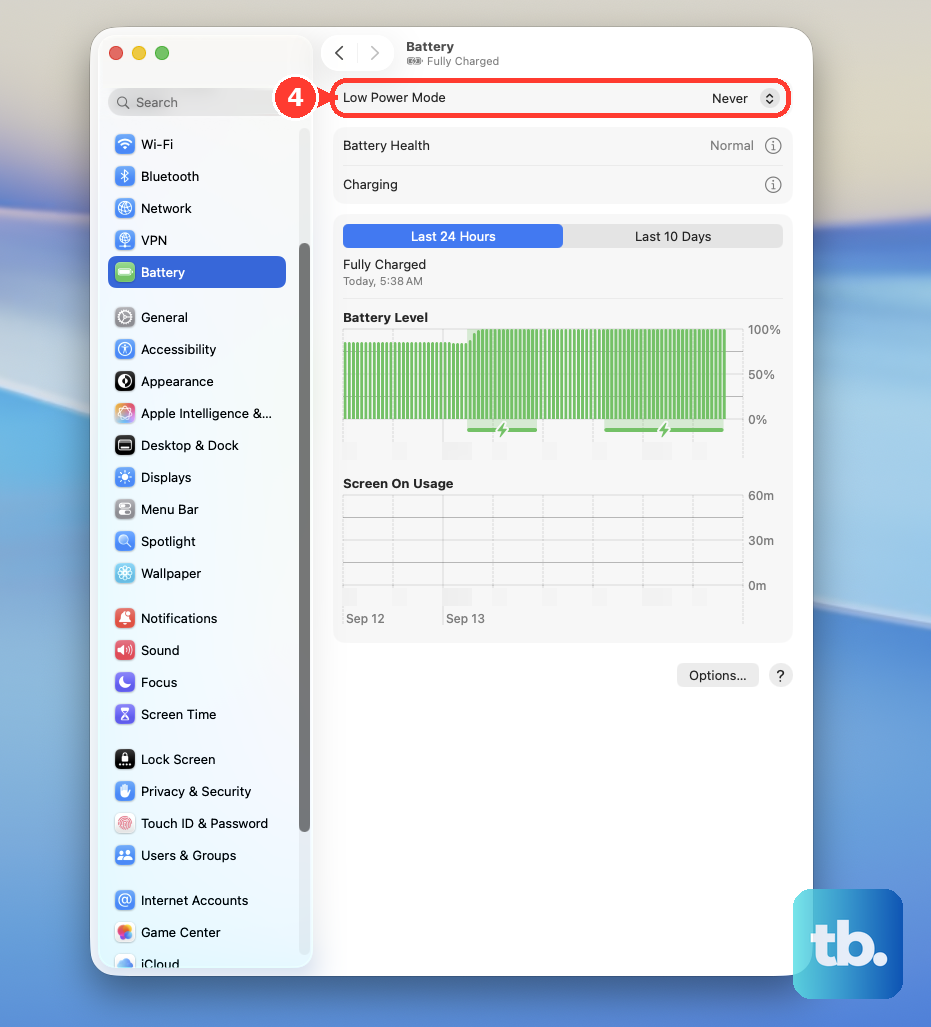
This mode subtly reduces system performance, lowers display brightness, and minimizes background activity. For most everyday tasks on the M4 chip, you likely won't even notice the performance difference, but you'll definitely notice the extra battery life.
Update to the Latest macOS
Apple is constantly refining power management with software updates. Go to System Settings > General > Software Update to make sure you're running the latest version of macOS.
After a major update, it's normal for the battery to drain a bit faster for a day or two as Spotlight reindexes files and the system performs maintenance. Give it a little time to settle down before worrying.
Run Apple Diagnostics
If the drain feels sudden and severe, it's worth checking for hardware issues. Shut down your MacBook Air, then press and hold the power button as you turn it on. Keep holding until you see the startup options window, then press and hold Command (⌘) + D.
This will launch Apple Diagnostics. It will test your battery and other components for problems. If it finds an issue, it will display a reference code and steps to take. Since the M4 Macs handle NVRAM/PRAM resets automatically, a simple restart often clears up minor power management glitches.
Review Your Workflow and Apps
Finally, take a look at what you're actually doing. Video conferencing apps, high-end creative software, and games will naturally use more power. Having dozens of browser tabs open, especially in Chrome, is a classic battery killer.
Try using Safari for general browsing, as it's optimized for Apple Silicon. Get in the habit of closing apps and tabs you're done with. Sometimes, the simplest fix is just being a bit more mindful of what's running on that powerful M4 chip and beautiful 15-inch screen.