
When your Mac Studio M4 Max is working hard, you expect some fan noise. But if it sounds like a jet engine during basic tasks or the noise is constant, something's off. It's usually a sign the system is working harder than it should be to manage heat.
I'd start by checking what's actually using all that power. The M4 Max is a beast, but even it can be bogged down by a single runaway process. Open Activity Monitor from your Utilities folder and click the CPU tab.
Sort the list by "% CPU" to see what's at the top. If you spot an app, like a browser or a creative suite tool, using an unusually high percentage when it's idle, that's your culprit. You can quit it from here. Also, keep an eye on the "Energy Impact" column for apps that are inefficient.
Manage Your Pro Workloads
The Mac Studio is built for sustained performance in video editing, 3D rendering, and music production. These tasks will make the fans spin up, and that's normal. The issue is when the noise doesn't subside after the heavy lift is done.
Make sure you're fully quitting resource-heavy apps when you're done with a session, not just closing the window. Background processes can linger. If you're in the middle of a render or export, the loud fans are just doing their job to keep the M4 Max chip running at full speed.
Update macOS and Your Apps
Software bugs can sometimes cause unnecessary CPU load. Head to System Settings > General > Software Update to make sure you're on the latest version of macOS 26 Tahoe. Apple often releases updates that improve power management and thermal control.
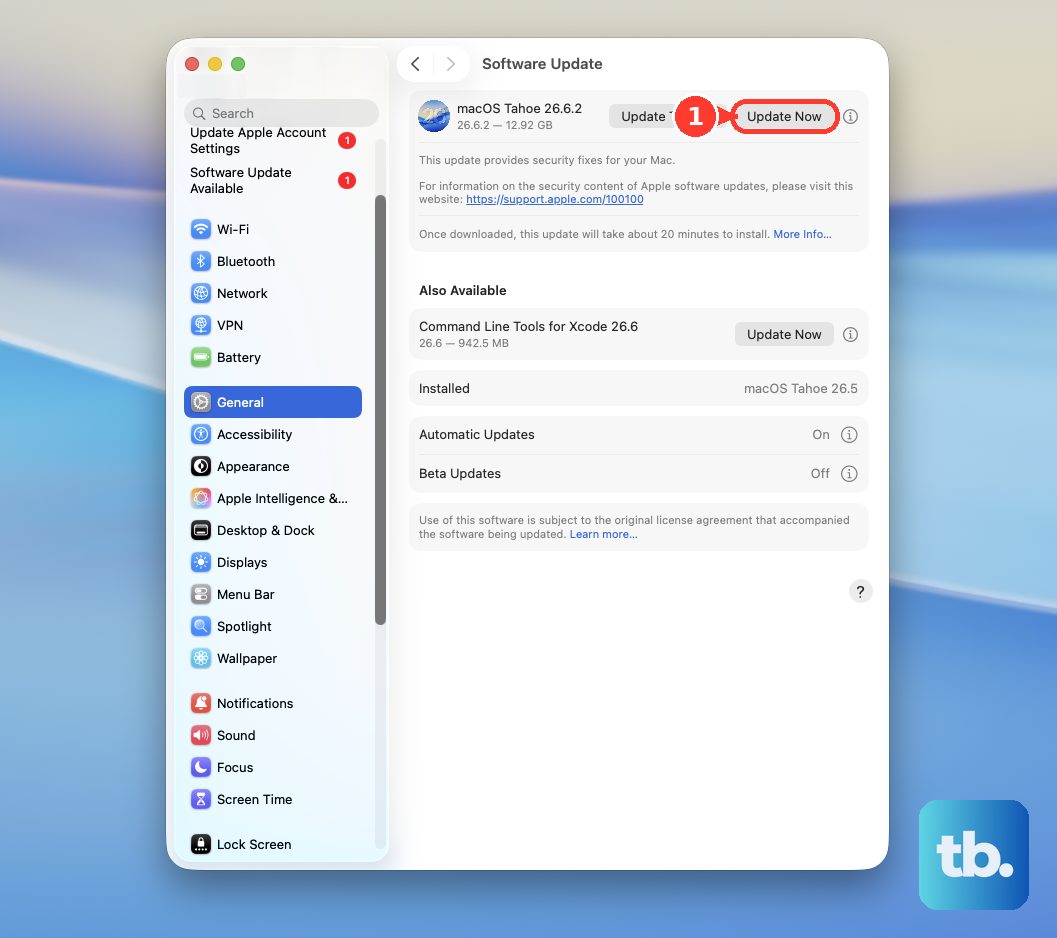
Also, check for updates within your major creative apps like Final Cut Pro, Adobe Premiere, or Blender. Developers optimize for new Apple Silicon chips over time, and an outdated app might not be managing the M4 Max's cores efficiently, leading to extra heat.
Check Ventilation Around the Studio
While the Mac Studio's thermal design is robust, it still needs clear space to breathe. The intake is on the bottom, and the exhaust is out the back. Make sure the rear of the computer isn't pushed right up against a wall or buried under papers.
Also, ensure the bottom vents aren't sitting on a thick carpet or a soft surface that blocks airflow. A hard, flat desk surface is best. Giving it a few inches of clearance on all sides, especially at the back, makes a big difference.
Reset the System Management Controller
For Apple Silicon Macs like your M4 Max Studio, a full restart handles most management controller resets. But if fan behavior seems stuck, you can try a full shutdown and power cycle. First, choose Shut Down from the Apple menu and wait 30 seconds.
Then, press and hold the power button on the back of the Mac Studio for a full 10 seconds. Release it, then press it again briefly to turn your computer back on. This can clear any temporary glitches in the thermal management system.
Monitor Connected Devices and Displays
One of the Mac Studio's strengths is driving up to 5 external displays. However, all those pixels take power to render. If you have multiple high-resolution monitors connected, they will contribute to the overall thermal load, especially if you're pushing motion graphics or video across all of them.
Also, check any high-speed peripherals. A faulty or unsupported Thunderbolt device, external GPU, or RAID array drawing excessive power through the ports can sometimes cause system instability and increased heat generation.
Adjust Your Environment and Settings
Ambient room temperature plays a role. If your studio is particularly warm, the computer has to work harder to cool itself. Improving room ventilation or lowering the thermostat a degree can help more than you might think.
Finally, look at your system settings. Features like FileVault encryption or Spotlight reindexing after a big software update can cause temporary high CPU usage. You can let these processes finish in the background. For a quick test, you can also try reducing the resolution or refresh rate of your most demanding external display to see if it lightens the load.