
When your Mac Mini M4 won't connect to your network, keeps dropping the signal, or shows a connection with no internet, it can be frustrating. The good news is, the fix is usually just a few clicks away.
Toggle WiFi Off and On
Click the WiFi icon in your menu bar and choose "Turn Wi-Fi Off." Wait about ten seconds, then click it again and select "Turn Wi-Fi On." This quick reset of the wireless adapter can clear up a lot of temporary glitches.
It's the digital equivalent of unplugging something and plugging it back in. I'd start with this one every time.
Restart Your Mac Mini
Go to the Apple menu in the top-left corner and select "Restart." Since the Mac Mini has no battery, this is a full power cycle.
It reloads all system processes, including the WiFi drivers, and often resolves intermittent connection problems that a simple toggle won't fix.
Forget and Rejoin Your Network
Open System Settings and go to **Wi-Fi**. Click the "i" information button next to the network name you're having trouble with.
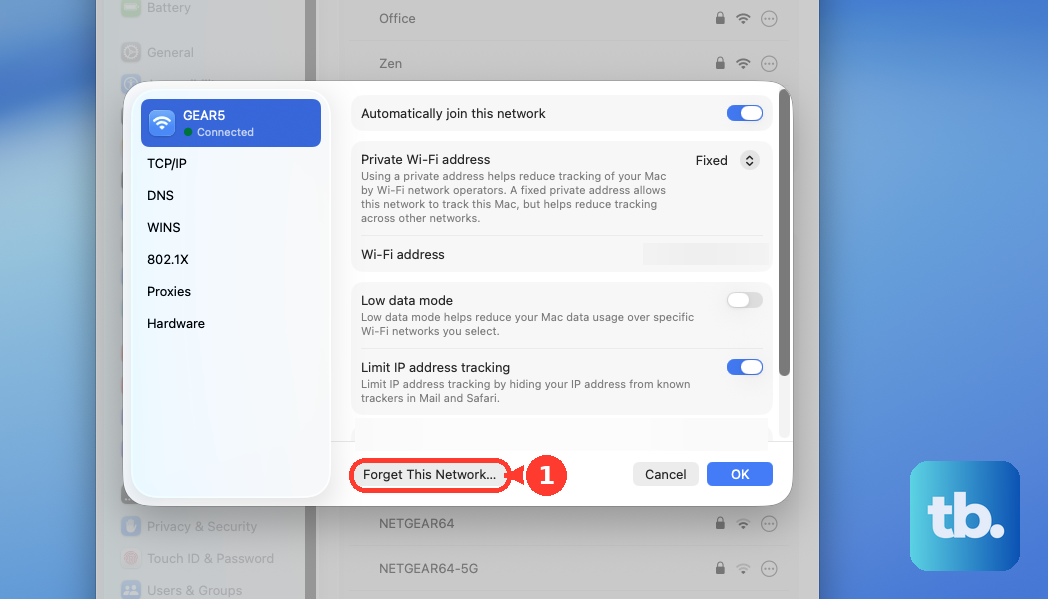
Click "Forget This Network" at the bottom of the window and confirm. Then, select the network from the list again and re-enter the password to create a brand new, clean connection profile.
Renew Your DHCP Lease
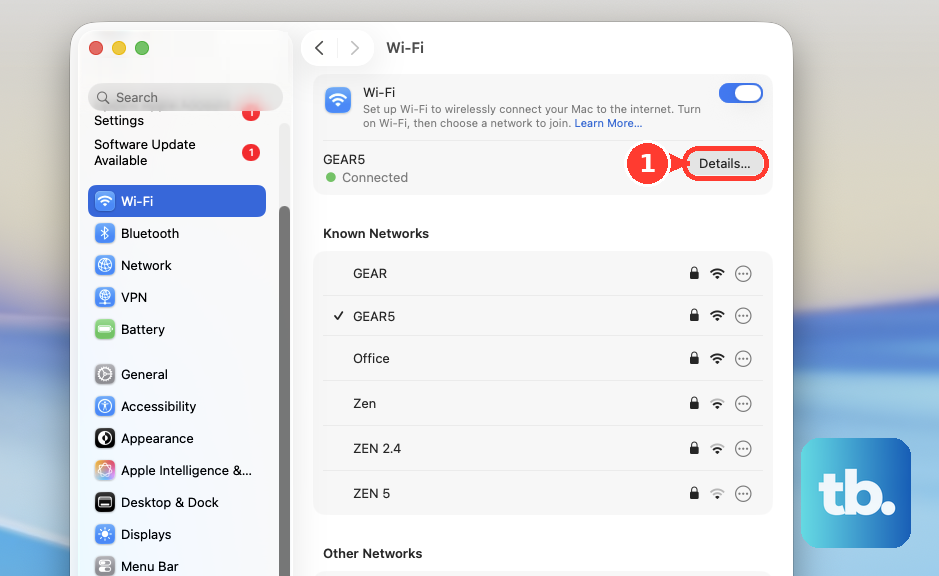
In System Settings under **Wi-Fi**, click the "Details" button for your connected network. Go to the **TCP/IP** tab.
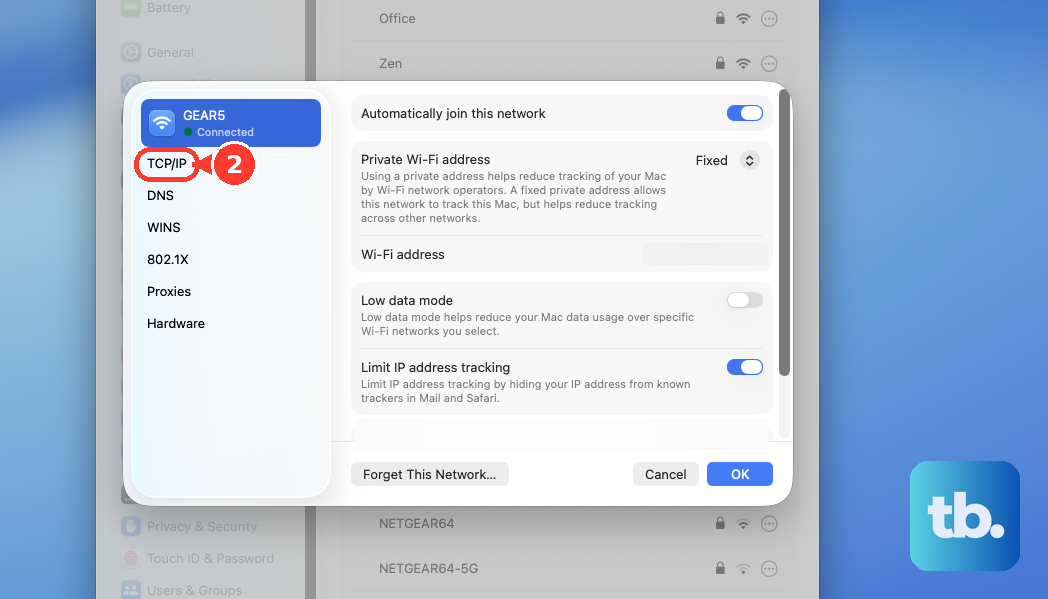
Click the "Renew DHCP Lease" button. This asks your router for a fresh IP address, which can solve the classic "connected but no internet" scenario.
Change Your DNS Servers
Staying in the network Details window, switch to the **DNS** tab. Remove any existing DNS server addresses listed.
Click the plus (+) button and add 1.1.1.1 (Cloudflare) or 8.8.8.8 (Google). Click OK. Sometimes the problem isn't the WiFi itself, but the DNS servers provided by your ISP are slow or down.
Delete Network Configuration Files
Open a new Finder window, press **Command + Shift + G**, and type this path: /Library/Preferences/SystemConfiguration/.
Look for and move these three files to your Trash: com.apple.network.identification.plist, com.apple.wifi.message-tracer.plist, and NetworkInterfaces.plist. You'll need to restart your Mac Mini afterwards.
macOS will automatically generate fresh versions of these files. This is a deeper reset that tackles corrupted preferences.
Update macOS
Head to **System Settings > General > Software Update**. Apple frequently includes fixes for wireless connectivity in macOS updates.
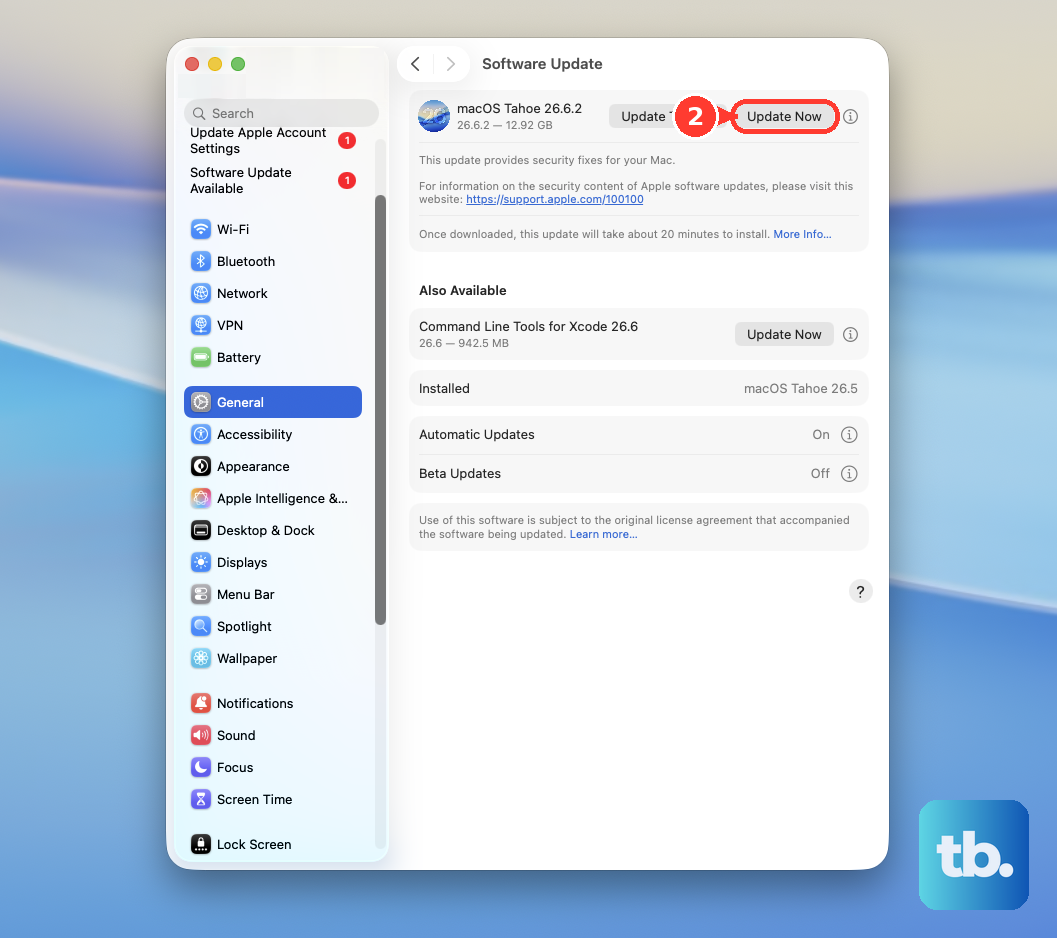
Ensuring you're on the latest version of macOS Tahoe is a critical step, as it patches known bugs that could be affecting your WiFi hardware.
Check WiFi Signal and Details
Hold down the **Option** key on your keyboard and click the WiFi icon in the menu bar. A detailed dropdown will appear.
Look at the RSSI value; anything better than -70 dBm is decent, but -50 dBm or better is ideal. The Mac Mini's all-aluminum enclosure can slightly impact wireless range compared to plastic-bodied devices.
Create a New Network Location
Open System Settings and go to **Network**. Click the three-dot menu button next to your network services and select **Locations > Edit Locations**.
Click the plus (+) icon to add a new location, give it a name like "Fresh Start," and click Done. Finally, select this new location from the main Network settings window.
This creates a completely blank slate for all network interfaces, which can bypass deeply rooted configuration conflicts.











