
A brand new Mac Mini M4 feeling sluggish is a frustrating surprise. Even with Apple's powerful silicon, a few software hiccups or background tasks can bog it down. Let's get it running at the speed it was designed for.
Restart Your Mac Mini
It sounds too simple, but it works. If you've been putting it to sleep for weeks, a full restart clears out memory leaks and stuck processes. Click the Apple menu in the top-left corner and select Restart.
Since the power button is on the bottom of the device, a restart from the menu is easier. If the system is completely unresponsive, you can force a restart by holding that bottom power button for about 10 seconds.
Check What's Hogging Resources
Open Activity Monitor from your Applications > Utilities folder. Click the CPU tab and sort by "% CPU" to see what's using the most processing power.
Look for any single process consistently using a huge chunk, like 80% or more. You can also check the Memory tab to see if you're running low on RAM. If you spot a runaway app, select it and click the stop (X) button in the toolbar to force quit it.
Free Up Storage Space
macOS needs breathing room on your drive to manage files and virtual memory efficiently. Click the Apple menu > About This Mac > More Info > Storage Settings.
Here, you can enable recommendations like storing files in iCloud and emptying the trash automatically. Pay special attention to large files and downloads, as a nearly full SSD will slow down any computer, including an M4.
Stop Apps from Launching at Startup
Too many apps opening automatically when you log in is a common speed killer. Go to System Settings > General > Login Items & Extensions.
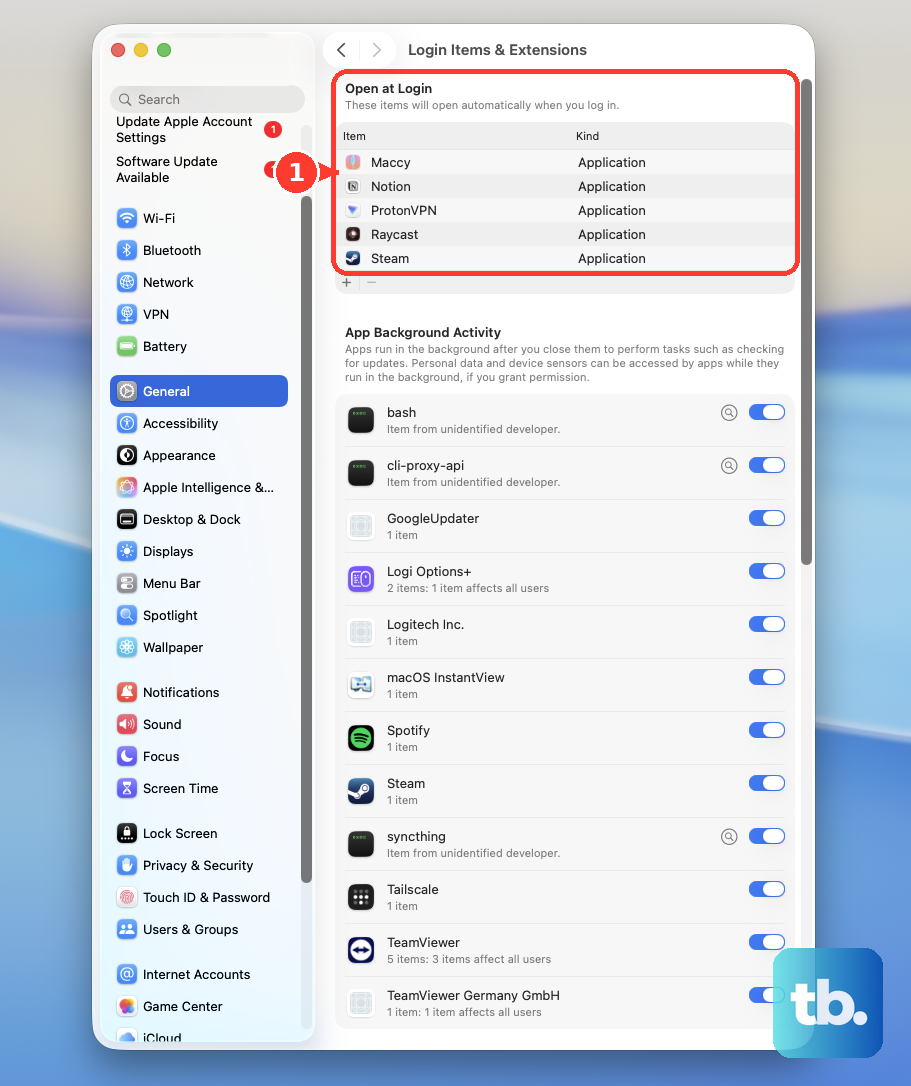
Review the list under "Open at Login." For any app you don't need immediately upon boot, select it and click the minus (-) button to remove it. This frees up RAM and CPU cycles from the moment your desktop appears.
Install the Latest macOS Updates
Apple constantly releases performance tweaks and bug fixes. Make sure you're on the latest version of macOS 26 Tahoe. Go to System Settings > General > Software Update.
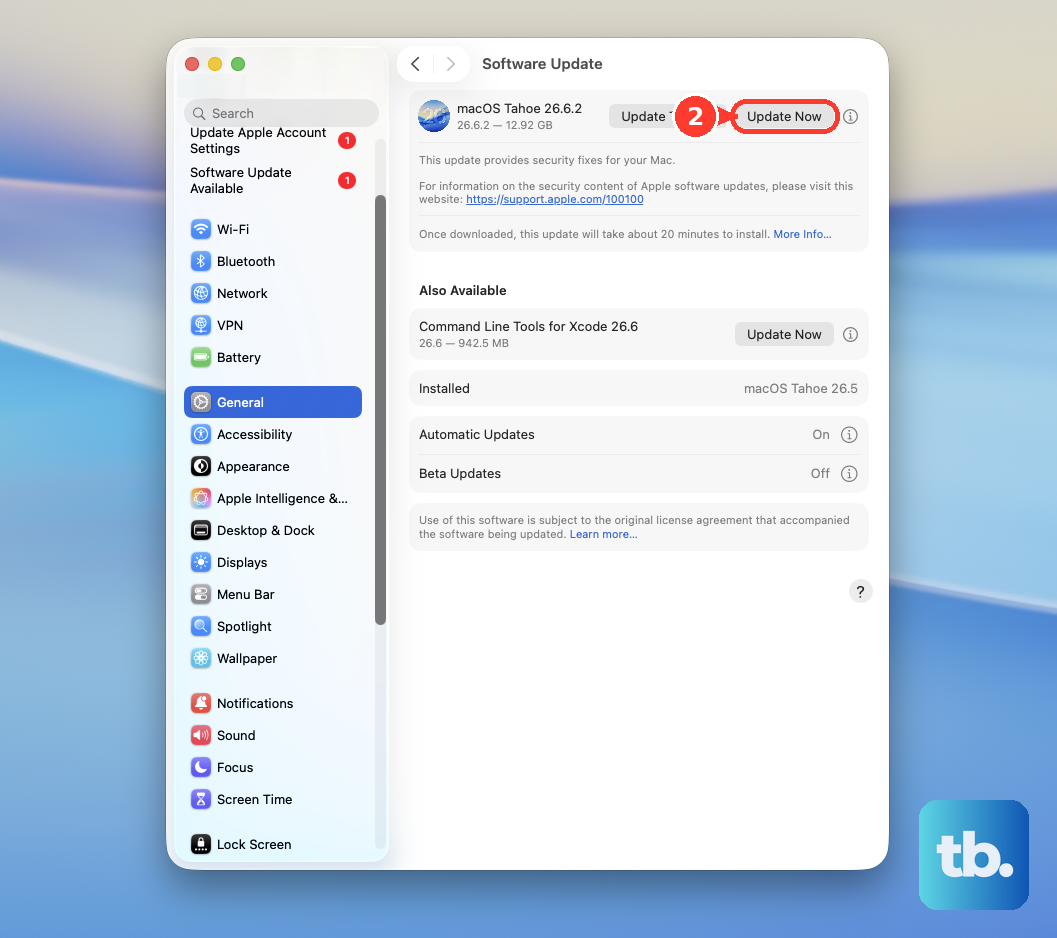
If an update is available, install it. These updates often include optimizations specifically for Apple silicon chips that can resolve unexplained slowdowns.
Simplify the Visual Interface
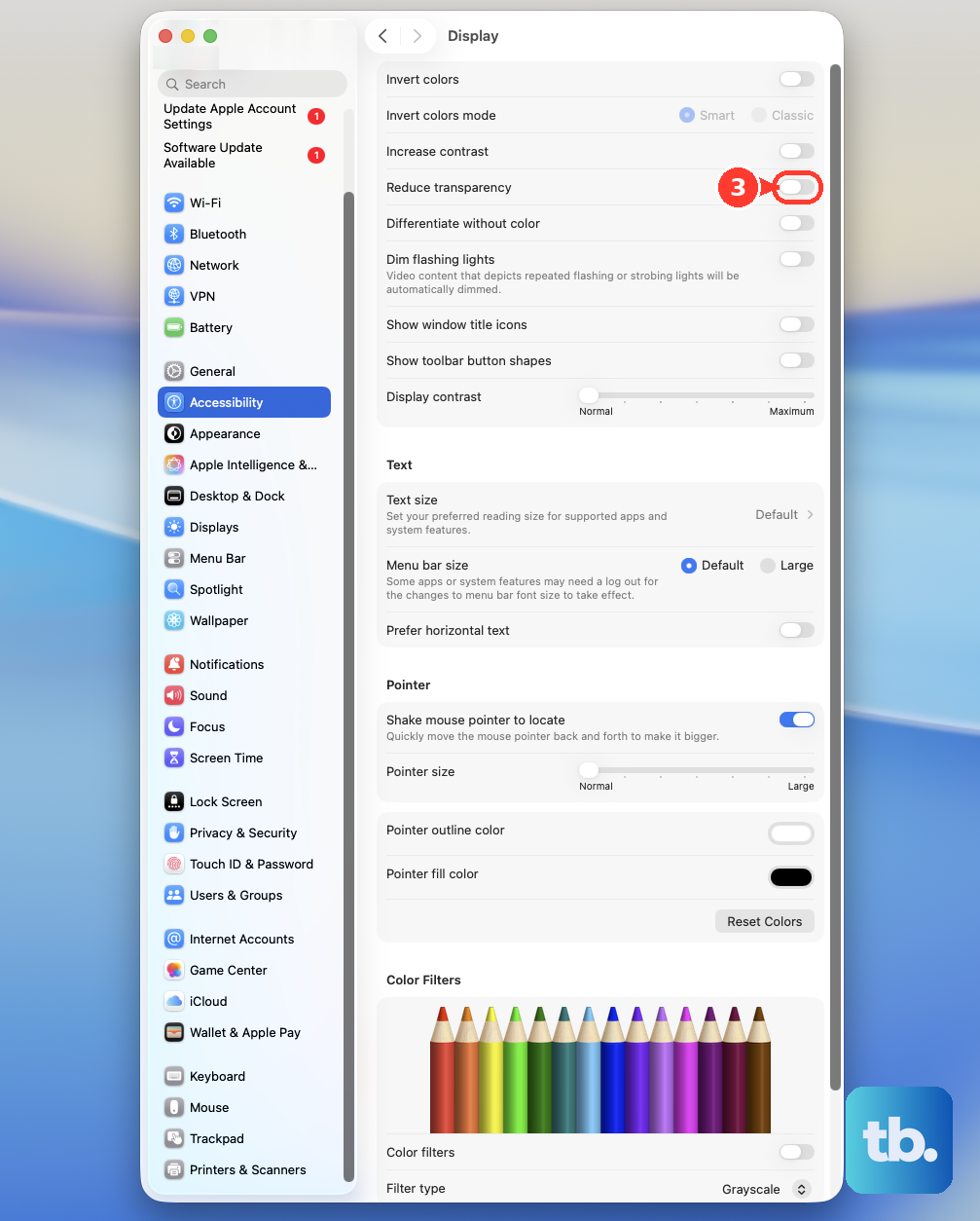
Fancy animations and transparency effects use GPU resources. You can tone them down to free up power for your actual work. Head to System Settings > Accessibility > Display.
Turn on Reduce motion and Reduce transparency. This will make window animations snappier and replace see-through menus with solid colors, which can provide a noticeable responsiveness boost.
Manage Your Browser Tabs and Extensions
Modern web browsers are memory-hungry. Having dozens of tabs open, especially across multiple windows, can consume gigabytes of your Mac Mini's unified memory. Make a habit of closing tabs you're done with.
Also, check your browser extensions. Poorly coded extensions can massively slow down page loading and overall browser performance. Disable any you don't actively use.
Let Spotlight Finish Its Job
If you just installed a big update or added a new external drive, Spotlight might be re-indexing your files. This process, handled by "mdworker" processes, can temporarily slow things down.
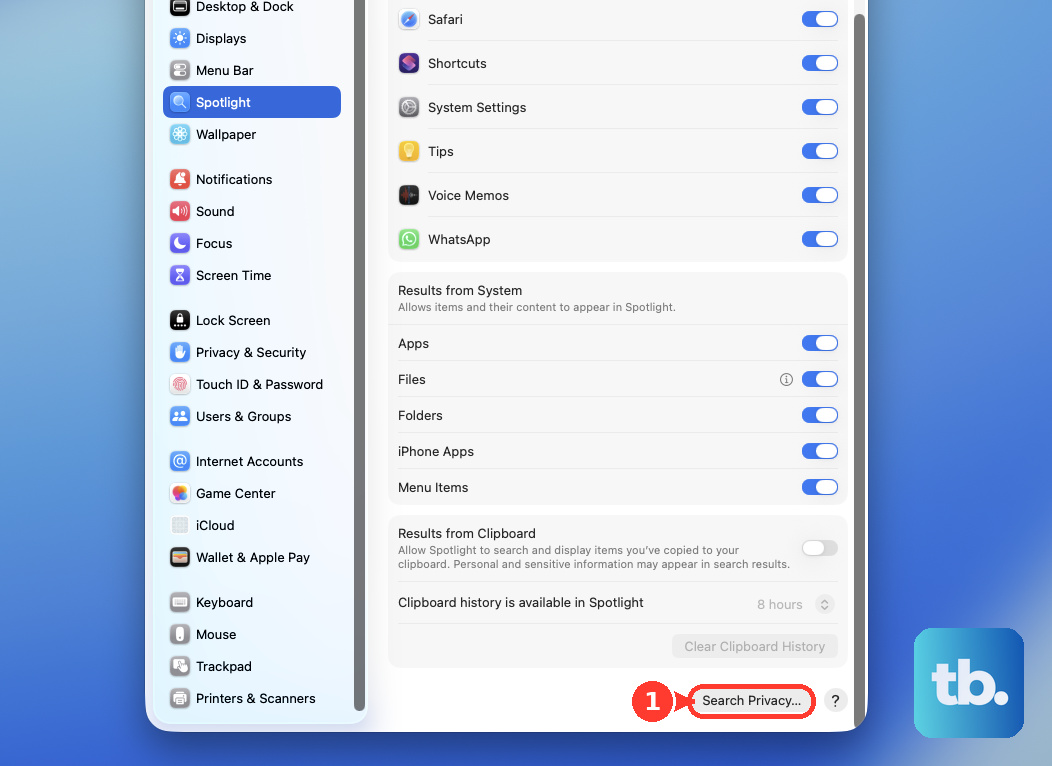
You can check if it's active in Activity Monitor. The best approach is usually to just let it finish overnight. If it seems stuck, you can rebuild the index by adding your entire drive to the privacy list in System Settings > Spotlight > Privacy, then removing it.
Check Your Port Connections
This is a specific tip for the Mac Mini M4. The front USB-C ports are USB 3 speed only, while the rear ports are full Thunderbolt.
If you have a high-speed external drive connected to a front port, you might be bottlenecking its performance, which can make file operations feel slow. For best speed, connect fast storage devices to the Thunderbolt ports on the back.
Review Background App Activity
Some apps, like cloud sync services (Dropbox, Google Drive), photo libraries, or messaging apps, work continuously in the background. Open the apps themselves and check their settings for sync or update frequency.
Changing a sync service from "continuous" to "every hour" or pausing a large photo upload can immediately free up system resources for the task at hand.