
When your Mac Mini M4 Pro won't connect to your WiFi, keeps dropping the signal, or shows that frustrating "No Internet Connection" status, it can stop your work cold. The fixes below are tailored for the M4 Pro model running macOS Tahoe.
Toggle WiFi Off and On
Click the WiFi icon in your menu bar and choose "Turn Wi-Fi Off." Wait about ten seconds, then click the icon again and turn it back on. This simple refresh of the wireless radio can clear out a lot of temporary glitches.
I'd start with this one every time. It's quick and often solves the problem right away, especially if the issue just started.
Forget and Rejoin Your Network
Go to System Settings > Wi-Fi. Click the i (info) button next to the network name you're trying to use. Click Forget This Network and confirm.
After that, select the network from the list again and re-enter the password. This creates a brand new connection profile, which can fix problems caused by a corrupted or outdated saved configuration.
Renew Your DHCP Lease
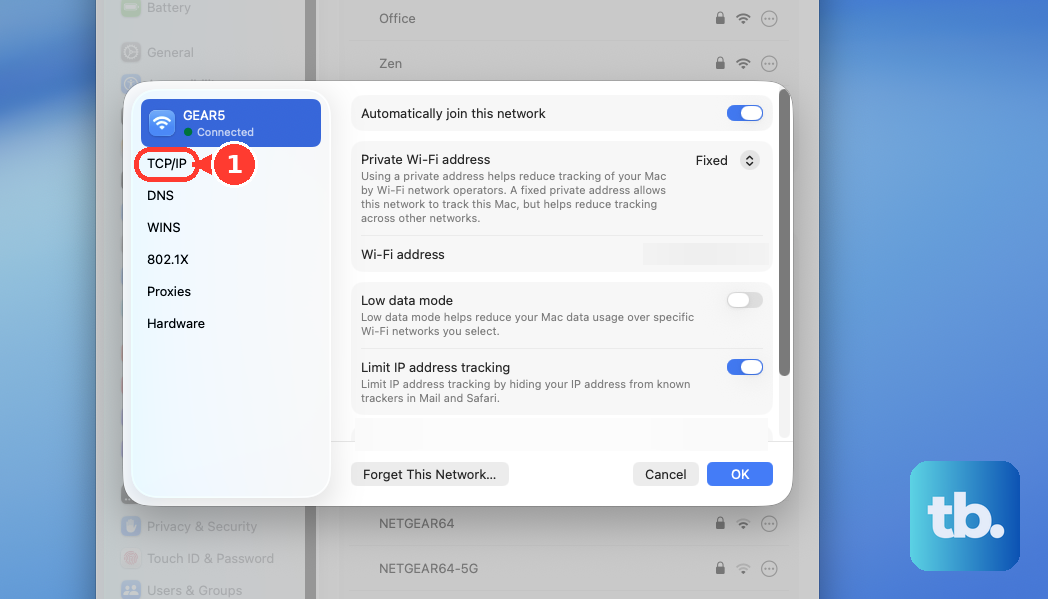
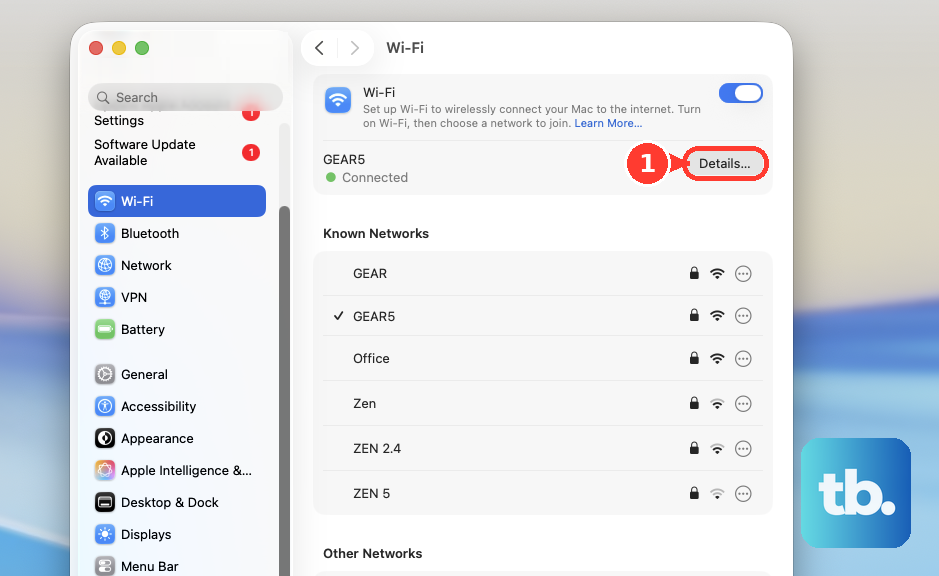
If you're connected to WiFi but have no internet, this is a great next step. In System Settings > Wi-Fi, click the i button for your connected network.
Go to the TCP/IP tab and click the Renew DHCP Lease button. This asks your router for a fresh IP address, which can resolve conflicts that block internet access.
Restart Your Mac Mini M4 Pro
Click the Apple menu > Restart. A full restart reloads all network drivers and clears system caches that might be interfering.
Given the M4 Pro's noted heat output, a quick restart can also help if thermal management was briefly affecting system stability. It's a foundational fix for many intermittent issues.
Change Your DNS Servers
Sometimes the WiFi connection is fine, but the DNS servers your Mac is using to translate website names are slow or down. In your WiFi network's details, go to the DNS tab.
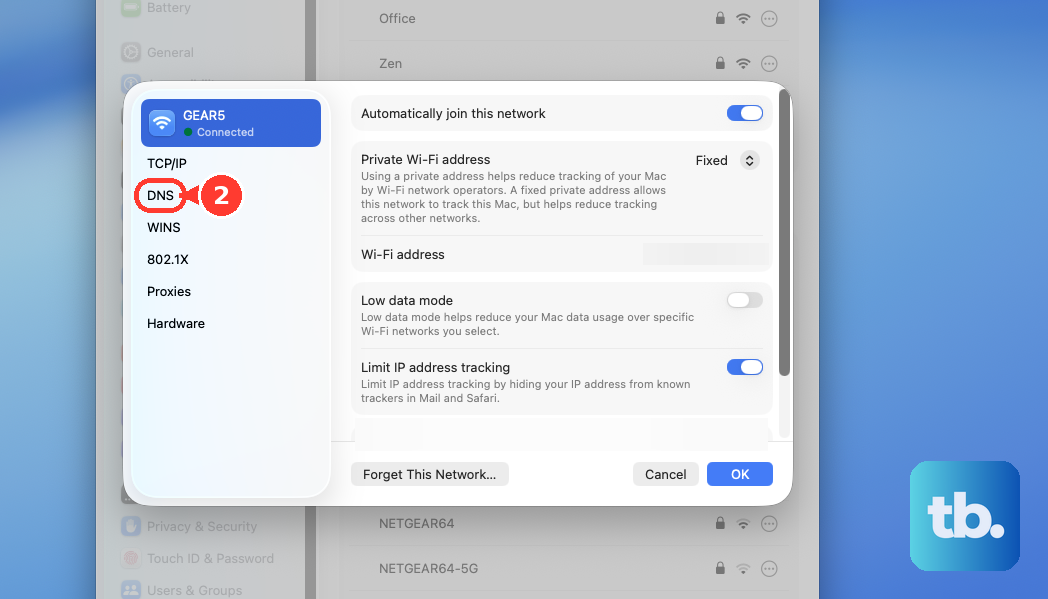
Remove any existing servers listed and add new ones. Reliable public options are 1.1.1.1 (Cloudflare) or 8.8.8.8 and 8.8.4.4 (Google DNS). Click OK and try browsing again.
Create a New Network Location
This is a powerful reset for all network settings without deleting files. Open System Settings > Network. Click the three-dot menu button next to your network services.
Select Locations > Edit Locations. Click the + button, name the new location (like "Fresh Start"), and click Done. Finally, select your new location from the menu to activate it.
Update macOS
Apple frequently releases updates that include fixes for wireless connectivity. Go to System Settings > General > Software Update to check for and install any available updates for macOS Tahoe.
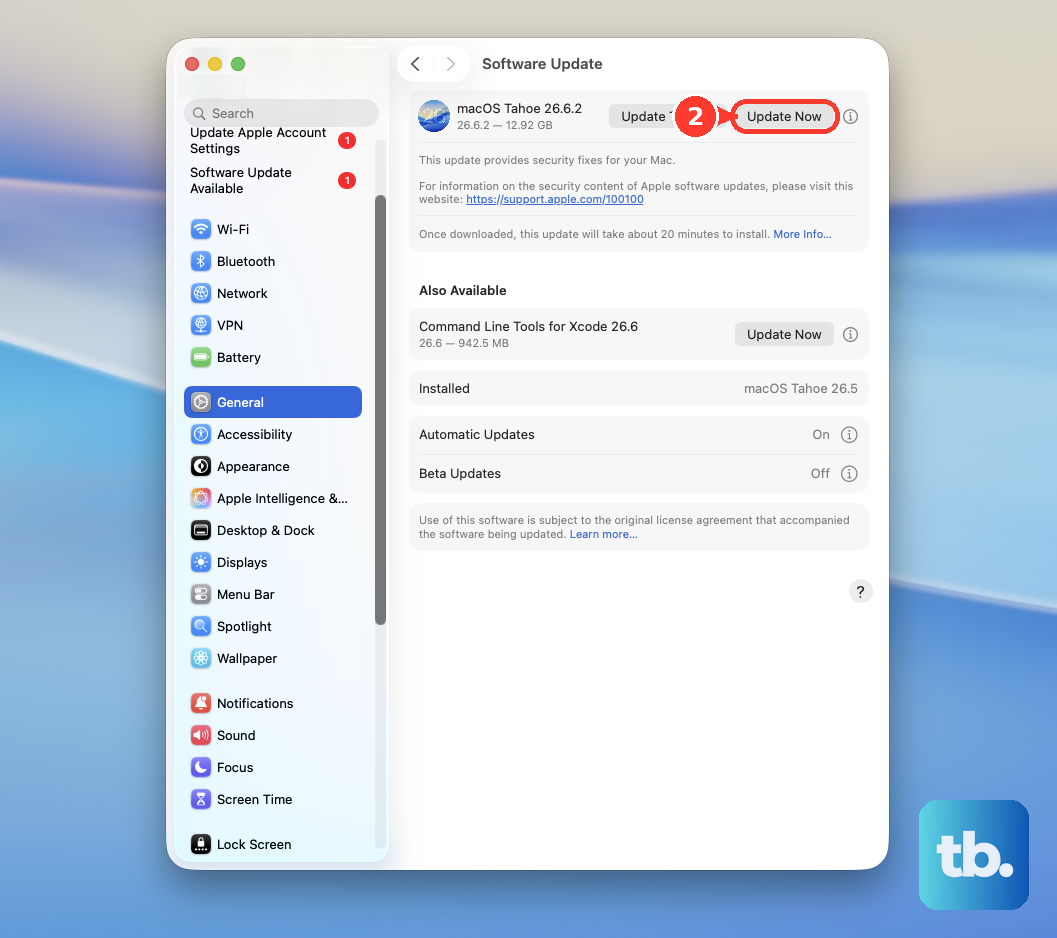
Keeping your system updated is one of the best ways to ensure known bugs, including potential WiFi issues related to the M4 Pro chipset or Thunderbolt 5 ports, are resolved.
Check for Physical and Interference Issues
Hold down the Option key on your keyboard and click the WiFi menu bar icon. Look at the RSSI value; a number closer to zero (like -40) is strong, while anything below -70 is weak.
Since the Mac Mini is often placed on a desk, make sure it's not completely surrounded by metal objects or tucked directly behind a monitor. Also, if you're using a Thunderbolt 5 dock, try connecting directly to your router for testing, as dock compatibility can vary and sometimes affect connectivity.
Reset Network Settings More Deeply
If other steps haven't worked, you can remove the system's network preference files. Open a Finder window, press Command + Shift + G, and paste this path: /Library/Preferences/SystemConfiguration/.
Move the files com.apple.network.identification.plist, com.apple.wifi.message-tracer.plist, NetworkInterfaces.plist, and preferences.plist to your desktop (not Trash yet). Restart your Mac Mini. macOS will create fresh versions. If the problem is fixed, you can then delete the old files from your desktop.