
When your Mac Mini M4 Pro gets hot, you might hear the fan ramp up or notice performance slowing down as the system protects itself. The M4 Pro chip is more powerful than the standard M4, which naturally means it can generate more heat under heavy workloads. Here's how to identify the cause and cool things down.
Identify the Culprit in Activity Monitor
Open Activity Monitor from your Utilities folder and click the CPU tab. Click the "% CPU" column header to sort processes by their usage. A single app, like a video editor or a browser with too many tabs, might be stuck near 100% and generating all the heat. You can quit that process right from here.
Also check the Energy tab. Apple defines "Energy Impact" as a relative measure of the current energy consumption of an app, so a high value can help you spot software that may be contributing to heat or fan activity. I've seen cases where a single misbehaving browser tab or background process was the entire problem.
Manage Your Workload and Displays
The M4 Pro Mini can drive up to three external displays, which is a fantastic feature. However, pushing pixels to multiple high-resolution monitors, especially while editing video or 3D modeling, is a significant workload. If you're running hot, try disconnecting one display temporarily to see if it helps.
Be mindful of running several intensive apps at once. Final Cut Pro, Blender, and modern games will fully utilize the Pro chip's cores. Close applications you aren't actively using to free up system resources and reduce thermal load.
Update macOS and Your Apps
Go to System Settings > General > Software Update. Apple releases updates that often include optimizations for power management and thermal performance. Being on the latest version of macOS 26 Tahoe is a good first step.
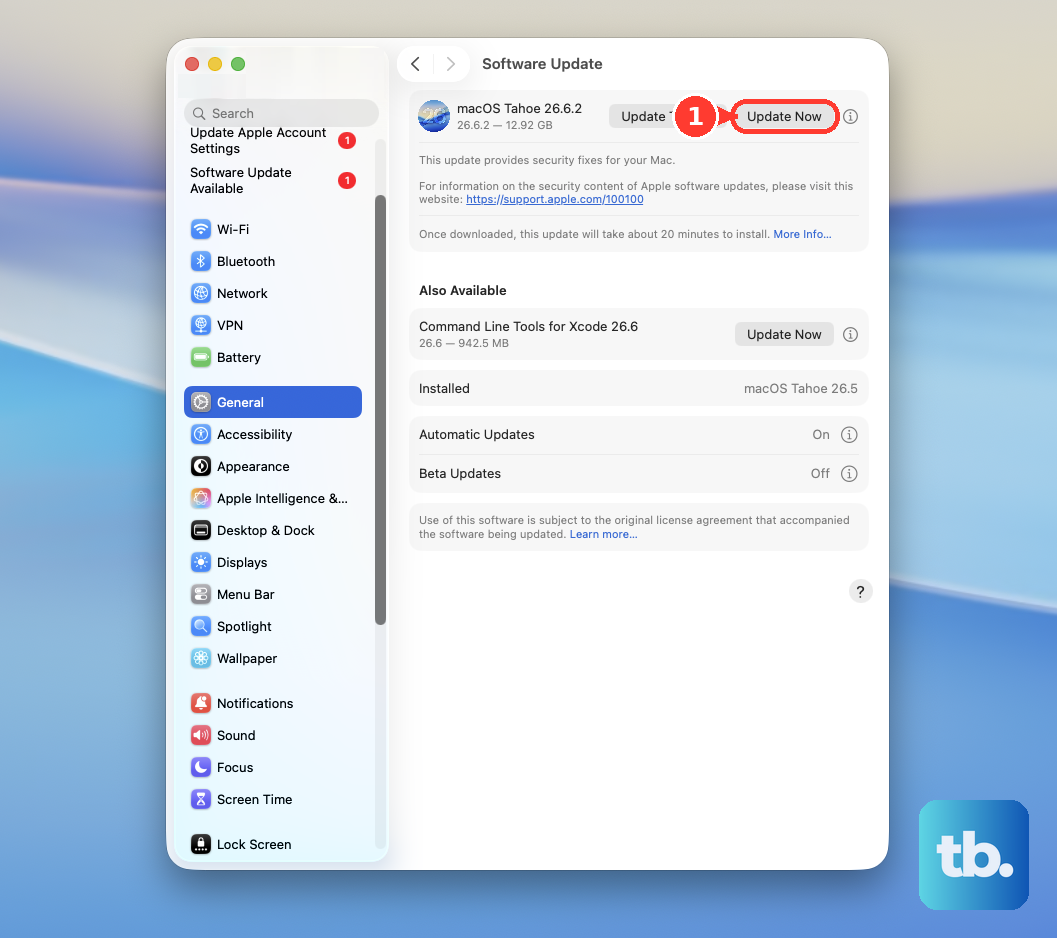
Also, check for updates to the specific apps that are running hot. Developers frequently patch bugs that cause excessive CPU usage. After a major macOS update, Spotlight will reindex your drives, which can cause hours of elevated CPU activity and warmth, this is normal and will pass.
Ensure the Mini Has Room to Breathe
While the Mac mini has a fan, it still needs clear airflow. Don't tuck it into a cramped media cabinet or stack items directly on top of it. Apple says to set up Mac mini on a hard, stable work surface with adequate air circulation under and around the computer.
Placing it on a hard, flat surface is best. If it's on a carpet or a shelf full of dust, you're insulating it. Giving it a little space is the easiest way to improve its natural cooling.
Check Your Thunderbolt 5 Peripherals
The M4 Pro Mac mini has three Thunderbolt 5 (USB-C) ports on the back, along with HDMI and Gigabit Ethernet. If you recently connected a new dock, hub, display, or drive and the heating started, try disconnecting it while you troubleshoot.
Run the Mini with just the power cable and your display connected for a while. If it stays cool, you can reconnect your other devices one by one to identify if a specific peripheral is the trigger.
Reset the Thermal Management System
For Apple Silicon Macs like yours, a full restart is the equivalent of resetting the older SMC. It clears out any temporary glitches in the power and thermal management systems. Click the Apple menu and select Restart.
If the system is unresponsive, you can force a restart. Press and hold the power button on the bottom of the Mini for about 10 seconds until it shuts off, then press it again to turn it back on.
Clean Out Any Dust Buildup
Dusty or smoky environments can let particles enter the Mac mini's ventilation openings, so keep the area around the computer clean. For cleaning, shut down the Mac mini, unplug all cords and cables, and wipe the exterior with a clean, soft, lint-free cloth; avoid getting moisture in openings and don't spray liquid directly on the computer.
Optimize Your Browser Choice
If your main workload is in a web browser, your choice matters. Chrome and some Chromium-based browsers are notorious for high CPU and energy use on macOS. Safari is deeply optimized for Apple silicon and typically runs much cooler.
Try using Safari for a day, especially if you keep dozens of tabs open. The difference in fan noise and case temperature can be surprisingly noticeable during long browsing sessions.
Adjust Your Environment and Expectations
Finally, consider the room's ambient temperature. If your office is particularly warm, the Mini has to work harder to dissipate heat. Improving room ventilation or lowering the thermostat a degree can help more than you might think.
Also, remember that some heat is normal. The M4 Pro is designed to deliver sustained performance, and getting warm under a heavy, prolonged workload is part of its operation. It's only a problem if it's consistently throttling performance or the fan is running at maximum speed during light tasks.