
When your Mac Mini M4 runs hot, you might hear the fan ramp up, notice performance slowing down, or feel excessive heat radiating from the aluminum enclosure. This is the system protecting its components, but it's not ideal for daily use.
Let's get it running cooler. The fixes here apply specifically to the compact, fan-cooled design of the M4 Mini.
Identify the Culprit in Activity Monitor
Your first stop should be Activity Monitor. You can find it in your Applications folder under Utilities, or just search for it with Spotlight.
Once open, click the CPU tab. Click the "% CPU" column header to sort processes from highest to lowest usage. An app or process stuck near the top is likely generating the heat.
Common offenders include web browsers with many tabs, video editing software, or game launchers. If you see one using a huge percentage, you can select it and click the stop (X) button in the toolbar to force quit it.
Manage Your Apps and Browser Tabs
The M4 chip is powerful, but sustained heavy workloads will make any small computer warm. If you're doing video encoding, 3D rendering, or compiling code, expect some fan noise.
For general overheating, look at your everyday apps. Having dozens of browser tabs open, especially ones playing video or running complex web apps, is a major source of CPU load. Try closing tabs you don't need.
Also, check for apps running in the background. Look at the menu bar for any apps you thought you closed, and properly quit applications you're finished with instead of just closing their windows.
Install the Latest macOS Updates
Apple frequently releases updates that improve power management and fix bugs causing excessive CPU usage. It's a simple fix that often gets overlooked.
Go to System Settings > General > Software Update. If an update is available, install it. After a major update, like to macOS 26 Tahoe, your Mac may run warm for a while as Spotlight reindexes files and photos.
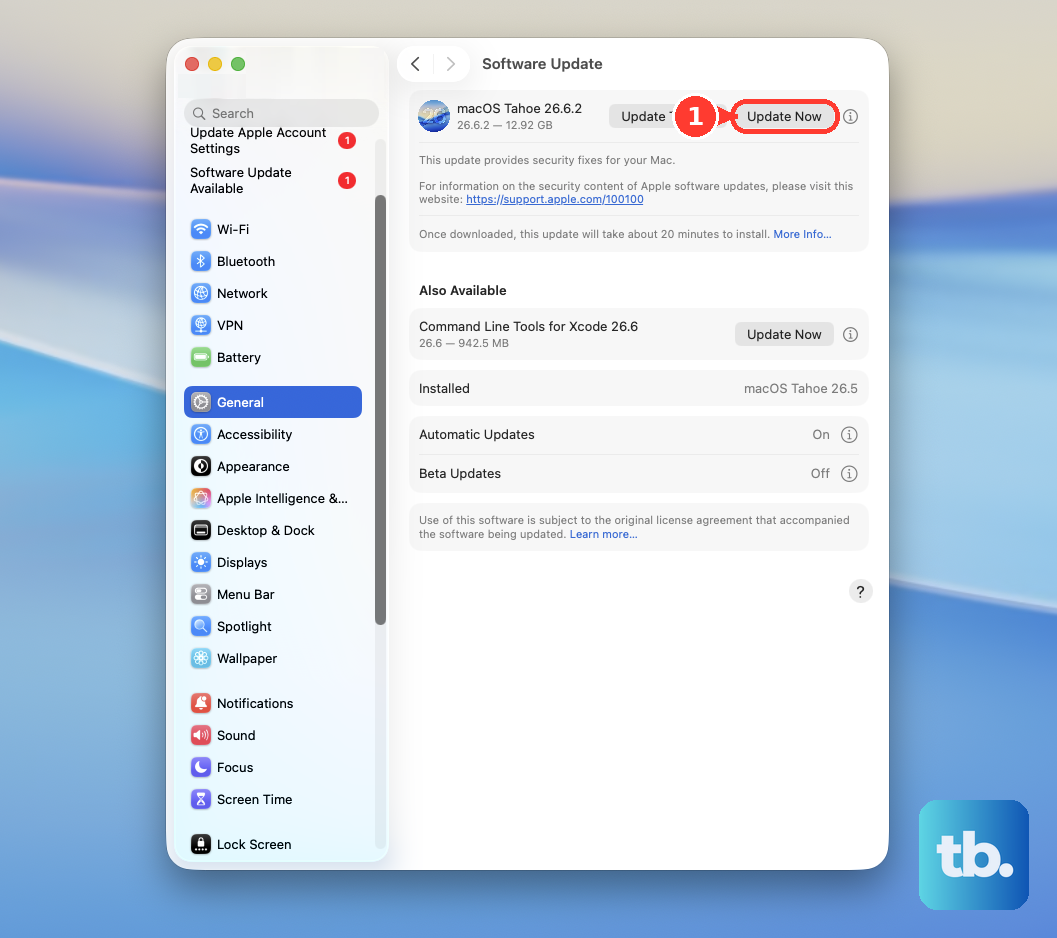
This process can take a few hours. It's best to just let it finish overnight while plugged in and on a hard surface.
Give Your Mini Room to Breathe
The Mac Mini M4 pulls in cool air from the bottom and exhausts it out the back. This design means its placement is critical. Never put it inside a cabinet, on a thick carpet, or directly against a wall.
Leave at least a few inches of clearance on all sides, especially at the back. Placing it on a hard, flat desk is perfect. Some users put small rubber feet or a stand under it to improve the bottom airflow, which can help a bit.
Also, make sure the area around it isn't already hot. Don't stack other electronics, like a router or external drive, directly on top of it or right next to the vents.
Reset the System Management Controller
On Apple Silicon Macs like the M4 Mini, the functions of the old SMC are handled by the M4 chip itself. A full restart effectively resets the thermal management system.
Click the Apple menu and choose Restart. If your Mac is unresponsive, you'll need to force a restart. For the Mac Mini M4, the power button is on the bottom edge.
Press and hold that button for a full 10 seconds until the unit powers off. Wait a moment, then press it again briefly to turn it back on. This can clear any temporary glitches affecting fan control.
Clean Out the Dust
Over time, dust will get sucked into the intake on the bottom of the Mini. This buildup acts as insulation and restricts airflow, making the fan work harder.
Power down and unplug your Mini. Carefully tip it to the side and use a can of compressed air to blow short bursts into the bottom grille and the rear vent. I'd avoid using a vacuum, as it can create static.
Do this every 6 to 12 months, especially if you have pets or your room is dusty. It makes a noticeable difference in long-term thermals.
Check Your Peripheral Connections
This is a Mini-specific tip. The front USB-C ports on the M4 Mini are USB 3 speed only, not Thunderbolt. The high-speed Thunderbolt ports are on the back.
If you have a very fast external drive or a high-resolution display, connect it to a Thunderbolt port on the rear. Using a bandwidth-intensive device on a front port could potentially cause more chipset activity and heat.
Also, ensure all your external devices are working properly. A faulty external drive or dock can sometimes cause system instability and increased CPU load.
Optimize Your Monitor and Settings
Since the Mini has no built-in display, your external monitor is a factor. Driving a very high-resolution display, like a 5K or 6K monitor, requires more graphics power from the M4 chip.
If you're running hot during general use, see if reducing the display's resolution or refresh rate in System Settings > Displays helps. Also, avoid using overly dynamic desktop wallpapers or screen savers that use significant GPU power.
In System Settings > Battery (yes, even for a desktop), you can set the display to turn off after a shorter period of inactivity. This saves energy and reduces heat when you're away from your desk.
Consider Your Work Environment and Browser
Is the room itself warm? Ambient temperature has a direct impact. If your office is hot, your Mac Mini will have a harder time staying cool. Improving room ventilation or using air conditioning can help more than any software fix.
Finally, your choice of web browser matters. Chrome is notoriously heavy on macOS. Safari is deeply optimized for Apple silicon and uses far less energy. If you do a lot of browsing, try Safari for a day and see if the fan stays quieter.
For Intel-only apps running under Rosetta, they will use more power and generate more heat than native Apple silicon apps. Check with developers for M4-native updates if you rely on specific older software.