
When your Mac Mini M4 suddenly has no sound, it can be frustrating, especially since you're relying on external speakers or a monitor. The issue is almost always a software setting or a minor glitch that you can fix yourself.
A browser based left and right speaker test helps narrow this down fast. If test tones play clearly, the speakers work and the problem lives in an app or setting.
Check the Menu Bar Volume
First, look at the sound icon in the top-right menu bar. If you see a slash through the speaker, your system is muted. Click the icon and drag the volume slider up. You can also press the volume up key on your connected keyboard to make sure it's not set to zero.
Select the Correct Output Device
Go to System Settings > Sound > Output. Your Mac Mini might be trying to send audio to a device that isn't there anymore, like a disconnected Bluetooth speaker or an HDMI display you've unplugged. Select "Mac Mini Speakers" or your connected external speakers from the list.
Restart Your Mac Mini
Click the Apple menu > Restart. A simple restart clears out temporary software bugs that can stop the audio drivers from working, especially if the sound disappeared after the computer woke from sleep. It's the most reliable first step.
Reset the Core Audio Process
Open the Terminal app from your Utilities folder. Type the command sudo killall coreaudiod and press Return. You'll need to enter your administrator password. This command restarts the background audio service, and sound typically returns within a few seconds without a full reboot.
Check the App You're Using
The problem might be isolated to one program. Check the volume slider inside the specific app, like Safari, Music, or Zoom. Also, look in System Settings > Sound to see if "Play sound effects through" is set to a different device than your main output.
Inspect Your Audio Connections
Since the Mac Mini has no built-in speakers, check the cable connecting it to your external speakers or monitor. Try unplugging and firmly re-seating the cable into the correct port on the back. If you're using the front USB-C ports, remember they are USB 3 only, not Thunderbolt, which shouldn't affect audio but is good to know.
Disconnect Bluetooth Audio Devices
If you've paired headphones or a speaker before, your Mac might still be connected to them. Go to System Settings > Bluetooth, find any audio devices, and click the "Disconnect" button next to them. The aluminum enclosure can sometimes shorten Bluetooth range, causing a spotty connection that hijacks your audio.
Update macOS
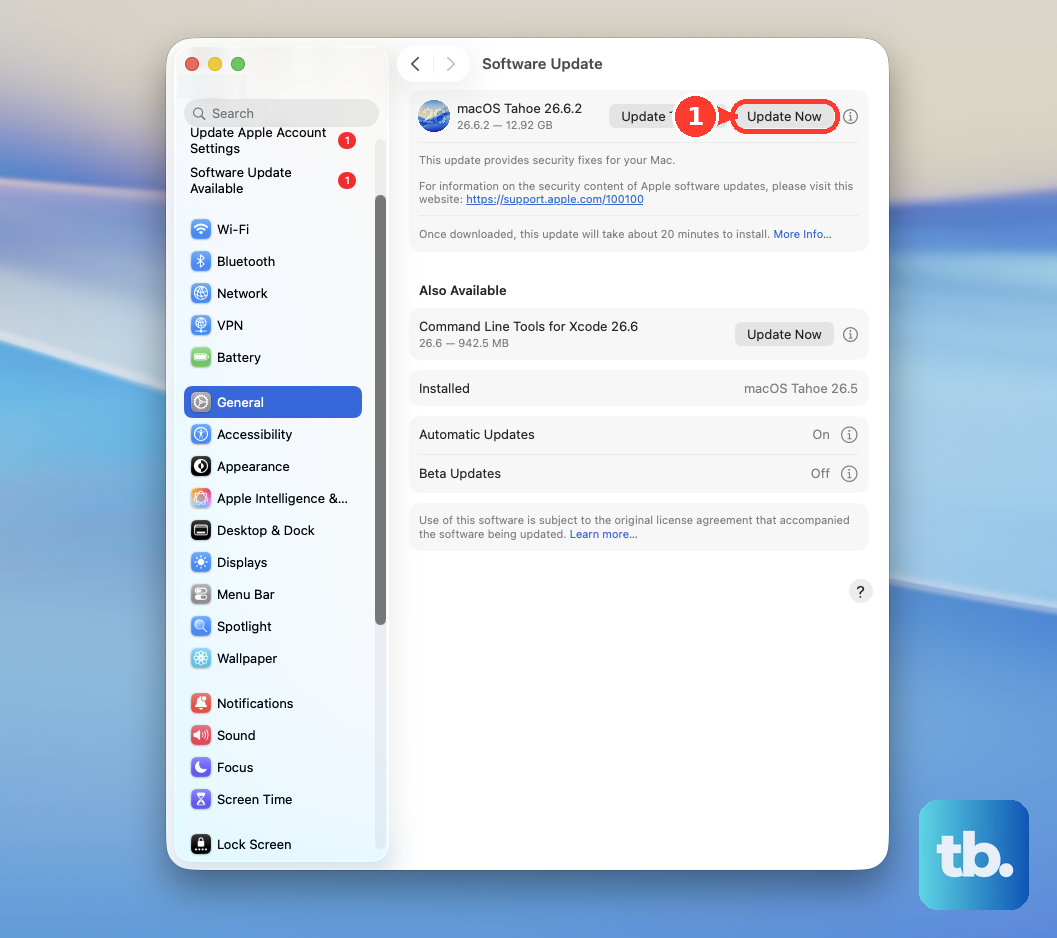
Head to System Settings > General > Software Update. Apple frequently releases patches for audio drivers and system bugs. Ensuring you have the latest version of macOS 26 Tahoe installed can resolve sound issues that appeared after a recent update or out of nowhere.
Force Restart the Mac Mini
If the system is unresponsive, you can force a restart. The power button is located on the bottom of the unit, which can be a bit tricky to reach. Press and hold it for about 10 seconds until the Mac Mini shuts off, then press it again to turn it back on. This can clear more stubborn system states.