
A slow Lenovo Yoga 9i 14 can feel like a betrayal, especially when you bought it for its premium performance. That sleek 2-in-1 design shouldn't be bogged down by lag. The good news is that most slowdowns are caused by software clutter or settings, and you can usually fix them yourself in a few minutes.
Restart Your Yoga 9i
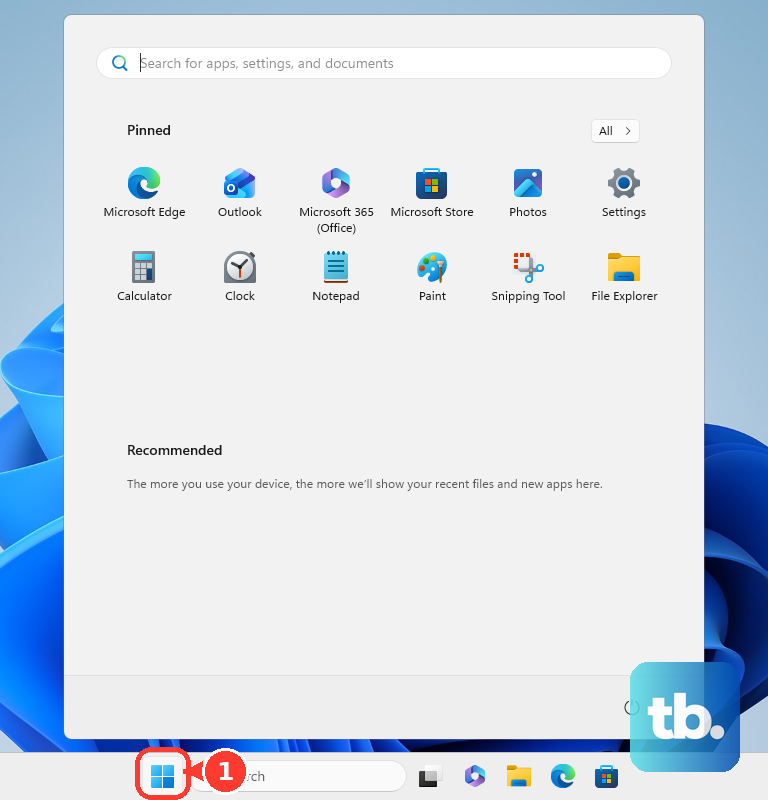
If you mostly use sleep mode by closing the lid, your laptop accumulates background processes over weeks. Click Start > Power > Restart. Don't just choose Shut down, as Windows 11's Fast Startup feature doesn't fully clear the system memory. A full restart is the quickest way to clear out temporary slowdowns.
Check Task Manager for Resource Hogs
Press Ctrl + Shift + Esc to open Task Manager. Click the CPU, Memory, or Disk column headers to sort by what's being used the most. Look for any single process consistently using a high percentage. Right-click on non-essential hogs and select End task. Common culprits on the Yoga 9i can be background updates for the Lenovo Vantage software or too many Chrome tabs.
Manage Startup Programs in Lenovo Vantage
Open the Lenovo Vantage app, which is central for managing your Yoga. Navigate to the Hardware Settings > Power section. Here, you can adjust performance modes and also review what's launching at startup. I'd also check the standard Windows Startup Apps tab in Task Manager to disable programs like Spotify or Discord that you don't need immediately on boot.
Free Up Storage Space
The Yoga 9i 14 often comes with a fast but not enormous SSD. If it's over 85% full, performance will suffer. Go to Settings > System > Storage and turn on Storage Sense to automate cleanup. Click Temporary files to manually remove update leftovers and other junk. Aim to keep at least 20% of your drive free for optimal speed.
Run a Full Malware Scan
Open Windows Security from the Start menu. Go to Virus & threat protection and run a Full scan. While less common on new devices, malware can still sneak in and consume resources in the background, causing unexplained sluggishness. This scan is thorough and worth doing if you notice odd behavior.
Update Everything: Windows, Drivers, and BIOS
First, go to Settings > Windows Update and install all available updates. Next, open Lenovo Vantage and check the Updates section. This app handles driver and critical firmware updates tailored for your specific Yoga model, including audio and hinge-related drivers. For major system updates, you can use the Novo button, a small pinhole on the side, to boot into a recovery menu.
Set Your Power Plan to Best Performance
Your Yoga 9i might be throttling itself to save battery. Plug in your laptop, then go to Settings > System > Power & battery. Find the Power mode dropdown and set it to Best performance. For tasks like video editing or gaming, you can also access a more aggressive performance mode directly within the Lenovo Vantage app.
Disable Unnecessary Visual Effects
Search for "Adjust the appearance and performance of Windows" in the Start menu. In the Visual Effects tab, select Adjust for best performance to turn off all animations. If that's too stark, you can manually disable just a few, like Animate windows when minimizing and maximizing and Transparency effects. This frees up GPU resources for your actual work.
Check for Background Glitches
The Yoga 9i's unique features can sometimes cause hiccups. If your stylus has died completely, it might fail to re-pair properly, causing background Bluetooth searches that eat CPU. Re-pair it fully. Also, try disabling the auto-rotation sensor if you notice lag when flipping the hinge by going to Settings > System > Display and toggling off auto-rotation.
Reset or Refresh Your PC
If all else fails and the slowness feels systemic, a refresh can help. Go to Settings > System > Recovery. You have two good options here. Reset this PC lets you choose "Keep my files" to reinstall Windows while keeping your documents. For a less nuclear option, try Go back to an earlier restore point if you created one before the problems started.