
When your Lenovo Yoga 9i 14 won't charge, it's a frustrating roadblock. The issue could be with the charger itself, the laptop's USB-C port, a software setting, or the battery. Let's walk through the most effective fixes to get you powered up again.
Inspect Your Charger and Cable
Start with the power adapter and cable. Check the USB-C cable for any fraying, kinks, or damage to the connectors. Try plugging the adapter into a different wall outlet to rule out a faulty socket.
Look for an LED light on the power brick, if yours has one. It should be lit when connected to AC power. I'd also recommend trying a different USB-C charger if you have one, ensuring it provides at least 65W for reliable charging with the Yoga 9i 14.
Perform a Power Reset
This is often the quickest fix. Shut down your laptop completely. Unplug the charger and disconnect any peripherals, including the stylus from its slot.
Next, press and hold the power button for a full 60 seconds. This drains any residual power and resets the hardware power controller. Afterward, plug the charger back in and try turning it on.
Check for a Software Charge Limit
Lenovo includes a feature called Conservation Mode in its Vantage software. It's designed to extend battery lifespan by limiting the maximum charge to around 60%.
Open the Lenovo Vantage app and navigate to the Power or Hardware Settings section. If Conservation Mode is enabled, your laptop will stop charging before reaching 100%. Toggle it off if you need a full charge for the day.
Update Drivers via Lenovo Vantage
Outdated system drivers can cause power management glitches. The Lenovo Vantage app is your central hub for this. Open it and check for updates in the System Update section.
Install any available updates, especially for the chipset, power management, or BIOS. These updates frequently include fixes for charging and battery detection issues.
Clean the USB-C Port Carefully
Lint and pocket debris can easily get packed into the slim USB-C port, preventing the charger from seating properly. Power off the laptop and use a can of compressed air to blow out the port.
For stubborn debris, you can gently use a wooden or plastic toothpick to scrape around the edges of the center tongue. Be extremely careful not to bend or scratch the metal contacts inside.
Reinstall the Battery Driver in Windows
Windows might be using a corrupted driver for the battery. Press the Windows key + X and select Device Manager. Expand the Batteries category.
Right-click on Microsoft ACPI-Compliant Control Method Battery and select Uninstall device. Restart your laptop. Windows will automatically reinstall a fresh driver upon reboot, which often clears up charging detection problems.
Generate a Battery Health Report
It's useful to check the underlying health of your battery. Open Command Prompt as an administrator and type the command: powercfg /batteryreport.
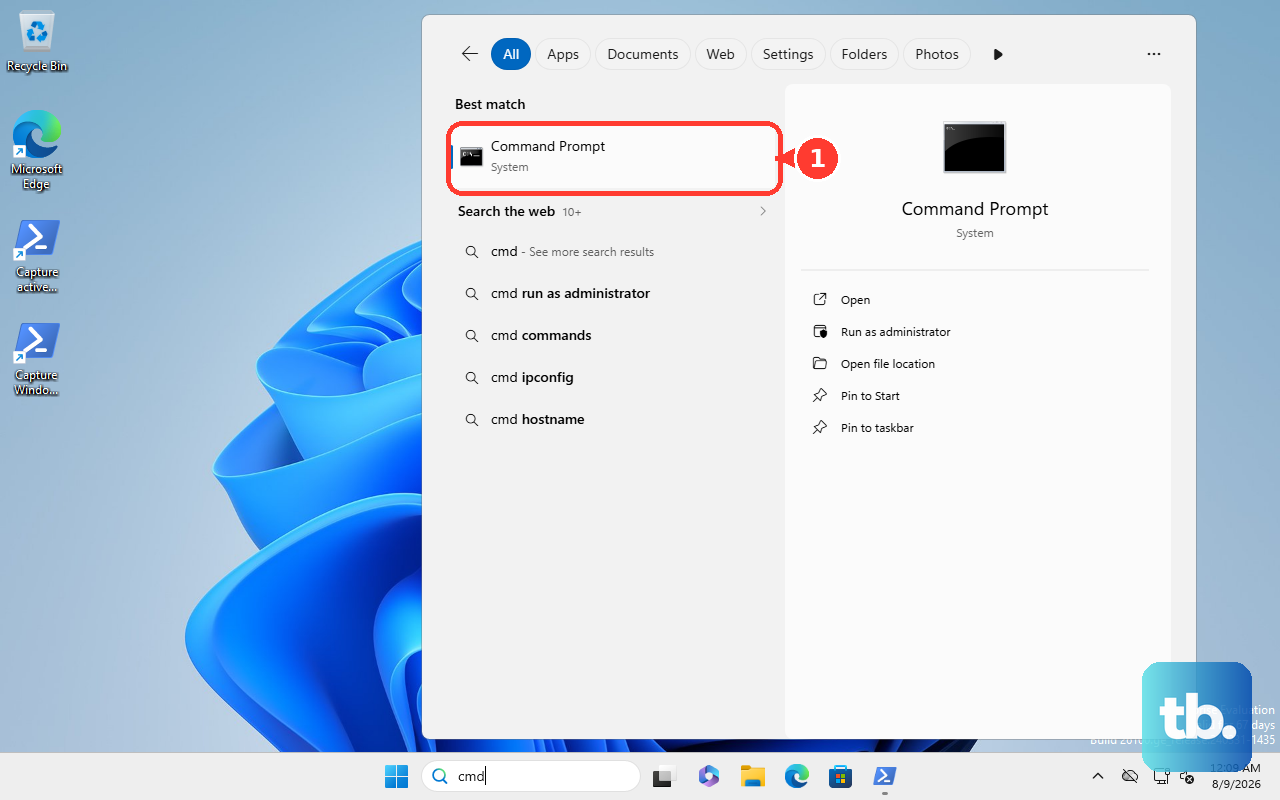
This generates an HTML file on your drive. Open it to see your battery's design capacity versus its current full charge capacity. A significant drop in capacity can explain why it's not holding a charge well.
Check BIOS Settings with the Novo Button
Your Yoga has a small pinhole button, often on the side, called the Novo button. Turn the laptop off, then press this button with a paperclip to boot into a recovery menu.
From here, select BIOS Setup. Once in the BIOS, look for any power-related settings. Avoid changing things you don't understand, but you can check if the system correctly recognizes the AC adapter here.
Update the System BIOS
A BIOS update can resolve deep-seated hardware communication issues, including charging. The safest way to do this is through the Lenovo Vantage app, which will fetch the correct file for your exact model.
If Vantage doesn't show an update, you can manually download the latest BIOS from Lenovo's official support site. Follow their instructions to the letter, as an interrupted BIOS update can cause serious problems.