
When the keyboard on your Lenovo Yoga 9i 14 stops responding, it can feel like you're locked out of your own computer. The keys might not register any presses, or perhaps only a few are acting up. Here are the most effective ways to get it working again.
To separate a hardware fault from a driver or settings issue, try a keyboard tester. What registers on screen tells you exactly where to focus.
Force Restart the Laptop
This is almost always the first thing I'd try. A full power cycle can clear temporary software glitches that are blocking keyboard input. Hold down the power button for about 10 seconds until the laptop completely powers off, then press it again to turn it back on.
Check for Physical Issues
Since the Yoga 9i is a convertible, crumbs or debris can easily get trapped under the keys when it's in tablet or tent mode. Gently turn the laptop on its side and tap the back to dislodge anything loose. A can of compressed air is great for blowing out particles from between the keys.
Disable Windows Filter Keys
An accidentally enabled accessibility setting can make your keyboard seem broken. Go to Settings > Accessibility > Keyboard and make sure the toggle for Filter Keys is switched off. While you're there, check that Sticky keys is also disabled, as it can cause similar confusion.
Update or Reinstall the Keyboard Driver
Outdated or corrupted drivers are a common culprit. Press the Windows key + X and select Device Manager. Expand the Keyboards section, right-click on HID Keyboard Device or the Lenovo-specific entry, and choose Update driver.
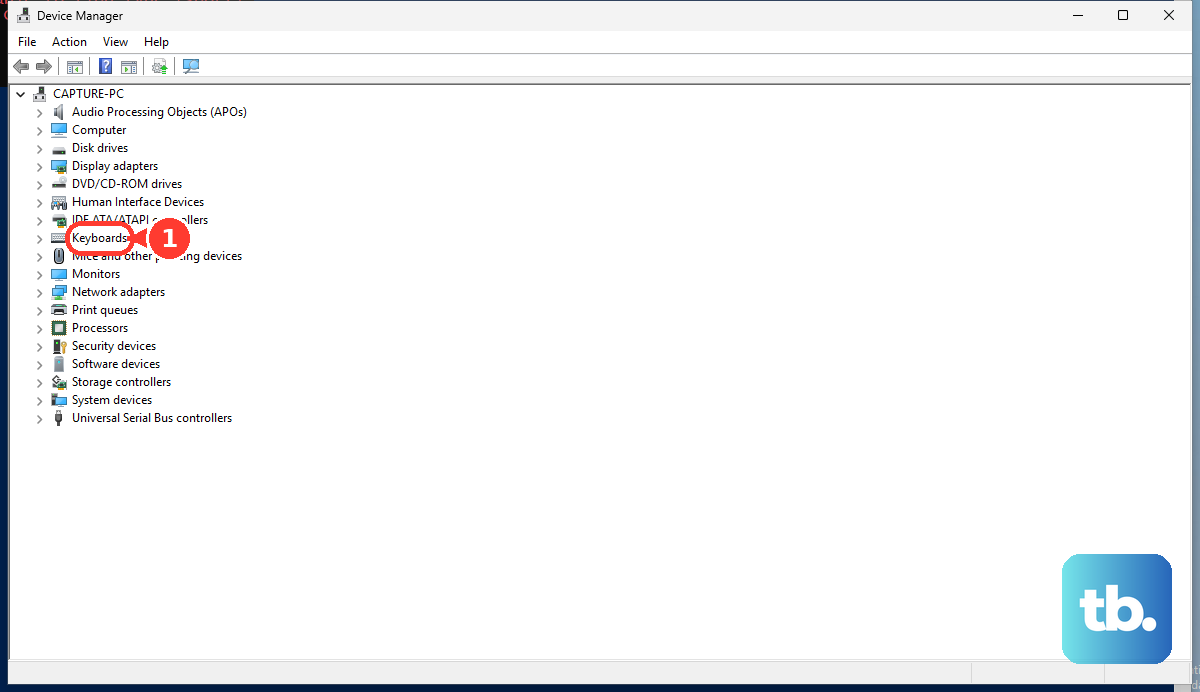
If that doesn't help, try uninstalling the device from the same menu. Restart your laptop, and Windows will automatically reinstall a fresh, default driver. This often resolves conflicts.
Verify Your Keyboard Layout and Language
If your keys are typing the wrong characters, your input language might have switched. Click the language abbreviation (like ENG) in your taskbar's system tray to see which layout is active. You can manage them in Settings > Time & language > Language & region.
Remove any keyboard layouts you don't use to prevent accidental switching with the Windows key + Space shortcut.
Use Lenovo Vantage for System Updates
Don't just rely on Windows Update. Open the Lenovo Vantage app, which is pre-installed on your Yoga 9i, and check for any available system updates or driver updates specifically for your model. Lenovo often releases firmware fixes for hardware components like the keyboard.
Boot into Safe Mode
If the keyboard works fine in Safe Mode, you know a third-party application is causing the problem. To get into Safe Mode, go to Settings > System > Recovery and click Restart now next to Advanced startup.
After the reboot, choose Troubleshoot > Advanced options > Startup Settings > Restart. Press 4 or F4 to enable Safe Mode. Once in, you can uninstall any recently added software.
Test with an External Keyboard
Plug in a USB keyboard or pair a Bluetooth one. If the external keyboard works perfectly, it strongly suggests a hardware issue with your Yoga's internal keyboard. This could be a loose ribbon cable connection, which sometimes happens with the frequent hinge movement on a 2-in-1, or potential spill damage.
Run Lenovo's Hardware Diagnostics
Your laptop has a built-in diagnostic suite. Shut down the computer completely. To access it, you can press the Novo button, which is a tiny pinhole usually located on the left side. Use a paperclip to press it, then select Diagnostics from the menu that appears.
Alternatively, you can press F2 repeatedly as the laptop starts up to enter the BIOS setup, where you can often find diagnostic tools. Run the keyboard test to see if the hardware itself is being detected properly.