
When your Lenovo Yoga 9i 14 won't send a picture to your TV through the HDMI port, it's usually a quick settings or driver issue. Let's get that screen mirrored or extended.
Press Windows + P First
This is the fastest thing to try. Press the Windows + P keys together on your keyboard. A menu will pop up on the right side of your screen. Make sure it's not set to PC screen only. Choose Duplicate or Extend to send the signal to your TV.
Check the Cable and TV Input
Unplug the HDMI cable from both your laptop and the TV, then plug it back in firmly. I'd also try a different HDMI cable if you have one handy, as they can fail internally. On your TV, use the remote to cycle through the HDMI inputs (HDMI 1, HDMI 2, etc.) to make sure you're on the right one.
Restart Your Yoga While Connected
Leave the HDMI cable plugged into both devices. Go ahead and restart your Lenovo Yoga 9i. Sometimes the graphics drivers need a fresh boot with the external display already connected to properly detect and initialize it.
Update Your Display Drivers
Outdated graphics drivers are a common culprit. Open the Lenovo Vantage app, which is pre-installed on your laptop. Check for any system updates or driver updates there first, as they're certified for your model. You can also update them manually by right-clicking the Start menu, selecting Device Manager, expanding Display adapters, right-clicking your Intel Iris Xe or other GPU, and choosing Update driver.
Run the Display Detection
Go to Settings > System > Display. On this screen, click the Detect button. Windows will actively search for your TV. If it appears, click on its representation and scroll down to ensure the display resolution is set to something your TV supports, like 1920x1080 (1080p).
Try the USB-C Ports
The Yoga 9i 14 has USB-C ports that support DisplayPort Alt Mode. This means you can use a USB-C to HDMI adapter as an alternative. If the picture works through the adapter but not the dedicated HDMI port, it points to a potential issue with the physical HDMI port itself.
Disable and Re-enable the Graphics Driver
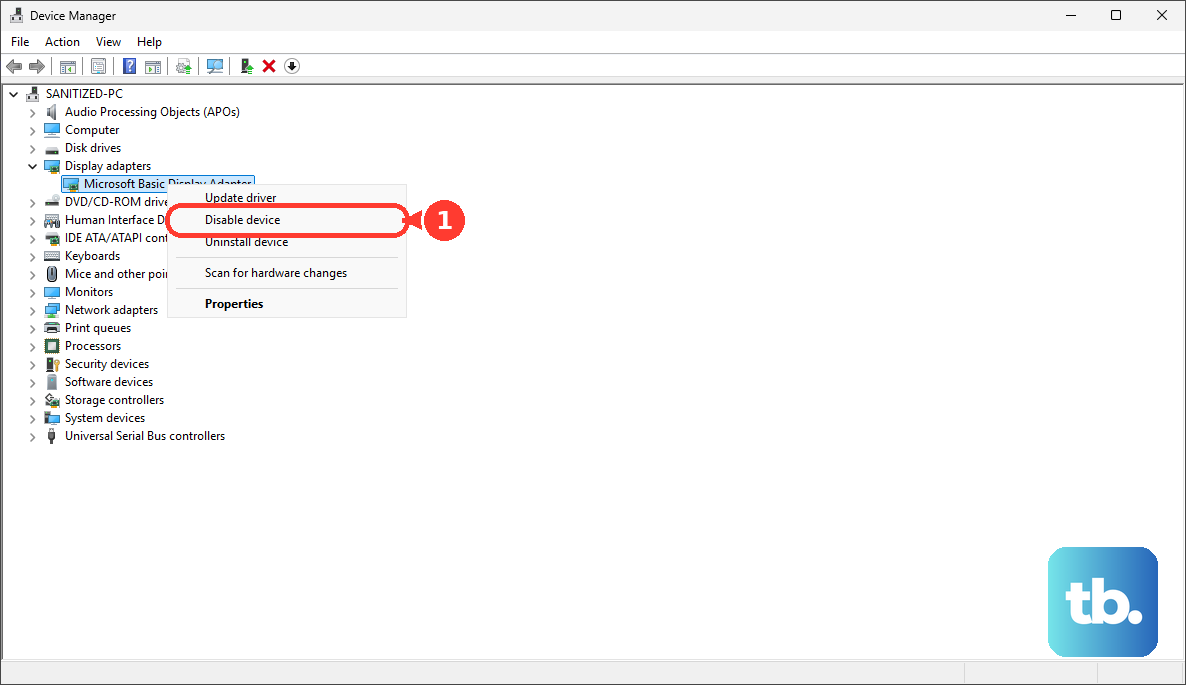
Back in Device Manager under Display adapters, right-click on your graphics driver and select Disable device. Wait about ten seconds, then right-click it again and choose Enable device. This forces a full reset of the display output, which can clear up handshake problems with the TV.
Check for BIOS Settings
It's uncommon, but a BIOS setting could affect video output. To check, shut down your laptop. Use a paperclip to gently press the tiny Novo button on the side of the chassis. From the menu that appears, select BIOS Setup. Look around for any settings related to display output, primary display, or GPU settings. If you're unsure, just exit without saving changes.
Test with Another TV or Monitor
Finally, connect your laptop to a different TV or computer monitor using the same cable. If it works on the second screen, you know the problem is with the original TV's HDMI port or its internal settings. If it still doesn't work, you've confirmed the issue is with the laptop's output.