When your Lenovo Yoga 9i 14's webcam shows a black screen or apps say they can't find a camera, it can throw a wrench in your video calls and meetings. The fixes are usually straightforward, and I'd start with the simplest ones first.
Before digging into settings, open a quick webcam test in your browser. If the preview shows a live picture, the camera hardware works and the issue is with app permissions or configuration.
Check the Physical Privacy Shutter
Your Yoga 9i has a built-in privacy shutter for the webcam. It's a small, thin slider located right next to the camera lens at the top of the display. Make sure it's slid all the way open to uncover the lens. It's an easy thing to miss if you've been using the privacy feature.
Close Other Apps Using the Camera
Windows only allows one app to access the camera at a time. If you have Zoom, Microsoft Teams, or even the Camera app running in the background, your current app won't be able to see the webcam. Open Task Manager, close any video-related apps, and then try your app again.
Test with the Windows Camera App
Open the built-in Camera app from your Start menu. If the camera works perfectly here, then the hardware is fine and the problem is specific to another application like Zoom or Chrome. You'll need to check that app's settings to ensure it's selected the correct camera device.
Verify Camera Privacy Settings in Windows
Windows has a system-level privacy toggle. Go to Settings > Privacy & security > Camera. First, ensure "Camera access" is turned on. Then, scroll down and check that the specific app you're trying to use (e.g., Zoom, Microsoft Edge) is also toggled on in the list of apps allowed to access the camera.
Update Your Camera Drivers
Outdated drivers are a common culprit. The easiest way to handle this on a Lenovo is through the Lenovo Vantage app. Open Vantage, run a system update check, and install any available driver updates, especially for imaging devices. You can also manually check in Device Manager under Cameras or Imaging devices.
Perform a Full System Restart
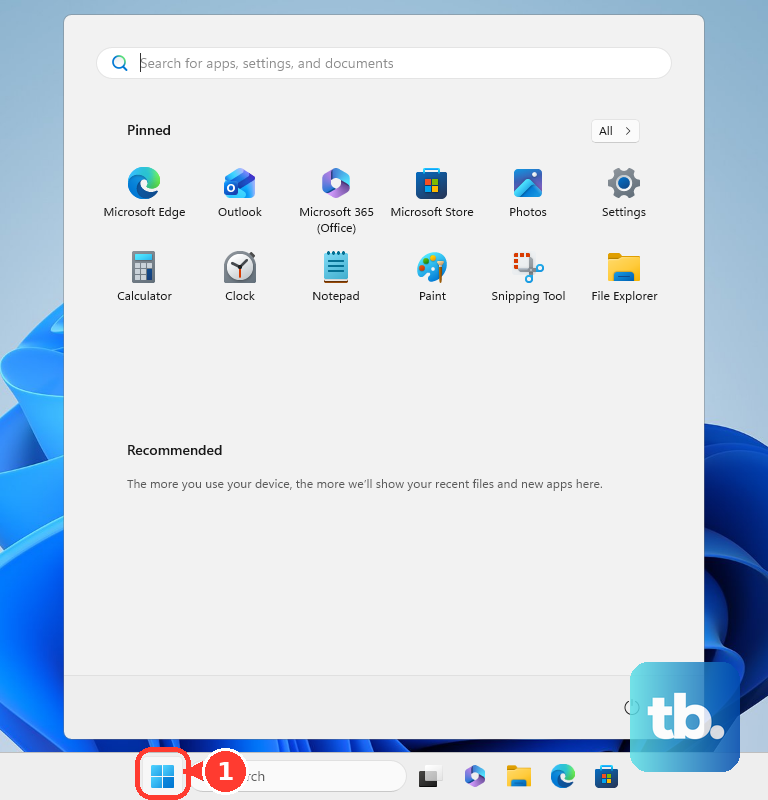
Sometimes a background process gets stuck holding onto the camera. A full shutdown and restart clears this lock. Save your work, click Start > Power > Restart. This is different from just closing the lid, as it fully resets all system processes.
Reinstall the Camera Driver
If updating didn't help, try a clean reinstall. In Device Manager, find your camera under Cameras, right-click it, and select Uninstall device. Check the box that says "Delete the driver software for this device" if it appears. Restart your laptop, and Windows will automatically reinstall a fresh driver.
Check for Windows Updates
Go to Settings > Windows Update and click "Check for updates." Install any available feature or quality updates. After the update installs and your laptop restarts, test the camera again. Microsoft often includes compatibility fixes in these updates.
Run the Hardware Troubleshooter
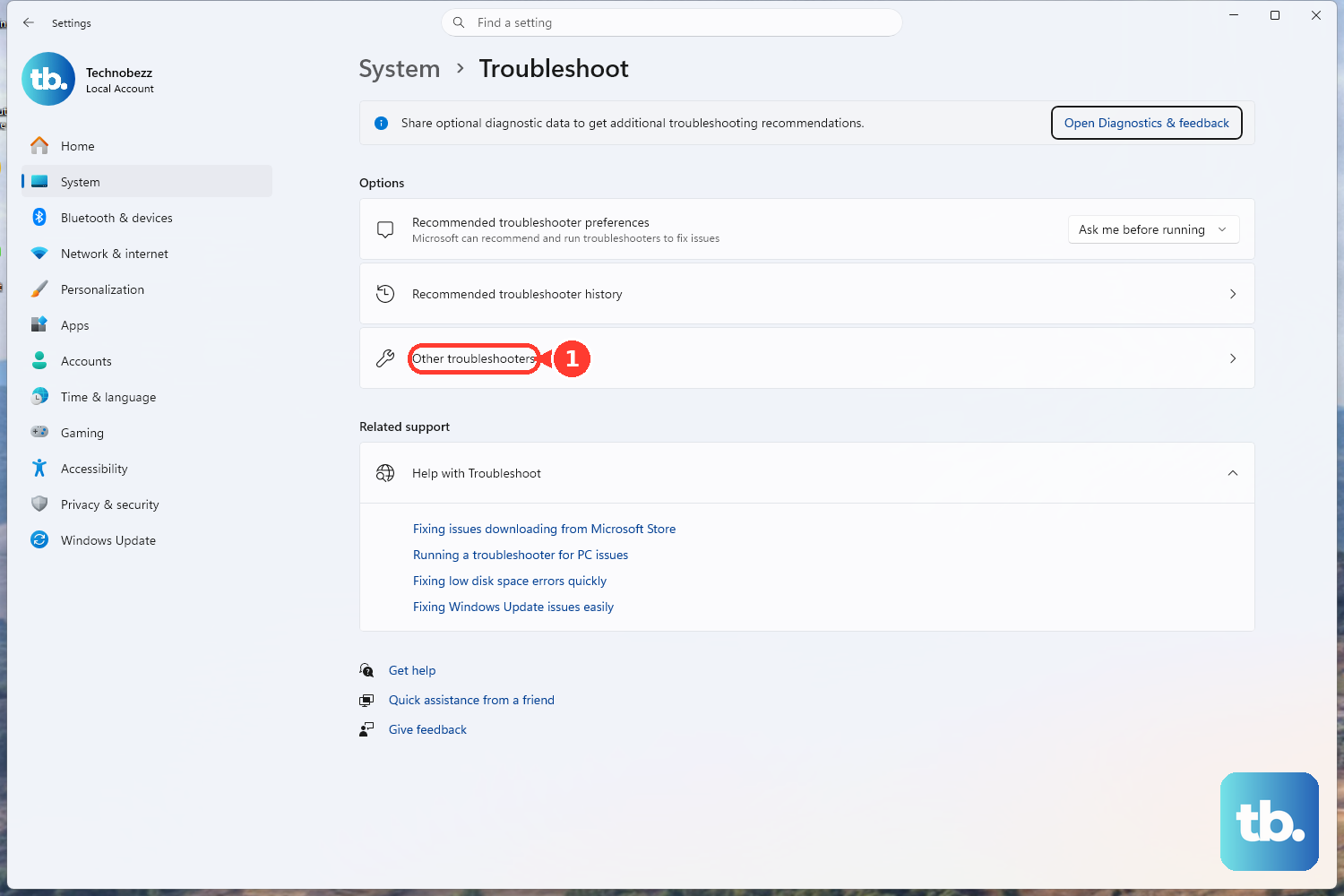
Windows has a built-in tool for this. Go to Settings > System > Troubleshoot > Other troubleshooters. Find and run the "Camera" troubleshooter. It will automatically attempt to detect and fix common permission and driver state issues for you.