When your Lenovo Yoga 7 14 shows "USB Device Not Recognized" or the drive just doesn't appear in File Explorer, it's a common hiccup. The issue could be with the port, the drive itself, a driver conflict, or a Windows power setting. Let's get it working.
Try a Different Port on Your Yoga
Unplug the USB drive and connect it to another port on your laptop. The Yoga 7 14 typically has both USB-A and USB-C ports. If the drive works in a different port, the original one might have a physical issue or a temporary fault. I'd try both types of ports to rule out a problem with a specific controller.
Restart Your Laptop
A full restart reloads all the USB drivers and resets the controller. Many detection glitches are just temporary software snags that a reboot clears up. Make sure you select "Restart" from the Start menu, not just putting the laptop to sleep and waking it back up.
Test the Drive on Another Computer
Plug the USB drive into a different PC or laptop. If it isn't detected there either, the drive itself is likely the problem. If it works perfectly on another machine, then the issue is isolated to your Yoga 7 14's configuration or hardware.
Check Your Cable
If you're using a cable to connect an external hard drive or another device, try a different one. Cables can fail, especially ones that are frequently bent. A cable might still deliver power for charging but have broken internal wires for data transfer.
Update or Reinstall USB Drivers
Press the Windows key + X and select Device Manager. Expand the Universal Serial Bus controllers section. Look for any entries with a yellow exclamation mark. Right-click on them and choose Update driver.
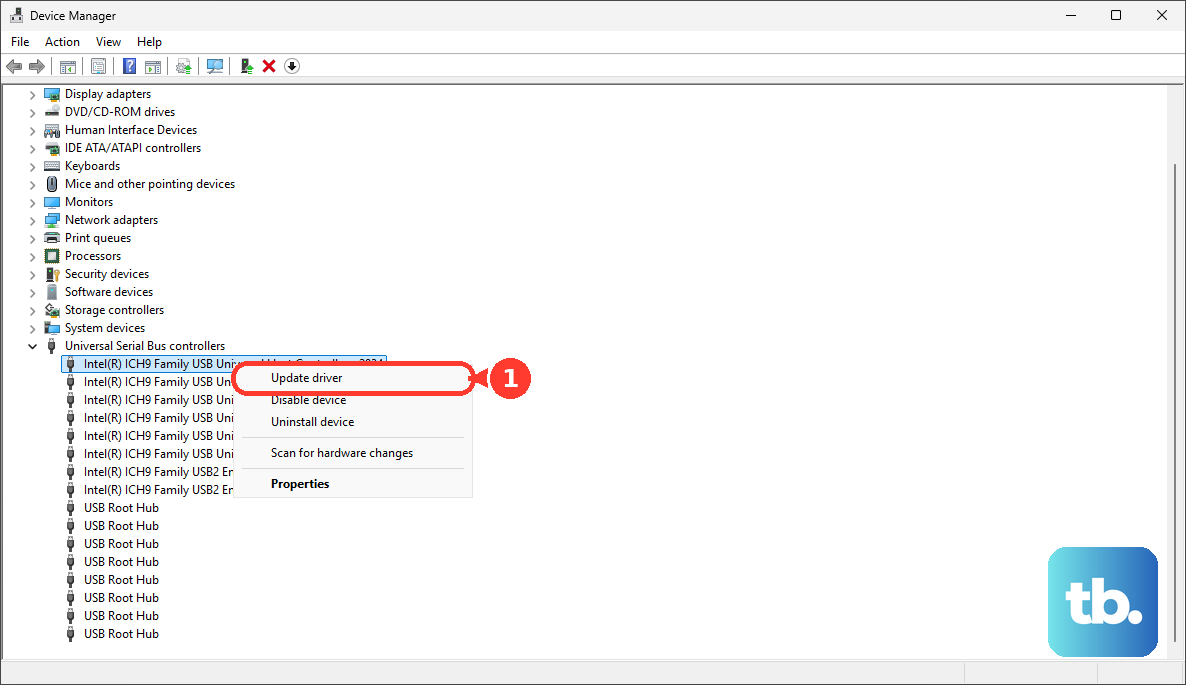
You can also try right-clicking on the USB drive itself (if it appears under "Disk drives" with a warning) or on the generic "USB Mass Storage Device" and selecting Uninstall device. After uninstalling, unplug the drive, restart your laptop, and then plug it back in. Windows will attempt to reinstall the driver fresh.
Use Lenovo Vantage for Driver Updates
For Yoga laptops, Lenovo Vantage is the best tool for managing drivers. Open the Vantage app and check for updates. It can automatically find and install the correct chipset and USB controller drivers for your specific model, which is more reliable than Windows Update alone. This helps avoid conflicts, like the known AMD driver issues some users report.
Disable USB Selective Suspend
Windows can turn off USB ports to save battery, which sometimes prevents devices from being seen. To disable this, go to Control Panel > Power Options. Click Change plan settings next to your active plan, then Change advanced power settings.
In the new window, scroll down and expand USB settings, then expand USB selective suspend setting. Set both "On battery" and "Plugged in" to Disabled. Click Apply and OK.
Check Disk Management
Sometimes Windows detects the drive but doesn't assign it a drive letter, so it doesn't show up in File Explorer. Press Windows key + X and select Disk Management. Look for your USB drive in the lower panel. If you see it listed as "Unallocated" or "Healthy" but without a letter (like D: or E:), you can right-click on the primary partition and choose Change Drive Letter and Paths to add one.
Run the Hardware Troubleshooter
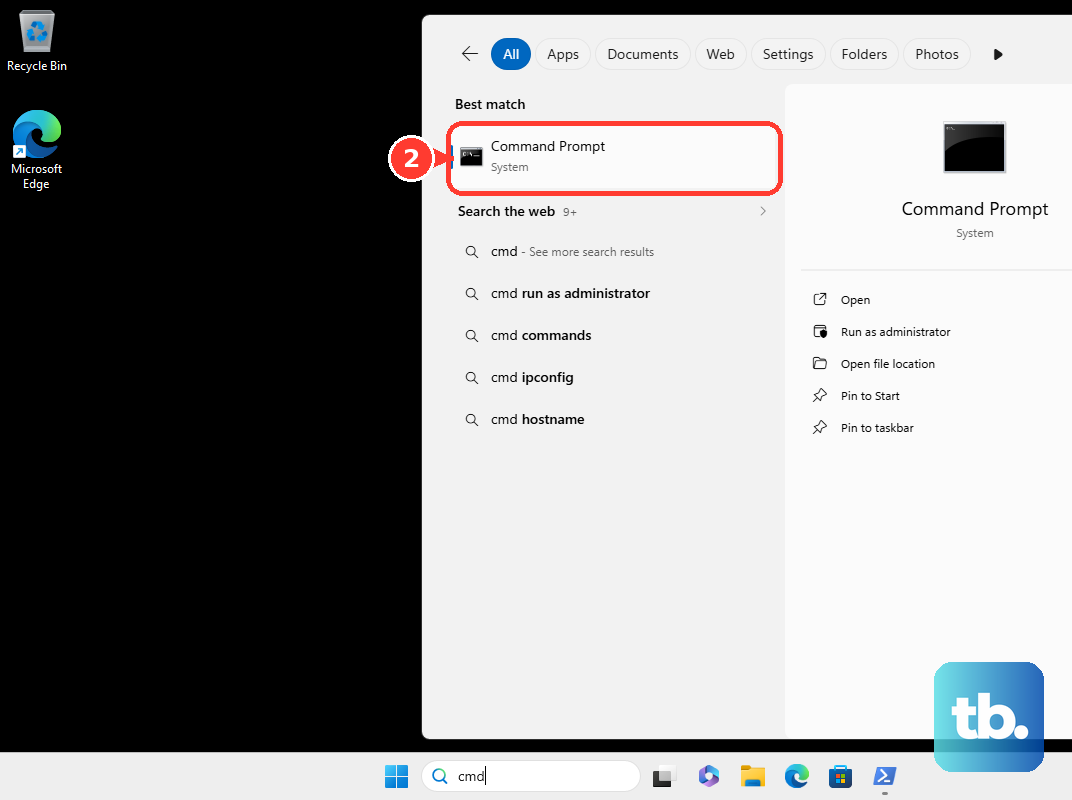
Windows has a built-in tool for this. Open Command Prompt as an administrator by searching for "cmd", right-clicking on it, and selecting "Run as administrator". Type the command msdt.exe -id DeviceDiagnostic and press Enter. Follow the prompts in the troubleshooter window that opens to scan for and fix problems with connected hardware.