
A frozen cursor on your Lenovo Yoga 7 14 can make the whole laptop feel broken. Whether it's completely stuck, jumping around, or just ignoring your taps, you can usually get it working again without needing a repair shop.
Toggle the Touchpad On
Your Yoga 7 has a keyboard shortcut to disable the touchpad, which is easy to hit by accident. Look for the function key with a touchpad icon, usually F6 or F8. Press the Fn key and that function key together to toggle it back on. You can also check in Windows by going to Settings > Bluetooth & devices > Touchpad and making sure the touchpad is enabled.
Restart Your Laptop
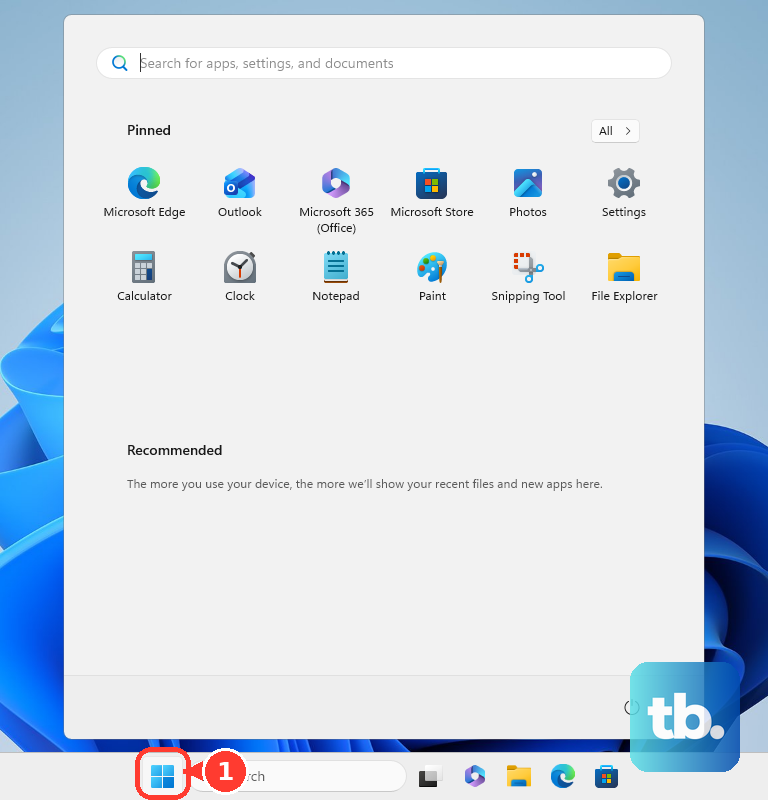
This is the most reliable fix for a touchpad that stopped working after waking from sleep or a recent update. A restart reloads all the drivers, including the one for your touchpad. Use your keyboard's Tab key to navigate to the Start menu, arrow over to the power icon, and hit Enter to select Restart.
Unplug Any External Mouse
Windows sometimes defaults to disabling the internal touchpad when a USB or Bluetooth mouse is connected. Unplug any external mouse and see if your touchpad springs back to life. To stop this from happening automatically, go to Settings > Bluetooth & devices > Touchpad and look for a setting like "Leave touchpad on when a mouse is connected" to turn it on.
Update Your Drivers with Lenovo Vantage
For the Yoga 7, I'd start with Lenovo Vantage. It's the best way to handle driver updates because it knows the correct versions for your specific model. Open Vantage, check for updates, and install any available for your pointing device or chipset. This can resolve conflicts, especially with AMD graphics drivers that sometimes clash with Windows Update versions.
Clean the Touchpad Surface
Oils from your fingers, crumbs, or a bit of moisture can make the touchpad unresponsive or behave erratically. Power off the laptop and gently wipe the touchpad surface with a dry microfiber cloth. For stubborn grime, dampen the cloth slightly with water, not cleaner, and make sure the surface is completely dry before turning it back on.
Check the Touchpad in BIOS
If the touchpad doesn't work at all, even before Windows loads, you should check the BIOS. Shut down your Yoga 7. To enter the BIOS, you can press F2 repeatedly as it powers on, or use the Novo button. The Novo button is a small pinhole on the side; press it with a paperclip while the laptop is off to get a menu where you can select "BIOS Setup." Inside, look for a setting related to the Internal Pointing Device and ensure it's enabled.
Reinstall the Touchpad Driver
If updating didn't help, a fresh install might. Press Windows Key + X and select Device Manager. Expand "Mice and other pointing devices," right-click on your touchpad (it might be listed as a Synaptics, ELAN, or Precision Touchpad), and choose "Uninstall device." Check the box to delete the driver software if prompted, then restart your laptop. Windows will install a basic driver, after which you can use Lenovo Vantage to get the full-featured one.
Run a System File Check
Corrupted Windows system files can cause all sorts of hardware issues. Open the Start menu, type "cmd," and right-click on Command Prompt to select "Run as administrator." In the window, type sfc /scannow and press Enter. Let the scan run to completion; it will attempt to repair any corrupted files it finds. Restart your laptop when it's done.
Consider a System Restore or Reset
If the problem started after a specific Windows update or software installation, using System Restore can roll back those changes. Search for "Create a restore point" in the Start menu to access the tool. As a last resort, a Windows reset can clear out deep software issues. You can choose to keep your files, but you'll need to reinstall your apps.