
Screen flickering on your Lenovo Yoga 7 14 can be incredibly distracting, turning a simple task into a frustrating ordeal. The display might flash, show horizontal lines, or have intermittent blackouts. Let's get it fixed.
Update Your Display Drivers
Outdated or corrupted graphics drivers are the most common cause of flickering. For your Yoga 7 14, I'd start by using Lenovo Vantage. Open the app, check for updates, and let it handle the driver installation automatically. It's the cleanest method for Lenovo hardware.
If the flickering persists, you should get the driver directly from the source. If your model has an AMD Radeon GPU, visit AMD's website and use their auto-detect tool. In my experience, Windows Update can sometimes install an older, conflicting version, which is a known issue for some AMD systems.
Check Task Manager to Identify the Cause
Press Ctrl + Shift + Esc to open Task Manager. Watch the Task Manager window itself closely. If it flickers along with everything else on your screen, the problem is almost certainly a system-wide driver or Windows issue.
If Task Manager remains perfectly stable while your desktop or other windows flicker, the culprit is likely a specific application running in the background. This simple test narrows down your troubleshooting path significantly.
Adjust Your Screen's Refresh Rate
Right-click your desktop and select Display settings. Scroll down and click Advanced display. Here, you can see and change the refresh rate for your Yoga 7 14's display.
Try switching the rate. If it's set to 60Hz, try 59.94Hz, or vice versa. Sometimes a mismatch between the panel's preferred timing and the driver setting can cause a persistent flicker, and this quick change can resolve it.
Uninstall Problematic Applications
If Task Manager was stable, a third-party app is likely interfering. Think about what you installed just before the flickering began. Common offenders include certain antivirus suites, cloud storage apps, or remote desktop software.
Go to Settings > Apps > Installed apps and uninstall the most recent additions one at a time. Restart your laptop after each removal to see if the flickering has stopped. This process of elimination can pinpoint the problematic software.
Disable Hardware Acceleration in Apps
Many applications, like web browsers, use your GPU to render content. A conflict here can cause screen tearing and flickering. In Chrome, Edge, or Firefox, look in the settings for an option labeled "Use hardware acceleration when available" and turn it off.
You'll need to restart the browser for the change to take effect. If the flickering only happens in a specific app, this is a very likely fix. It shifts the rendering workload back to your CPU, bypassing the potential GPU driver conflict.
Roll Back a Recent Display Driver
Did the flickering start right after a driver update? You can revert to the previous version. Press the Windows key, type "Device Manager," and open it. Expand Display adapters, right-click your GPU, and select Properties.
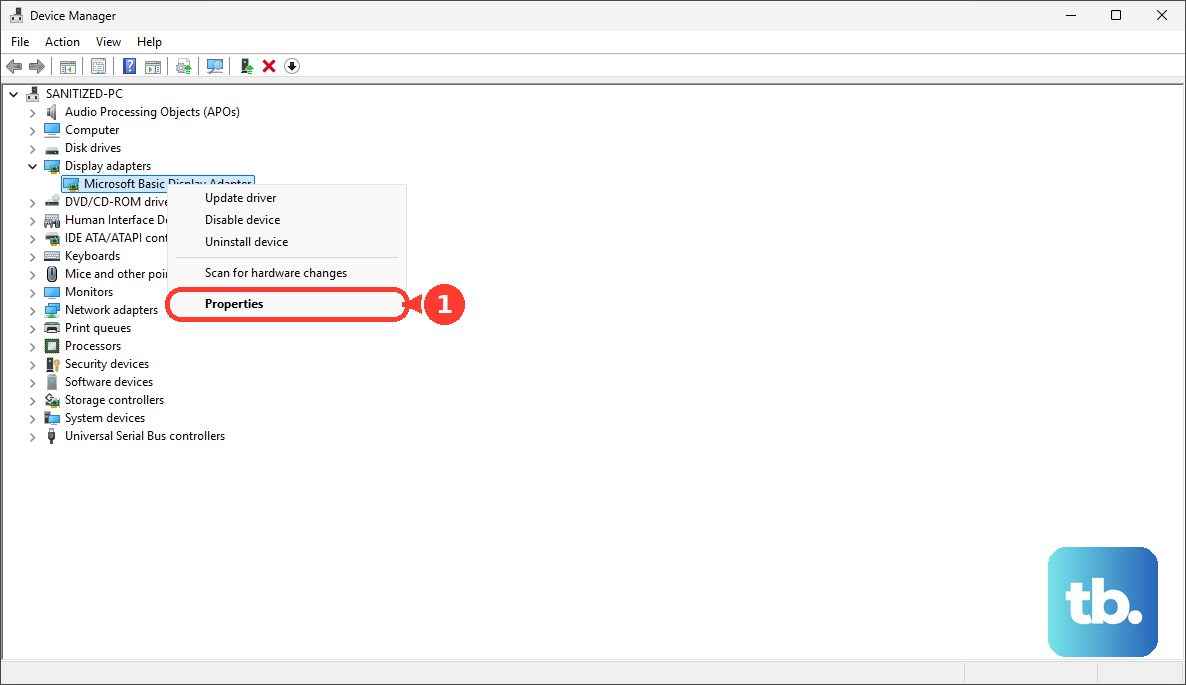
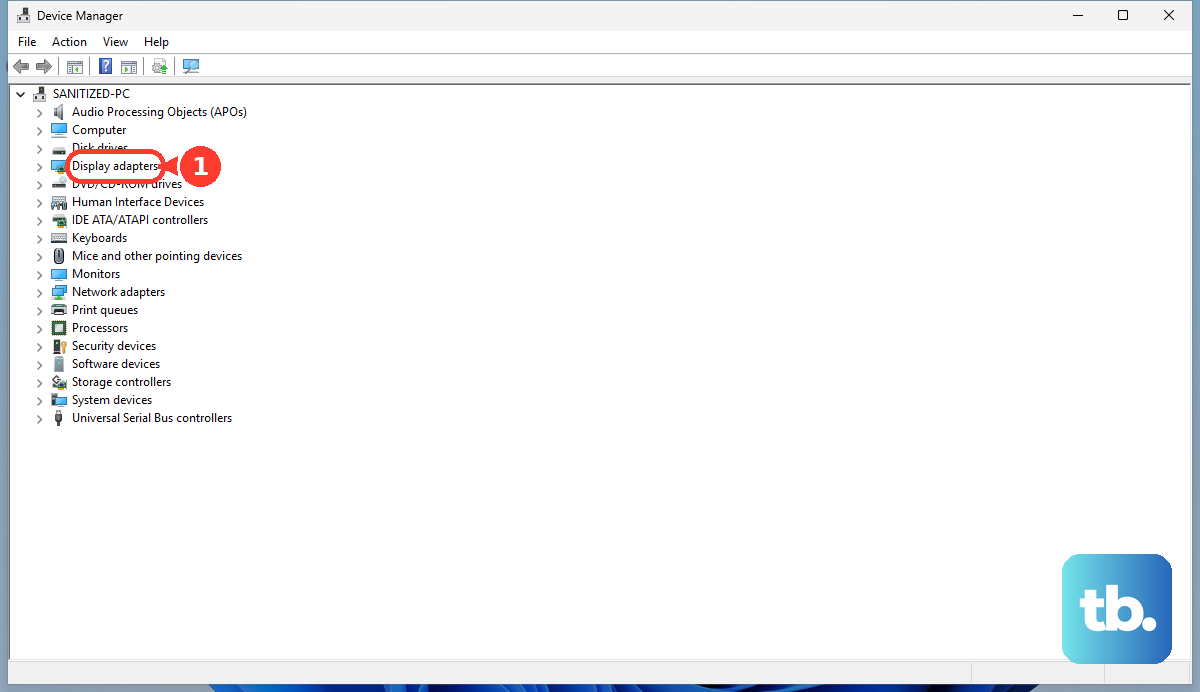
Go to the Driver tab and click Roll Back Driver. If the button is grayed out, Windows doesn't have the old driver saved. This rollback can immediately fix issues caused by a bad driver update.
Boot Into Safe Mode
If the flickering is constant and severe, booting into Safe Mode is a great diagnostic step. It loads Windows with only the most basic drivers and services. If the screen is perfectly stable in Safe Mode, you've confirmed a software or driver problem.
To access Safe Mode on your Yoga 7 14, you can use the Novo button. Shut down the laptop, then press the small Novo pinhole button on the side. From the menu, select Troubleshoot > Advanced options > Startup Settings > Restart. After the restart, press 4 or F4 to enable Safe Mode.
Run All Windows Updates
Microsoft regularly releases system updates that include stability fixes and patches for known display issues. Go to Settings > Windows Update and click Check for updates. Install everything available, including optional updates if offered.
After the updates install, a restart is required. It's a good practice to check for updates after you've updated your drivers, as Windows might have a newer system file that improves compatibility with your Yoga 7's hardware.
Check for a Hardware Issue
If all software fixes fail, consider a physical connection problem. Does the flickering get worse when you gently flex the screen or open and close the lid? This can indicate a loose or damaged internal display cable, which connects the screen to the motherboard.
Over time, the repeated motion of the Yoga's 360-degree hinge can stress this cable. This isn't a common failure, but it's a possibility. A hardware issue like this would require a professional repair to reseat or replace the cable.