

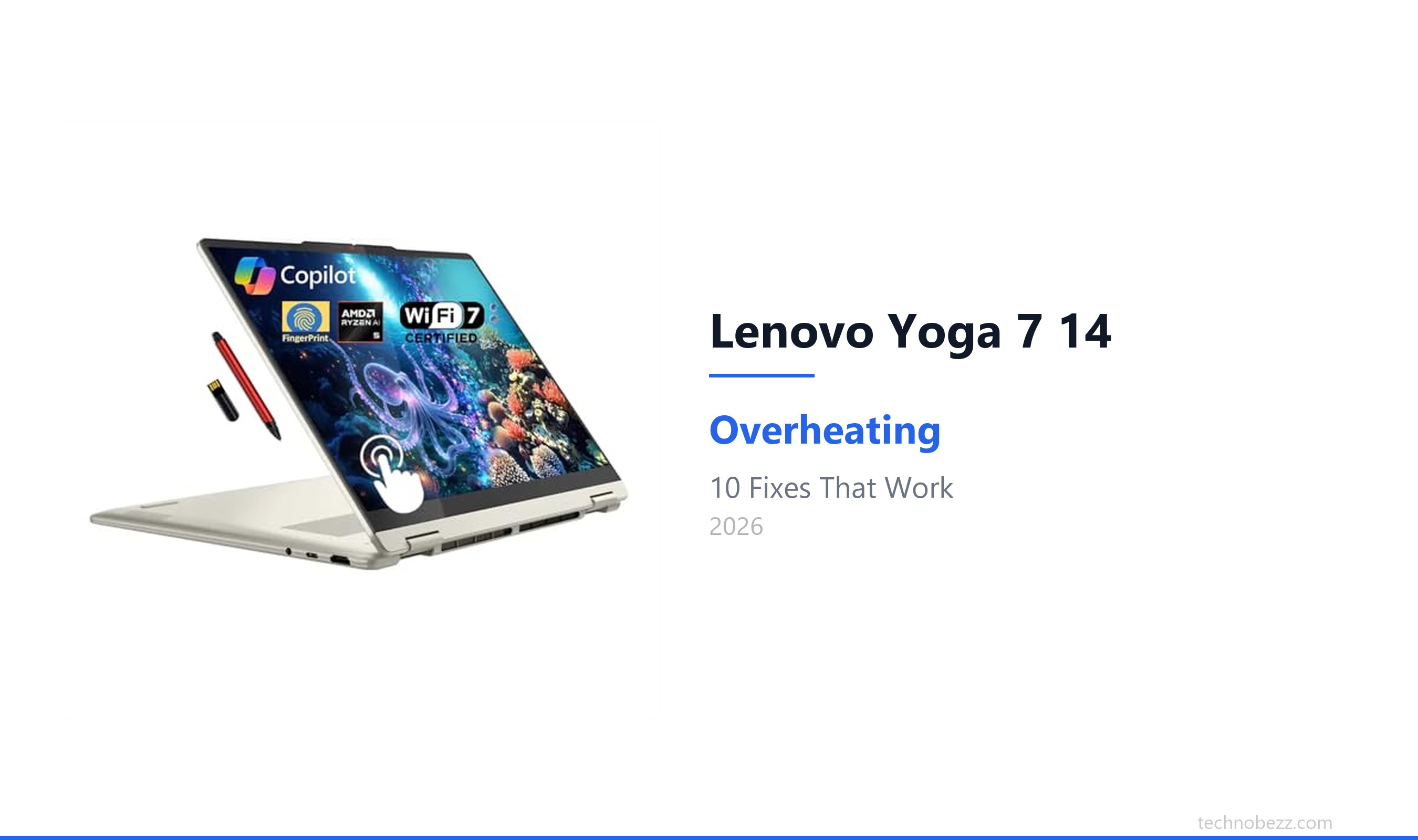
An overheating Lenovo Yoga 7 14 can feel uncomfortably hot, throttle your performance, and cause the fans to run loudly. If you're noticing these issues, especially during video calls or multitasking, a few adjustments can usually get things running cooler and quieter.
Clean the Vents and Fans
The Yoga 7 14's cooling system pulls air in through vents on the bottom and sides. Over time, dust and lint clog these intakes, forcing the fans to work harder. Grab a can of compressed air and give all the vents a few short bursts to blow the dust out. I've seen this simple step make a noticeable difference in fan noise and base temperature for many users.
Always Use a Hard, Flat Surface
This is a critical habit. Using your convertible laptop on a bed, blanket, or your lap blocks the bottom air intakes completely. The heat has nowhere to go, and temperatures skyrocket. Always place it on a desk, table, or a dedicated lap desk. Even propping up the back edge with a book or a laptop stand improves airflow significantly.
Adjust Windows Power Plan
Head to Settings > System > Power & battery. Look for the Power mode setting and switch it from "Best performance" to Balanced or even Best power efficiency for everyday tasks. This tells your CPU and GPU to run at lower power states, which directly reduces heat output. You can switch back to the high-performance mode when you need it for more demanding work.
Manage Your Workload with Task Manager
Press Ctrl + Shift + Esc to open Task Manager and click on the "CPU" column to sort by usage. Browser tabs, especially in Chrome or Edge, are often the culprits. Close any tabs or programs you're not actively using. A single tab with a heavy website or video stream can keep the processor warm.
Update Drivers Through Lenovo Vantage
Outdated or conflicting drivers, particularly for the AMD graphics and chipset, are a known source of thermal issues on this model. Open the Lenovo Vantage app, which comes pre-installed. Go to the "Device" section and run a check for system updates. Let it install any available driver, BIOS, or firmware updates, as these often include improved thermal management profiles.
Consider a Laptop Cooling Pad
For a long gaming session or video rendering, a passive or active cooling pad can help. These pads elevate the laptop and provide extra airflow to the hot underside. Look for one with fans that align roughly with the Yoga's intake grilles on the bottom. It's an inexpensive way to shave several degrees off your peak temperatures.
Lower Your Screen Brightness
The display is a major source of heat. Reducing brightness is one of the quickest ways to cool things down. Use the F5 and F6 keys or adjust the slider in Settings > System > Display. You don't need to run it at 100% indoors. Finding a comfortable, lower level makes a big difference.
Check for Background Processes
Sometimes, the heat isn't from what you're doing, but from what Windows is doing in the background. In Task Manager, look for processes like Windows Search Indexer, Antivirus scans, or cloud storage sync (OneDrive, Google Drive). These can cause CPU spikes that generate heat when you're just browsing the web.
Enable Conservation Mode in Vantage
This is a specific tip for Lenovo laptops. Inside the Lenovo Vantage app, look for the "Power" or "Hardware Settings" section. Find and enable Conservation Mode. This limits the battery charge to around 60%, which reduces heat generated by the battery charging circuit, especially if you often use the laptop plugged in.
Repaste the Thermal Compound
If your Yoga 7 14 is a few years old and still overheating after all the above steps, the factory thermal paste between the processor and the heatsink may have dried out. Replacing it with a quality paste like Arctic MX-6 can dramatically improve heat transfer. This requires carefully opening the bottom panel, so it's best for those comfortable with hardware or as a last resort before professional service.