
When your Lenovo Yoga 7 14 says it's plugged in but the battery percentage won't budge, it's a frustrating roadblock. This can be caused by anything from a simple setting to a hardware problem, but you can usually resolve it yourself.
Check Lenovo Vantage for Conservation Mode
This is the most common reason for a Yoga 7 14 showing "plugged in, not charging." Lenovo's Vantage software includes a feature called Conservation Mode designed to extend your battery's lifespan. When enabled, it intentionally stops charging at around 60%.
Open the Lenovo Vantage app and navigate to Device > Power. Look for the Conservation Mode toggle. If it's on, your laptop is working as intended and won't charge past that threshold. Turn it off if you need a full charge for the day.
Perform a Power Reset
A quick power reset can clear temporary glitches in the power management system. Shut down your laptop completely, not just putting it to sleep. Unplug the USB-C charger from the wall and from your laptop.
Next, press and hold the power button for a full 60 seconds. This drains any residual power from the motherboard. After that, plug the charger back into the wall and then into your laptop, and press the power button normally to turn it on.
Inspect Your Charger and Port
Check your USB-C charger and cable for any obvious damage, like fraying or bent connectors. Try plugging the charger into a different wall outlet to rule out a power issue. The Yoga 7 14 uses USB-C charging, so ensure you're using the original Lenovo adapter or a high-wattage third-party one that meets its power requirements.
Also, take a close look at the USB-C port on the laptop. Use a bright light and a wooden toothpick to gently clear out any pocket lint or debris that might be preventing a solid connection. Be very careful not to damage the delicate center pin inside the port.
Update or Reinstall Battery Drivers
Outdated or corrupted drivers can confuse Windows about the battery's status. Press the Windows key, type Device Manager, and open it. Expand the Batteries section.
Right-click on Microsoft ACPI-Compliant Control Method Battery and select Uninstall device. Do the same for the ACPI-Compliant Control Method Battery listing if you see it. Restart your laptop, and Windows will automatically reinstall fresh driver versions, which often fixes the charging detection.
Run a Battery Report
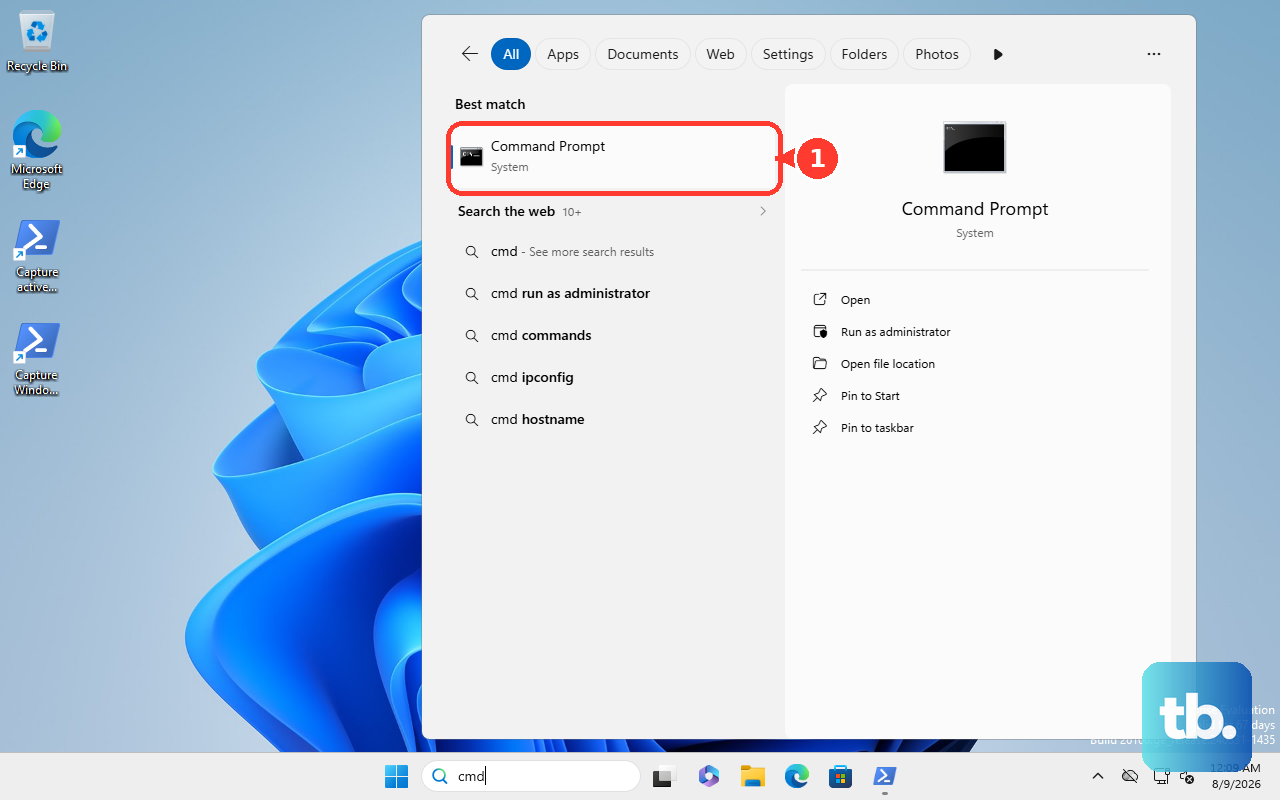
It's helpful to check the actual health of your battery. Open Command Prompt as an administrator and type the command: powercfg /batteryreport. This generates a detailed HTML file.
The report will show your battery's original design capacity versus its current full charge capacity. If the current capacity is significantly degraded (say, below 50% of the original), the battery itself may be failing and holding very little charge, which would explain the issue.
Check for BIOS and Driver Updates
Lenovo frequently releases BIOS updates that fix power management and charging quirks. The easiest way to check is through the Lenovo Vantage app, which handles driver updates automatically. Go to System Update and run a scan.
I'd make sure everything is current, especially if you've recently run a Windows Update. There have been instances where AMD driver updates from Windows Update conflict with Lenovo's versions, potentially causing system instability that can affect charging.
Try a Different Charger
If you have access to another compatible USB-C charger, test it with your Yoga 7. Chargers can fail over time, and a weak adapter might provide enough power to run the laptop but not enough to actually charge the battery. Ensure any replacement charger is rated for at least 65W for reliable performance.
Use the Novo Button for Recovery Options
Your Yoga 7 has a small Novo button, usually on the side or next to the power button. With the laptop powered off, press this button with a paperclip to boot into the Novo Button Menu.
From here, you can select BIOS Setup to check power settings or System Recovery if you suspect a deeper Windows issue. This is also a good way to access recovery options if Windows isn't booting properly due to a power fault.