
When your Lenovo Yoga 7 14 suddenly goes silent, it's usually a quick software setting or a driver that needs a nudge. I'd start with the basics and work through these steps to get your sound back.
Before changing anything, play a quick left and right speaker test in your browser. It sends a tone to the left and right channels separately, so you immediately know whether the speakers produce any sound at all.
Check the Volume and Output
Click the speaker icon in your taskbar and make sure the slider isn't at zero. More importantly, click the little arrow next to the volume slider to see which output device is selected. If you recently unplugged headphones, Windows might still be trying to send audio to them. Select your laptop's speakers from that list.
Run the Windows Audio Troubleshooter
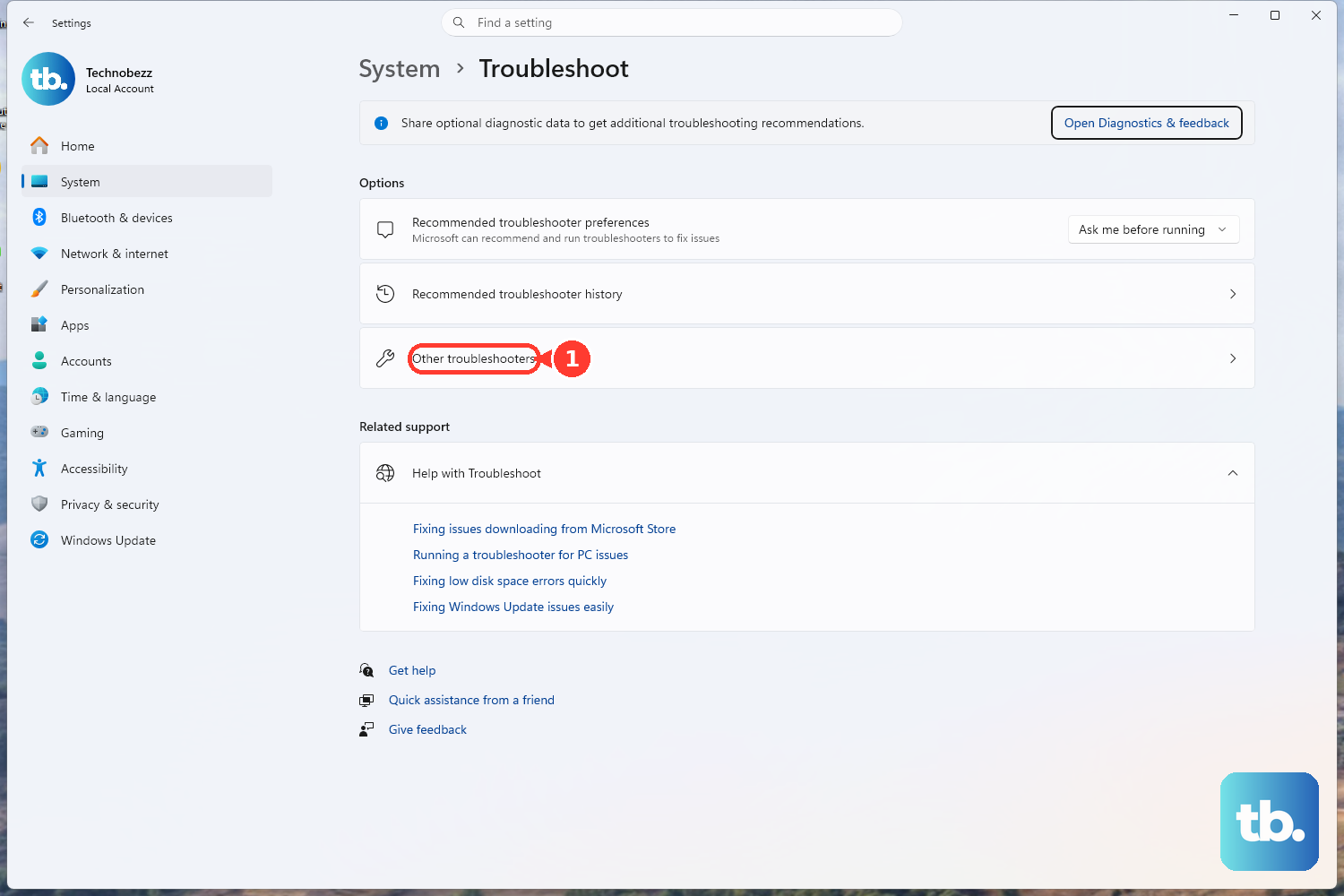
Go to Settings > System > Troubleshoot > Other troubleshooters. Find Playing Audio and click Run. This built-in tool is surprisingly good at fixing common glitches like disabled services or incorrect default devices. It only takes a minute and often solves the problem right away.
Restart Your Yoga
This is the classic fix for a reason. A full restart clears out any stuck audio processes and reloads all your drivers. Click Start > Power > Restart. I've found this especially effective if the sound cut out after the laptop woke from sleep or after a recent Windows update.
Update or Reinstall Audio Drivers
Press Windows Key + X and choose Device Manager. Expand the Sound, video and game controllers section. Right-click your audio device (it might be Realtek Audio) and select Update driver > Search automatically for drivers.
If that doesn't work, right-click the device again and choose Uninstall device. Check the box that says "Attempt to remove the driver for this device" and then restart your laptop. Windows will automatically install a fresh, generic driver on startup, which often works when the installed one is corrupted.
Use Lenovo Vantage for Driver Updates
For your Yoga 7 14, the best way to manage drivers is through Lenovo Vantage. Open the app from your Start menu and check for updates. It handles driver updates automatically and ensures you get the versions tested specifically for your model, which can prevent conflicts.
This is key because on some AMD-based Yoga models, driver updates from Windows Update can sometimes conflict with the ones Lenovo provides. Letting Vantage handle it keeps everything in sync.
Check App-Specific Volume Settings
Sometimes, the system volume is fine, but a specific app is muted. Right-click the speaker icon in the taskbar and select Open Volume mixer. You'll see a volume slider for each open application. Make sure the app you're trying to use (like your web browser or media player) isn't set to zero.
Disable Audio Enhancements
Go to Settings > System > Sound. Click on your output device (your speakers) and then click Audio enhancements. From the dropdown, set it to Off. These software enhancements can sometimes cause more harm than good, leading to crackling, distortion, or complete audio loss on some hardware.
Restart the Windows Audio Services
Press Windows Key + R, type services.msc, and hit Enter. In the list, find Windows Audio. Right-click it and select Restart. Do the same for the Windows Audio Endpoint Builder service. If either service was hung up, this will get them running again immediately.
Check for Physical and Connection Issues
If you're using headphones or external speakers, try a different pair or a different USB port. For the built-in speakers, check that nothing is physically blocking the grilles. While fan noise can be noticeable on the Yoga 7 in quiet settings, it shouldn't affect speaker output.
Also, if you're connected to an external monitor via HDMI or USB-C, remember that Windows often routes audio to that display by default. You'll need to switch the output back to your laptop speakers manually using the volume icon menu.
Roll Back a Problematic Driver Update
If your audio stopped working right after a driver update, you can revert to the previous version. Open Device Manager, double-click your audio device, go to the Driver tab, and click Roll Back Driver. If the button is grayed out, Windows doesn't have a previous driver saved, so you'll need to use the uninstall method mentioned earlier instead.