
When you plug your Lenovo Yoga 7 14 into an external monitor and the screen stays black, it's usually a quick settings or driver fix. Let's get that second screen working.
It is worth viewing a few test patterns from a monitor test before changing hardware. Faults that persist across every pattern point firmly at the display itself.
Press Windows + P First
This is the fastest thing to try. Press the Windows + P keys together on your keyboard. A menu will pop up on the right side of your screen. Make sure it's set to Duplicate or Extend, not "PC screen only." I'd start with Duplicate to see if any signal gets through at all.
Check Your Cable and Ports
Unplug the cable from both your laptop and the monitor, then plug it back in firmly. The Yoga 7 14 typically has USB-C ports that support DisplayPort Alt Mode, and often an HDMI port. If you're using an adapter, try a different one if you have it. Also, double-check that your monitor is powered on and set to the correct input source, like HDMI 1 or USB-C.
Restart With the Monitor Connected
Leave the external monitor plugged in and powered on. Go ahead and restart your Yoga 7. Sometimes the graphics drivers only fully initialize the external display ports during the boot process. A fresh start while connected can kick things into gear.
Update Your Graphics Drivers
Outdated or conflicting drivers are a common culprit, especially with the AMD models. The best approach is to use Lenovo Vantage. Open the Vantage app, check for updates, and let it handle the driver installation. This helps avoid conflicts where a Windows Update driver overwrites a newer Lenovo-specific one.
You can also update manually. Right-click the Start button and select Device Manager. Expand Display adapters, right-click your AMD Radeon Graphics (or Intel Iris Xe), and choose Update driver. Select "Search automatically for drivers."
Run the Display Detect Feature
Go to Settings > System > Display. On this page, click the Detect
Try a Different Video Port
If you're using the HDMI port, try one of the USB-C ports with a USB-C to HDMI or DisplayPort adapter. Conversely, if you're using USB-C, try the HDMI port. This test tells you if the problem is with a specific port on your laptop or with the setup in general.
Disable and Re-enable the Display Adapter
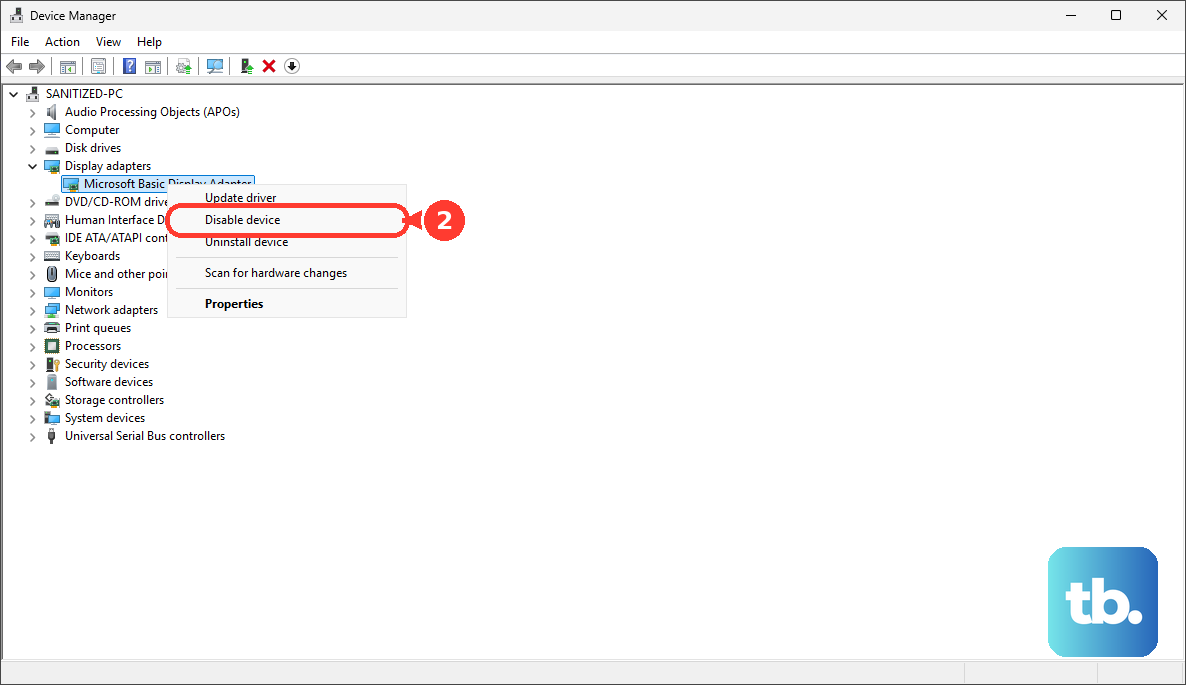
Head back to Device Manager under Display adapters. Right-click your graphics adapter and select Disable device. Your screen will flicker. Wait about 10 seconds, then right-click it again and choose Enable device. This forces a full reset of the graphics driver and its connections.
Check for Power and Lid Settings
Your laptop's power plan might be interfering. Go to Settings > System > Power & battery. Click on "Screen and sleep" and make sure the settings when plugged in aren't set to turn off the display too quickly. Also, with the lid closed, some laptops disable all outputs by default. Try keeping the Yoga's lid open while you troubleshoot.
Use the Novo Button for a Hard Reset
If nothing else is working, you can perform a hardware reset. Shut down the laptop completely. Then, locate the tiny Novo button, it's usually a small pinhole on the left side or next to the power port. Straighten a paperclip and gently press it.
This will boot you into a menu. Use the arrow keys to select System Recovery and press Enter. From here, choose "Troubleshoot," then "Advanced options," and finally Startup Repair. This can fix underlying Windows issues preventing display detection without touching your personal files.