
When Bluetooth won't pair on your Lenovo Yoga 7 14, your wireless mouse, headphones, or keyboard become useless. The device might not show up in the list, the pairing process fails, or the connection drops immediately. Let's get it working again.
Toggle Bluetooth On and Off
First, check the quick action center. Click the network, sound, and battery icons in the taskbar to open it. Make sure the Bluetooth tile is highlighted blue, indicating it's on. If it's off, click it once to turn it on.
You can also go to Settings > Bluetooth & devices and use the main toggle there. Sometimes the quick action tile gets out of sync with the actual radio state, so checking both spots is a good idea.
Restart Your Yoga 7
This is the simplest fix that works more often than you'd think. A full restart clears out any temporary software glitches that can block the Bluetooth radio from initializing properly. It's especially useful if the problem started after the laptop woke from sleep.
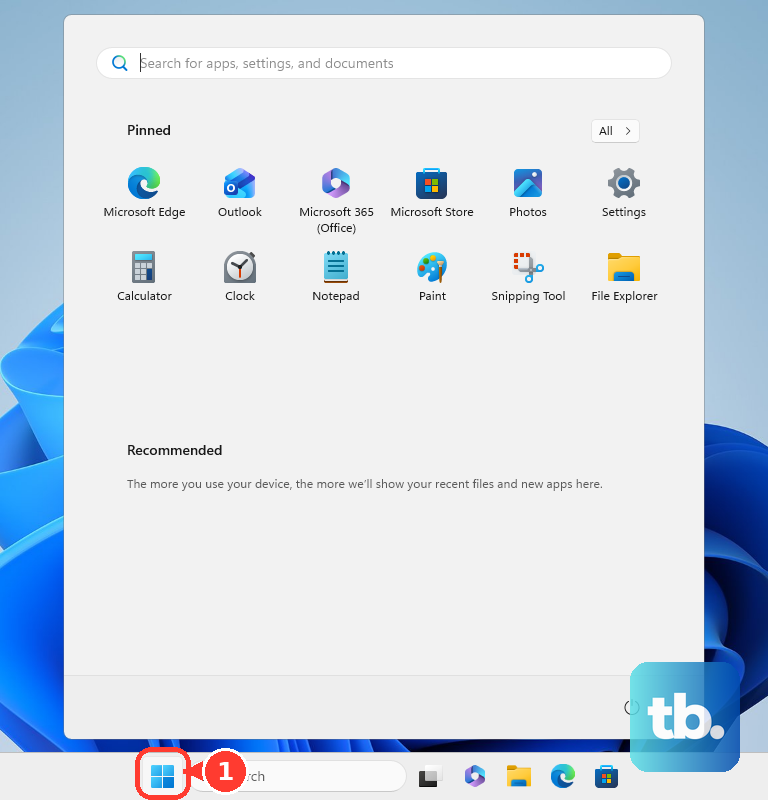
Click the Start menu, select the power icon, and choose Restart. Don't just shut down and turn it back on, as a full restart clears system processes more thoroughly.
Forget and Re-Pair Your Device
Corrupted pairing data is a frequent culprit. Open Settings > Bluetooth & devices. Find the device that won't connect and click the three dots next to it, then select Remove device.
Now, put your Bluetooth speaker, mouse, or headphones into pairing mode. This usually involves holding a button until a light flashes. Back on your laptop, click Add device > Bluetooth and select it from the list to start fresh.
Run the Windows Bluetooth Troubleshooter
Windows has a built-in tool that can automatically find and fix common configuration problems. Go to Settings > System > Troubleshoot > Other troubleshooters.
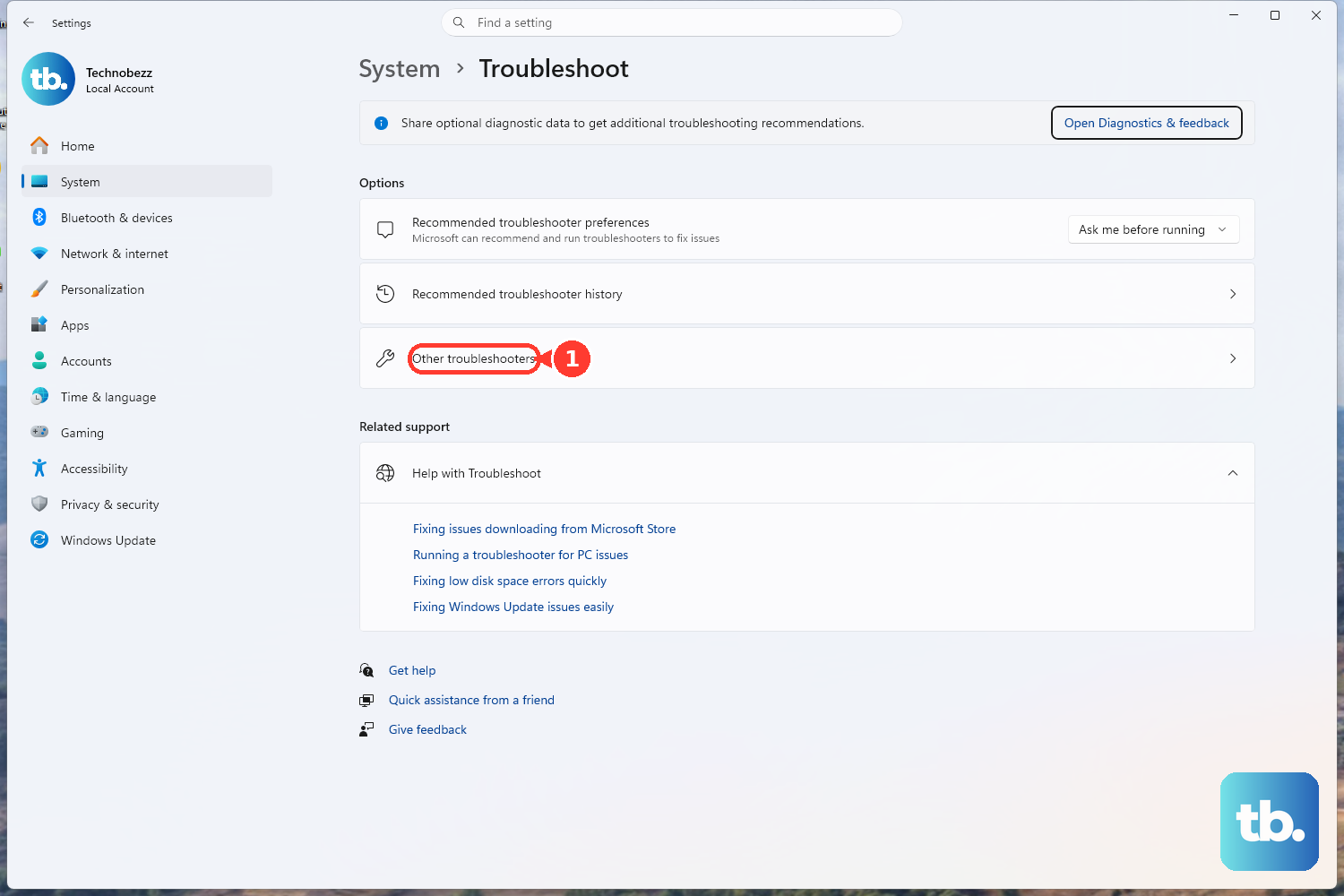
Find the Bluetooth troubleshooter in the list and click the Run button next to it. Follow any prompts it provides. It might reset the Bluetooth radio or services, which can resolve pairing issues.
Update Your Bluetooth Drivers
Outdated or corrupted drivers are a major cause of Bluetooth problems. Press the Windows key + X and select Device Manager. Expand the Bluetooth section.
Right-click on your Bluetooth adapter (it might be listed as a Qualcomm, Intel, or Realtek device) and select Update driver > Search automatically for drivers. Let Windows look for an update.
For the Yoga 7 14, I'd recommend using Lenovo Vantage or visiting the official Lenovo support site afterward. Sometimes Windows Update provides a generic driver, but Lenovo's custom driver can work better with your specific hardware.
Check for Windows Updates
Microsoft regularly releases patches that fix connectivity bugs. Head to Settings > Windows Update and click Check for updates. Install any available feature or quality updates.
After the updates install, you'll likely need to restart your laptop. This ensures all the new system files, including those for Bluetooth, are loaded correctly.
Restart the Bluetooth Support Service
Windows uses a background service to manage Bluetooth. If it's stopped or stuck, nothing will pair. Press Windows key + R, type services.msc, and press Enter.
Scroll down and find Bluetooth Support Service. Right-click on it and select Restart. Also, double-click it to open its properties and ensure the Startup type is set to Automatic.
Reinstall the Bluetooth Adapter
This gives you a completely clean driver installation. Go back to Device Manager and expand Bluetooth. Right-click your Bluetooth adapter and select Uninstall device.
Check the box that says Attempt to remove the driver for this device if you see it. Then, restart your Lenovo Yoga 7. When Windows boots up, it will automatically detect the hardware and install the default driver.
You should then go back and update it through Lenovo Vantage for the best compatibility.
Check for Physical Interference
Bluetooth uses the 2.4GHz band, which is crowded. Your WiFi, wireless mice, and even USB 3.0 ports can cause interference. Try moving your Bluetooth device closer to the laptop, ideally within three feet.
If you have any USB 3.0 devices plugged in, like an external hard drive, try unplugging them temporarily. See if your Bluetooth device pairs successfully without them connected.
Use the Novo Button for a Clean Start
If you're facing persistent system issues, the Novo button can help. Shut down your Yoga 7 completely. Then, locate the tiny Novo button on the left side of the laptop (you might need a paperclip to press it).
With the laptop off, press the Novo button. This will boot you into a menu where you can select System Recovery or BIOS Setup. From here, you could try a system restore to a point before Bluetooth failed, or check BIOS settings to ensure nothing is disabled.











