
When your ThinkPad X1 Carbon shows a "USB Device Not Recognized" error or simply doesn't react to a connected device, it's a common but solvable hiccup. The cause could be a driver conflict, a power setting, or a simple connection issue. I'd start by trying a different port.
Try a Different USB Port on Your ThinkPad
Unplug the device and connect it to another USB port on your laptop. The X1 Carbon typically has both USB-A and Thunderbolt 4 (USB-C) ports. If the device works in a different port, the original one might be disabled or have a physical issue. This is the quickest way to rule out a port-specific problem.
Restart Your ThinkPad
A full restart reloads all the USB drivers and resets the controller. Many transient detection errors are cleared up this way. Make sure you select "Restart" from the Windows menu, not just putting the laptop to sleep and waking it. This is especially relevant if the issue started after the laptop resumed from sleep.
Some users have reported that Thunderbolt docks can have detection issues after sleep. A restart often re-establishes that connection properly.
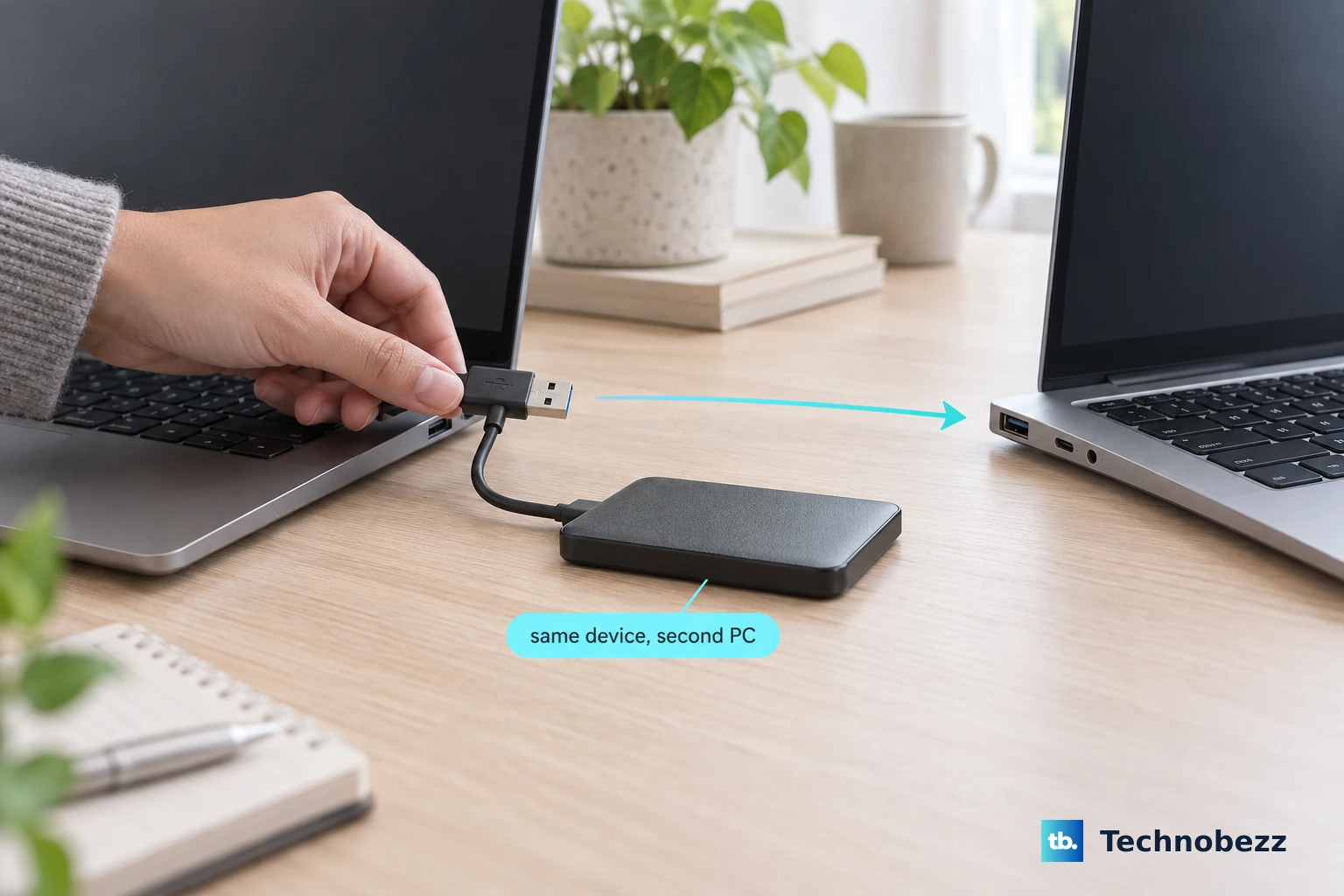
Test the USB Device on Another Computer
Connect the problematic device to a different PC or laptop. If it isn't recognized there either, the fault likely lies with the device or its cable. If it works perfectly on another machine, you can confidently focus the troubleshooting on your ThinkPad's configuration.
Swap Out the Cable
For devices like external drives or phones, the cable is a frequent point of failure. Try a different, known-good cable. Cables can degrade, and one that still charges a device might have broken internal data lines, preventing your laptop from detecting it.
Update or Reinstall USB Drivers
Press the Windows key + X and select Device Manager. Expand the Universal Serial Bus controllers section. Look for any entries with a yellow exclamation mark.
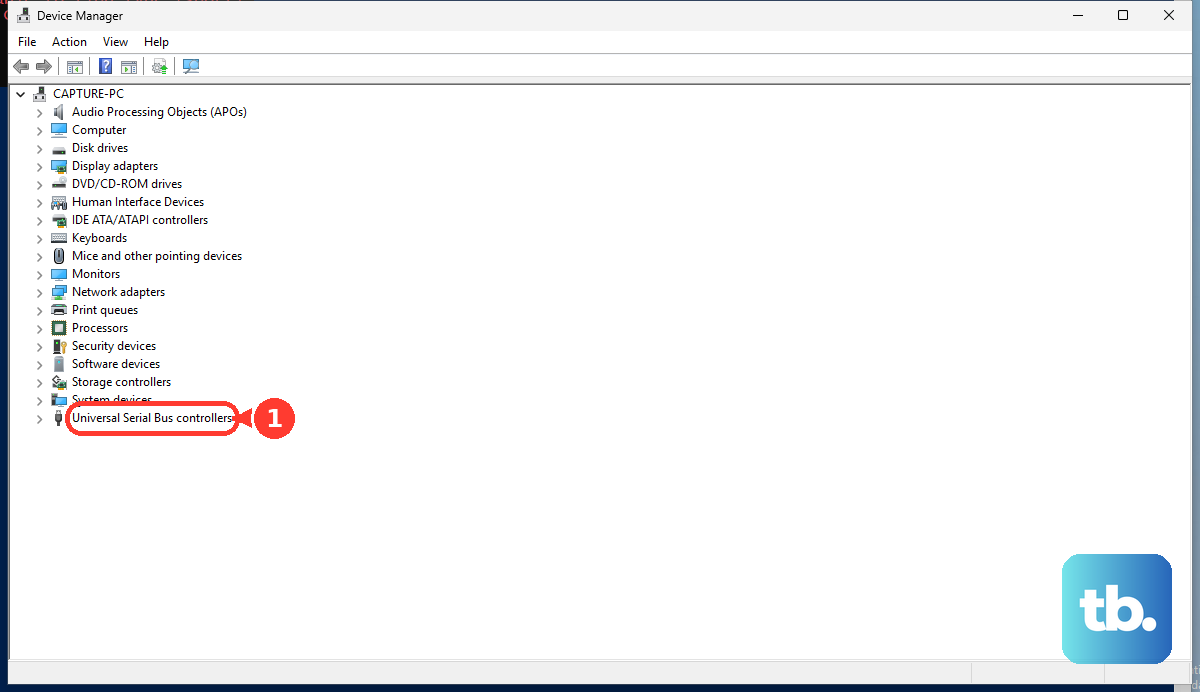
Right-click on the problematic device or on generic USB hubs and select Update driver. For a deeper reset, you can right-click and choose Uninstall device, then restart your laptop. Windows will automatically reinstall the driver upon reboot.
Use Lenovo Vantage for System Updates
Open the Lenovo Vantage app, which is tailored for your ThinkPad. Go to the System Update section and run a scan. Install any available updates, especially for chipset, Thunderbolt, and USB drivers. I've found that letting Vantage handle driver updates can resolve conflicts that generic Windows updates might miss.
Disable USB Selective Suspend
This power-saving feature can sometimes turn off ports prematurely. Search for and open Control Panel, then go to Power Options. Click Change plan settings next to your active plan, then Change advanced power settings.
In the new window, expand USB settings and then USB selective suspend setting. Set both "On battery" and "Plugged in" to Disabled. Click Apply and OK.
Run the Hardware Troubleshooter
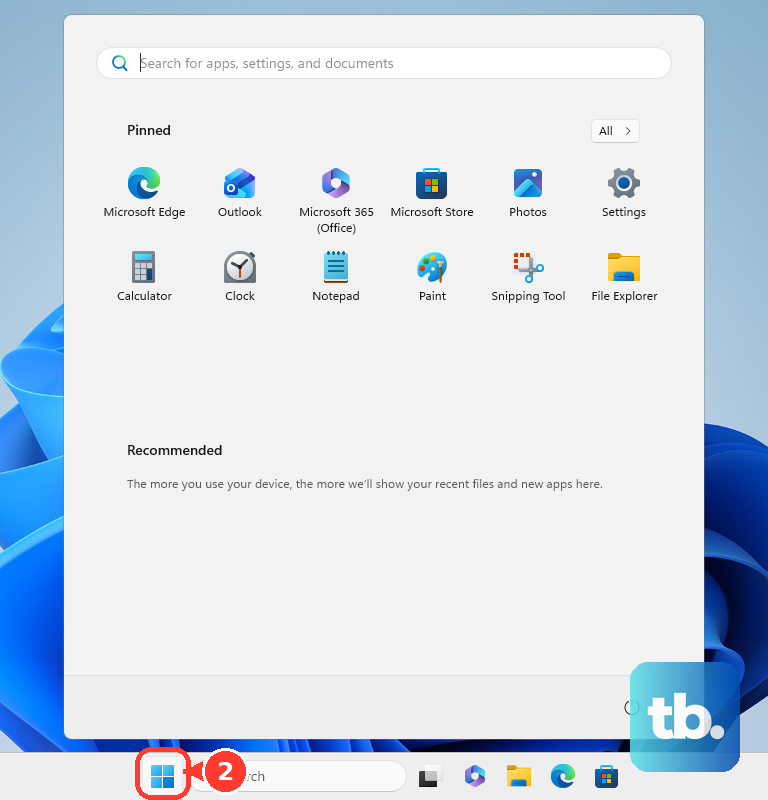
Open the Start menu, type "cmd", right-click on Command Prompt and select Run as administrator. In the window, type the command msdt.exe -id DeviceDiagnostic and press Enter. This launches Windows' built-in hardware troubleshooter, which can automatically find and fix some common USB configuration problems.
Check for Windows Updates and Optional Drivers
Go to Settings > Windows Update and click Check for updates. Install all critical updates. Then, click Advanced options and look under Optional updates. There may be driver updates specifically for your hardware listed here that you should install.
After completing any updates, a restart is a good idea. If you've tried these steps and the issue persists, particularly with a specific type of device, it may be worth running the Lenovo Diagnostics tool by pressing F10 at startup to check the USB hardware.