
When Bluetooth stops working on your ThinkPad X1 Carbon, your wireless mouse, headset, or keyboard suddenly becomes useless. The device might not show up in the list, fail to pair, or connect and then immediately drop. I'd start by checking the basics, as a simple toggle often solves it.
First, look at the system tray in the bottom right corner of your screen. Click the action center icon, which looks like a speech bubble, and make sure the Bluetooth tile is highlighted blue. If it's not there, you can enable it from Settings > Bluetooth & devices and turn Bluetooth on. If the entire Bluetooth section is missing from Settings, that points to a deeper driver issue we'll cover later.
Toggle the Bluetooth Radio
Turn Bluetooth off completely, wait about ten seconds, and then turn it back on. This forces the radio to reset and can clear out a stuck pairing state. On many ThinkPads, you can also press the dedicated Bluetooth key, often Fn + F8, to toggle the wireless radios on and off. Check the indicator light to confirm it's active.
Perform a Full Restart
Shut down your X1 Carbon completely, don't just put it to sleep. Wait a full minute, then power it back on. A clean boot reloads all drivers and services, which fixes a huge number of temporary glitches, especially those that crop up after the laptop wakes from sleep or hibernation.
Remove and Re-Pair the Problem Device
Head to Settings > Bluetooth & devices > Devices. Find the troublesome device in the list, click the three dots next to it, and select Remove device. Now, put your Bluetooth mouse or headphones into its pairing mode. On your ThinkPad, click Add device and select Bluetooth to search for it again. Corrupted pairing data is one of the most frequent causes of persistent connection problems.
Run the Built-In Windows Troubleshooter
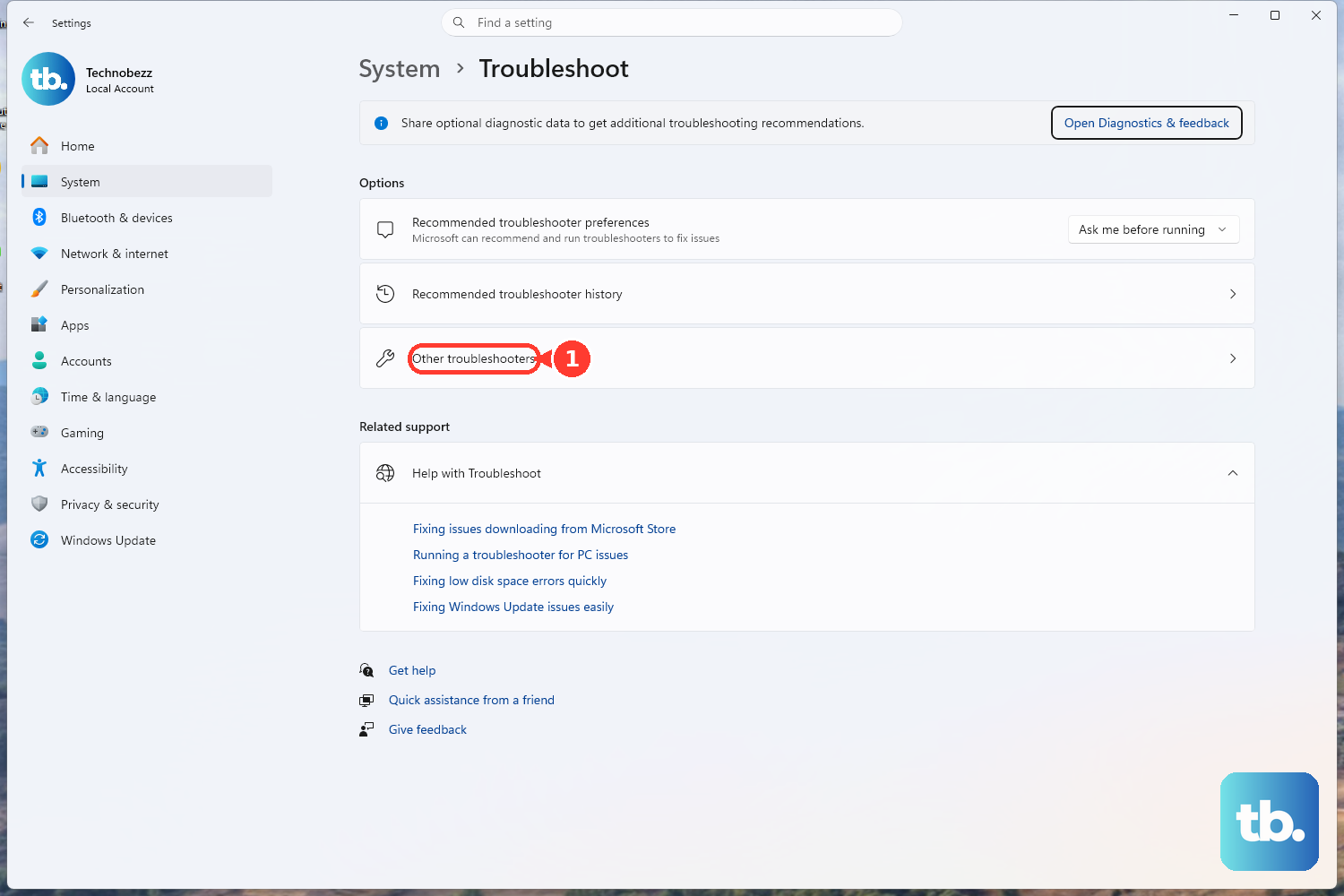
Windows includes a tool that can automatically find and fix some common configuration errors. Go to Settings > System > Troubleshoot > Other troubleshooters. Find the Bluetooth troubleshooter in the list and click the Run button next to it. Follow any prompts it provides.
Update Your Bluetooth Drivers via Lenovo Vantage
For ThinkPads, the best tool for driver management is Lenovo Vantage. Open the app and check for updates in the System Update section. It will scan for the latest official drivers for your specific X1 Carbon model, including Bluetooth. If you don't have Vantage, you can use Device Manager by pressing Windows Key + X and selecting it, then right-clicking your Bluetooth adapter under the Bluetooth section to update the driver.
Restart the Core Bluetooth Service
Sometimes the background service that manages Bluetooth gets hung up. Press Windows Key + R, type services.msc, and hit Enter. Scroll down to find Bluetooth Support Service. Right-click on it and choose Restart. While you're there, double-click it to open its properties and ensure the Startup type is set to Automatic.
Check for Wireless Interference
Bluetooth shares the 2.4 GHz band with WiFi and many other devices. If you're using a USB 3.0 device, especially an external hard drive or hub, try unplugging it temporarily. The radio frequency interference from some USB 3.0 ports can disrupt nearby Bluetooth signals. Also, try moving your Bluetooth device closer to your laptop to rule out a weak signal.
Install All Windows Updates
Microsoft regularly releases patches that fix hardware compatibility and performance issues. Go to Settings > Windows Update and click Check for updates. Install any available feature or quality updates. After the updates install and your laptop restarts, check if Bluetooth pairing works again.
Reinstall the Bluetooth Adapter in Device Manager
This is a more thorough reset. Open Device Manager, expand the Bluetooth section. Right-click on your Bluetooth adapter (it might be listed as Intel, Realtek, or another brand) and select Uninstall device. If given the option, check the box that says "Attempt to remove the driver for this device." Restart your ThinkPad. Windows will detect the hardware on boot and reinstall a fresh driver.
If you're still having trouble after these steps, it's worth checking for other known issues. On some X1 Carbon models, driver conflicts with the WWAN module can affect Bluetooth. Using Lenovo Vantage to update all system drivers can resolve this. For a deep hardware check, you can restart your laptop and press F10 at the Lenovo logo to run the built-in diagnostics.