
That sudden blue screen on your ThinkPad X1 Carbon is Windows hitting the emergency stop button. It's usually a driver conflict, a hardware hiccup, or a corrupted system file. The specific error code on the screen gives you a clue, but the fixes below work for most BSODs you'll encounter on this laptop.
First, if you can, jot down the stop code from the blue screen. Common ones include DRIVER_IRQL_NOT_LESS_OR_EQUAL or SYSTEM_SERVICE_EXCEPTION. You can look up the exact code later, but starting with a general fix often solves it.
Restart and See if It Happens Again
A single blue screen can be a random fluke. Just restart your X1 Carbon normally. If it boots up to Windows and runs fine, you can probably move on. If it crashes again right away or within a short time, you've got a recurring issue that needs attention.
Boot Into Safe Mode
If the laptop crashes before you can even log in, you'll need to get into Safe Mode. From the sign-in screen, hold the Shift key and click the power icon, then select Restart. After it reboots to a blue menu, go to Troubleshoot > Advanced options > Startup Settings > Restart.
When it restarts again, press the 4 key to enable Safe Mode. This loads Windows with only the essential drivers, which can help you determine if a third-party driver is causing the crash.
Use Lenovo Vantage for Driver Updates
Outdated or faulty drivers are a top cause of ThinkPad crashes. I'd start by opening the Lenovo Vantage app. Go to the Device section and click System Update. Let it scan for all available driver, BIOS, and firmware updates.
Pay special attention to updates for the Thunderbolt controller and any WWAN or wireless modules, as driver conflicts here are a known issue for the X1 Carbon. Installing the official Lenovo-packaged drivers is often safer than generic Windows Update ones.
Uninstall Recent Software or Windows Updates
Think about what changed just before the crashes started. If you installed a new program or a Windows update, try removing it. For a problematic update, go to Settings > Windows Update > Update history > Uninstall updates.
Look for the most recent quality update or feature update and uninstall it. If you added new hardware, like a dock or external device, disconnect it and see if the system stabilizes.
Run the Built-In Diagnostics
Your ThinkPad has a powerful hardware diagnostic tool built right in. Restart the laptop and immediately start pressing the F10 key repeatedly as it boots. This will launch Lenovo Diagnostics.
Run the comprehensive test, which will check your memory (RAM), hard drive, and other critical components. If this test finds a hardware failure, it will give you a failure code and component to focus on.
Check for System File Corruption
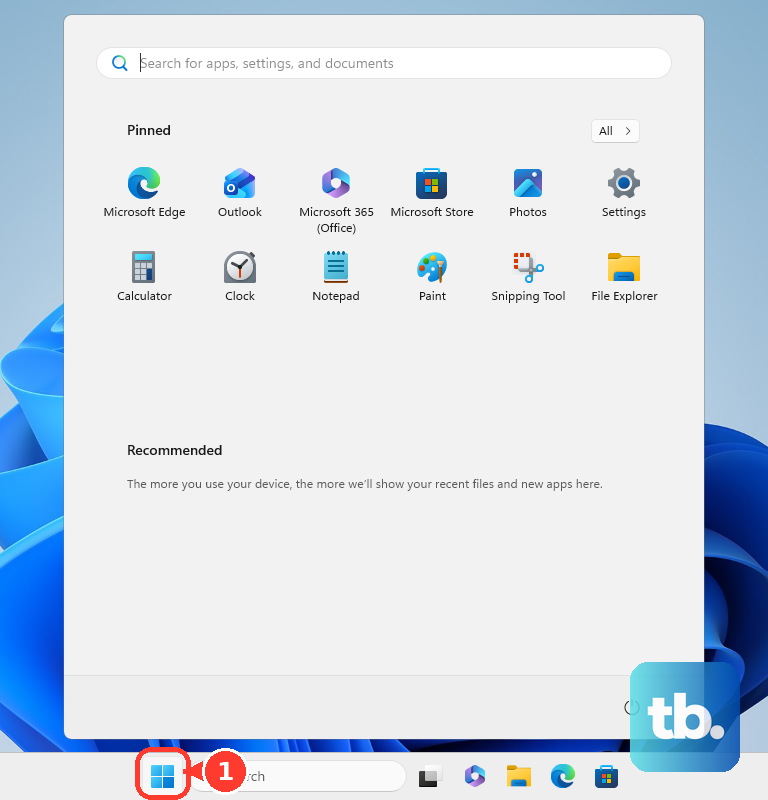
Corrupted Windows system files can definitely cause blue screens. Open the Start menu, type cmd, right-click on Command Prompt, and select Run as administrator. In the black window, type the command sfc /scannow and press Enter.
This System File Checker will scan and repair protected files. If it finds problems it can't fix, run this command first: DISM /Online /Cleanup-Image /RestoreHealth. After it finishes, run the sfc command again.
Test Your Memory (RAM)
Faulty RAM is a classic culprit for random crashes. You can use the Windows Memory Diagnostic tool. Search for it in the Start menu and run it, choosing to restart and check immediately.
For a more thorough test, use the Lenovo Diagnostics tool (F10 at boot) mentioned earlier, as it's tailored for ThinkPad hardware. If errors are found, the RAM in the X1 Carbon is often soldered, so a hardware repair might be necessary.
Check Your SSD Health
A failing SSD can lead to crashes with disk-related error codes. Open an Administrator Command Prompt again. This time, type chkdsk C: /f /r and press Enter. It will schedule a check for the next restart.
Type Y to confirm, then restart your laptop. The check will run before Windows boots, looking for and repairing file system errors. Many X1 Carbons use NVMe SSDs, so also check for manufacturer tools like Samsung Magician if you know your drive model.
Reset or Update the BIOS
A misconfigured or outdated BIOS can cause instability. First, try resetting your BIOS settings to default. Restart and press F1 (or Fn + F1 if your function keys are swapped) to enter ThinkPad Setup.
Look for an option like Restore Defaults or Load Setup Defaults, save and exit. If that doesn't help, go back into Lenovo Vantage and check for a BIOS/UEFI firmware update under System Update. Installing the latest BIOS can resolve compatibility issues.
Perform a System Reset
If you're still facing crashes after all that, a Windows reset is a strong next step. This reinstalls Windows while letting you keep your personal files. Go to Settings > System > Recovery and click Reset this PC.
Choose Keep my files. This will remove all your apps and drivers and reinstall Windows, which often clears out deep-seated driver conflicts or system corruption that other tools can't fix.