
Screen flickering on your ThinkPad T14 is incredibly distracting, turning a reliable work machine into a frustrating puzzle. The display might flash, show horizontal lines, or have intermittent blackouts. Let's get it fixed.
Update Your Display Drivers
Start with official display-driver updates. Open the Vantage app and check the available update packages, or use Lenovo Support for your exact T14 model. Lenovo documents Vantage as a way to download and install UEFI BIOS, firmware, and driver updates, but available features and labels can vary by model and app version.
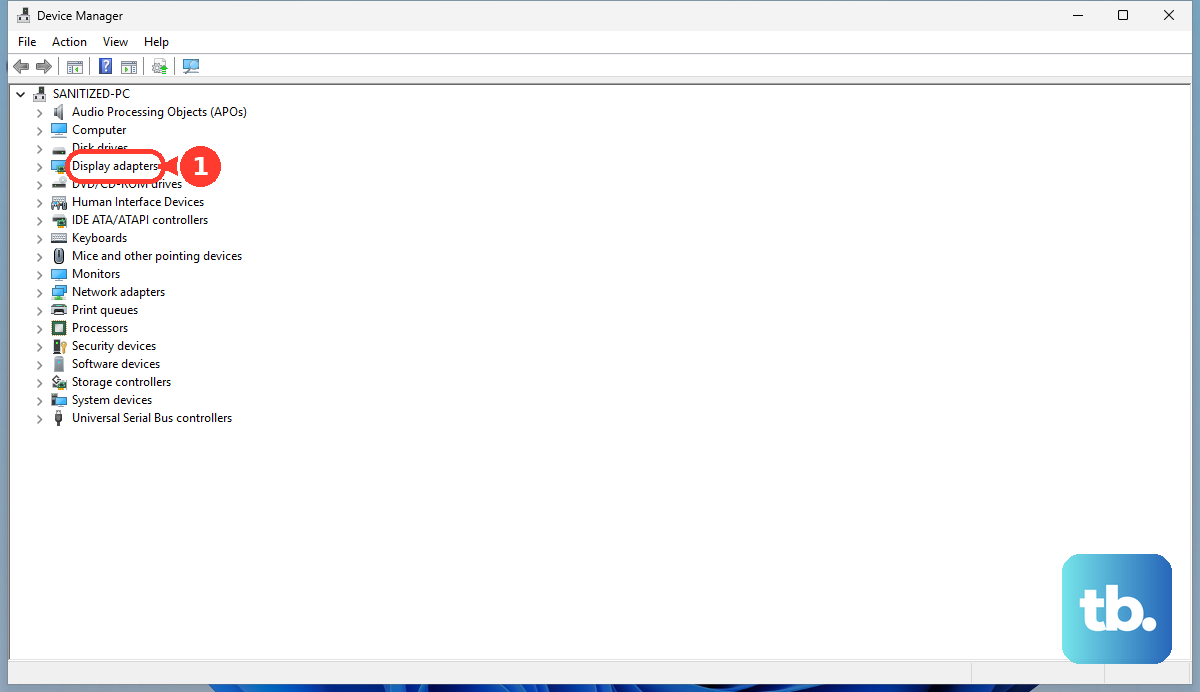
You can also go directly to the source. Open Device Manager, expand Display adapters, right-click your GPU, and select Update driver. Choose to browse your computer and manually select the driver you downloaded from Lenovo's support site for the most control.
Check the Task Manager Diagnostic
Press Ctrl + Shift + Esc to open Task Manager. If it does not appear, press Ctrl + Alt + Delete and choose Task Manager. If Task Manager flickers along with everything else, Microsoft says a display driver is probably causing the problem. If Task Manager stays stable while the rest of the screen flickers, an incompatible app is probably causing the problem.
Use that result to decide whether to focus first on the display driver or on recently updated or open apps.
Adjust Your Display's Refresh Rate
Go to Settings > System > Display > Advanced display. Under Choose a refresh rate, select one of the refresh rates Windows offers for that display. The available rates depend on the built-in panel or external monitor, and Windows may mark rates that require a resolution change with an asterisk.
If flickering began after a refresh-rate change, return to the previous supported rate or try another listed rate. Do not assume every T14 panel, dock, or USB-C monitor will offer both 60Hz and 59.94Hz.
Disable Hardware Acceleration in Apps
Apps like web browsers and video players can use GPU acceleration. If flickering only appears inside a browser, test the browser's graphics setting. In Chrome, open chrome://settings/system; in Edge, open edge://settings/system/systemSubPage#GraphicsAcceleration. Turn off Use graphics acceleration when available, then restart the browser.
If that causes problems on other sites or in other videos, turn graphics acceleration back on. For Zoom, Microsoft Teams, or another app, check that app's own support documentation before changing similarly named settings.
Boot Into Safe Mode
If the flickering is constant and severe, boot into Safe Mode through Windows Recovery Environment. Hold Shift while selecting Power > Restart, then choose Troubleshoot > Advanced options > Startup Settings > Restart. When Startup Settings appears, select 5 or press F5 for Safe Mode with Networking.
If the screen is stable in Safe Mode, focus on drivers, startup apps, or recently installed software that does not load in Safe Mode. A stable Safe Mode session narrows the problem; it does not by itself prove one specific program or utility is the culprit.
Roll Back a Problematic Display Driver
Did the flickering start right after a driver update? You can revert it. Right-click Start, select Device Manager, expand Display adapters, right-click the display adapter, and select Properties. On the Driver tab, select Roll Back Driver if it is available, choose a reason, confirm, and restart if prompted.
Microsoft says rolling back the display driver is the step to try when flickering starts after Windows Update recently updated the device.
Run the Lenovo Hardware Diagnostics
Your ThinkPad has Lenovo UEFI diagnostics. Restart the laptop and repeatedly press and release F10 when the ThinkPad or Lenovo logo appears. Follow the on-screen instructions and run the relevant display/LCD and memory tests that are available for your model.
If diagnostics report an error, follow Lenovo's instructions or contact Lenovo Support. If diagnostics pass, continue with software troubleshooting, but do not treat a pass as proof that no hardware fault exists.
Check for Physical Connection Issues
If flickering changes when the lid angle changes, stop flexing the laptop and treat it as a possible hardware fault. Lenovo's hardware maintenance manuals list computer-display errors and LCD cable work as service-provider procedures, including reconnecting the display cable on the system-board and display sides.
Back up important files, test with an external monitor if you can, and contact Lenovo Support or a qualified service provider rather than opening the display assembly yourself.
Perform a Clean Windows Reinstall
As a last resort, a clean installation of Windows can eliminate deep-seated software conflicts. Use the Windows Media Creation Tool to create Windows installation media. Before you start, back up your files and check Settings > System > Activation so you know whether the device is activated with a digital license or a product key.
If Windows is already activated with a digital license, Microsoft says you can reinstall the same edition without entering a product key and skip the prompt by selecting I don't have a product key. After Windows is installed, install the Lenovo driver, firmware, and UEFI BIOS packages for your exact T14 through Vantage or Lenovo Support, then apply Windows Update for current Windows updates and security patches.