
When you plug your ThinkPad T14 into an external monitor and get nothing but a black screen, it's usually a quick settings or connection fix. Let's get that second display working.
Start with a free monitor test to check the panel with fullscreen test patterns. What you see there tells you whether to blame the display, the cable, or the source.
The fastest thing to try is the Windows projection shortcut. Press Windows + P on your keyboard and make sure Duplicate or Extend is selected. If it's on "PC screen only," your external ports are turned off.
Inspect Your Cables and Ports
Unplug the video cable from both your ThinkPad and the monitor, then firmly reconnect it. I'd try a different cable if you have one handy, as they can fail internally without looking damaged.
Make sure your monitor is powered on and set to the correct input source, like HDMI 1 or DisplayPort 2. If you're using a USB-C or Thunderbolt dock, try connecting the monitor directly to your laptop's HDMI or USB-C port instead to rule out dock issues.
Run a Display Detection
Go to Settings > System > Display. Click the Detect button. Windows will scan for connected displays. If it finds your monitor, you can then arrange it and set the appropriate resolution.
Sometimes the monitor is detected but set to an unsupported resolution or refresh rate. Try setting it to a common resolution like 1920x1080 at 60Hz to see if an image appears.
Update Your Graphics Drivers
Outdated or corrupted display drivers are a common culprit. For your ThinkPad T14, the best source is often Lenovo Vantage. Open the Vantage app, check for updates, and install any available graphics or chipset drivers.
You can also update manually. Open Device Manager, expand Display adapters, right-click your Intel, AMD, or NVIDIA GPU, and select Update driver. Choose "Search automatically for drivers."
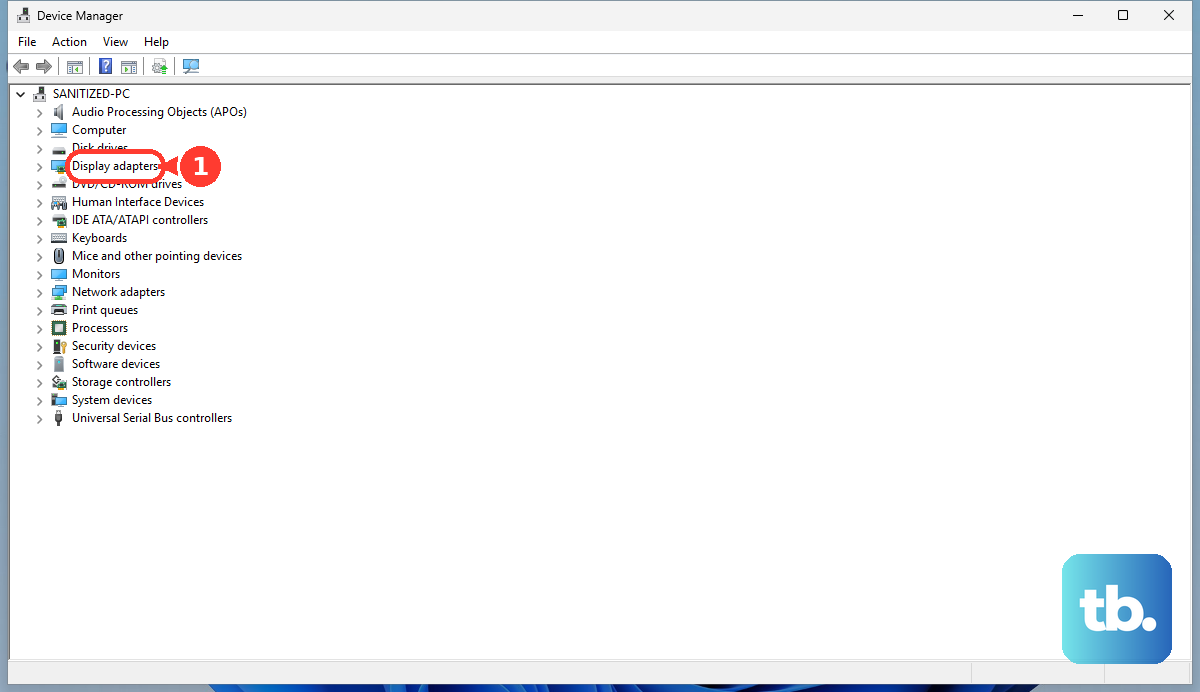
Restart Your ThinkPad with the Monitor Connected
A simple restart can force the graphics system to re-initialize and recognize the external display. Shut down your T14, ensure the monitor is connected and powered on, then turn the laptop back on.
Watch for the Lenovo or Windows logo during boot. If it appears on the external monitor, you know the hardware connection is good and the issue is within Windows.
Check Your ThinkPad's BIOS Settings
Restart your laptop and press F1 repeatedly as it boots to enter the BIOS. Navigate through the menus (often under Config or Display) and look for any settings related to external display output, Thunderbolt security, or docking.
Make sure nothing is disabled. If you're using a dock, there might be specific USB or Thunderbolt assist settings. Be cautious here, and don't change settings you don't understand, especially if your laptop is managed by an IT department with a BIOS password.
Try a Different Video Port
The ThinkPad T14 typically has both an HDMI port and USB-C/Thunderbolt ports that support video. If HDMI isn't working, try connecting your monitor via a USB-C to HDMI or DisplayPort adapter.
This test tells you if the problem is with the specific HDMI port or a more general graphics issue. If it works via USB-C, the HDMI port itself might be faulty.
Disable and Re-enable the Display Adapter
This refreshes the graphics driver without a full restart. In Device Manager, right-click your display adapter under Display adapters and select Disable device. Confirm, wait about 10 seconds, then right-click it again and select Enable device.
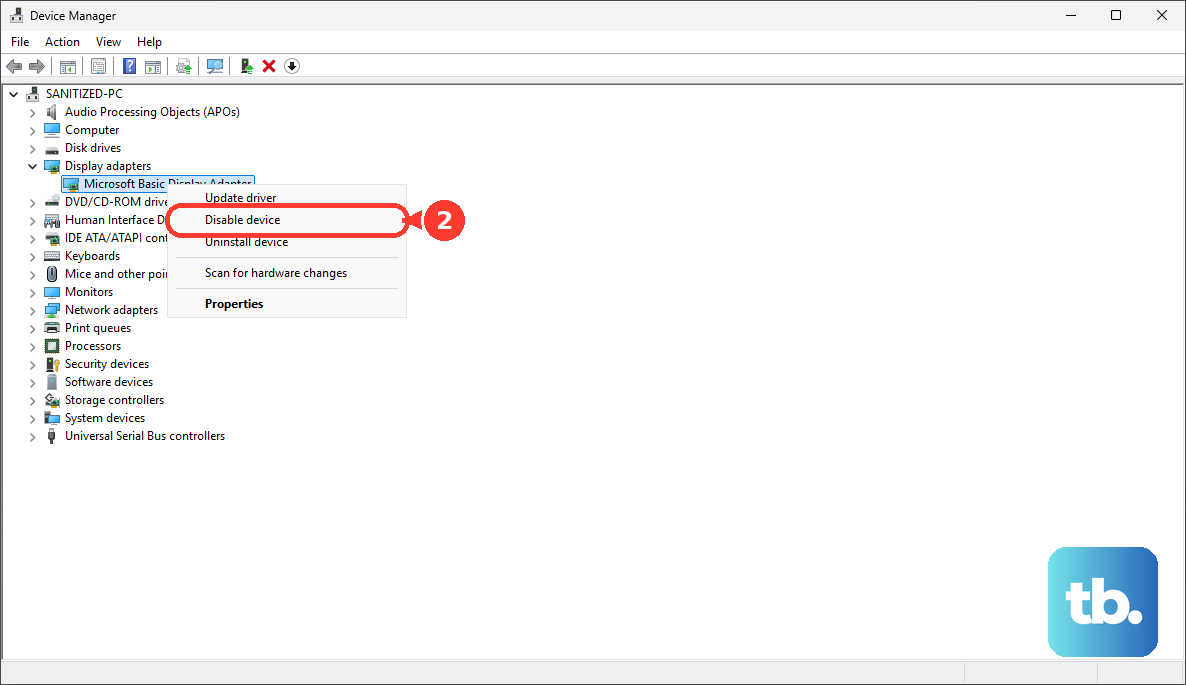
Your screen will flicker as the driver reloads. After it comes back, check if your external monitor is detected.
Test with Another Monitor or Laptop
Connect your ThinkPad to a different monitor or TV. If it works, the issue is with your original monitor's input or settings. Conversely, try connecting a different laptop to your problematic monitor to confirm it's functioning.
This process of elimination is the most reliable way to figure out which piece of hardware is at fault.