
When your Lenovo Legion Pro 16 suddenly goes silent, it's a jarring break from your game or movie. The issue could be a simple setting in Windows, a driver conflict, or something specific to the Legion's audio hardware. Let's walk through the steps to get your sound back.
Check Your Volume and Output
First, look at the speaker icon in your taskbar. Click it and make sure the master volume slider isn't all the way down or muted. Right next to that slider, you'll see the current output device. If you recently unplugged headphones, Windows might still be trying to send audio to that port. Click the small arrow and select your Legion's built-in speakers to switch it back.
Run the Windows Audio Troubleshooter
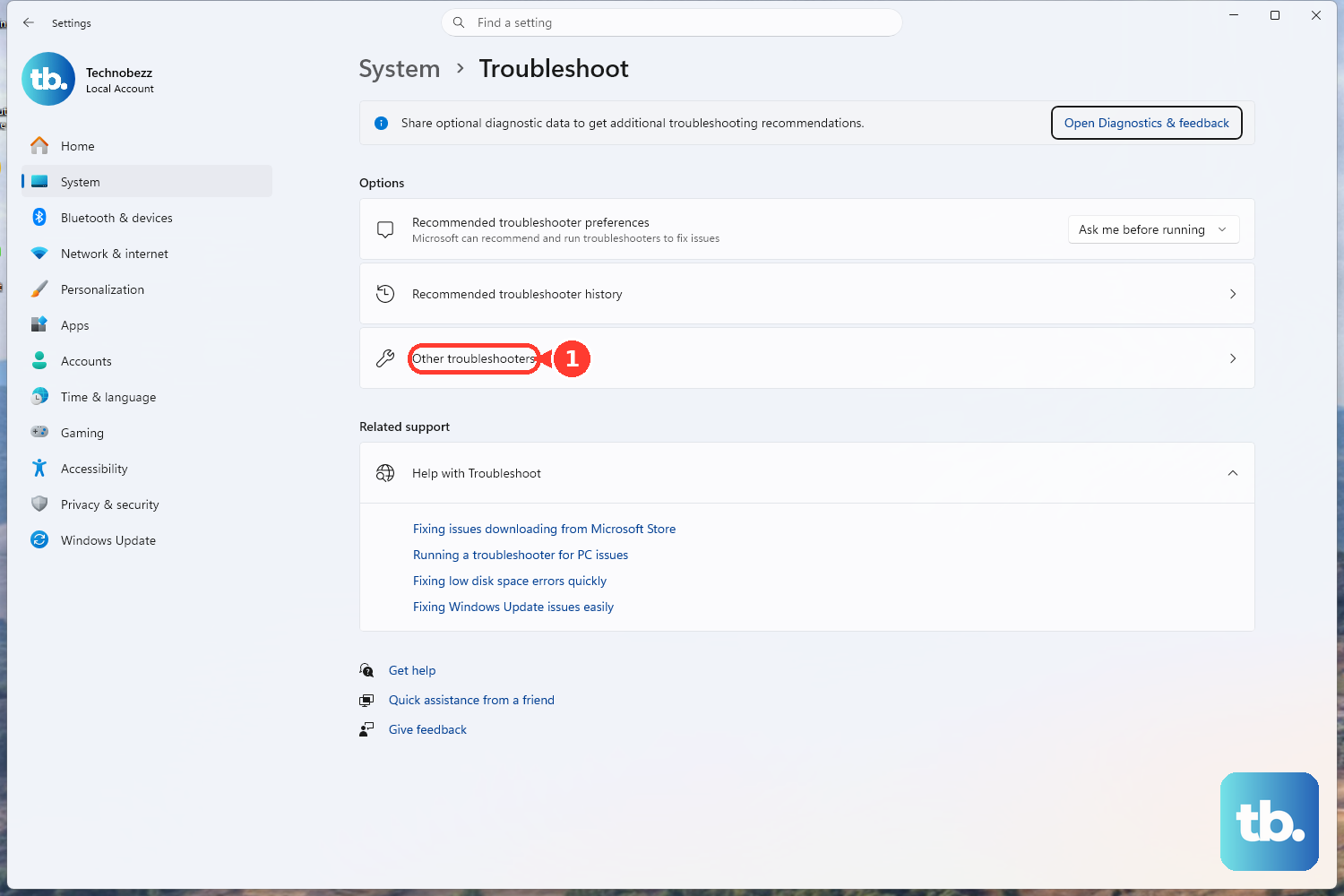
Windows has a built-in tool that can automatically find and fix common audio glitches. Go to Settings > System > Troubleshoot > Other troubleshooters. Find the Playing Audio troubleshooter and click Run. It will check for disabled services, wrong default devices, and other configuration problems, often fixing them with a single click.
Restart Your Legion Laptop
This is the classic fix for a reason. A full restart clears out any stuck audio processes and reloads all your drivers from scratch. Click the Start menu, select the power icon, and choose Restart. I've found this is particularly effective if the sound cut out after a Windows update or when waking the laptop from sleep mode.
Verify the Sound Output in Settings
Head to Settings > System > Sound. Under the Output section, ensure "Speakers (Realtek Audio)" or a similar Legion-specific device is selected, not an HDMI display or a disconnected Bluetooth headset. Click on that device and check that its volume is up and the "Mute" toggle is off.
Update or Reinstall Audio Drivers
Outdated or corrupted drivers are a frequent culprit. Press Windows Key + X and choose Device Manager. Expand the Sound, video and game controllers section. Right-click on your audio device (it will likely be Realtek) and select Update driver > Search automatically for drivers. If that doesn't help, try Uninstall device, then restart your laptop. Windows will install a fresh driver upon reboot.
Restart the Core Audio Services
Sometimes the background services that manage sound get hung up. Press Windows Key + R, type services.msc, and hit Enter. In the list, find Windows Audio. Right-click it and select Restart. Do the same for the Windows Audio Endpoint Builder service. If either was stopped, this should bring audio back immediately.
Check App-Specific Volume Mixer
It's possible just one application has lost its sound. Right-click the speaker icon in the taskbar and select Volume mixer. You'll see individual volume sliders for every open app. Make sure the app you're using (like your game, browser, or media player) isn't muted or set to zero volume here.
Disable Audio Enhancements
Audio enhancements like spatial sound or vendor-specific effects can sometimes conflict and cause audio to drop out. Go to Settings > System > Sound, click your output device, and scroll down to Audio enhancements. Try setting this to Off to see if it resolves the issue.
Inspect for Physical and Legion-Specific Issues
If you're using headphones or external speakers, test the cable and try a different pair. For the Legion Pro 16's internal speakers, check that the grilles on the bottom or sides of the laptop aren't obstructed. Also, press Fn + Q to cycle out of Quiet mode, as this profile can significantly reduce fan and speaker output. Open the Legion Space app and ensure no audio-related settings there are causing a conflict.
Roll Back a Problematic Driver Update
If the sound stopped right after a Windows or driver update, you can revert to the previous version. In Device Manager, double-click your audio device, go to the Driver tab, and click Roll Back Driver. This option is only available if a previous driver was installed, but it can quickly undo an update that introduced the problem.