
When your Legion Pro 16's keyboard stops responding, it can feel like you're locked out of your own machine. Whether it's a few keys acting up or the entire board going dark, the solutions usually start with software before moving to hardware.
A browser based keyboard tester shows every keypress in real time, which makes it easy to tell a failed switch from a settings problem before you start troubleshooting.
Force Restart the Laptop
This is the quickest fix for a temporary software glitch. Hold down the power button for about 10 seconds until the laptop fully powers off. Wait a few seconds, then press the power button again to turn it back on. This forces a clean reload of all system drivers, including the one for your keyboard.
Check for a Stuck Function Key
Your Legion keyboard has several function-lock keys. If the Fn key is stuck or if you've accidentally toggled a function lock, it can make the main keys act as media controls or stop working entirely. Try pressing the Fn key a few times, or look for an Fn Lock key (often Esc or one of the function keys) and toggle it.
Also, try pressing Fn + Q to cycle through the performance modes. Sometimes, switching from Performance to Balanced or Quiet mode can reset a minor system hiccup affecting the keyboard.
Update or Reinstall the Keyboard Driver
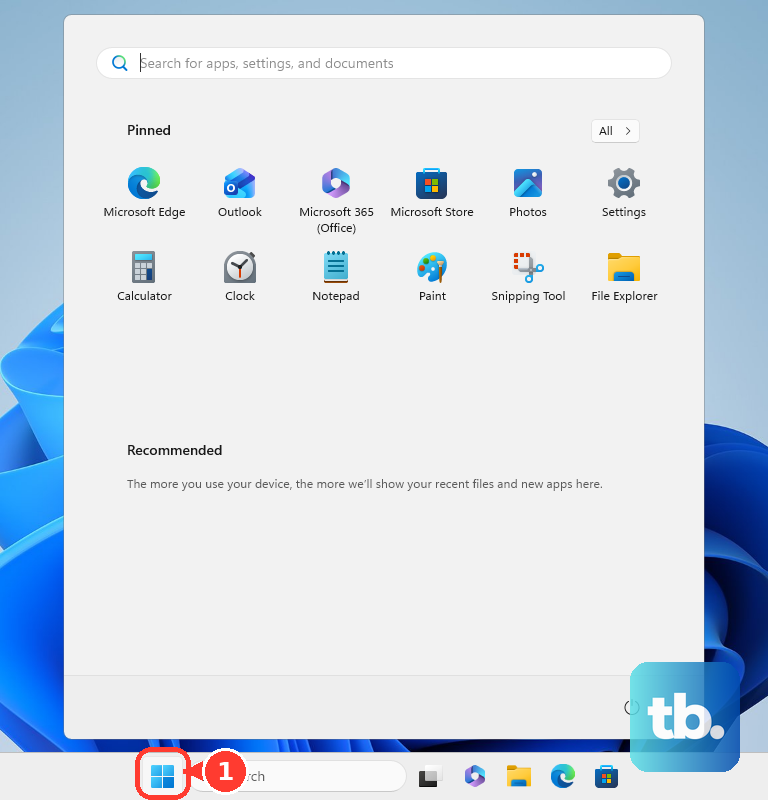
Open the Start Menu and type "Device Manager," then select it. Expand the "Keyboards" section, right-click on "HID Keyboard Device" or "Lenovo Keyboard," and choose "Update driver." Select "Search automatically for drivers."
If that doesn't help, right-click the keyboard device again and choose "Uninstall device." Don't worry, restart your laptop and Windows will automatically reinstall a fresh, default driver. This clears out any corrupted driver files that might be causing the issue.
Check the Legion Space App
The Legion Space software controls many aspects of your laptop, including keyboard lighting and macros. Open the Legion Space app and navigate to the keyboard or lighting settings. I'd start by resetting any custom lighting profiles or macro assignments back to default.
A buggy profile here can sometimes interfere with normal key input. If you're not using the macro features, try disabling them entirely within the app to see if that restores normal function.
Run the Lenovo Hardware Scan
Lenovo includes a built-in diagnostic tool. You can access it through the Lenovo Vantage app (or the newer Legion Space, depending on your software version). Look for a section called "Hardware Scan" or "PC Diagnostics."
Run the test for the keyboard and input devices. This will tell you if the laptop's own diagnostics can detect a hardware fault with the keyboard matrix or its connection.
Boot into Safe Mode
If the keyboard works in Safe Mode, you know a third-party program is the culprit. To get into Safe Mode on Windows 11, go to Settings > System > Recovery and click "Restart now" next to "Advanced startup."
After the restart, choose Troubleshoot > Advanced options > Startup Settings > Restart. Press the 4 or F4 key to boot into Safe Mode. If the keyboard works fine here, start uninstalling recently added software from your normal Windows session.
Check for Physical Damage or Spills
Turn the laptop off and disconnect the charger. Take a close look at the keyboard. Are any keys visibly stuck down? Gently pry up the affected keycap to see if something is lodged underneath.
For crumbs or dust, a can of compressed air held at an angle can blow debris out from under the keys. If there's been any liquid spill, even a small one, the keyboard may need to be replaced, as the Legion Pro 16's keyboard is not designed to be spill-resistant.
Update Your System and BIOS
Go to Settings > Windows Update and install all available updates. Sometimes, a Windows update includes a fix for specific driver conflicts. More importantly, check for a BIOS/UEFI update through the Lenovo Vantage app or the Lenovo Support website.
A BIOS update can resolve fundamental communication issues between hardware components. Make sure your laptop is plugged in during this process and don't interrupt it.
Test with an External Keyboard
Plug a USB keyboard into one of your laptop's ports. If the external keyboard works perfectly, it strongly points to a hardware issue with the built-in keyboard. The problem could be a loose internal ribbon cable connecting the keyboard to the motherboard, or the keyboard itself may have failed.
This test helps confirm where the problem lies before considering more involved repairs. If the laptop is still under warranty, this is the point where contacting Lenovo support becomes the next logical step.