
When you plug your Lenovo Legion Pro 16 into an external monitor and get no signal, it's a frustrating roadblock. The issue can stem from the cable, a Windows setting, or the laptop's unique hardware configuration. Let's get your second screen working.
It is worth viewing a few test patterns from a monitor test before changing hardware. Faults that persist across every pattern point firmly at the display itself.
Press Windows + P First
This is the quickest thing to try. Press the Windows + P keys together to bring up the projection menu. Your laptop might be set to "PC screen only," which disables the external output. Cycle through the options to Duplicate or Extend and see if your monitor springs to life.
Check Your Cable and Ports
Unplug the cable from both the laptop and the monitor, then reconnect it firmly. I'd recommend trying a different cable if you have one, as HDMI and DisplayPort cables can fail. Also, double-check that your monitor is set to the correct input source, like HDMI 1 or DisplayPort 2.
The Legion Pro 16 typically has multiple video outputs. If you're using the HDMI port, try one of the USB-C ports with a USB-C to DisplayPort or HDMI adapter instead. If the alternate port works, the issue might be with your laptop's specific HDMI port hardware.
Restart Your Laptop While Connected
With the external monitor plugged in and powered on, restart your Legion Pro. Some systems, especially those with a discrete GPU and a MUX switch like yours, only fully initialize external displays during the boot process. A fresh start with the cable connected can force a proper handshake.
Update Your Graphics Drivers
Outdated drivers are a common culprit. For the most reliable result, head directly to the NVIDIA website, use the NVIDIA app, or the Lenovo Vantage/Legion Space app to download the latest Game Ready driver for your RTX GPU. Don't just rely on Windows Update for graphics drivers on a gaming laptop.
After installing, perform a clean restart. This ensures the new driver is loaded correctly and can often resolve output detection issues that a standard update might miss.
Use Windows Display Settings
Go to Settings > System > Display. Click the Detect button. If Windows sees the monitor but it's still black, scroll down and select the external display. Make sure the resolution and refresh rate are set to values your monitor explicitly supports, sometimes listed on a sticker on the monitor itself.
Toggle the MUX Switch in Legion Space
Your Legion Pro 16 has a MUX switch that controls whether the integrated or discrete GPU handles the display output. Open the Legion Space app and look for display or GPU settings. Switching between "Hybrid Mode" and "Discrete GPU Mode" can affect external display behavior.
Be aware that changing this setting usually requires a full system restart to take effect. If your external monitor works in one mode but not the other, you've found a configuration workaround.
Disable and Re-enable the GPU
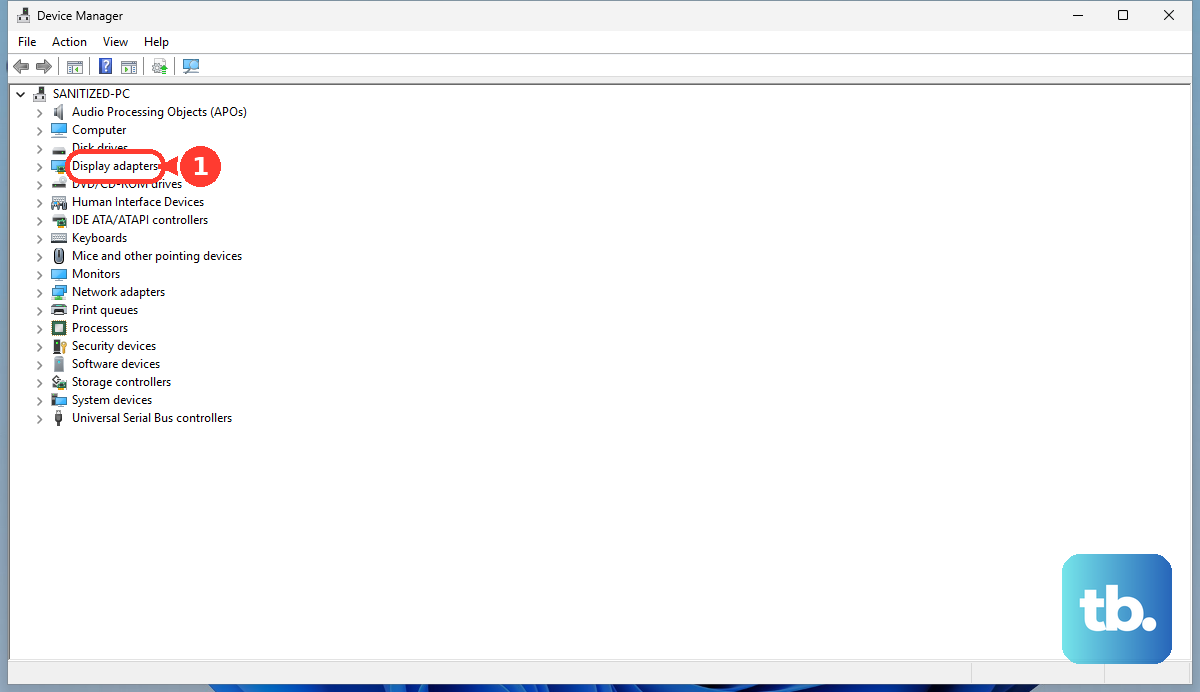
Press Windows + X and select Device Manager. Expand the Display adapters section. Right-click on your NVIDIA GeForce RTX graphics card and select Disable device. Confirm, wait about ten seconds, then right-click it again and choose Enable device.
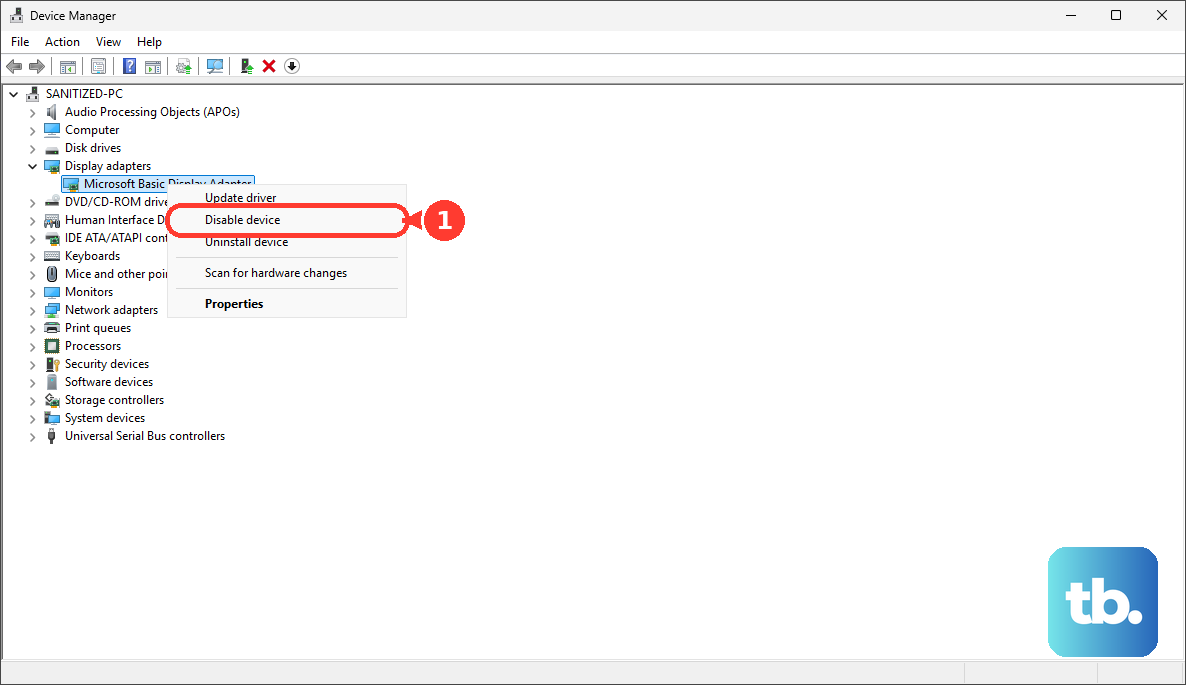
This resets the graphics driver and can jolt the external video output back into operation without needing a full reboot.
Test with a Different Monitor or TV
Connect your laptop to another known-working display, like a living room TV. If the signal works there, the problem is likely with your primary monitor's settings or its specific port. If it still doesn't work, you've confirmed the issue is with the laptop's setup.
Check BIOS Settings via the Novo Button
Shut down your laptop. Locate the small Novo button on the right side (often next to the power port) and press it with a paperclip. In the menu that appears, select BIOS Setup or press F2.
Navigate through the BIOS menus (using the arrow keys) looking for display or graphics configuration options. Ensure settings related to external display output or the primary GPU are enabled. Save any changes and exit. This is a less common fix, but a BIOS update or reset can sometimes alter these underlying settings.