
When your Legion Pro 16's webcam shows a black screen, isn't detected by apps like Zoom or Teams, or gives you a generic error, it can stop your gaming streams or video calls cold. The fixes are usually straightforward, starting with the most common culprit.
Start with a free webcam test to rule out a hardware fault. If a live preview appears there but not in your app, the camera is fine and the app is the problem.
Check the Camera Switch
Do not assume this Legion has a small sliding cover beside the lens. Check the model's camera switch or E-shutter control instead. In Lenovo's live Legion Pro 7i/Pro 7 16 user guide, the privacy control is a Camera switch on the side of the laptop that enables or disables the built-in camera.
Look along the side edge for the camera switch and slide it to the on position, or check your exact Lenovo user guide if the switch location differs. If the switch is off, Lenovo says it prevents apps from using the camera, so Windows privacy and driver changes will not restore the webcam until the switch is enabled.
Verify Windows Camera Privacy Settings
Windows has a system-level privacy toggle that can block all camera access. Press the Windows key and type "camera privacy" to open the settings directly. Make sure the main Camera access switch is turned On.
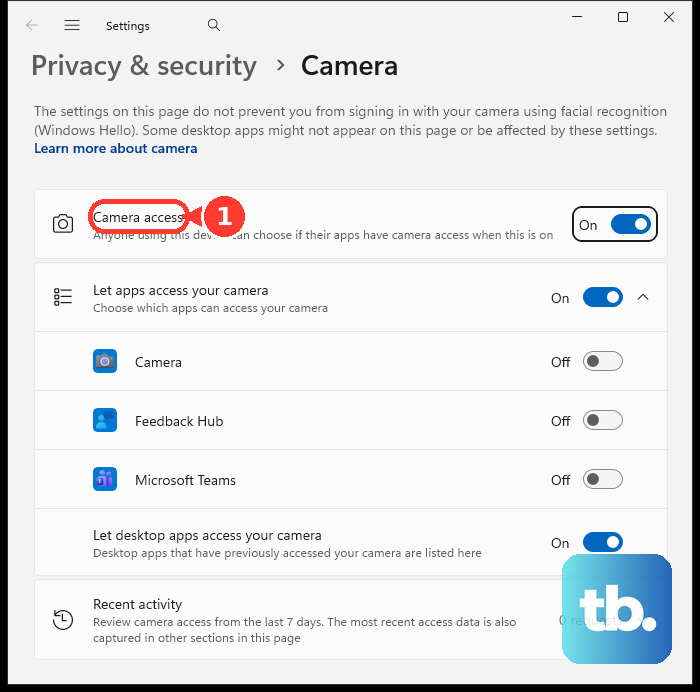
Scroll down and check the relevant app access controls. Microsoft Store apps can have individual camera toggles, but desktop apps such as many browsers and video-conferencing tools are controlled by Let desktop apps access your camera rather than per-app switches. Turn on the individual app toggle if it appears, and turn on desktop-app camera access for apps that do not appear in the list.
Test with the Windows Camera App
Open the built-in Camera app from your Start menu. This is a great diagnostic tool. If the camera works perfectly here, you know the hardware is fine and the problem is isolated to your other software's settings.
If the Camera app also fails or shows an error, the issue is with Windows or the driver. This tells you to focus on system-level fixes instead of fiddling with individual app configurations.
Update Your Camera Drivers
Outdated or corrupted drivers are a frequent cause. Open Device Manager by right-clicking the Start button. Look under Cameras or Imaging devices for your webcam, often listed as "Integrated Camera."
Right-click it and choose Update driver, then Search automatically for drivers. Let Windows look for an update. For the most reliable drivers, I'd also check the Lenovo Vantage app or the official Lenovo support site using your laptop's serial number.
Perform a Full Restart
A simple restart can clear a stuck process that's holding exclusive control over the camera. This happens if an app crashed while using it. Save your work and do a full shutdown, then power back on, rather than just putting the laptop to sleep.
Make sure to close all applications that might use the camera before you restart, including browsers with video tabs open. This ensures a clean slate when Windows boots up again.
Reinstall the Camera Driver
If updating didn't help, a clean reinstall might. Back in Device Manager, right-click the camera device and select Uninstall device. Check the box that says "Delete the driver software for this device" if it appears.
After you click Uninstall, restart your Legion Pro. Windows will detect the missing hardware on boot and attempt to install a fresh, generic driver. This often resolves conflicts or corruption that an update can't fix.
Close Other Camera-Using Applications
Windows typically only allows one app to access the camera at a time. If you have Discord running in the background for voice chat, it might be locking the camera so your streaming software can't see it.
Open Task Manager (Ctrl+Shift+Esc) and look for any apps like Teams, Skype, or game clients that might be using the webcam. End those tasks, then try your camera again in the app you actually want to use.
Check for System and Optional Updates
Go to Settings > Windows Update and click Check for updates. Install any available feature or quality updates, as they can contain important system fixes. Don't stop there.
Click on Advanced options, then Optional updates. There's often a driver update section here. If you see a camera or imaging device driver listed, select and install it. These are vendor-provided updates that don't always come through the standard channel.
Reset the Camera App
If the problem is only in the Windows Camera app, resetting it can help. Go to Settings > Apps > Installed apps, find the "Camera" app in the list, and click the three dots next to it.
Select Advanced options and then click the Reset button. This will restore the app to its default state, clearing any corrupted cache or settings that might be causing it to malfunction, without affecting your other programs.