
When Bluetooth won't pair on your Lenovo Legion Pro 16, it leaves your wireless mouse, headset, or controller useless. The device might not show up in the list, the pairing request fails, or the connection drops instantly. Here's how to get it working again.
Toggle Bluetooth and Restart
First, click the notification center icon in your taskbar and make sure the Bluetooth tile is turned on. If it's already on, turn it off, wait a few seconds, and turn it back on. This simple reset of the Bluetooth radio can clear up a lot of temporary pairing glitches.
If that doesn't do it, a full restart of your Legion Pro is the next step. I'd do this before anything more complicated. It reloads the Bluetooth driver and services, which often fixes issues that pop up after the laptop wakes from sleep.
Remove and Re-Pair the Device
Go to Settings > Bluetooth & devices. Find the problematic device in the list and click the three dots next to it, then select Remove device. Now, put your Bluetooth accessory into its pairing mode, this usually involves holding a button until a light flashes.
Back on your laptop, click Add device > Bluetooth and select it from the list. Corrupted pairing data is a very common cause of persistent connection failures, and starting fresh often solves it.
Run the Windows Bluetooth Troubleshooter
Windows has a built-in tool that can automatically find and fix some common configuration problems. Open Settings > System > Troubleshoot > Other troubleshooters. Find the Bluetooth entry and click Run.
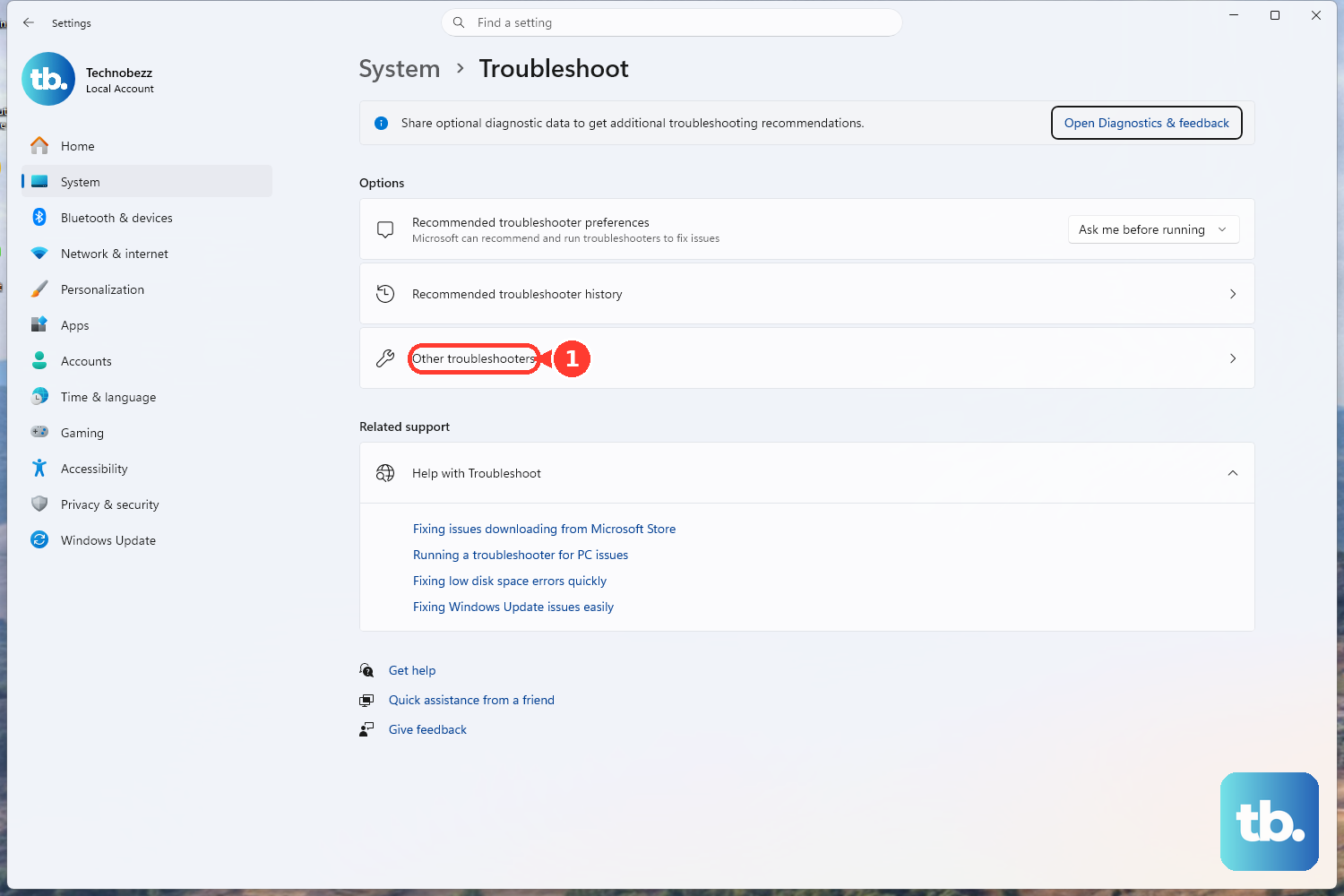
The troubleshooter will scan for issues like disabled services or driver problems and attempt to apply fixes. It's a quick, hands-off step that's worth trying before you start digging into drivers.
Update Your Bluetooth Drivers
Outdated or corrupted drivers are a frequent culprit. Press the Windows key + X and select Device Manager. Expand the Bluetooth section, right-click on your Bluetooth adapter (it might be listed as Intel, Qualcomm, or Realtek), and choose Update driver.
Select Search automatically for drivers. If Windows doesn't find a new one, visit the official Lenovo support site, enter your Legion Pro 16's model number, and manually download the latest Bluetooth driver from there. Installing the manufacturer's driver is often more reliable.
Restart the Bluetooth Support Service
Sometimes the background service that manages Bluetooth stops running correctly. Press Windows + R, type services.msc, and hit Enter. Scroll down to find Bluetooth Support Service.
Right-click on it and select Restart. While you're there, double-click the service to open its properties and ensure the Startup type is set to Automatic. A stopped service will make Bluetooth completely unavailable.
Check for Wireless Interference
Your Legion Pro's powerful components and the 2.4GHz band it uses for Bluetooth can be susceptible to interference. Other WiFi networks, USB 3.0 cables or ports, and even microwave ovens can disrupt the signal.
Try moving the Bluetooth device closer to your laptop. If you're using a wireless mouse dongle in a USB 3.0 port, try plugging it into a USB 2.0 port instead, or temporarily unplug other USB devices to see if the connection improves.
Install All Windows Updates
Microsoft regularly releases updates that include fixes for Bluetooth connectivity and audio issues. Go to Settings > Windows Update and click Check for updates. Install any available feature or quality updates.
After the updates install and your laptop restarts, try pairing your device again. Keeping Windows current is crucial for hardware like Bluetooth to function properly.
Reinstall the Bluetooth Adapter
This is a more thorough driver reset. Go back to Device Manager, find your Bluetooth adapter under the Bluetooth section, right-click it, and select Uninstall device. Check the box that says Attempt to remove the driver for this device if it appears.
Once it's uninstalled, restart your Legion Pro 16. Windows will automatically detect the missing hardware on boot and reinstall the default Bluetooth driver. You can then update it to the latest version from Lenovo's site if needed.
Check the Legion Space App and Performance Modes
Since you're on a Legion Pro, it's worth checking the Legion Space app. Some performance or fan control profiles could theoretically affect power to internal components. Make sure you're not in a custom profile that's limiting hardware.
You can also try cycling the performance mode with Fn + Q. Switch from Performance to Balanced or Quiet mode and see if the Bluetooth behavior changes. This rules out any odd power management interactions specific to the performance states.
Reset Network Settings
If you've tried everything else and Bluetooth is still broken, a network reset can be a last resort. This will remove all Bluetooth pairing records and reset your WiFi networks too. Go to Settings > Network & internet > Advanced network settings.
Click on Network reset at the bottom. Confirm the reset and let your laptop restart. Afterward, you'll need to re-pair all your Bluetooth devices and reconnect to WiFi, but it clears out any deep-seated network stack corruption.