
Your Lenovo Legion Go S won't connect to online multiplayer. Steam friends lists fail to load, Battle.net hangs forever, or game launchers throw network errors after a few seconds. The device ships with either Windows 11 or SteamOS, and each handles network settings a bit differently. But the fixes here work on both SKUs.
Start simple. On the Windows version, open Settings > Network & Internet > Status and click Network properties. Check that the connection shows "Internet access" and look for any errors. On SteamOS, go to Settings > Network and confirm the connection status shows green. If either reports problems, work through the steps below.
Restart the Router and Your Handheld
Unplug your router for 30 seconds, then plug it back in. Wait a full 2-3 minutes for it to reconnect to your ISP. While you wait, do a soft reset on the Legion Go S: hold the power button for 10 seconds until the screen goes off, then release and press again to boot back up. This clears any stale network cache on the device side.
If your router has a separate modem, restart that too. The order matters: modem first, then router, then the handheld.
Update Windows or SteamOS
Network issues often get fixed in system updates. The Windows SKU needs version 24H2 or newer. Open Settings > Windows Update and check for updates. The SteamOS SKU requires version 3.7 or later (SteamOS 3.7 is the first official release for the Legion Go S). Go to Settings > System > Check for Updates in SteamOS.
I've seen outdated WiFi drivers cause random disconnects on Windows builds specifically. After updating Windows, also check Device Manager > Network adapters for any driver updates on the WiFi card.
Switch to a 5GHz or 6GHz Wireless Band
The 2.4GHz band is notoriously crowded and slow for gaming. If your router broadcasts separate SSIDs, connect the Legion Go S to the one with a -5G or -6G suffix. On Windows, click the WiFi icon in the taskbar, select the correct network. On SteamOS, use the network selection in Quick Settings (press the Legion button or Steam button).
The Go S supports WiFi 6E or WiFi 7 depending on the exact model. If you have a compatible router, the 6GHz band offers the lowest latency and least interference for multiplayer traffic.
Change Your DNS Servers
ISP-provided DNS servers can be slow or unreliable, causing sign-in delays with Steam, Epic, or Battle.net. On the Windows SKU, open Settings > Network & Internet > WiFi > click your network name > Edit next to IP assignment. Set DNS to Manual and enter 1.1.1.1 for Preferred and 1.0.0.1 for Alternate (Cloudflare). Save and reconnect.
On SteamOS, go to Settings > Network > choose your network > Properties > DNS > Manual and enter the same Cloudflare addresses. The change takes effect immediately after you reconnect.
Check WiFi Driver and Power Management
Windows has a habit of putting WiFi adapters to sleep to save battery. That's a problem during online gaming. Open Device Manager, expand Network adapters, right-click your WiFi adapter, and select Properties > Power Management. Uncheck "Allow the computer to turn off this device to save power."
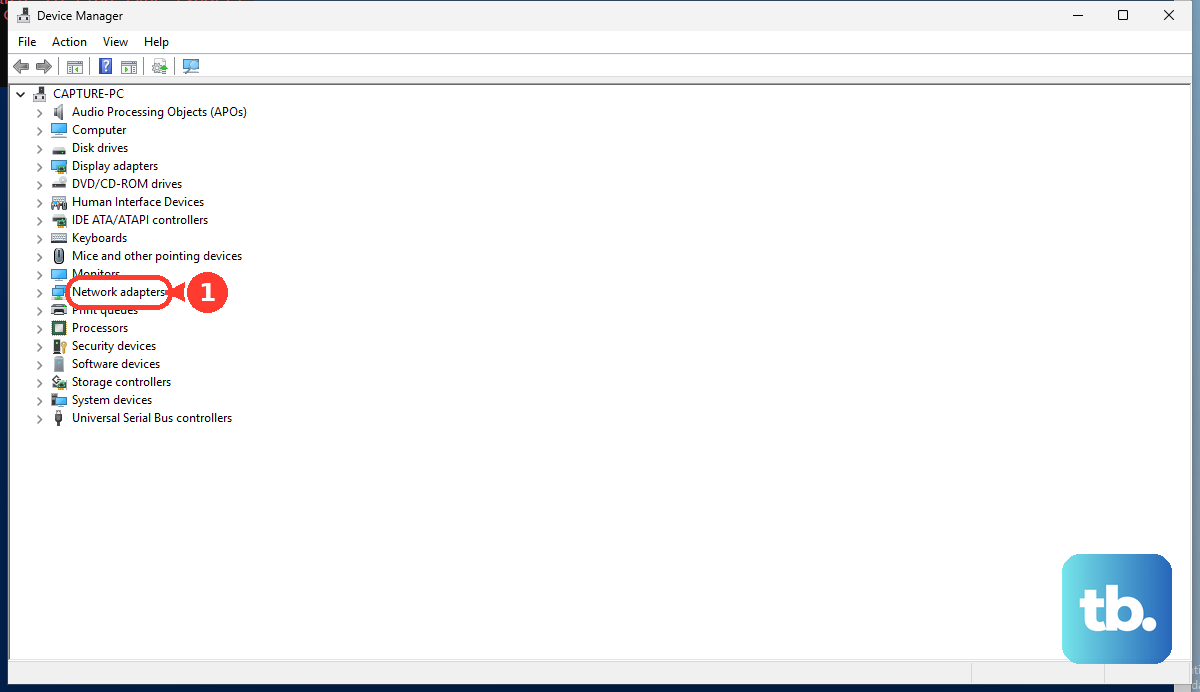
On SteamOS, power management isn't as aggressive, but if you're in Desktop Mode, check that the network manager isn't set to a power-saving profile. The handheld's battery life is already limited (1.5-4 hours depending on OS and game), so disable any battery saver that might cut WiFi performance.
Try a Wired Connection
The Legion Go S doesn't have a built-in Ethernet port, but a USB-C to Ethernet adapter works perfectly. If you're near your router, plug one in and see if multiplayer issues disappear. Wired connections eliminate wireless interference and usually cut latency by 10-30ms. On Windows, it's plug and play. On SteamOS, the network should auto-detect the wired interface.
If wired solves the problem, the issue is definitely your WiFi environment. Keep reading for channel fixes.
Reduce WiFi Channel Crowding
In apartments or dense neighborhoods, overlapping WiFi channels cause packet loss and intermittent disconnects. Log into your router's admin panel and look for WiFi channel settings. Set the 5GHz band to a channel on the low side (36, 40, 44, 48) or the high side (149, 153, 157, 161), avoid auto if it keeps choosing a busy channel.
You can use a free WiFi analyzer app on your phone to see which channels are least crowded in your area. Manually set your router to the quietest one.
Reset Network Settings
If none of the above works, reset the network stack. On Windows, open Command Prompt as Administrator and run these two commands: netsh winsock reset then netsh int ip reset. Restart the handheld afterward.
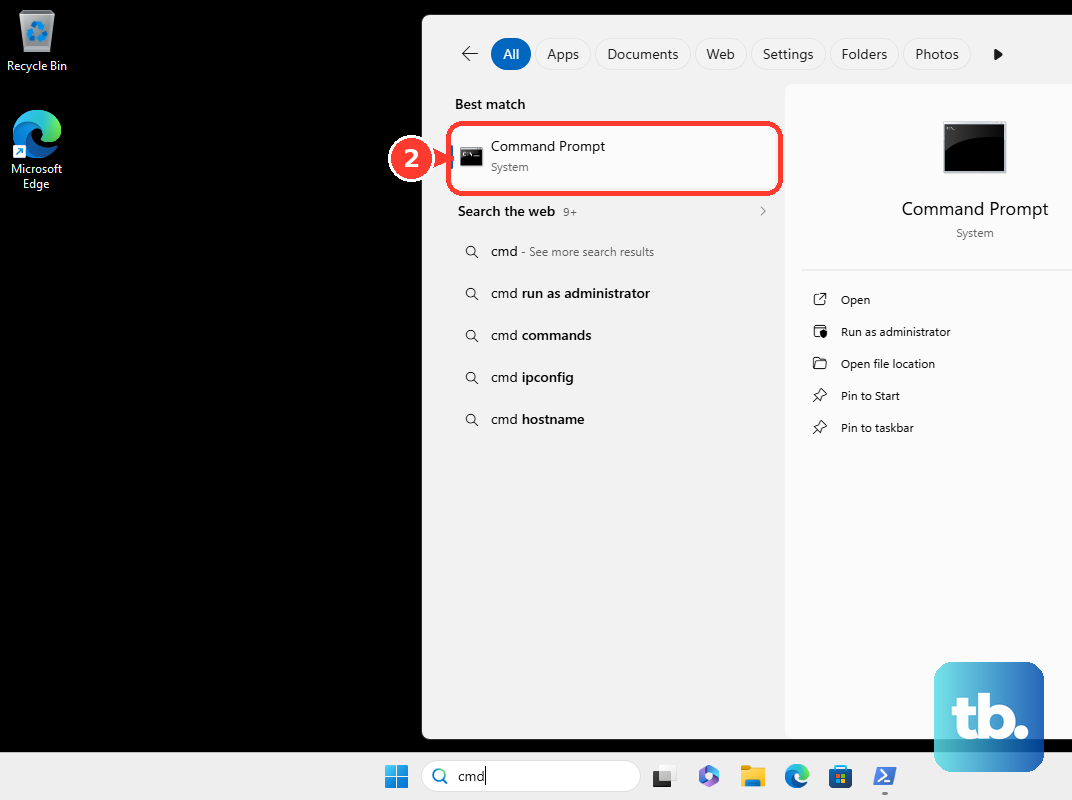
On SteamOS, go to Settings > Network > Forget Network on your current connection, then re-enter the password. If that doesn't help, you can reset the entire network configuration in Desktop Mode by going to System Settings > Connections and removing all known networks. This forces a clean slate.
Factory Reset (Last Resort)
Software corruption can cause persistent network failures. On the Windows SKU, go to Settings > System > Recovery > Reset this PC. Choose "Keep my files" if you want to preserve personal data, but be aware this will remove installed apps and revert system settings. On SteamOS, go to Settings > System > Factory Reset. This wipes everything and returns the device to out-of-box condition.
Before you pull the trigger, make sure you've exhausted the other fixes. A reset takes about 30 minutes and you'll need to redownload games and reconfigure network settings from scratch.