When your Lenovo IdeaPad 5 15 won't connect to WiFi, it feels like you're cut off from the world. Whether you see no networks at all, get stuck on "Connecting," or have a signal with no internet, these steps will get you back online.
Run the Windows Network Troubleshooter
This is the quickest place to start. Right-click the WiFi icon in your taskbar and select Troubleshoot network problems. Windows will automatically scan for common issues like missing IP addresses or adapter problems and try to fix them. It often resolves simple glitches in seconds.
Toggle Your WiFi Off and On
Click the network icon in the system tray and turn the WiFi toggle off. Wait about ten seconds, then switch it back on. This forces your IdeaPad's wireless adapter to restart, which can clear up temporary connection errors. You can also toggle Airplane mode on and off for a more thorough reset of all radios.
Forget and Reconnect to Your Network
Sometimes, the saved network profile gets corrupted. Go to Settings > Network & Internet > WiFi > Manage known networks. Find your home or office network in the list and click Forget. Then, select it again from the available networks list and re-enter your password. This establishes a fresh connection from scratch.
Disable and Re-Enable the WiFi Adapter
Open Device Manager by pressing the Windows key + X and selecting it. Expand the Network adapters section, right-click your wireless adapter (it will likely be named something like "Realtek" or "Intel(R) Wi-Fi"), and choose Disable device. Wait a moment, then right-click it again and select Enable device. This reloads the driver without needing a full system restart.

Update Your WiFi Driver
Outdated or buggy drivers are a frequent culprit. In Device Manager under Network adapters, right-click your wireless adapter and select Update driver > Search automatically for drivers. If Windows says you have the best one, I'd recommend checking Lenovo's support site directly. Use your laptop's exact model number to download and install the latest driver manually.
For your IdeaPad 5 15, the Lenovo Vantage app is a great tool for this. It can scan your system and provide one-click updates for all your drivers, including the WiFi adapter, which is much easier than hunting on the website.
Disable WiFi Power Saving
This is a known tip for the IdeaPad series. Some models aggressively power down the WiFi adapter to save battery, which can cause random disconnects. In Device Manager, right-click your WiFi adapter, go to Properties > Power Management, and uncheck the box that says Allow the computer to turn off this device to save power. Click OK and see if your connection becomes more stable.
Reset Your Network Stack
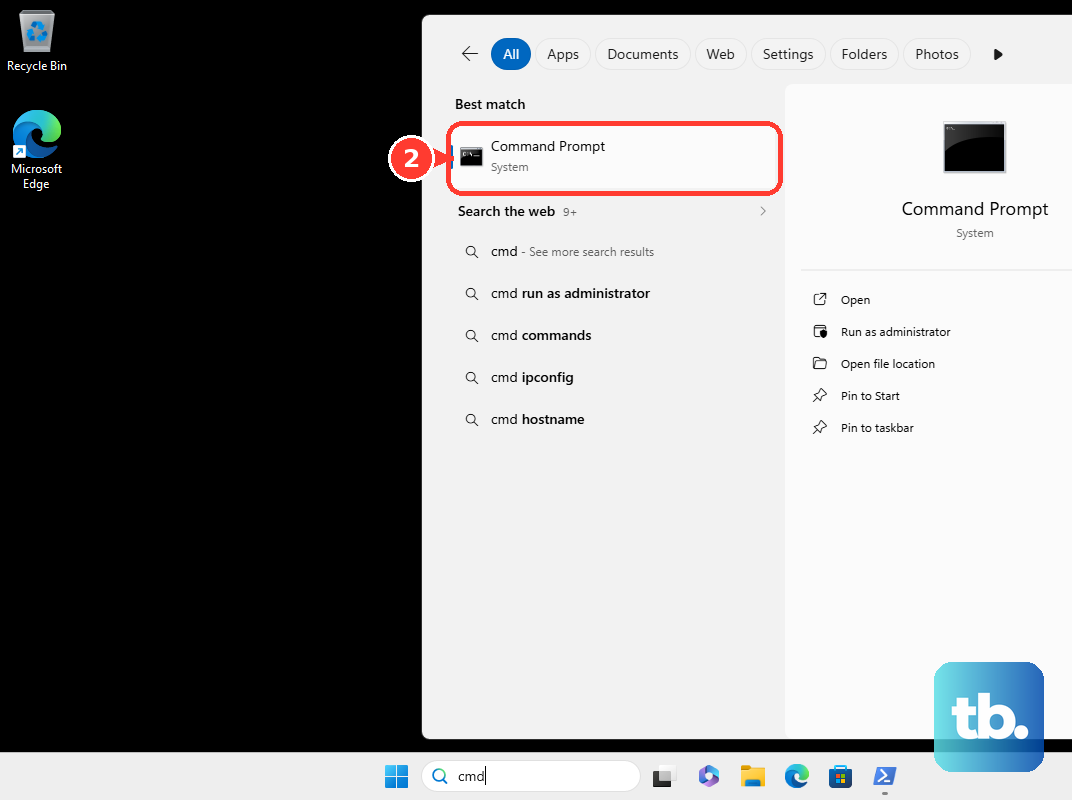
Open Command Prompt as an administrator by searching for "cmd," right-clicking it, and selecting Run as administrator. Type the following commands one by one, pressing Enter after each: netsh winsock reset, then netsh int ip reset, and finally ipconfig /flushdns. After running them, restart your laptop. This clears out corrupted network data that can block connections.
Perform a Network Reset
If you're still stuck, a full network reset is a powerful step. Go to Settings > Network & Internet > Advanced network settings > Network reset. Click Reset now and confirm. This will remove and reinstall all network adapters and set every networking component back to its default state. Be aware you'll need to reconnect to all your WiFi networks and re-enter their passwords afterward.
Check for Windows Updates
Microsoft regularly releases patches that fix compatibility issues with wireless hardware. Go to Settings > Windows Update and click Check for updates. Install any available feature or quality updates. After the update installs and your laptop restarts, try connecting to WiFi again. A recent update might contain the specific fix your adapter needs.
Restart Your Router and Modem
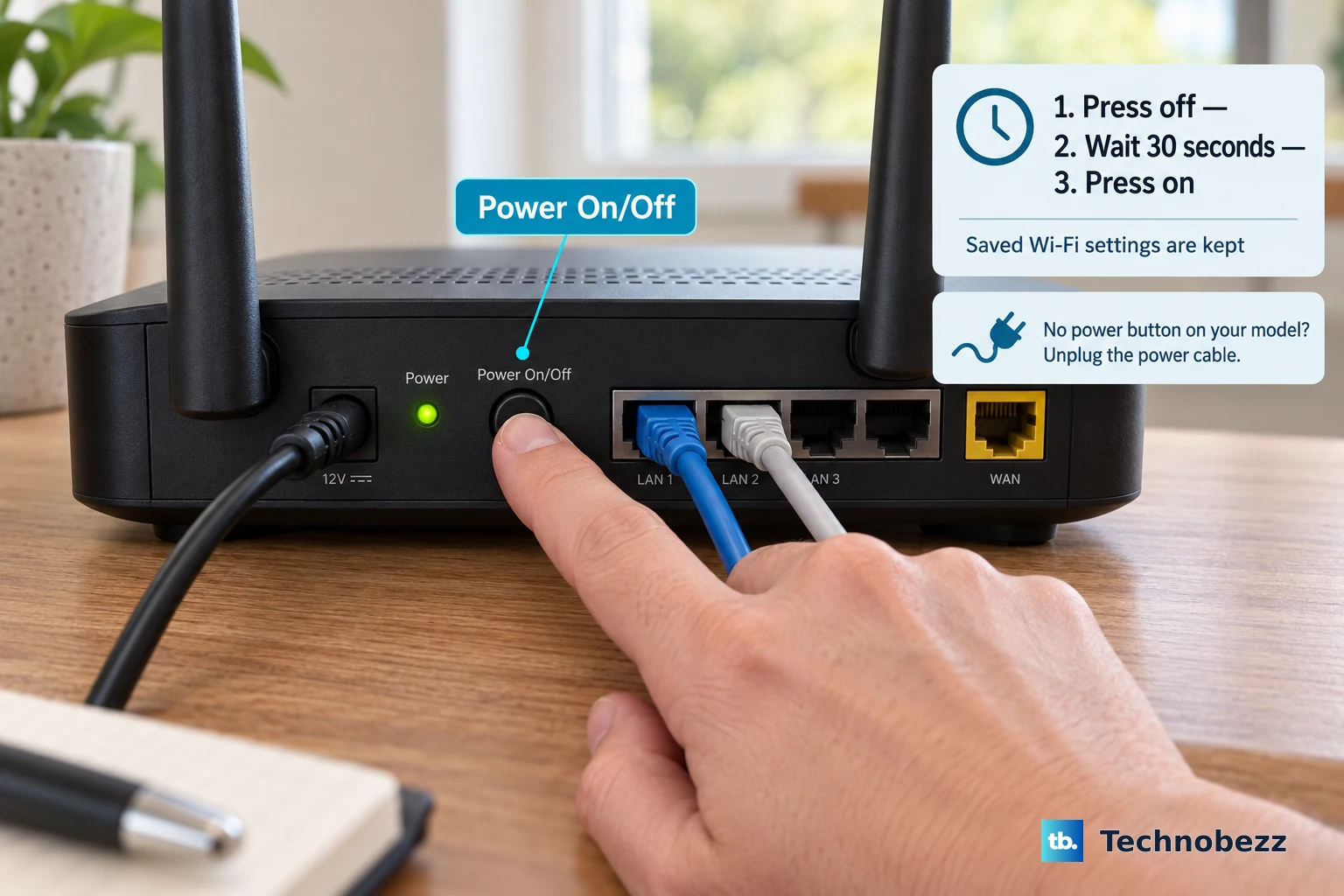
Before assuming the laptop is at fault, check the source. If other devices in your home also can't get online, the problem is with your router or internet service. Unplug your router and modem from power for a full 30 seconds, then plug them back in and wait for them to fully boot up. You can also test by trying to connect your IdeaPad to a different network, like a mobile phone hotspot, to confirm its WiFi hardware is working.