
A trackpad that suddenly stops working on your Lenovo IdeaPad 5 15 is incredibly frustrating. Whether the cursor is frozen, taps aren't registering, or the whole surface feels dead, you're forced to rely on an external mouse. The good news is, this is usually a software or settings issue you can fix yourself.
I'd start with the simplest check first. Look at the function keys at the top of your keyboard. One of them, likely F6 or F8, will have a small icon that looks like a touchpad with a line through it. Press the Fn key and that function key together to toggle the trackpad back on. It's easy to hit this combination by accident.
Restart Your IdeaPad
If a quick toggle doesn't work, restart the laptop. This is especially effective if the trackpad stopped responding after the laptop woke from sleep or hibernation. A restart reloads all the drivers, including the one for your pointing device.
You can navigate to the restart option using just your keyboard. Press the Windows key, then use the Tab key to move to the power icon, hit Enter, and arrow down to "Restart."
Disconnect Any External Mice
Windows has a setting that can automatically disable the internal trackpad when an external mouse is connected. Unplug any USB mouse or disconnect any Bluetooth mice. See if your trackpad springs back to life immediately.
To stop this from happening in the future, go to Settings > Bluetooth & devices > Touchpad. Look for a setting that says something like "Leave touchpad on when a mouse is connected" and make sure it's turned on.
Update or Reinstall the Trackpad Driver
Outdated or corrupted drivers are a common culprit. Press the Windows key + X and select Device Manager. Expand the section called Mice and other pointing devices.
Right-click on the device listed (it might be called Synaptics, ELAN, or just HID-compliant mouse) and choose Update driver. Select "Search automatically for drivers." For a more thorough fix, choose Uninstall device instead, then restart your laptop. Windows will install a fresh driver upon reboot.
For the best performance and full gesture support, get the official driver from Lenovo. Open the Lenovo Vantage app, which comes pre-installed on your IdeaPad 5. Go to the System Update section and let it scan for all available driver updates, including the touchpad.
Run the Hardware Troubleshooter
Windows includes built-in troubleshooters that can find and fix common problems. Go to Settings > System > Troubleshoot > Other troubleshooters. Find the one for "Hardware and Devices" and run it. This tool can automatically detect issues with your input devices.
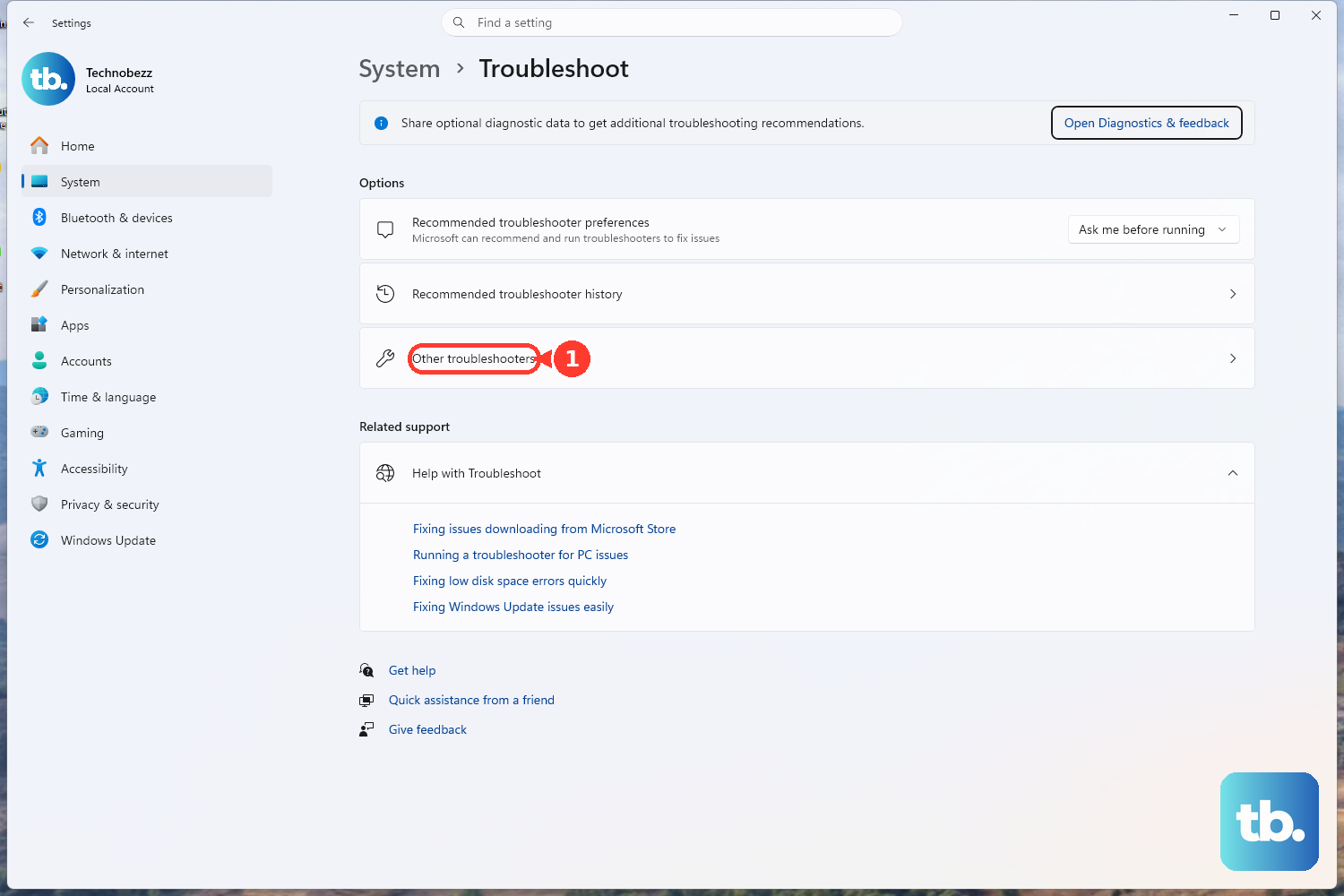
Check the BIOS Setting
There's a setting inside your laptop's BIOS that controls the internal pointing device. To check it, shut down your IdeaPad completely. Turn it back on and immediately start tapping the F2 key repeatedly until you enter the BIOS setup.
Use the arrow keys to navigate. Look for a menu like "Configuration" or "Advanced." Find an option for "Internal Pointing Device" or "Touchpad" and make sure it is set to Enabled. Save and exit (usually F10).
Clean the Trackpad Surface
Sometimes the issue is physical. Oils from your fingers, moisture, or a layer of grime can interfere with the trackpad's sensitivity. Power off the laptop for safety. Take a soft, slightly damp microfiber cloth and gently wipe the trackpad surface, then dry it thoroughly with another clean part of the cloth.
Make sure your fingers are clean and dry when you test it again. Also, avoid using the trackpad with wet hands or if you've just applied hand lotion.
Scan for System File Corruption
Corrupted Windows system files can cause all sorts of erratic behavior, including input device failures. To check for this, right-click the Start button and select Terminal (Admin) or Command Prompt (Admin).
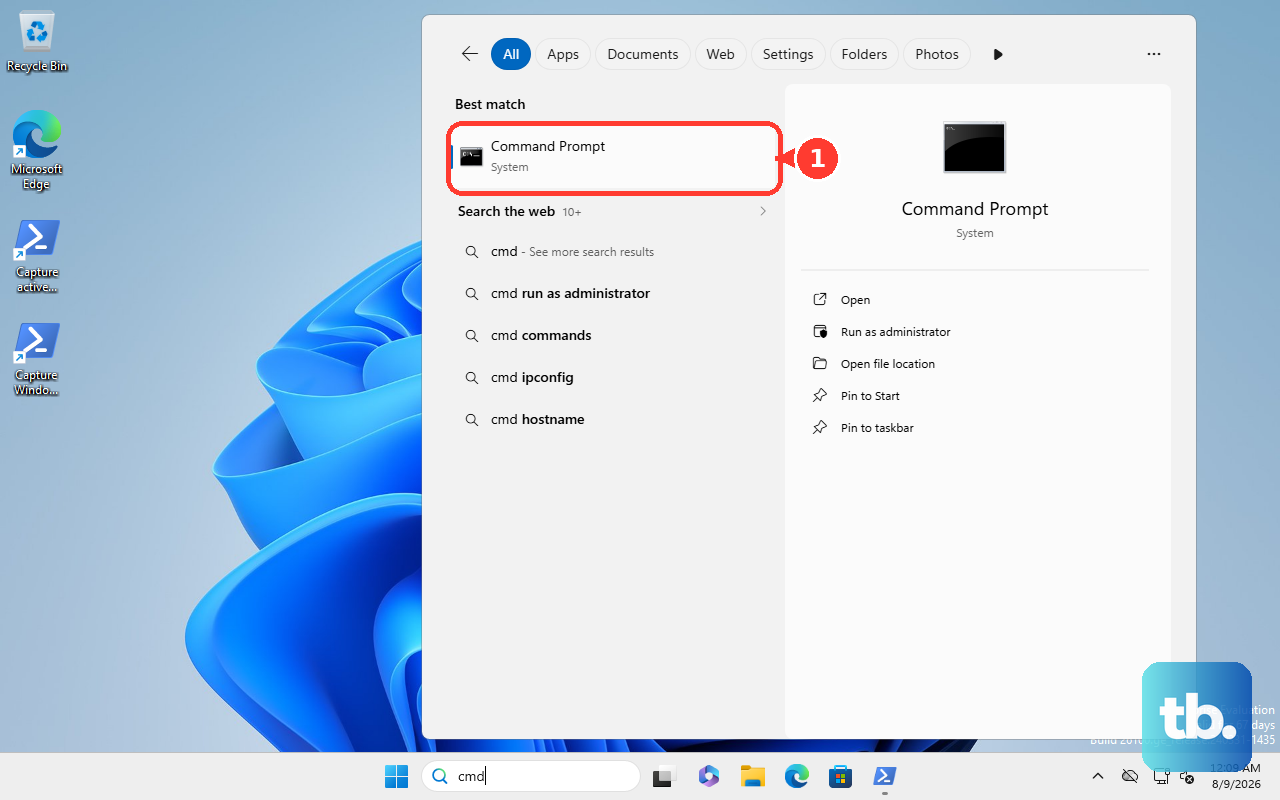
Type the command sfc /scannow and press Enter. Let the scan run to completion; it will attempt to repair any corrupted files it finds. Restart your laptop after the process finishes.
Consider a System Restore or Reset
If the problem started recently after a Windows update or new software installation, you can use System Restore. Type "Create a restore point" into the Windows search bar, open that system property, and click System Restore. Choose a restore point from before the trackpad issues began.
As a last resort, you can reset Windows while keeping your personal files. Go to Settings > System > Recovery and choose "Reset this PC." Select "Keep my files." This will reinstall Windows and should restore all default drivers.
If none of these software fixes work, and the trackpad is completely dead even in the BIOS menu, there may be a hardware problem. The ribbon cable connecting the trackpad to the motherboard can come loose, or the trackpad itself could be faulty. At that point, contacting Lenovo support or a reputable repair technician would be the next step.