
A slow Lenovo IdeaPad 5 can turn a productive day into a frustrating crawl. When your laptop takes ages to boot, apps stutter, and simple tasks feel sluggish, it's usually a software issue you can fix yourself. I'd start with the basics, as a quick restart often solves more problems than you'd think.
Restart Your IdeaPad
If you've been closing the lid and letting it sleep for days, background processes can pile up and slow everything down. Click the Windows Start button, select the power icon, and choose Restart. Don't just select Shut down, as Windows fast startup doesn't fully clear the system memory. A full restart is a simple but effective first step.

Use Task Manager to Find the Culprit
Press Ctrl + Shift + Esc to open Task Manager directly. Click on the CPU, Memory, or Disk column headers to sort by what's being used the most. Look for any single process using an unusually high percentage. Right-click on non-essential programs hogging resources and select End task.
Clean Up Startup Programs
In the same Task Manager window, switch to the Startup apps tab. You'll likely see several programs from Lenovo and other software vendors set to launch at boot. Right-click and Disable everything you don't need immediately, like Spotify, gaming clients, or cloud storage sync tools. This speeds up your boot time and frees up RAM.
Free Up Storage Space on Your Drive
Open Settings > System > Storage. The system will show you what's taking up space. Click on Temporary files and select items like "Windows Update Cleanup" and "Delivery Optimization Files" to remove. For a more automated approach, turn on Storage Sense to let Windows handle routine cleanup. Try to keep at least 20% of your main drive free.
Run a Full Malware Scan
Open Windows Security from the Start menu. Go to Virus & threat protection and click on Scan options. Select Full scan and run it. This is a deeper check that can find background malware or unwanted software that might be draining your system's performance. It takes a while, so plan to run it when you can step away.
Update Everything with Lenovo Vantage
This is a key tool for your IdeaPad. Open the Lenovo Vantage app. Go to the System Update section and check for updates. This app provides a one-click way to get the latest drivers, BIOS updates, and firmware directly from Lenovo, which are crucial for stability and performance. Also, check Settings > Windows Update for the latest OS patches.
Adjust Your Power Plan for Performance
Click the battery icon in your system tray and drag the slider all the way to Best performance. For more control, go to Settings > System > Power & battery. When plugged in, your laptop should never be throttled to save power. Using the "Best performance" plan ensures your CPU and GPU can run at their full potential.
Disable WiFi Power Saving
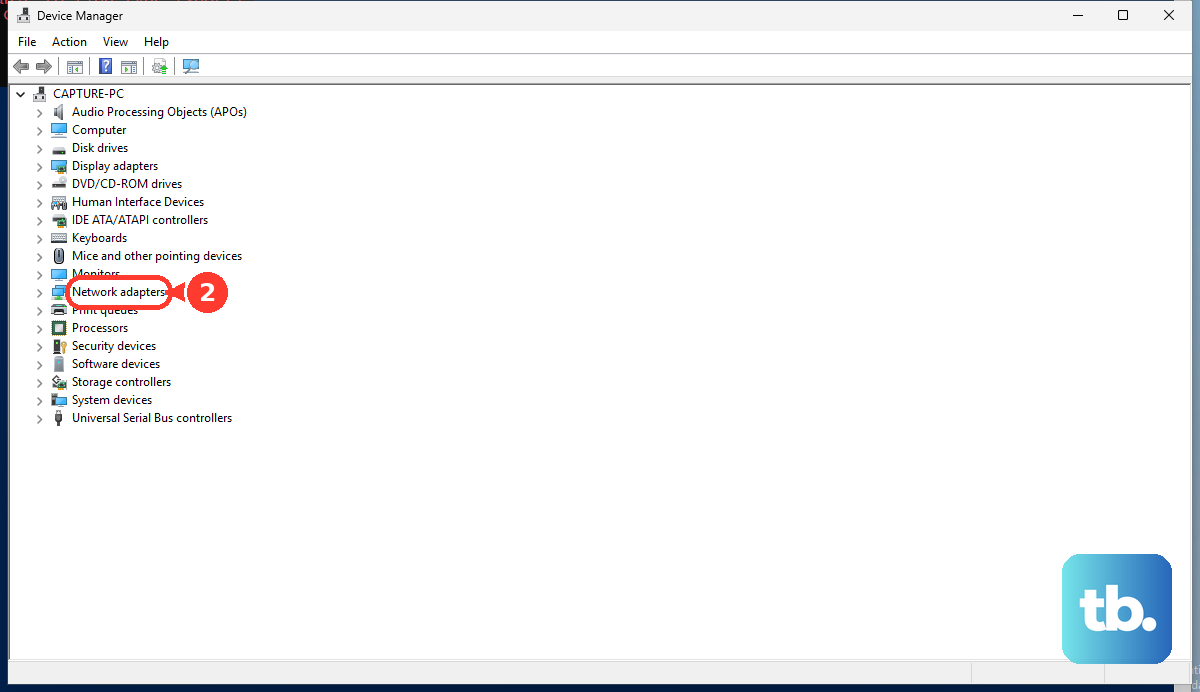
This is a known tweak for some Lenovo models. Press Windows Key + X and select Device Manager. Expand Network adapters, right-click your WiFi adapter, and choose Properties. Go to the Power Management tab and uncheck Allow the computer to turn off this device to save power. This can prevent intermittent slowdowns or disconnects that feel like a general system lag.
Reduce Visual Effects
Search for "Adjust the appearance and performance of Windows" in the Start menu. In the Visual Effects tab, select Adjust for best performance to turn off all animations. If that's too stark, choose Custom and manually disable effects like "Animate windows when minimizing and maximizing" and "Transparency effects." This frees up GPU resources for your actual tasks.
Consider a Hardware Refresh
If your IdeaPad 5 came with 8GB of RAM and a hard drive, upgrading is your best path forward. Adding more RAM (if your model supports it) helps immensely with multitasking. The single biggest upgrade, however, is replacing a mechanical hard drive with a solid-state drive (SSD). An SSD makes the entire system feel instantly more responsive, from booting to opening applications.
Reset Your PC as a Last Resort
If the slowness persists and seems tied to software bloat, you can refresh Windows. Go to Settings > System > Recovery and click Reset PC. Choose Keep my files to reinstall Windows while preserving your personal documents. Remember, this will remove all your installed applications, so you'll need to reinstall your programs afterward from a clean slate.