
When your Lenovo IdeaPad 5 15's keyboard suddenly stops responding, it can feel like you've hit a brick wall. Whether it's a few keys acting up or the entire board going dead, the fixes are usually software-related and something you can handle yourself.
A browser based online keyboard tester shows every keypress in real time, which makes it easy to tell a failed switch from a settings problem before you start troubleshooting.
Force Restart Your IdeaPad
This is the quickest fix and solves a surprising number of issues. Hold down the power button for about 10 seconds until the laptop completely powers off. Wait a few seconds, then press the power button again to turn it back on. This forces a fresh reload of all system drivers, including the one for your keyboard.
Check for Driver Conflicts
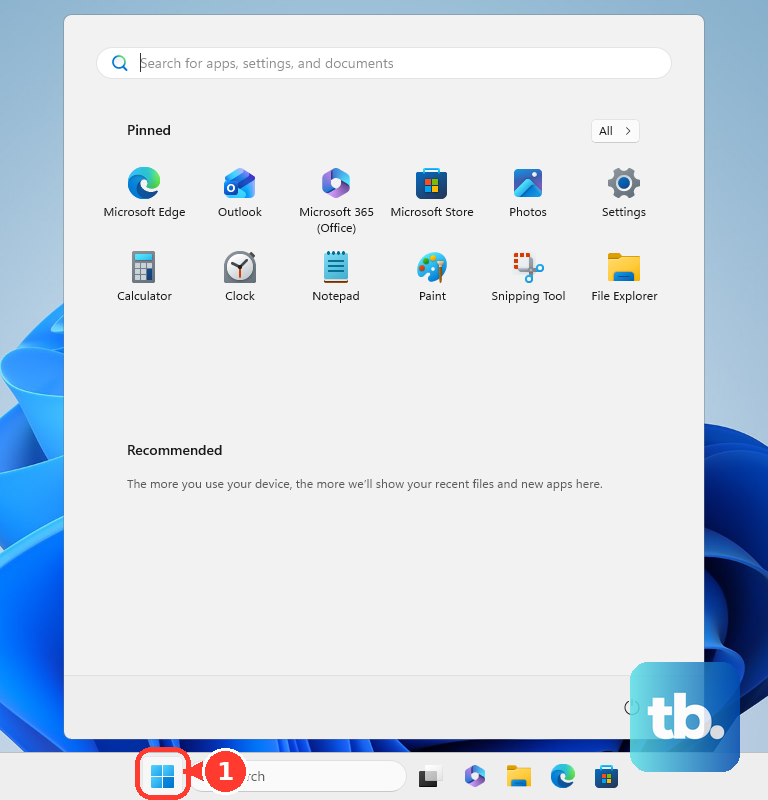
Open the Start Menu and type "Device Manager" to launch it. Expand the "Keyboards" section, right-click on "Standard PS/2 Keyboard" or a similar entry, and select "Update driver." Choose "Search automatically for drivers." If that doesn't help, right-click again and select "Uninstall device." Don't worry, just restart your laptop and Windows will automatically reinstall a fresh, clean driver.
Disable Keyboard Filtering Features
Windows has accessibility features that can interfere. Press the Windows key + I to open Settings, then go to Accessibility > Keyboard. Make sure "Filter Keys" is turned off. This feature ignores brief or repeated keystrokes and can make the keyboard seem broken. Also, toggle "Sticky Keys" off if it's enabled.
Use Lenovo Vantage for System Updates
For Lenovo laptops, the Lenovo Vantage app is your best friend for system health. Open it from the Start Menu and check for updates. It provides tailored driver and BIOS updates directly from Lenovo that are often more reliable than generic Windows Update drivers. A keyboard firmware update could be sitting there waiting.
Boot Using the Novo Button
Your IdeaPad has a small pinhole button, usually on the left side or next to the power port, called the Novo button. Shut down the laptop, then press this button with a paperclip. This will bring up a menu where you can select "System Recovery" or, more usefully, "BIOS Setup." If your keyboard works in the BIOS menu, you know the hardware is fine and it's a Windows problem.
Check for Physical Issues
Carefully turn the laptop upside down and give it a gentle shake to dislodge any crumbs. Use a can of compressed air to blow between the keys. For a more thorough clean, I'd recommend powering off the laptop and using a soft, slightly damp cloth (not wet) to wipe the keycaps, as built-up grime can sometimes cause keys to stick.
Verify Your Keyboard Layout and Language
If your keys are typing the wrong characters, your input language might have switched. Go to Settings > Time & Language > Language & Region. Under "Preferred languages," make sure the correct language is at the top. Click on it, select "Options," and verify the correct keyboard layout is listed.
Test with an External Keyboard
Plug in any USB keyboard. If it works perfectly, it strongly points to a hardware issue with your laptop's internal keyboard. The problem could be a loose ribbon cable connecting the keyboard to the motherboard or, in the worst case, spill damage. Before assuming the worst, make sure you've tried all the software fixes above.
Run a Clean Boot to Find Software Conflicts
If the keyboard works in Safe Mode, a background program is likely causing the conflict. Instead of just Safe Mode, perform a "Clean Boot." Type "System Configuration" in the Start Menu, go to the "Services" tab, check "Hide all Microsoft services," then click "Disable all." Go to the "Startup" tab and open Task Manager to disable all startup items. Restart. If the keyboard works now, re-enable items in groups until you find the culprit.