Your laptop is humming along, the fans spin up to a roar, and then the screen goes black and it powers off on its own. If that has happened to you mid-task, the culprit is usually heat. Laptops are built to force a shutdown when they get too hot, so a sudden power-off is rarely a random crash.
Most overheating comes from something fixable: a runaway process, a clogged vent, a stray power setting, or an out-of-date driver. Work through the eight fixes below in order, starting with the easiest and safest, and you can usually stop the shutdowns without opening the machine.
Why a Hot Laptop Powers Itself Off
Before you start, it helps to know what is actually happening. When a device exceeds its maximum operational temperature, it shuts down immediately to protect itself. Some models, such as Microsoft Surface devices, show a thermometer icon on the screen when this happens. This is thermal self-protection, not a glitch.
If your laptop just shut down from heat, the immediate fix is simple: turn it off, move it somewhere cooler, and let it cool for at least five minutes before turning it back on.
Microsoft rates its Surface laptops for operation between 32°F (0°C) and 95°F (35°C), and other laptops have similar limits, so a hot room or a blocked vent can push a machine over the edge on its own.
Once it has cooled, work through the steps below to keep it from happening again.
Fix 1: Restart and Close What You Are Not Using
Restarting is the fastest, safest first move, and Microsoft lists it as a basic performance fix. Having many apps or browser tabs open can slow performance and keep your processor busy, which drives up heat.
To restart, select Start > Power > Restart.
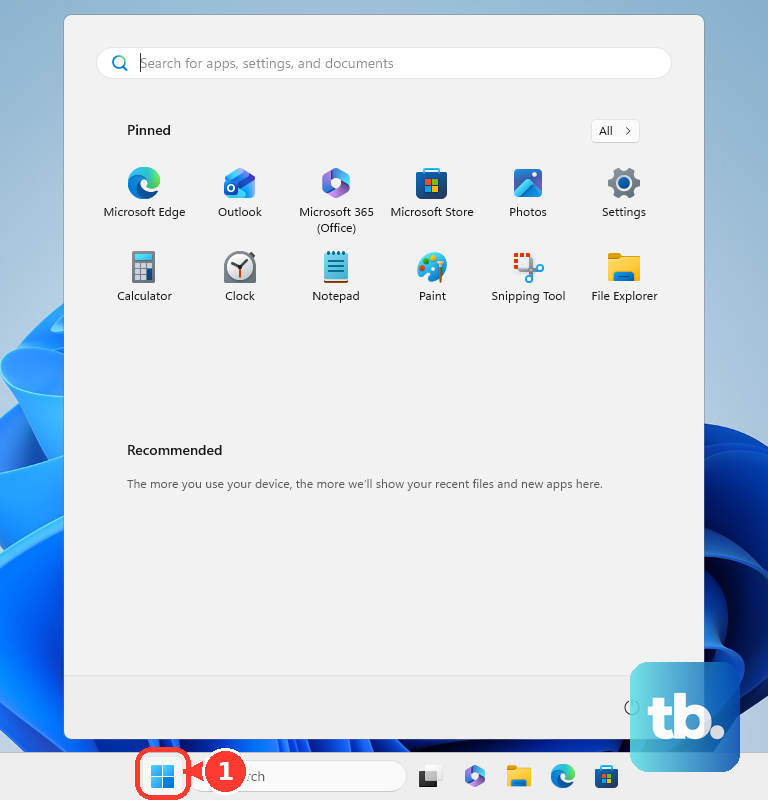
A restart clears memory and stops runaway processes that may be pinning the CPU.
After it reboots, reopen only the apps and tabs you actually need so the machine is not working harder than it has to.
Fix 2: Find the App That Is Pinning Your CPU
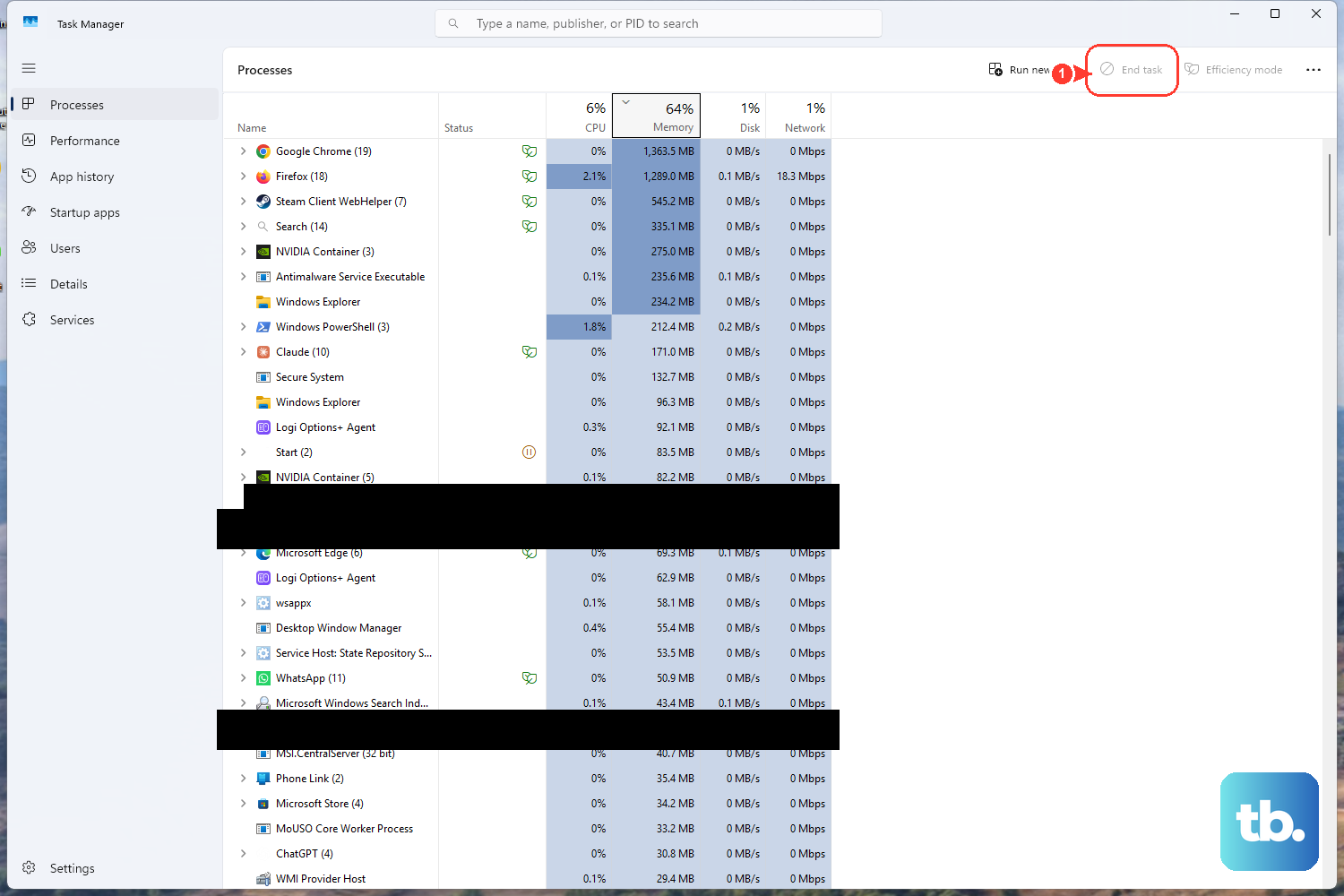
Processes with high utilization keep the fans running harder, and closing apps you do not need lowers CPU use and the need for cooling.
The single most useful thing you can do is find what is overloading your processor and stop it.
- 1.Press
Ctrl + Shift + Escto open Task Manager. - 2.On the Processes tab, select the CPU column header to sort running tasks by CPU utilization.
- 3.Look at the apps at the top of the list, which are using the most processor.
- 4.Select an app you are not using and click End task.
If a single app consistently dominates the CPU even when you are not using it, consider uninstalling it.
Closing or removing a runaway high-CPU app directly reduces heat.
Fix 3: Stop Apps From Launching at Startup
Many programs quietly launch the moment Windows boots and then sit in the background consuming CPU and disk. Fewer background apps means less constant load, which reduces heat buildup and the chance of a thermal shutdown.
- 1.Press
Ctrl + Shift + Escto open Task Manager. - 2.Select Startup apps from the left-hand menu.
- 3.Right-click an app you want to stop.
- 4.Select Disable.
Disable anything you do not need running the instant you log in, such as chat clients, updaters, and game launchers. You can always open these manually when you need them.
Fix 4: Scan for Malware With Windows Security
Malware can peg the CPU and keep your laptop hot around the clock, so a clean machine is a cooler machine. Windows includes Microsoft Defender, which can scan for and remove threats at no cost.
Select Start > Settings > Privacy & security > Windows Security > Virus & threat protection.
Next, select Quick scan.
For a more thorough check, select Scan options and choose Full scan, which scans every file and program on the device.
For stubborn infections, choose Microsoft Defender Antivirus (offline scan) under Scan options. It runs after a restart, without loading Windows, so persistent malware has a harder time hiding.
Fix 5: Install Windows Updates and Drivers
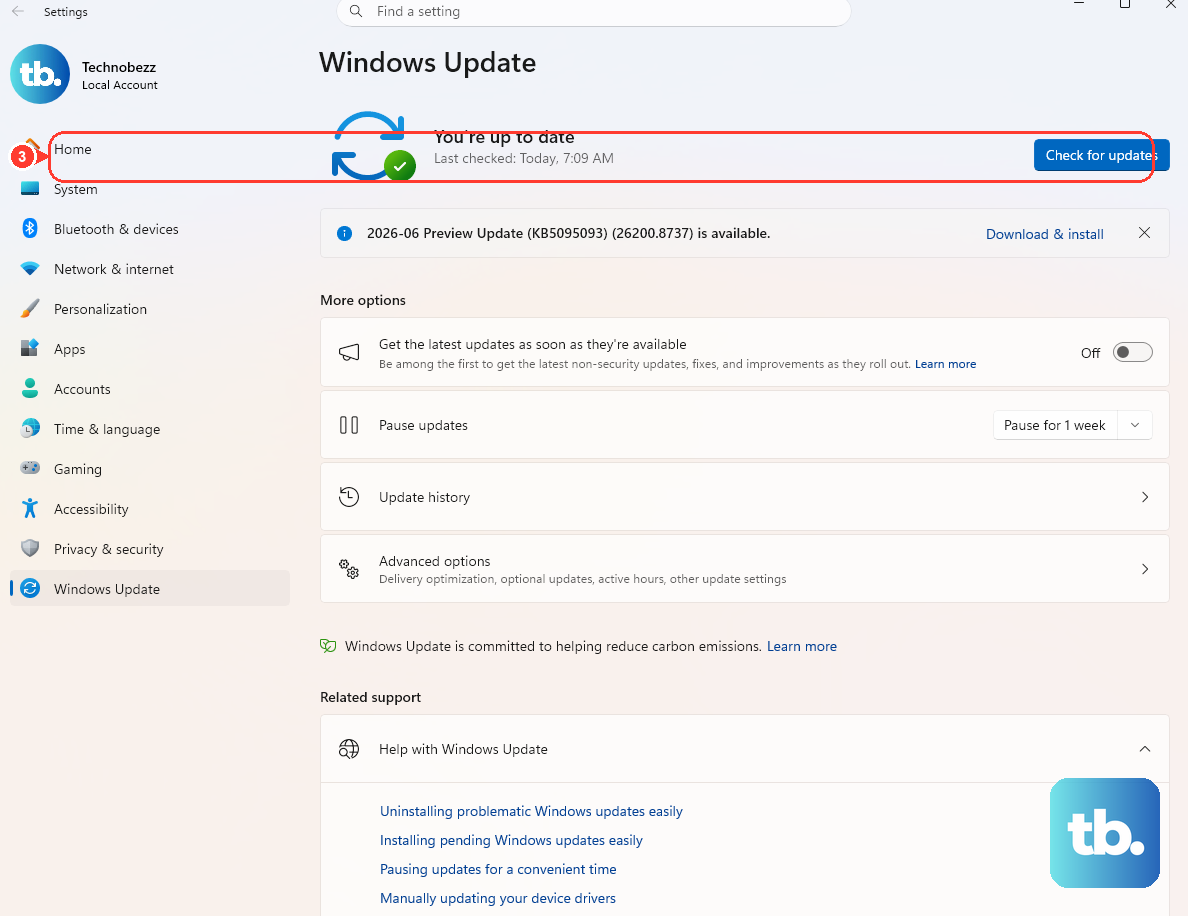
Windows updates often include fixes and performance improvements, and they can also deliver driver updates that resolve fan-control and power-management bugs. Keeping the system current is one of the lowest-effort ways to address heat caused by software issues.
Select Start > Settings > Windows Update > Check for updates, then install anything available.
For hardware and driver fixes, also open Windows Update > Advanced options > Optional updates. If a driver is listed, select it and then select Download & install.
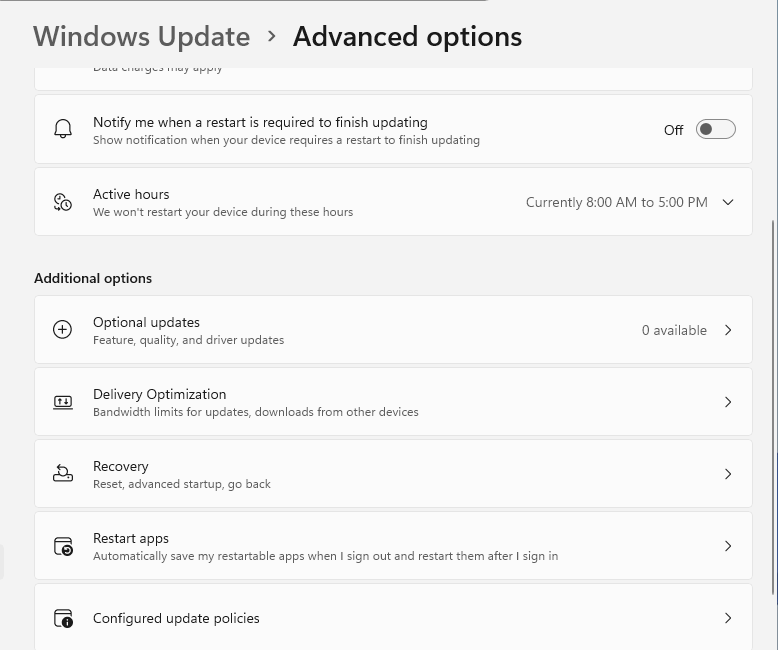
Updated drivers can fix the exact components responsible for cooling and power, so do not skip the optional updates section if it lists anything.
Fix 6: Switch the Power Mode to Balanced
Your power mode directly affects how hard the machine pushes itself. Microsoft warns that Best performance increases power consumption, and on laptops it drains the battery more quickly and may cause the device to run warmer.
Select Start > Settings > System > Power & battery.
Find the Power mode dropdown. If it is set to Best performance and the laptop runs hot or shuts down, switch it to Balanced.
Balanced reduces heat output while still keeping the system responsive for everyday work. Reserve Best performance for short bursts when you genuinely need the extra speed and the laptop is well ventilated.
Fix 7: Clear the Vents and Open Up the Airflow
If software fixes are not enough, the problem is often physical. Dust in the air vents obstructs airflow and forces the fans to work harder, and a blocked vent will overheat a laptop no matter how clean your software is.
To clean the vents safely, turn off the computer and disconnect the power cord first.
Use canned air to remove dust from the vents, which are usually on the underside and sides. You do not need to open the computer.
Airflow around the laptop matters just as much. Leave several inches of clearance around each vent so air can move freely.
Do not place the laptop on a cloth surface such as your lap, a bed, or a couch cushion, because this restricts or blocks airflow, and prolonged restriction causes overheating and potential damage.
Keep the computer in a cool environment so the fans have cool air to pull in, and do not leave it in direct sun or a hot car.
Fix 8: Update the BIOS and Use Your Maker's Thermal Software
At the hardware level, the BIOS controls low-level power and fan behavior, so keeping it up to date can help prevent overheating.
Check your laptop maker's official support site for the latest BIOS or firmware for your exact model and follow the instructions carefully, because interrupting a BIOS update can leave the machine unbootable.
Some manufacturers also offer thermal-management software. On select HP computers, for example, you can use HP CoolSense or HP Command Center to manage internal temperature and fan speed.
For other brands, get the BIOS or firmware update and any thermal utility from that brand's official support site rather than a third-party download.
Frequently Asked Questions
Why does my laptop shut down by itself when it gets hot?
That is a built-in safety feature. When a device exceeds its maximum operational temperature, it shuts down immediately to protect the internal components, and some models, such as Surface devices, show a thermometer icon. The shutdown is thermal self-protection rather than a random crash.
What should I do the moment my laptop overheats and powers off?
Turn it off, move it to a cooler place, and let it cool for at least five minutes before turning it back on. Surface laptops, for example, are rated to operate between 32°F (0°C) and 95°F (35°C), so getting the laptop out of a hot environment is the first step.
How do I find out which program is making my laptop run hot?
Press Ctrl + Shift + Esc to open Task Manager, then select the CPU column header to sort running tasks by CPU utilization. The apps at the top are demanding the most from your processor. High-utilization processes keep the fans working harder, so closing them lowers heat.
Can dust really cause my laptop to overheat and shut down?
Yes. Dust in the air vents obstructs airflow and forces the fans to work harder. Turn off the computer, disconnect the power, and use canned air to clear the vents on the underside and sides. You do not need to open the computer to do it.
Is it safe to use Best performance power mode on a laptop?
It is, but be aware of the trade-off. Best performance increases power consumption, drains the battery faster, and may cause the device to run warmer. If your laptop overheats, switching to Balanced reduces heat output while keeping everyday tasks responsive.