So your iPhone won't connect to WiFi. It's one of the most frustrating things that can happen, especially when every other device in your house is online just fine. Whether you've got an iPhone 17, iPhone 16, or an older model running iOS 18 or iOS 26, these fixes work across the board.
The good news? Most WiFi problems on iPhones come down to a handful of causes: a software glitch, a messed up network setting, or your router acting up. Let's run through the fixes from quickest to most thorough.
See also: My iPhone Bluetooth Won't Connect Or Pair - 11 Ways To Fix It
Toggle WiFi Off and On Again
Yeah, it sounds too simple. But this genuinely fixes the problem more often than you'd expect. Your iPhone can lose its grip on a WiFi connection after waking from sleep or switching between networks.
Head to Settings > WiFi and flip the toggle off. Wait about 10 seconds, then turn it back on. If you see your network pop up, tap it and see if you're back in business.
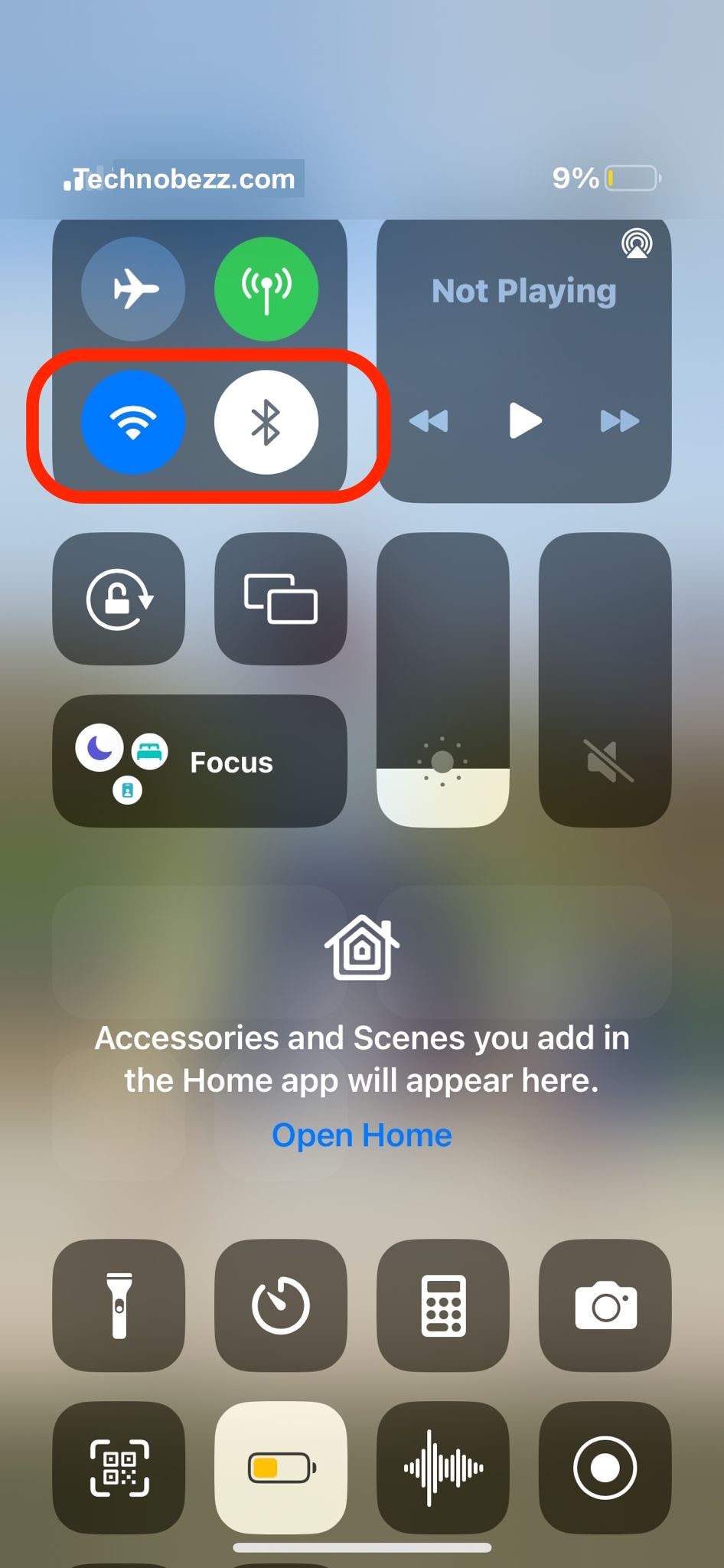
Flip Airplane Mode On and Off
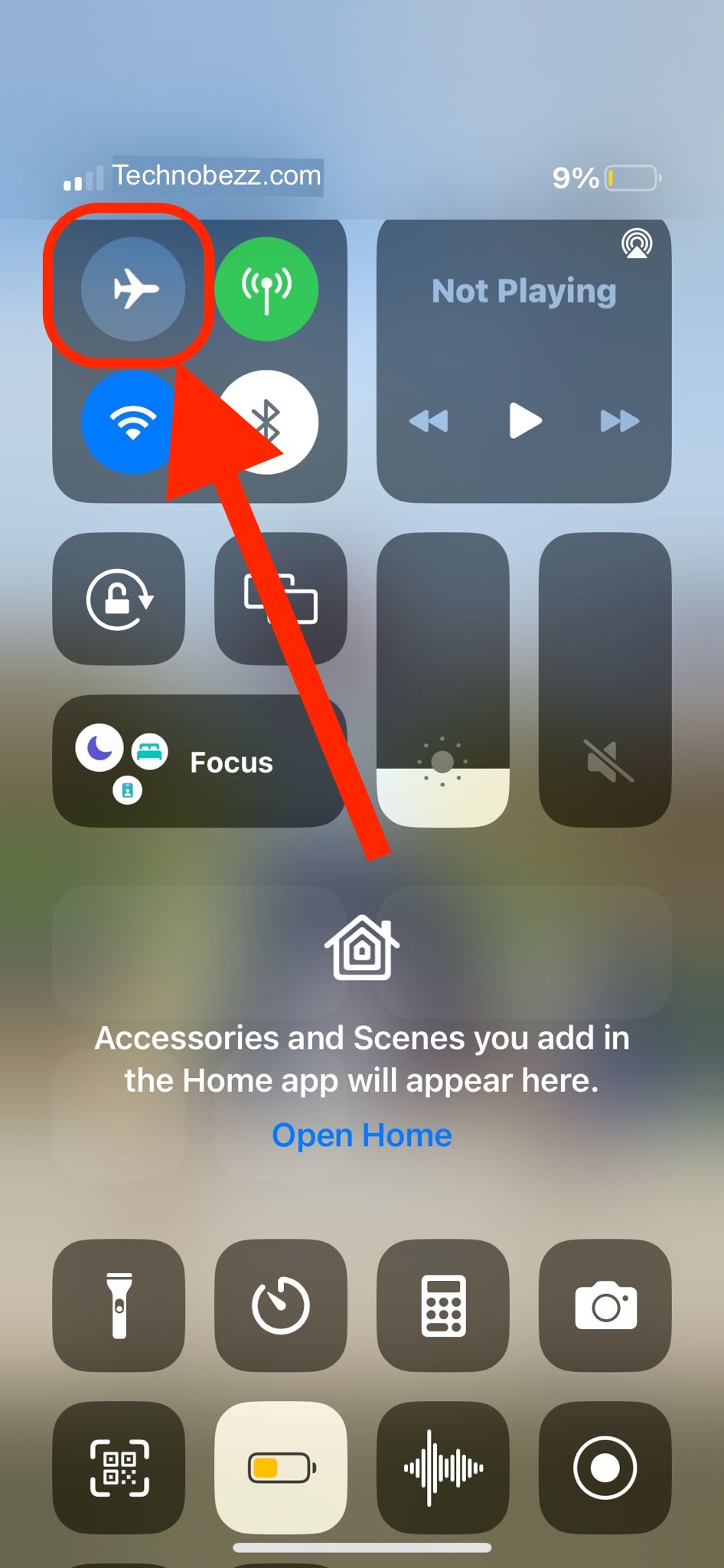
This is the classic "reset all your radios" trick. Turning on Airplane Mode kills WiFi, Bluetooth, and cellular all at once. When you turn it back off, everything reconnects fresh.
Go to Settings, toggle Airplane Mode on, wait about 30 seconds, then switch it off. Your iPhone will re-establish all its wireless connections from scratch. This one fix alone solves a surprising number of WiFi headaches.
Restart Your iPhone
If toggling settings didn't do the trick, a full restart is the next move. It clears out temporary glitches in memory that can mess with your WiFi connection.
On an iPhone X or newer (including the iPhone 17 lineup), press and hold the side button + volume down until you see the power slider. Slide to turn off, wait 30 seconds, then hold the side button to power back on.
Restart Your Router
Before you spend more time troubleshooting your iPhone, check if the problem is actually your router. Try connecting another device to the same network. If that device can't get online either, your router is the culprit.
Unplug both your modem and router. Wait a full 30 seconds (don't rush this part). Plug the modem back in first and wait for the lights to stabilize, then plug in the router. Give it a couple of minutes before trying to connect your iPhone again.
Forget the Network and Rejoin
Sometimes your iPhone holds onto corrupted network settings that prevent a clean connection. Forgetting the network wipes that slate clean and forces your phone to start fresh.
Go to Settings > WiFi, tap the (i) icon next to your network name, then tap Forget This Network. After that, select the network again from the list and enter your password. This fixes a ton of "connected but no internet" situations.

Disable Your VPN
VPN apps are a sneaky cause of WiFi issues. Even when you're not actively using a VPN, some apps run in the background and route your traffic in ways that can break your connection. This has been a particularly common issue on iPhone 17 models running iOS 26.
Go to Settings > General > VPN & Device Management and make sure your VPN is turned off. If you've got a VPN app installed, try fully closing it (or even temporarily uninstalling it) to see if that's the problem.
Turn Off WiFi Assist
WiFi Assist is a feature that automatically switches you to cellular data when your WiFi signal is weak. Sounds helpful, right? But it can actually keep your iPhone from properly connecting to WiFi in the first place.
Go to Settings > Cellular and scroll all the way to the bottom. You'll see WiFi Assist there. Try toggling it off and see if your WiFi connection stabilizes.

Disable WiFi 6E Mode (iPhone 15 Pro and Newer)
If you've got an iPhone 15 Pro, iPhone 16, or iPhone 17, your phone supports WiFi 6E. This is the newer, faster WiFi standard, but some routers don't play nice with it. Plenty of Reddit users have fixed their connection problems by turning this off.
Go to Settings > WiFi, tap the (i) next to your network, and look for WiFi 6E Mode. Toggle it off, then reconnect to your network. If this fixes things, your router probably needs a firmware update to properly support WiFi 6E.
Switch WiFi Frequency Band
Most modern routers broadcast on both 2.4GHz and 5GHz bands. The 5GHz band is faster but has shorter range. If you're far from your router, you might connect but get no actual data through.
Check your router settings to see if it broadcasts separate 2.4GHz and 5GHz networks. Try connecting to the 2.4GHz one if you're having trouble with 5GHz (or vice versa). The 2.4GHz band is slower but reaches further and passes through walls better.
Turn Off Location Services for WiFi
Your iPhone uses location data to help manage WiFi connections, but this feature occasionally causes more problems than it solves.
Go to Settings > Privacy & Security > Location Services > System Services and turn off Networking & Wireless. It won't affect your regular location features for maps and apps.

Change Your DNS Settings
Your iPhone's default DNS settings come from your internet provider, and they're not always reliable. Switching to a faster, more reliable DNS can fix connections that seem stuck or pages that won't load even though you're "connected."
Go to Settings > WiFi, tap the (i) next to your network, then tap Configure DNS. Switch to Manual and add Google's DNS (8.8.8.8 and 8.8.4.4) or Cloudflare's (1.1.1.1 and 1.0.0.1).

Reset Network Settings
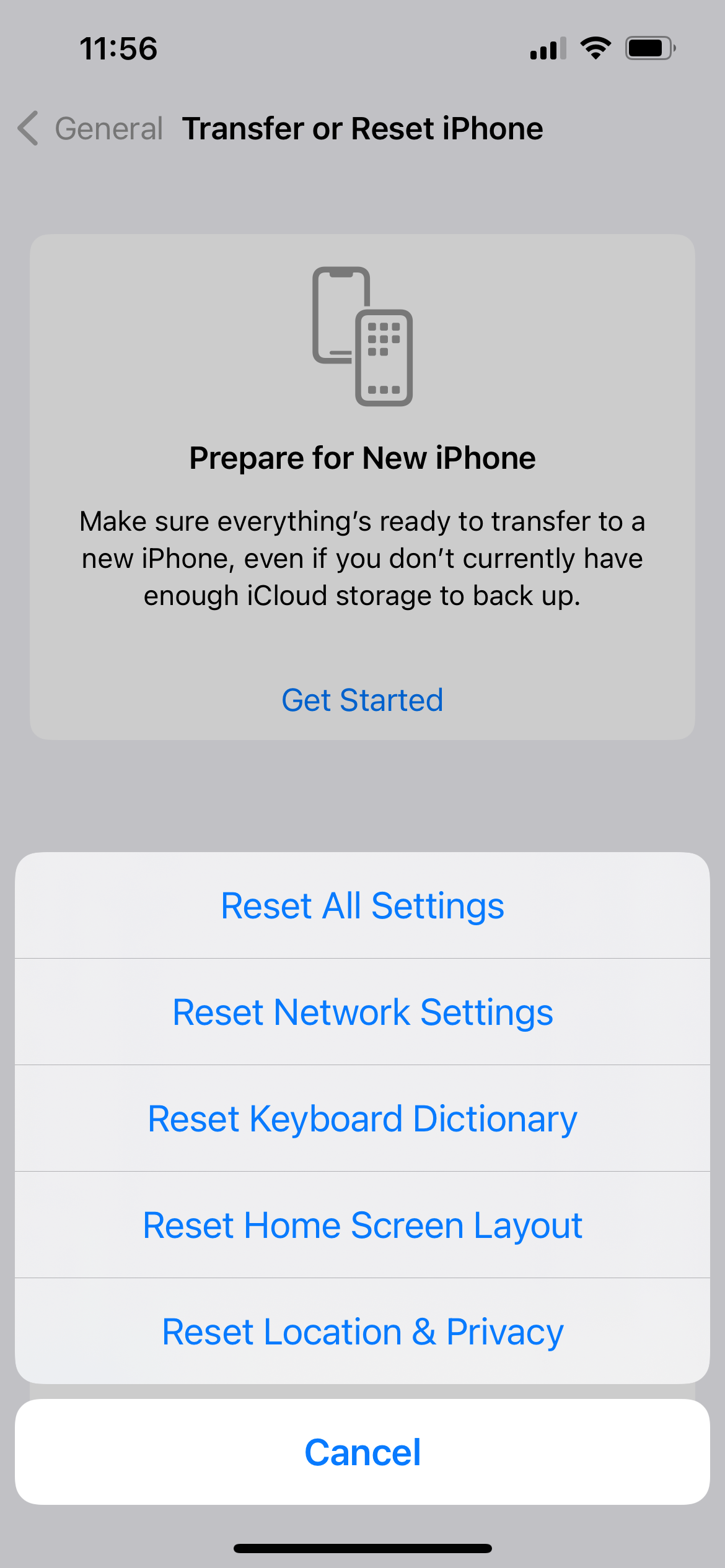
This is the nuclear option for network problems. It wipes all your saved WiFi networks, passwords, VPN configurations, and cellular settings. You'll need to re-enter WiFi passwords afterward, but it often fixes stubborn connection issues that nothing else can.
Go to Settings > General > Transfer or Reset iPhone > Reset > Reset Network Settings. Enter your passcode when prompted. Your iPhone will restart, and you can reconnect to your WiFi network with a completely clean slate.
Update Your iPhone's Software
Apple regularly patches WiFi bugs in iOS updates. If you're running an older version, you could be dealing with a known issue that's already been fixed. This is especially important if you recently got an iPhone 17 or updated to iOS 26, as early releases often have connectivity quirks that get patched quickly.
Go to Settings > General > Software Update. If there's an update available, download and install it. If you can't get online to update wirelessly, connect your iPhone to a Mac or PC and update through Finder (Mac) or iTunes (Windows).

Update Your Router Firmware
This one gets overlooked a lot. Your router has its own software, and if it hasn't been updated in a while, it might not work well with newer iPhones and WiFi standards. This is especially true if you just upgraded to an iPhone 17 or iPhone 16 with WiFi 6E support.
Check your router manufacturer's website for firmware updates, or log into your router's admin page (usually at 192.168.0.1 or 192.168.1.1 in a browser). Most modern routers have an auto-update option you can turn on.
What If Your WiFi Toggle is Grayed Out?
If the WiFi switch in Settings is grayed out and you can't turn it on at all, that's a different (and more annoying) issue. It usually means there's a hardware or deep software problem.
Try these in order: toggle Airplane Mode on and off, do a hard restart, reset network settings, and update iOS. If none of that works, go to Settings > General > Transfer or Reset iPhone > Reset All Settings. This won't delete your data, but it resets all system preferences.
If the toggle is still grayed out after all that, it could be a hardware issue. You'll want to contact Apple Support or visit an Apple Store.
FAQ
Why does my iPhone keep disconnecting from WiFi?
Frequent disconnects are usually caused by a weak signal, router issues, or a software bug. Start by restarting your router and your iPhone. If it keeps happening, forget the network and rejoin it. On iPhone 15 Pro and newer models, try disabling WiFi 6E mode, as it's a known fix for intermittent drops.
Why won't my iPhone connect to WiFi but other devices can?
If other devices work fine on the same network, the issue is with your iPhone specifically. Forget the network and reconnect, reset your network settings, or check if a VPN app is interfering. Also make sure your iPhone is running the latest iOS version.
Does resetting network settings delete anything on my iPhone?
No, your photos, apps, and personal data are safe. Resetting network settings only erases saved WiFi passwords, VPN configurations, and cellular settings. You'll just need to re-enter your WiFi password afterward.
Why is my iPhone connected to WiFi but the internet isn't working?
This usually means there's a DNS or IP address issue. Try changing your DNS to Google (8.8.8.8) or Cloudflare (1.1.1.1). If that doesn't help, forget the network and rejoin. You can also restart your router to clear any IP conflicts.