You set your iPhone 16e (the phone many shoppers still search for as the "iPhone SE 4") down on a wireless pad, and nothing happens. No Charging icon climbs into the status bar, the battery percentage refuses to move, and the phone slides around as if it is hunting for a spot that never quite catches. Before you assume the pad or the phone is broken, it helps to know one thing that trips up almost everyone with this model, and then to work through the simple checks that fix the vast majority of these cases.
What your iPhone 16e can and cannot do wirelessly
The 2025 entry-level iPhone is officially the iPhone 16e. Apple discontinued the iPhone SE line and replaced it with this model, so there is no Apple product actually named "iPhone SE 4"; it is only a nickname. That matters because it changes which accessory you should be using.
In Apple's own MagSafe guidance, the iPhone 16e is listed as "a non-MagSafe, Qi-compatible device." In plain terms, it charges over Qi wireless charging (Apple's stated Qi rate is up to 7.5 watts), but it has no MagSafe magnets. It will not magnetically snap to a MagSafe charger, and if you do use a MagSafe charger, Apple notes that "power is reduced and charge times may be slower than on a typical Qi charger." A flat Qi-certified pad is the right accessory for this phone, so if you have been fighting to make a magnetic puck stick, that is your first clue.
Start with a Qi-certified charger and a proper power source
A wireless charger only works if it has real power behind it. Connect the pad to power using the adapter that came with the accessory or one the charger's manufacturer recommends, and make sure that adapter and outlet are known to be good.
A damaged adapter, an underpowered one, or one that simply was not designed for that pad can quietly stop charging from ever starting. Plug the pad into a known-good adapter and outlet, confirm the pad itself shows any power indicator it has, and make sure the charger is genuinely Qi-certified rather than a generic accessory of unknown origin.
Center the phone and watch for the Charging icon
Because the iPhone 16e has no magnets to self-align, placement is more fussy than it would be on a magnetic charger. Apple's guidance is to "place iPhone face up on the center of the charger." It should begin charging within a few seconds, and the Charging icon then appears in the status bar.
Set the phone face up, nudge it a little until that Charging icon appears, and give it a few seconds to register. If the icon never shows up no matter where you place it, the contact between the coils is not being made, and the next checks address the usual culprits.
Take off thick cases, metal, and cards
Anything bulky or metallic between the phone and the pad can block the wireless connection. If the iPhone is not charging or is charging slowly and it has a thick, metal, or battery case, take the case off and try again.
Just as important, remove credit cards, security badges, or other RFID items tucked into the case, since the charging field can damage them and they can stop charging entirely. Keep nothing between the phone and the charger. Strip the phone down to bare or to a thin case and try once more.
Make sure it is not charging over USB instead
This one catches a lot of people who leave a cable plugged in out of habit. An iPhone will not charge wirelessly while it is connected over USB.
If your iPhone 16e is connected to a computer or to a USB-C power adapter by cable, it will charge over that cable and ignore the pad entirely. Unplug the cable completely, then place the phone back on the wireless charger and wait for the Charging icon.
Let the phone reach a safe temperature
Heat is a common reason charging seems to stop on its own. When the iPhone gets too warm, iOS can slow or pause charging and show a "Charging On Hold" message until the phone cools down.
Move the iPhone and the pad somewhere cooler, take the case off so heat can escape, and aim to charge in environments between 32 and 95 F (0 and 35 C). Charging resumes automatically once the phone returns to a safe temperature, so often the fix is simply patience and a cooler spot.
Install the latest version of iOS
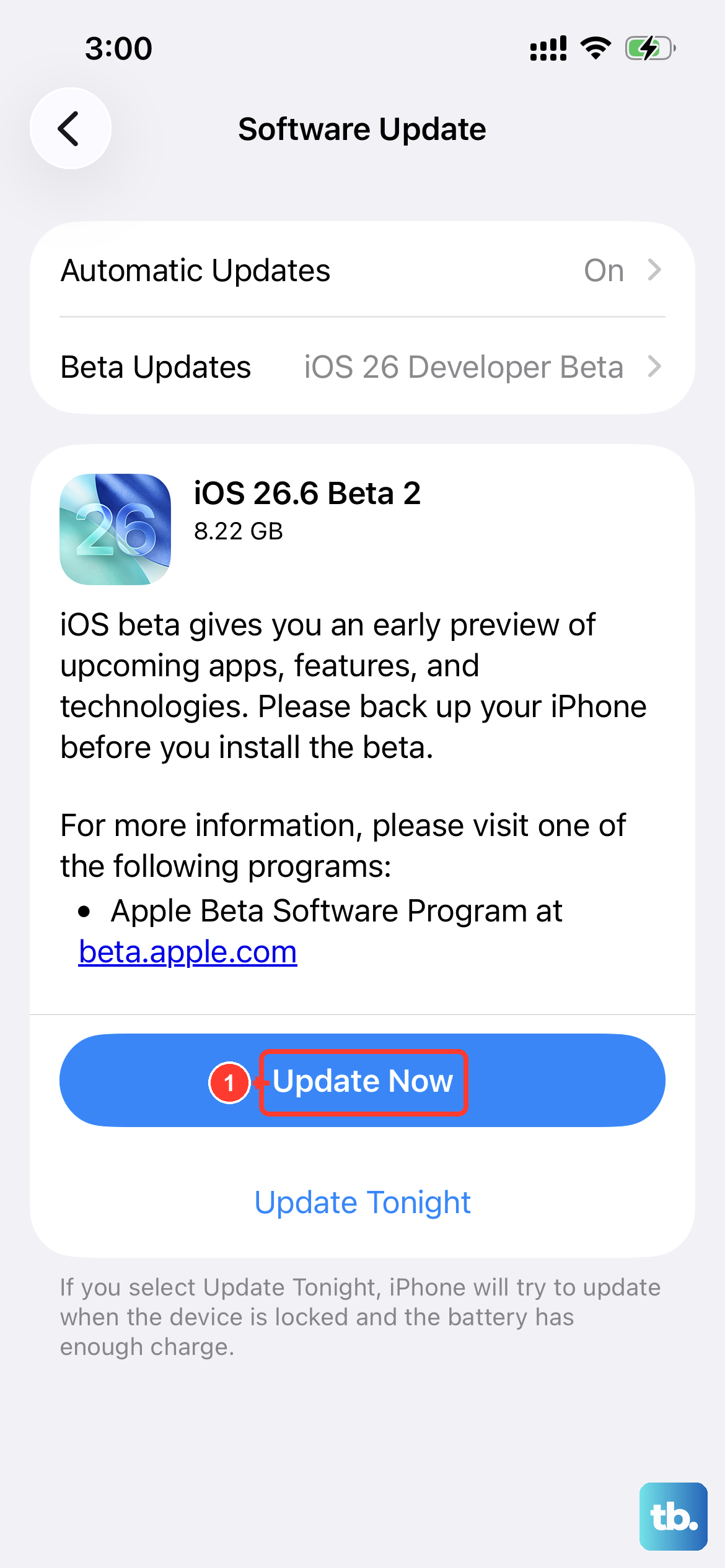
Apple advises keeping the iPhone on the latest version of iOS, and the iPhone 16e shipped with iOS 18. An out-of-date system can carry charging bugs that a software update resolves.
Connect the phone to power and Wi-Fi, then update it.
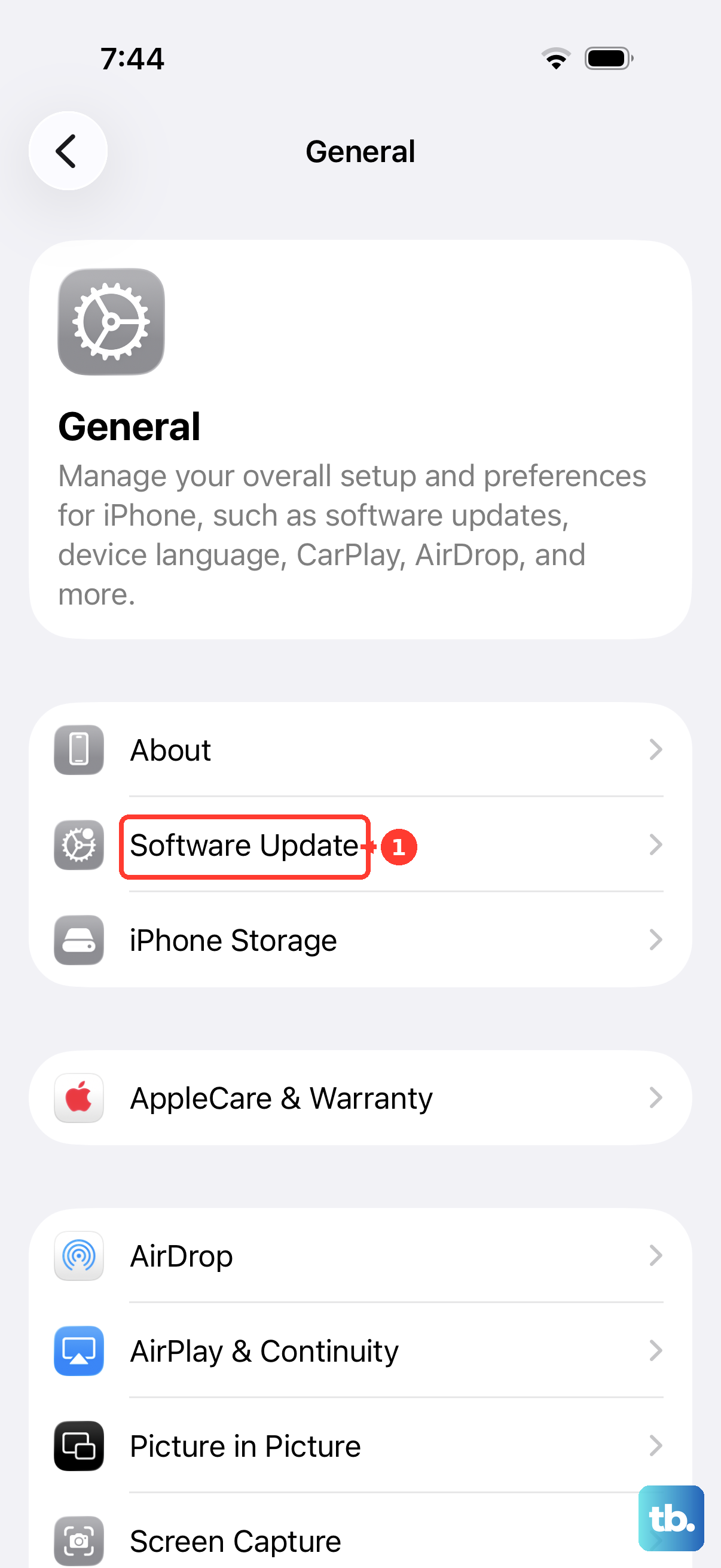
- 1.Open Settings > General > Software Update.
- 2.Tap Download and Install if an update is offered.
- 3.Let the phone finish and restart, then test wireless charging again.
Force restart the iPhone 16e
A frozen or wedged state can block charging even when everything else is fine, and a force restart clears it without erasing any of your data. Use Apple's documented sequence for this model exactly as written.
- 1.Press and quickly release the volume up button.
- 2.Press and quickly release the volume down button.
- 3.Press and hold the side button.
- 4.When the Apple logo appears, release the side button.
Once the phone boots back up, place it on the Qi pad and check whether the Charging icon now appears.
Run a wired charging test to isolate the fault
If wireless charging still refuses to work, find out whether the problem is wireless-specific or a general charging fault. Connect the phone with a cable and watch what happens.
Inspect the charging cable and adapter for signs of damage, gently clear any debris from the USB-C charging port, plug firmly into a wall outlet, try a different cable or charger, and let it charge for about half an hour. If wired charging also fails, the issue is not limited to the wireless coils, which points toward the port, cable, adapter, or the device itself.
Erase all content and settings, then reach Apple Support
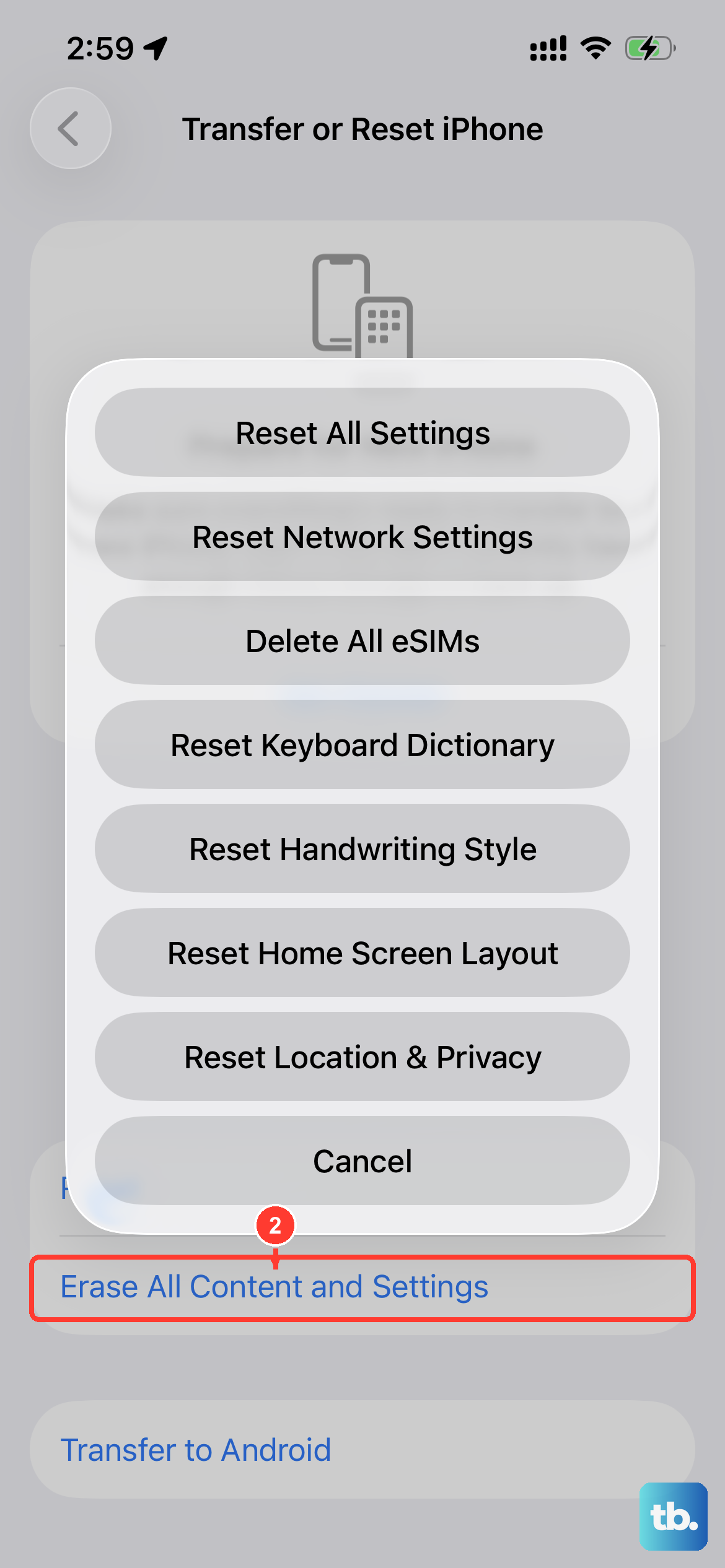
This is the last software step, and it wipes the phone, so treat it as a true last resort. Back up to iCloud or to a computer first, because Apple warns that an erase restores the device to factory settings and "all your content is removed," including Apple Pay cards, photos, contacts, and apps.
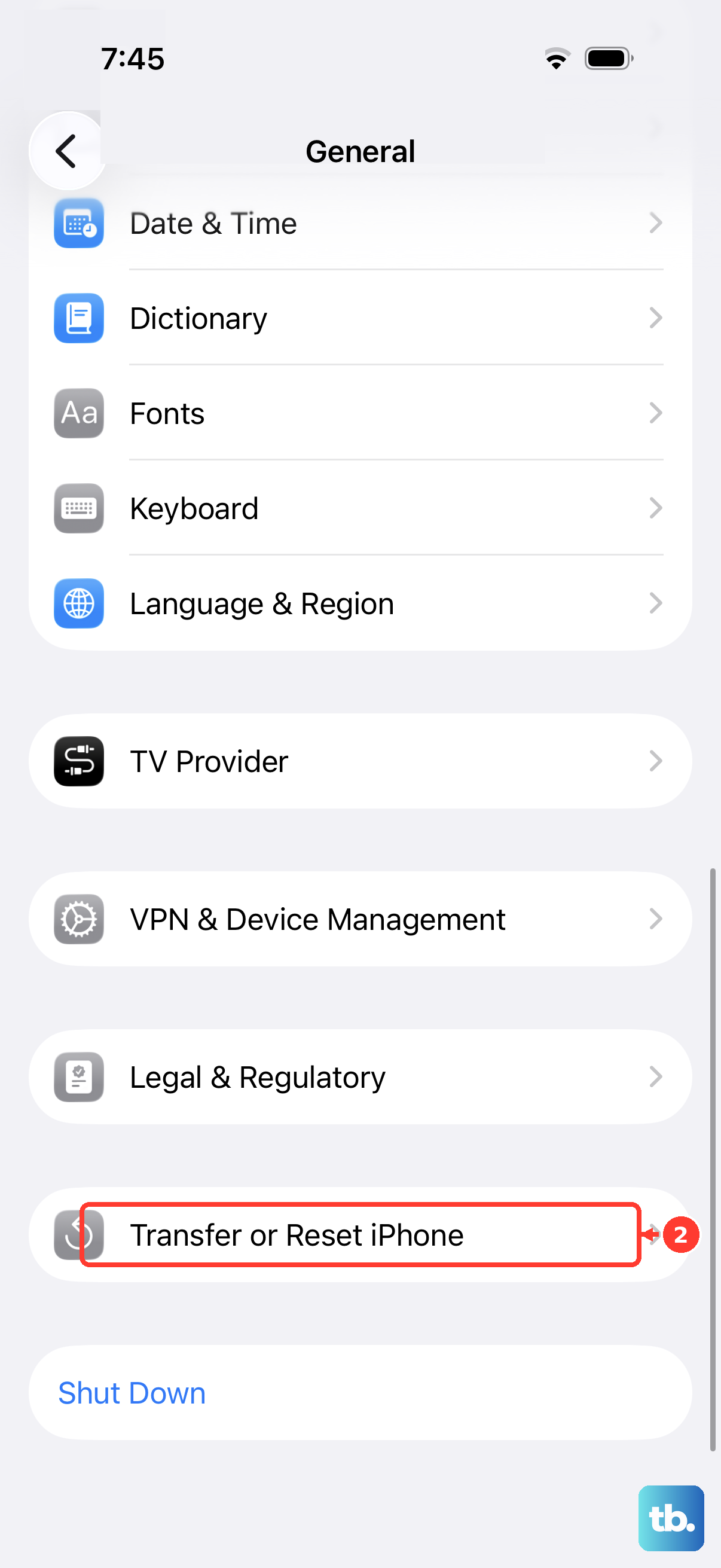
Once you have a current backup, go to Settings > General > Transfer or Reset iPhone > Erase All Content and Settings, then set the phone up again and test charging on the Qi pad. If a clean device still will not charge wirelessly, the fault is most likely hardware. At that point, contact Apple Support through the Apple Support website or app for repair or replacement options.
Frequently Asked Questions
Does the iPhone 16e support MagSafe?
No. Apple lists the iPhone 16e as "a non-MagSafe, Qi-compatible device," meaning it has no MagSafe magnets and will not snap to a MagSafe charger. A MagSafe charger can still charge it, but Apple notes that "power is reduced and charge times may be slower than on a typical Qi charger," so a flat Qi-certified pad is the better choice.
How fast does the iPhone 16e charge wirelessly?
Apple's stated Qi rate is up to 7.5 watts. Because the iPhone 16e is Qi-only, that is the wireless ceiling you should expect from a Qi-certified pad running with the latest version of iOS.
Why does my iPhone say "Charging On Hold"?
That message appears when the phone gets too warm and iOS pauses charging to protect the battery. Move the phone and charger somewhere cooler, remove the case, and keep it in an environment between 32 and 95 F (0 and 35 C); charging resumes automatically once the temperature returns to normal.
Why won't it charge wirelessly while it is plugged in?
An iPhone will not charge wirelessly while it is connected over USB. If a cable is attached to a computer or a USB-C adapter, the phone charges over the cable and ignores the pad. Unplug the cable, then set the phone back on the wireless charger.











