
That spinning wheel next to your Wi-Fi network is one of the most frustrating sights on your iPhone SE 4. You just want to get online, but your phone seems to have other ideas. The good news is this is almost always a software hiccup you can fix yourself in a few minutes.
Toggle Wi-Fi and Restart Your iPhone
Start with the simplest fix. Swipe down from the top-right corner to open Control Center and tap the Wi-Fi icon to turn it off. Wait about ten seconds, then tap it again to turn it back on. This forces your iPhone SE 4 to drop the connection and re-establish it fresh, which often does the trick.
If the icon is still spinning, restart your phone. On the iPhone SE 4, you do this by pressing and releasing the Volume Up button, pressing and releasing the Volume Down button, and then pressing and holding the Side button until you see the Apple logo. A quick reboot clears out temporary glitches that can mess with iOS 18's network stack.
Forget the Network and Rejoin
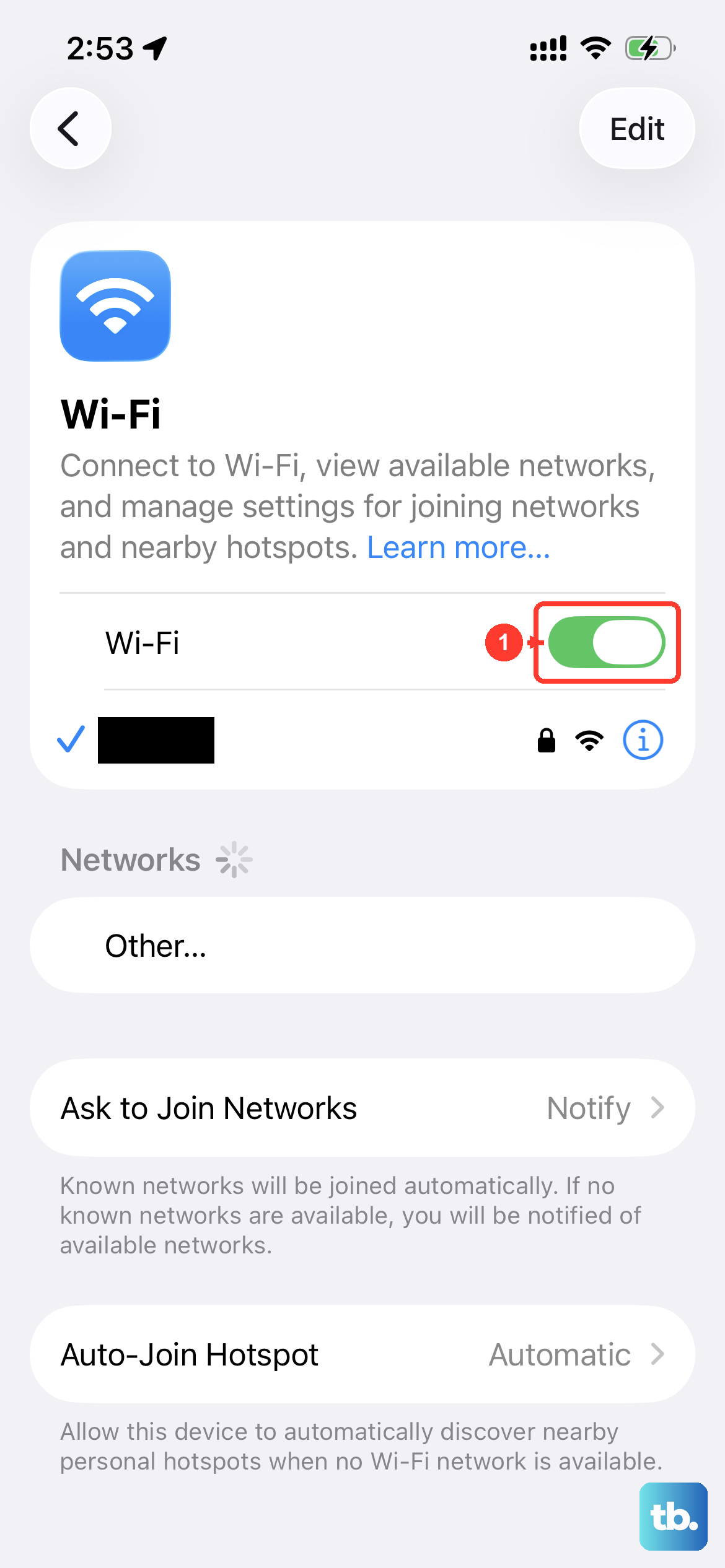
Your iPhone might be holding onto corrupted login information for that network. To clear it out, go to Settings > Wi-Fi and tap the info icon (the "i" in a circle) next to the problem network. Tap Forget This Network and confirm.
Now, go back to the list of available networks, select yours again, and re-enter the password. Make sure caps lock isn't on, as passwords are case-sensitive. This is the fix if you recently changed your Wi-Fi password and your phone hasn't caught up.
Check for a Software Update
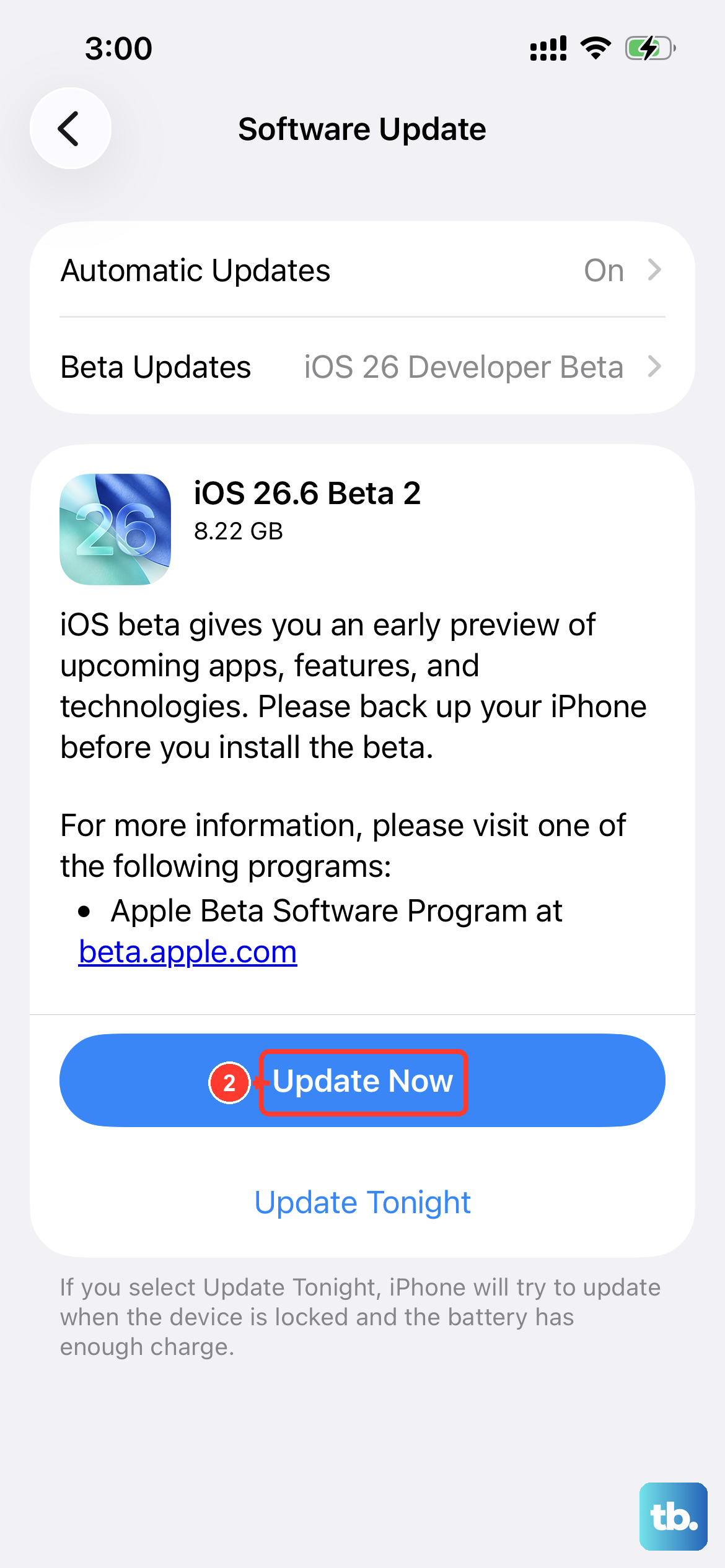
Apple regularly releases iOS updates that include bug fixes for connectivity issues. Since you're on iOS 18, it's worth checking if a newer version is available. Go to Settings > General > Software Update.
If an update is waiting, I'd recommend installing it. These updates often contain patches for specific Wi-Fi problems that were reported after the iPhone SE 4's release. Just make sure your phone is plugged into power or has a good charge first.
Toggle Airplane Mode
This old trick still works wonders. Turning on Airplane Mode disables all wireless radios, Wi-Fi, cellular, and Bluetooth. Swipe into Control Center and tap the airplane icon. Leave it on for a full 15 to 20 seconds, then tap it again to turn it off.
This gives your iPhone SE 4's modem a complete reset. When you disable Airplane Mode, watch as your phone searches for networks again. It should reconnect to your home Wi-Fi automatically if the credentials are still saved.
Reset Your Network Settings
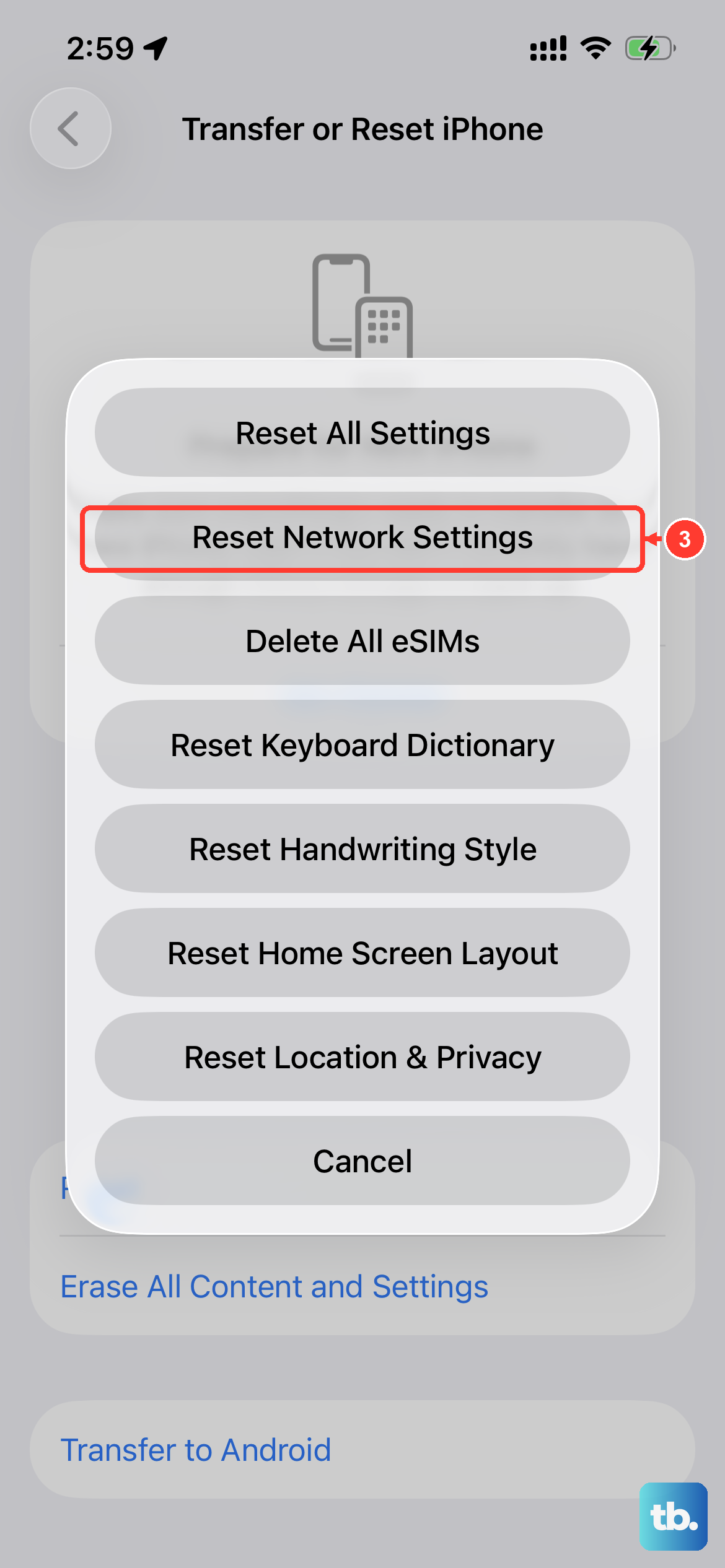
This is a more thorough step that wipes all network-related data from your phone. It will erase saved Wi-Fi passwords, Bluetooth pairings, and any custom VPN or APN settings. To do it, go to Settings > General > Transfer or Reset iPhone.
Tap Reset and then choose Reset Network Settings. Your iPhone will restart. After it boots back up, you'll need to rejoin your Wi-Fi network and re-pair any Bluetooth devices like headphones or your car.
Check Your Router and Modem
The issue might not be your iPhone at all. A quick test is to see if other devices, like a laptop or tablet, can connect to the same Wi-Fi. If they can't, the problem is with your internet source.
Unplug your router and modem from power. Wait a full 60 seconds, this is important to let the memory clear. Plug the modem back in first, wait for all its lights to stabilize, then plug the router back in. Once your network is back online, try connecting your iPhone SE 4 again.
Disable VPN or Content Blockers
If you use a VPN app or a Safari content blocker, these can sometimes interfere with normal Wi-Fi connectivity. Try temporarily disabling your VPN. You can usually do this from within the VPN app itself or from Settings > VPN.
For content blockers, go to Settings > Safari > Extensions and toggle them off. See if your Wi-Fi starts working. If it does, you know one of those extensions is the culprit, and you may need to adjust its settings or try a different one.
Check for Wi-Fi Assist Interference
iOS has a feature called Wi-Fi Assist that automatically switches to cellular data when your Wi-Fi connection is poor. In some cases, it can be a bit too aggressive. It's worth checking if turning it off helps.
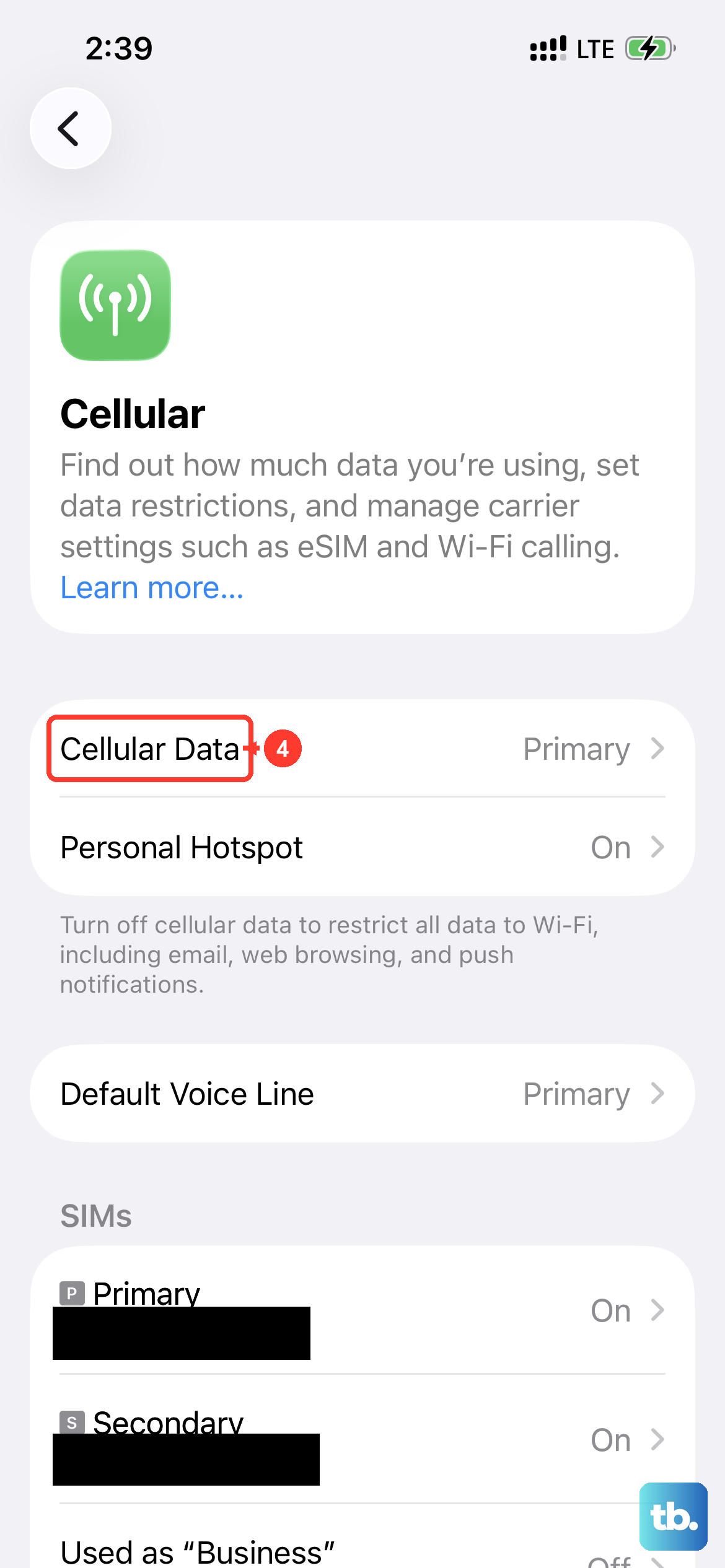
Go to Settings > Cellular and scroll all the way to the bottom. You'll find the Wi-Fi Assist toggle there. Try turning it off and see if your connection stabilizes. You can always turn it back on later if you want.
Review Date & Time Settings
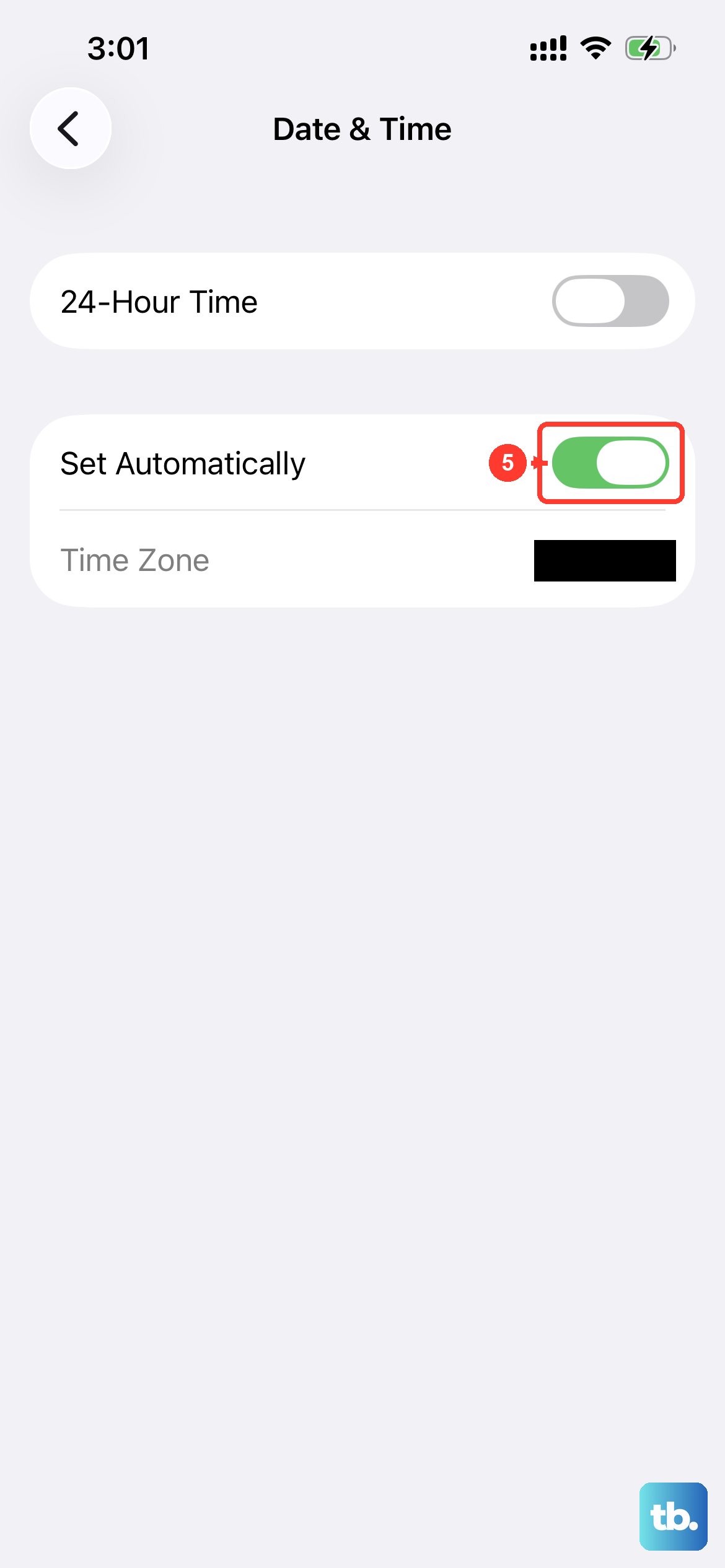
This seems unrelated, but it's critical for security certificates that validate your connection. If your phone's clock is wrong, it can break Wi-Fi. Go to Settings > General > Date & Time.
Make sure Set Automatically is turned on. This allows your iPhone SE 4 to sync its clock with Apple's time servers. If it was off and your time was wrong, turning this on can instantly resolve authentication errors.
Try a Different Network
To rule out a hardware problem with your iPhone's Wi-Fi antenna, try connecting to a completely different network. This could be a public hotspot at a coffee shop, a friend's house, or even using your own cellular data to create a personal hotspot from another phone.
If your iPhone SE 4 connects without issue to other networks, then the problem is isolated to your home network setup. If it fails to connect to any Wi-Fi network at all, it points more toward an issue with the phone itself.