
Seeing the "SIM Not Provisioned" message on your iPhone SE 4 can stop you from making calls or using mobile data right when you need it. This error means your phone can't properly connect to your carrier's network, and it's a common hiccup that usually has a straightforward fix.
Let's jump straight into the most common solution. A simple restart of your iPhone SE 4 can clear out any temporary software glitch that's blocking the network connection. Just hold the side button and either volume button, then slide to power off. Wait a minute, then turn it back on.
Check Your SIM Card Activation Status
If you just got a new SIM card or recently switched to the iPhone SE 4, the card might not be fully activated on your carrier's system. This is the most frequent cause of this error. The quickest way to check is to give your mobile provider a call or use their online chat support.
They can look up your account and see if the activation process got stuck. Sometimes, they just need to push a refresh signal to your phone from their end, which they can do while you're on the line.
Toggle Airplane Mode On and Off
This trick forces your iPhone to completely disconnect from and then reconnect to all wireless networks. Swipe down from the top-right corner of the screen to open Control Center and tap the airplane icon.
Wait about 15 to 20 seconds, then tap the icon again to turn Airplane Mode off. You should see the cellular signal bars reappear in the top corner. I've found this resolves the issue about half the time, especially after being in an area with poor service.
Reinsert the SIM Card in Your iPhone SE 4
It's possible the SIM card isn't making perfect contact inside the tray. First, power off your iPhone SE 4 completely. Then, locate the SIM tray on the left side of the device. You'll need the SIM ejector tool that came in the box, or a small paperclip.
Gently push the tool into the small hole to pop the tray out. Carefully remove the SIM card, give the gold contacts a quick visual check for any dust or damage, and then place it back in the tray. Push the tray firmly back into the phone until it clicks, then power it on.
Update Your iPhone to the Latest iOS
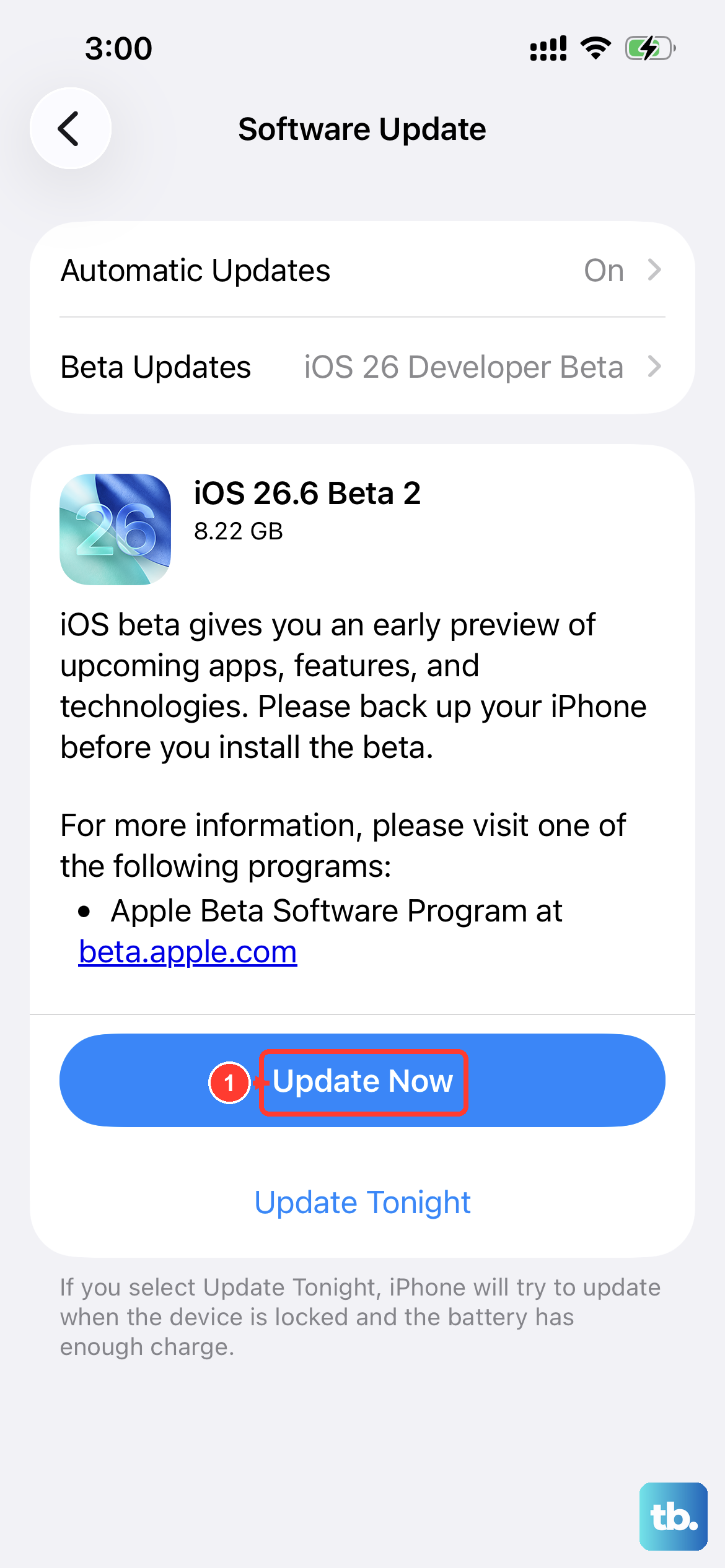
Software updates often include important fixes for cellular connectivity. Since your iPhone SE 4 runs iOS 18, you'll want to make sure you're on the latest version. Go to Settings > General > Software Update.
If an update is available, tap "Download and Install." It's best to do this while connected to Wi-Fi. An outdated iOS version can sometimes cause conflicts with your carrier's network settings.
Check for a Carrier Settings Update
Separate from iOS updates, Apple and your carrier release small files that help your phone work better on their specific network. To check for one, go to Settings > General > About.
If a carrier settings update is available, a pop-up notification will appear on this screen. Just follow the prompts to install it. This is a quick process that doesn't require a full restart.
Manually Select Your Network Operator
Your iPhone usually picks the best network automatically, but sometimes this process gets confused. You can manually tell it which carrier to use. Open Settings > Cellular.
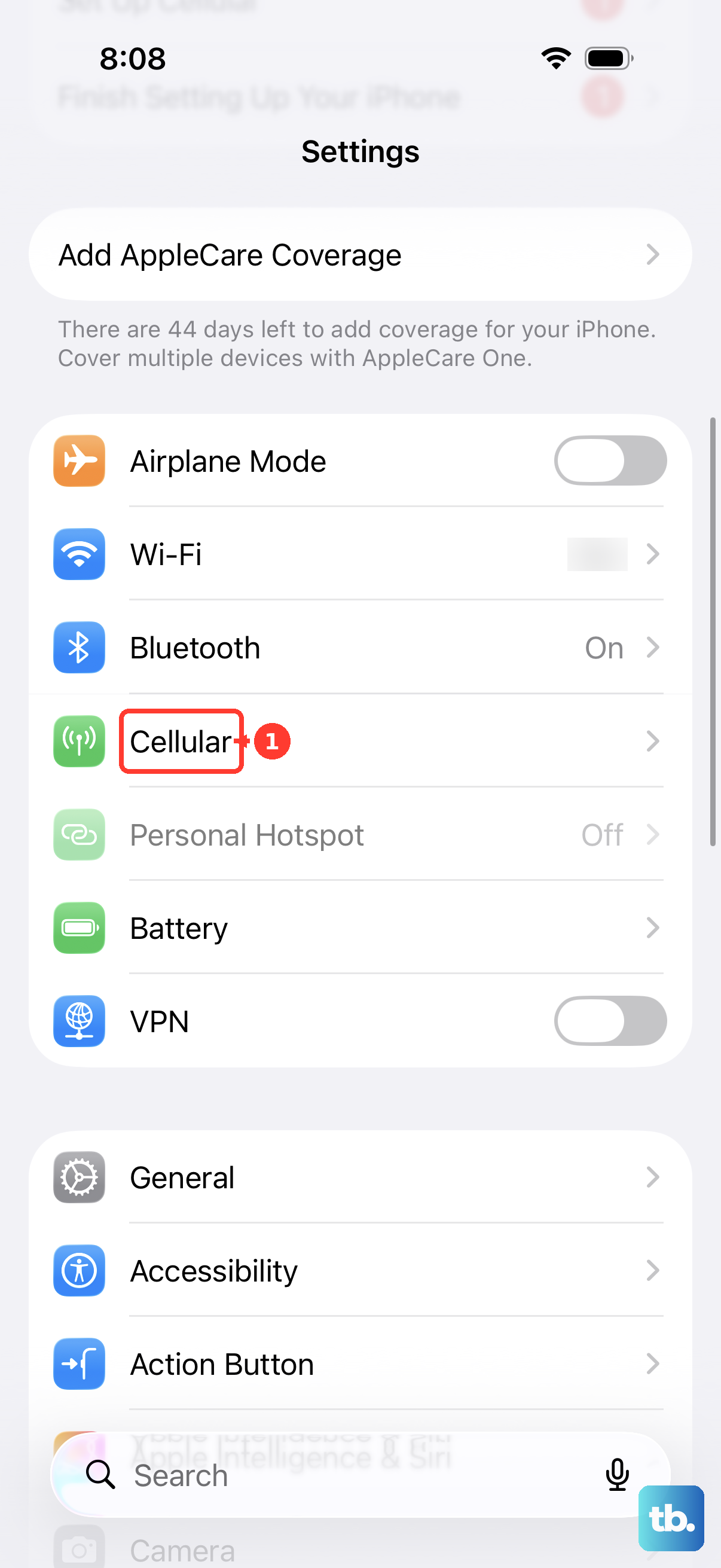
Tap Network Selection and turn off "Automatic." After a moment, a list of available networks will appear. Select your carrier's name from the list. Wait a minute, then go back and turn "Automatic" selection on again.
Reset the Network Settings on Your iPhone
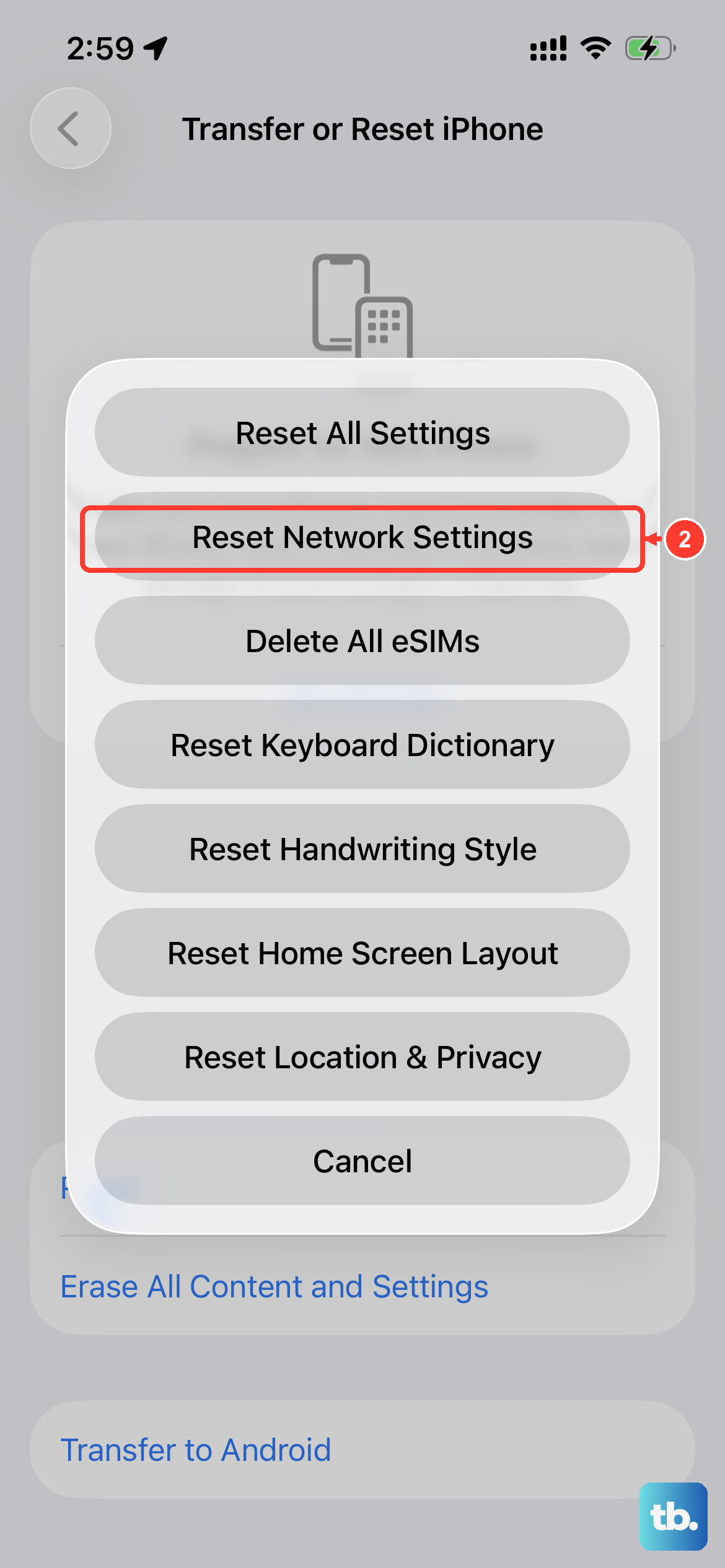
This step clears all saved Wi-Fi passwords, Bluetooth connections, and cellular network configurations, forcing your phone to start fresh. Go to Settings > General > Transfer or Reset iPhone.
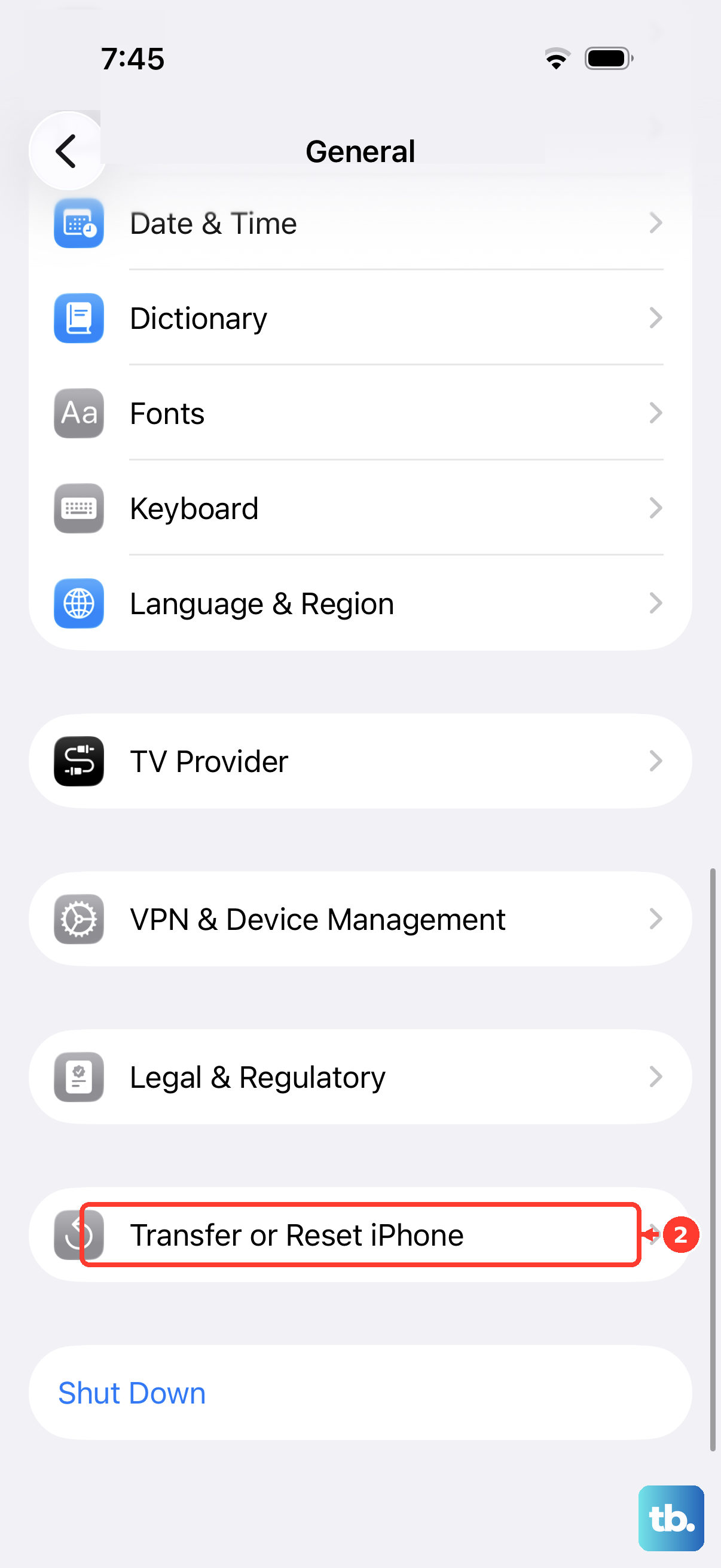
Tap Reset and then choose Reset Network Settings. You'll need to enter your passcode to confirm. Your iPhone SE 4 will restart, and you'll have to reconnect to Wi-Fi networks afterward, but it often resolves stubborn cellular issues.
Verify Your Account is in Good Standing
If you're on a prepaid plan, a lack of funds can cause your service to be suspended, triggering this error. For postpaid accounts, a missed bill payment can have the same effect. Log into your carrier's app or website to check your account balance and status.
This is an easy thing to overlook, but it's a very common reason for service interruption. If your account is suspended, simply making a payment should restore service within a few minutes.
Contact Your Mobile Carrier for Support
If you've tried everything here and you're still seeing the error, it's time to call in the experts. Your carrier's support team can check for wider network outages in your area that you wouldn't know about.
They can also verify that your iPhone SE 4's IMEI number is properly registered on their network and, if needed, send you a replacement SIM card. A damaged SIM card is a less common cause, but it does happen.