
If your iPhone SE 4 screen isn't responding to touch, the quickest thing to try is a force restart. This is different from a normal restart and can clear out temporary software glitches that freeze the screen. Press and quickly release the Volume Up button, then quickly press and release the Volume Down button. Finally, press and hold the Side button until you see the Apple logo appear, then let go.
Remove Any Screen Protector or Case
Take a close look at your screen. A poorly applied screen protector, especially a tempered glass one that's lifting at the edges, can interfere with the touch sensors. Peel it off completely and see if touch responsiveness returns.
Also, remove any bulky case, particularly MagSafe cases with strong magnets or metal rings that aren't perfectly aligned. These can sometimes cause interference. Test the phone with the screen bare to rule out accessory issues.
Clean the Screen Thoroughly
Oils, lotion, and dirt can build up and create a barrier between your finger and the digitizer. Use a soft, lint-free cloth slightly dampened with water to wipe the entire screen clean. Make sure to dry it completely with another clean part of the cloth.
Avoid using window cleaners, household sprays, or abrasive cloths. For stubborn grime, a drop of isopropyl alcohol (70% concentration) on the cloth can help, but never spray liquid directly onto the phone. A clean screen is often a responsive screen.
Check for Software Updates
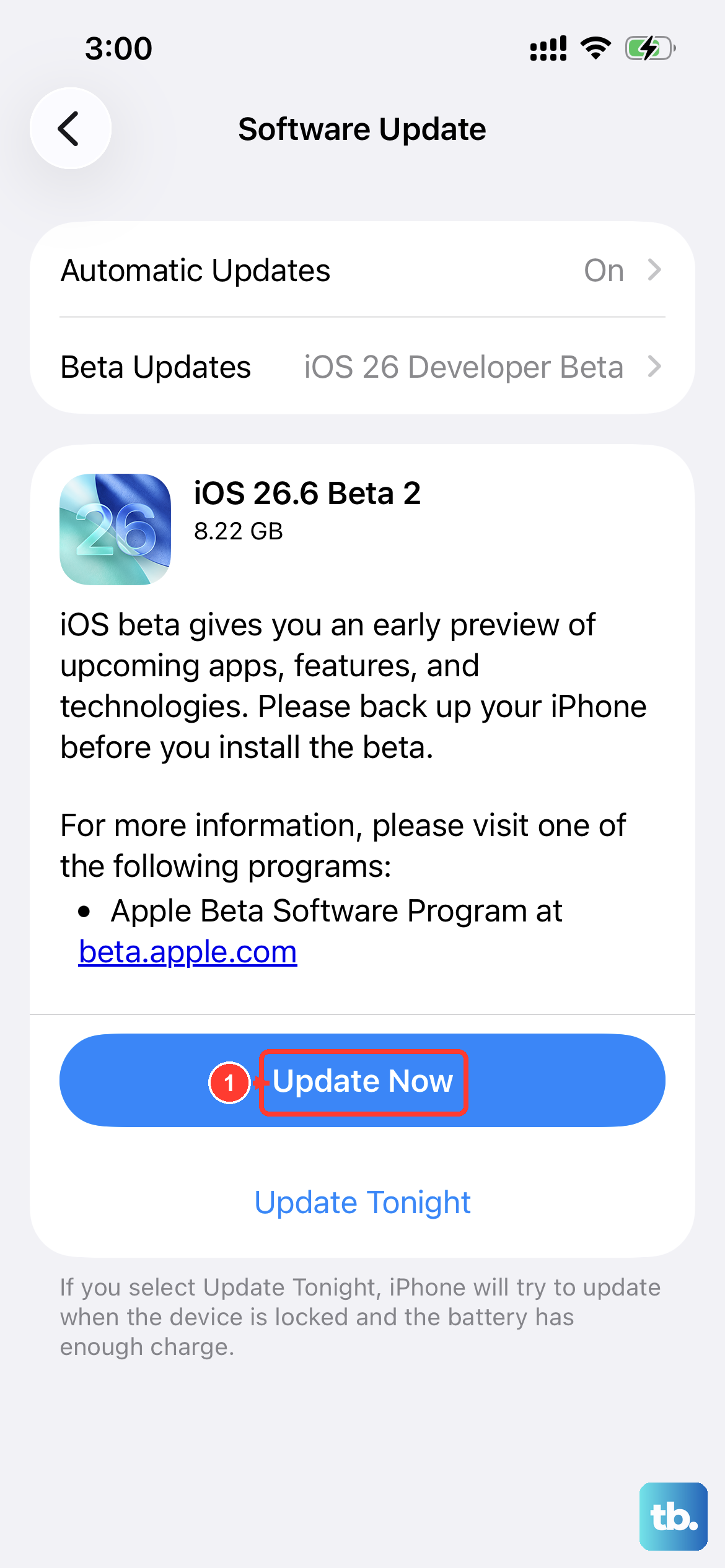
Go to Settings > General > Software Update. If an update is available, install it. iOS updates frequently include bug fixes for touchscreen and performance issues. I've seen updates resolve unresponsive touch problems on several iPhone models, especially after a new iOS version is released.
Make sure your iPhone SE 4 is connected to Wi-Fi and has at least 50% battery, or plug it into your 20W USB-C charger. The update process can take a few minutes, and your phone will restart automatically when it's done.
Test Touch in Recovery Mode
If the screen works in recovery mode, it points to a software problem with iOS itself. To enter recovery mode, connect your iPhone to a computer with a USB-C cable. Open Finder (on Mac) or iTunes (on Windows PC).
Quickly press and release the Volume Up button, then the Volume Down button. Then, press and hold the Side button until you see the recovery mode screen (a cable pointing to a computer icon). If you can interact with the "Restore" or "Update" options on this screen using touch, your hardware is likely fine.
Perform a Factory Reset (Backup First)
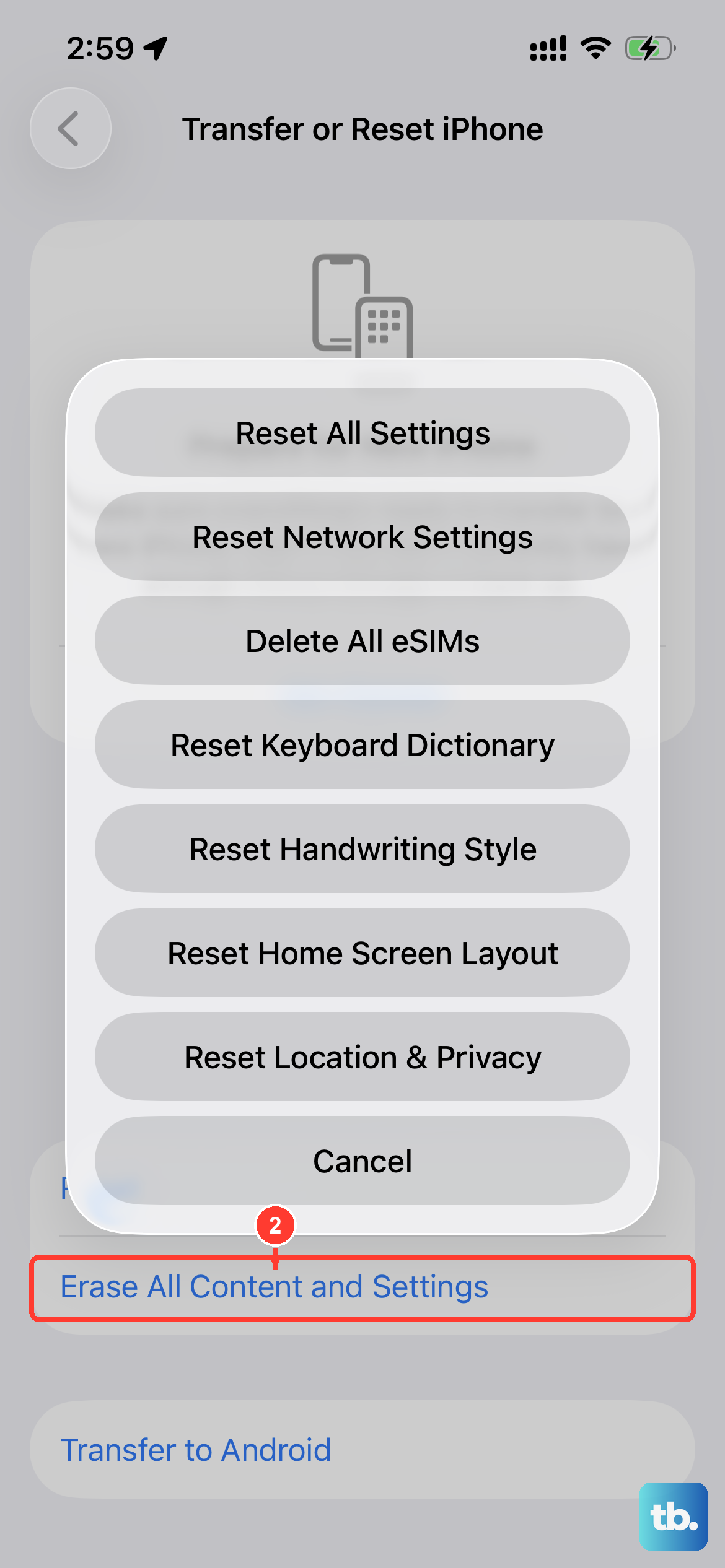
Before you do this, it's critical to have a recent backup in iCloud or on your computer. A factory reset will erase all your data and settings. Go to Settings > General > Transfer or Reset iPhone > Erase All Content and Settings.
If you can't navigate the settings due to the touch issue, you can use recovery mode on your computer to restore the iPhone. This is a more definitive software fix that removes any corrupted data causing the problem.
Check for Physical or Liquid Damage
Look at the screen under a bright light for any new cracks, even hairline ones, or spots that look different. Damage to the digitizer layer underneath the glass can cause dead zones. Also, check the small pinhole near the front camera for any blockages.
While the iPhone SE 4 has water resistance, it's not immune to liquid damage. If the phone was recently exposed to moisture, even from high humidity, it could affect the screen. Look for a red Liquid Contact Indicator in the SIM card tray slot, though this isn't a guarantee for newer models.
Consider the Display Environment
The capacitive touchscreen can be affected by extreme environmental factors. If your hands are very dry, try moisturizing them slightly. The screen also may not work correctly if the phone is extremely hot or cold, so let it return to a normal temperature.
Finally, test the phone in a different location. In very rare cases, strong electromagnetic interference from certain industrial equipment or unshielded electronics could theoretically cause temporary touch issues. Moving to another room can rule this out.











