Seeing "Call Failed" on your iPhone is frustrating, especially when the call matters. The error means your iPhone tried to place the call but could not complete the connection to the cellular network. Weak signal, a software glitch, an outdated carrier profile, or a misconfigured setting are the usual reasons.
The good news is that most cases clear up in under a minute once you know where to look. Here are 16 ways to fix the iPhone Call Failed error, ordered from the fastest toggles to the deeper fixes, with the current iOS 26 menu paths.
Read more - How to Fix iPhone SIM Failure No SIM or Invalid SIM Messages
Match Your Symptom to the Right Fix
Call Failed shows up in a few different patterns, and the pattern points to the likely cause. Use the table below to jump to the fixes most likely to help, then work down the list if the first one does not stick.
| What you see | Most likely cause | Start with |
|---|---|---|
| Call fails instantly, no ringing | Network registration glitch or weak signal | Airplane Mode, restart, signal check |
| Call fails after a few rings | VoLTE or carrier profile issue | Carrier settings update, VoLTE/Voice and Data |
| Only certain numbers fail | Blocked contact or carrier block | Blocked Contacts, contact carrier |
| Calls fail only on Wi-Fi or indoors | Wi-Fi Calling not enabled | Wi-Fi Calling toggle |
| Started right after an update | eSIM or carrier profile out of sync | Reset Network Settings, eSIM, carrier |
1. Toggle Airplane Mode
The fastest fix is to reset your cellular connection by turning Airplane Mode on and off. This forces your iPhone to re-register with the nearest tower and clears temporary network glitches.
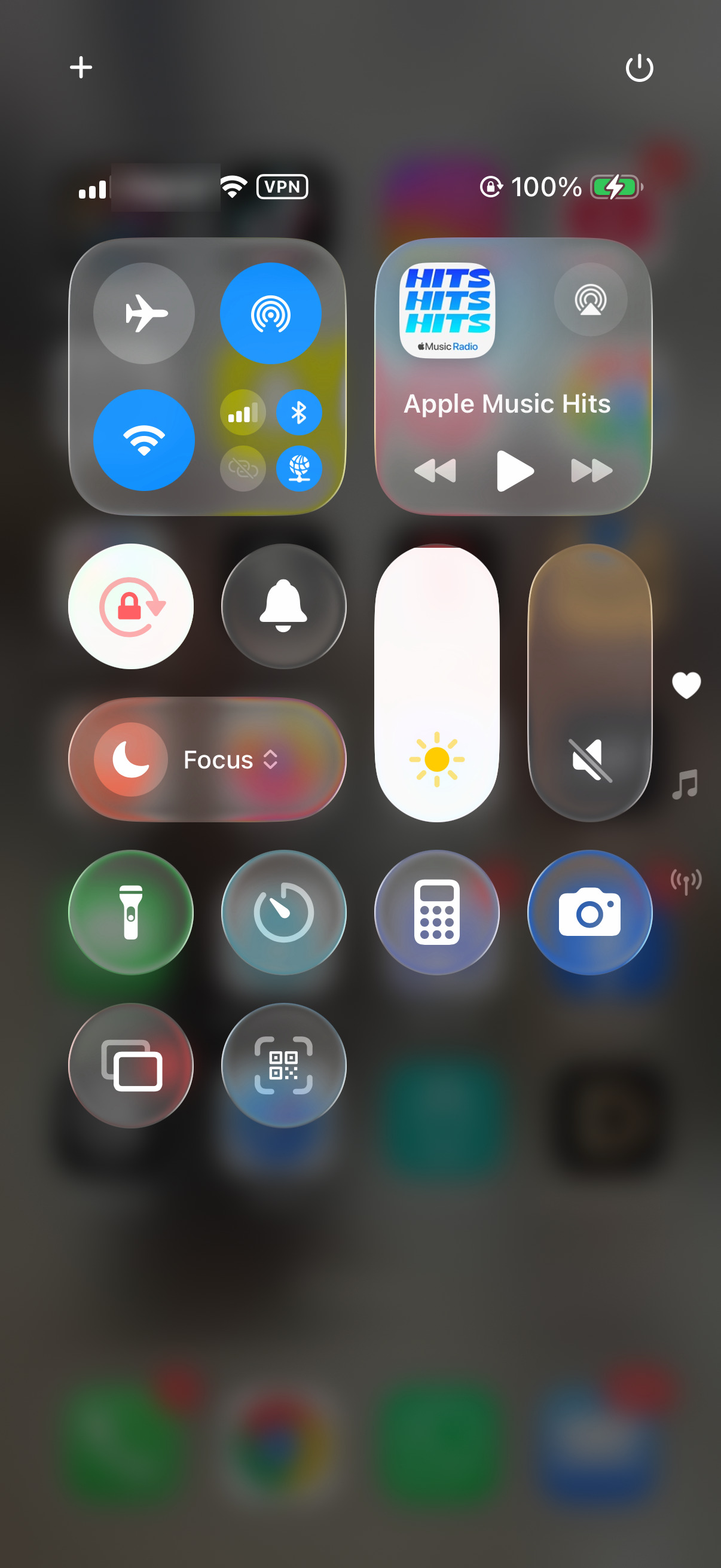
- 1.Open Control Center by swiping down from the top-right corner of the screen
- 2.Tap the Airplane icon to turn it on
- 3.Wait 10 to 15 seconds
- 4.Tap the Airplane icon again to turn it off
Give it a few seconds to reconnect, then try the call again. You can also toggle it from Settings if you prefer.
2. Check Your Signal Strength
A weak cellular signal is the most common reason calls fail. Look at the signal bars in the top-right corner of your screen.
If you see one bar, No Service, or SOS, you are too far from a usable tower. Move closer to a window, step outside, or walk to a different spot and try again. Thick walls, basements, and elevators routinely kill the signal needed to start a call.
3. Restart Your iPhone
A restart clears the temporary memory that handles your network connection and fixes many software hiccups behind Call Failed.
Press and hold the Side button and either Volume button until the power-off slider appears. Slide to power off, wait 30 seconds, then press and hold the Side button until the Apple logo shows. Test a call once it finishes booting.
4. Check Focus and Do Not Disturb
Focus modes and Do Not Disturb mainly silence incoming calls, but an aggressive Focus setup can interfere with how calls behave. Confirm nothing is filtering your calls.
Open Control Center and check whether a Focus or Do Not Disturb is active.
Tap it to turn it off.
To review the settings, go to Settings > Focus > Do Not Disturb.
5. Check for a Carrier Outage
Before you change any settings, rule out a problem on your carrier's end. An outage in your area will cause Call Failed no matter what your iPhone does.
Open your carrier's app or website to look for a reported outage, a pending number transfer, or a billing hold on your account. If others near you have the same trouble, the issue is the network, not your phone.
6. Update Carrier Settings
Carrier settings updates contain the profile your iPhone uses to connect to the network for calls and data. An outdated profile is a frequent cause of calls failing after rings.
Connect to Wi-Fi.
Then go to Settings > General > About.
If an update is available, you will see a prompt to update your carrier settings within a few seconds.
To check your current version, look at the line next to Carrier on the same About screen.
7. Turn Wi-Fi Calling On or Off
If your calls fail indoors or in spots with weak cellular coverage, Wi-Fi Calling lets your iPhone place calls over your internet connection instead. If it is already on and calls still fail, toggling it off can rule it out.
Go to Settings > Apps > Phone > Wi-Fi Calling.
Turn on Wi-Fi Calling on This iPhone and accept the prompt.
If you have more than one line, tap the line first, then set the toggle.
You can reach the same toggle through Settings > Cellular > Wi-Fi Calling. After enabling it, place a call while near your router.
8. Adjust VoLTE and Voice and Data
Voice over LTE, often labeled VoLTE, carries your call over the LTE or 5G data network. Some carriers had not fully synced their VoLTE profiles with newer iOS releases, which can trigger Call Failed after the call connects.
Go to Settings > Cellular > Cellular Data Options > Voice & Data.
If VoLTE is on and calls keep failing, turn it off and test.
If it was off, try turning it on instead.
Switch it back if it makes no difference. The exact options here depend on your carrier and iPhone model.
9. Switch Between 5G and LTE
A flaky 5G connection can interrupt calls in areas with patchy coverage. Forcing LTE, or letting iOS choose smartly, often stabilizes things.
Go to Settings > Cellular > Cellular Data Options > Voice & Data.
Choose 5G Auto so your iPhone uses LTE when 5G does not help.
To rule 5G out entirely, choose LTE, test your calls, then switch back.
This menu appears only on iPhone 12 models and later that support 5G.
10. Verify Cellular Data and Roaming
Calls can fail if your line is turned off or if you are roaming without data roaming enabled, which some carriers tie to voice service.
Go to Settings > Cellular and make sure Cellular Data is on.
If you use more than one line, confirm the line you want is turned on.
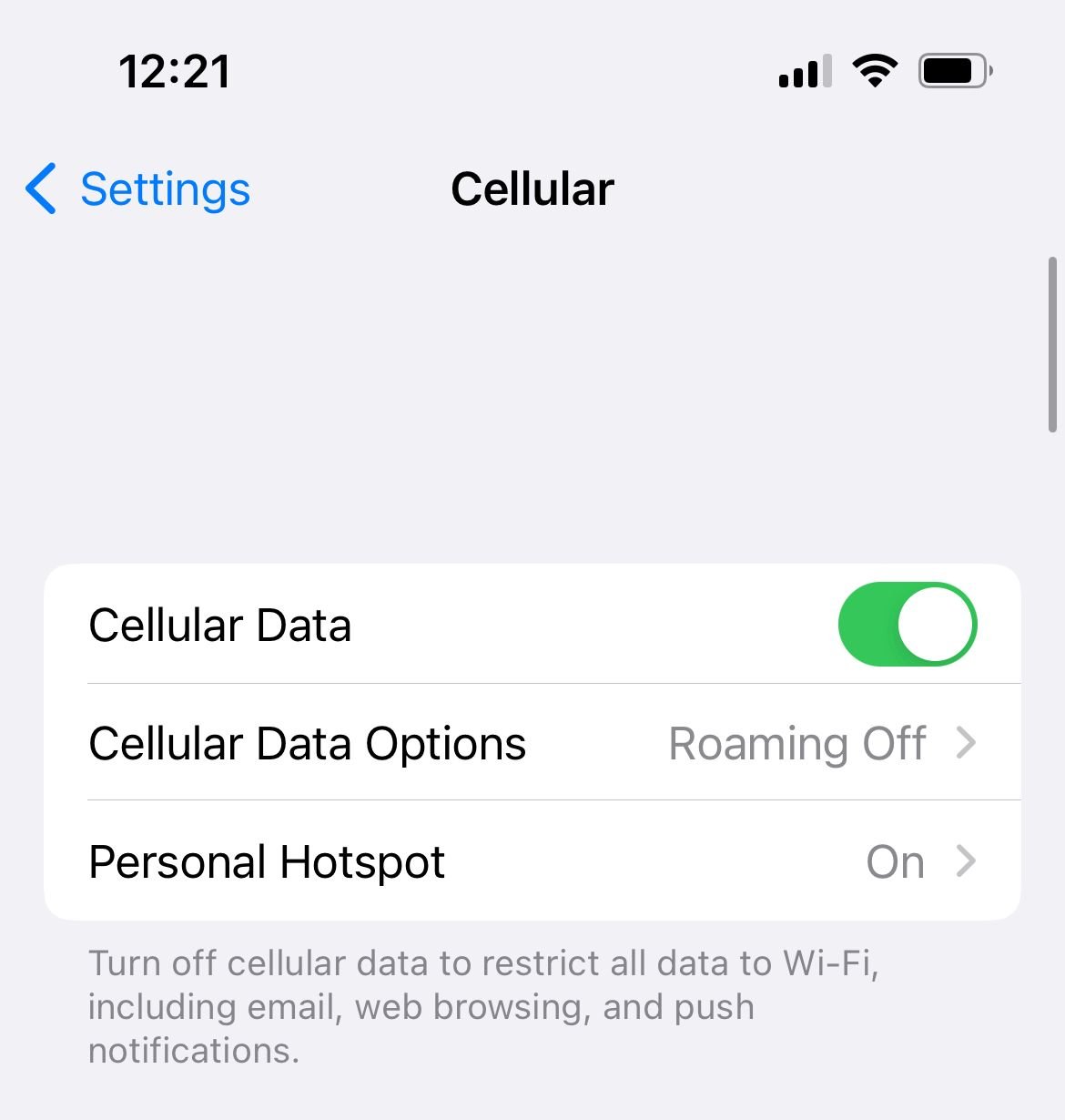
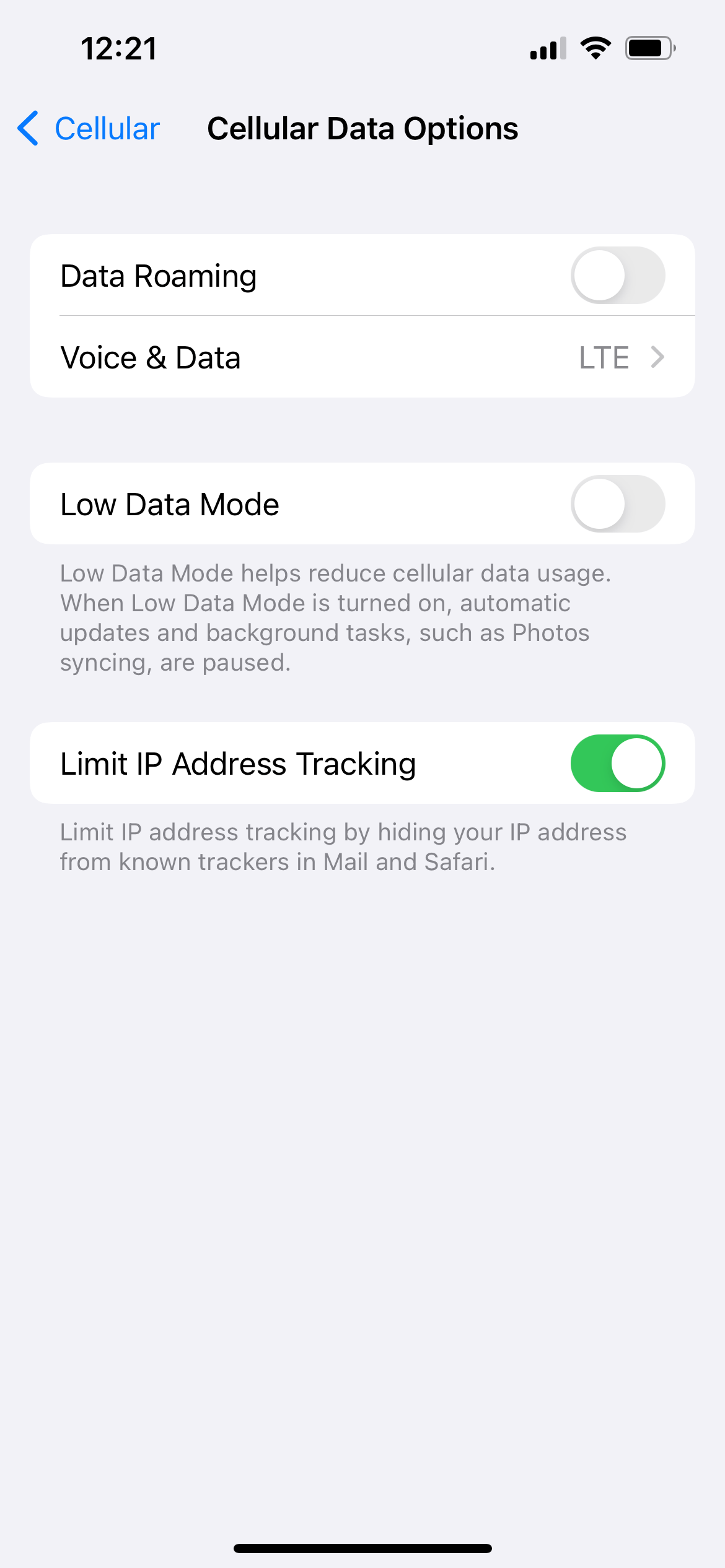
If you are traveling or near a border, turn on roaming at Settings > Cellular > Cellular Data Options > Data Roaming, then test again.
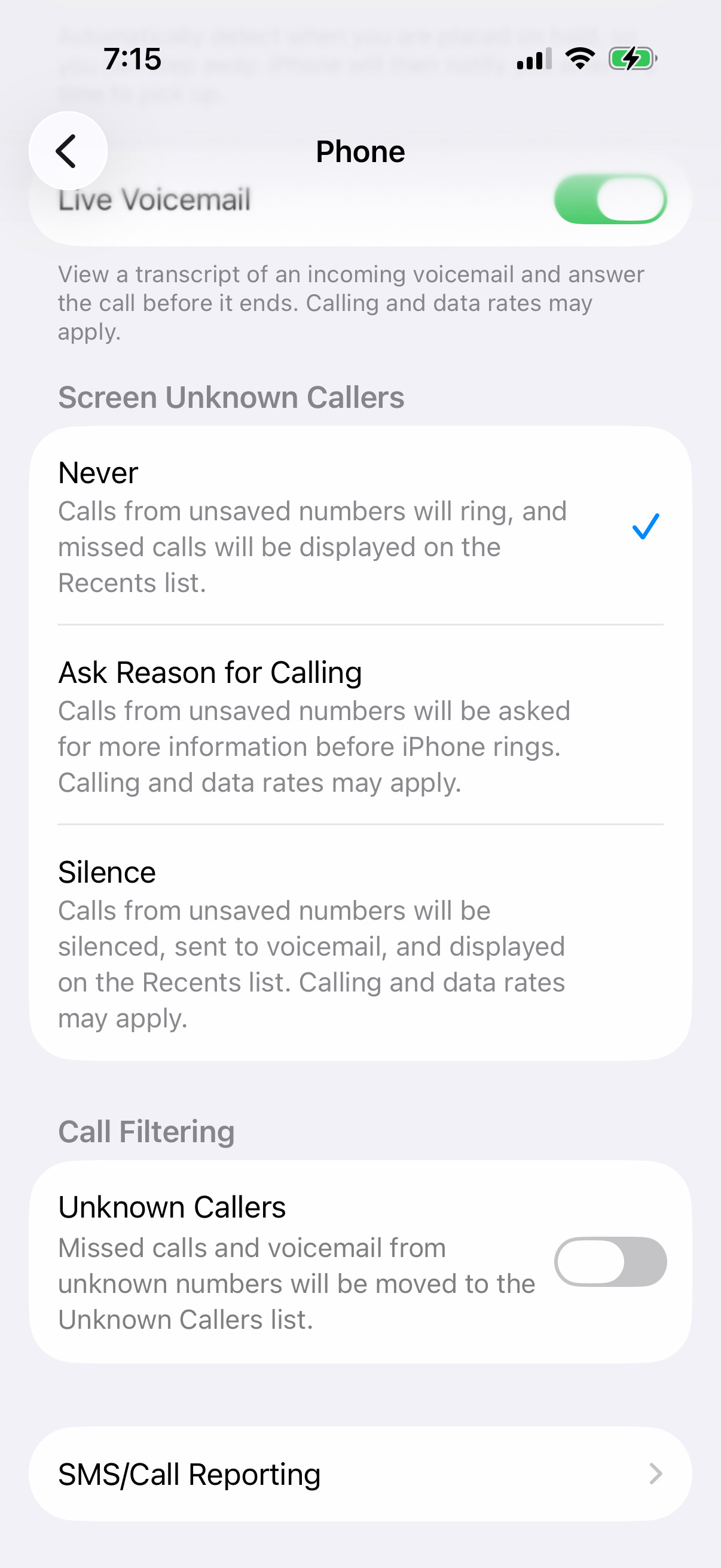
11. Check Blocked Contacts and Silence Unknown Callers
If only specific numbers fail, you may have blocked them, or a call-filtering feature may be silencing them.
Go to Settings > Apps > Phone > Blocked Contacts and remove any number you did not mean to block.
Next, open Settings > Apps > Phone > Silence Unknown Callers and turn it off if it is sending real calls to voicemail.
While you are here, check Settings > Apps > Phone > Call Forwarding and make sure it is off.
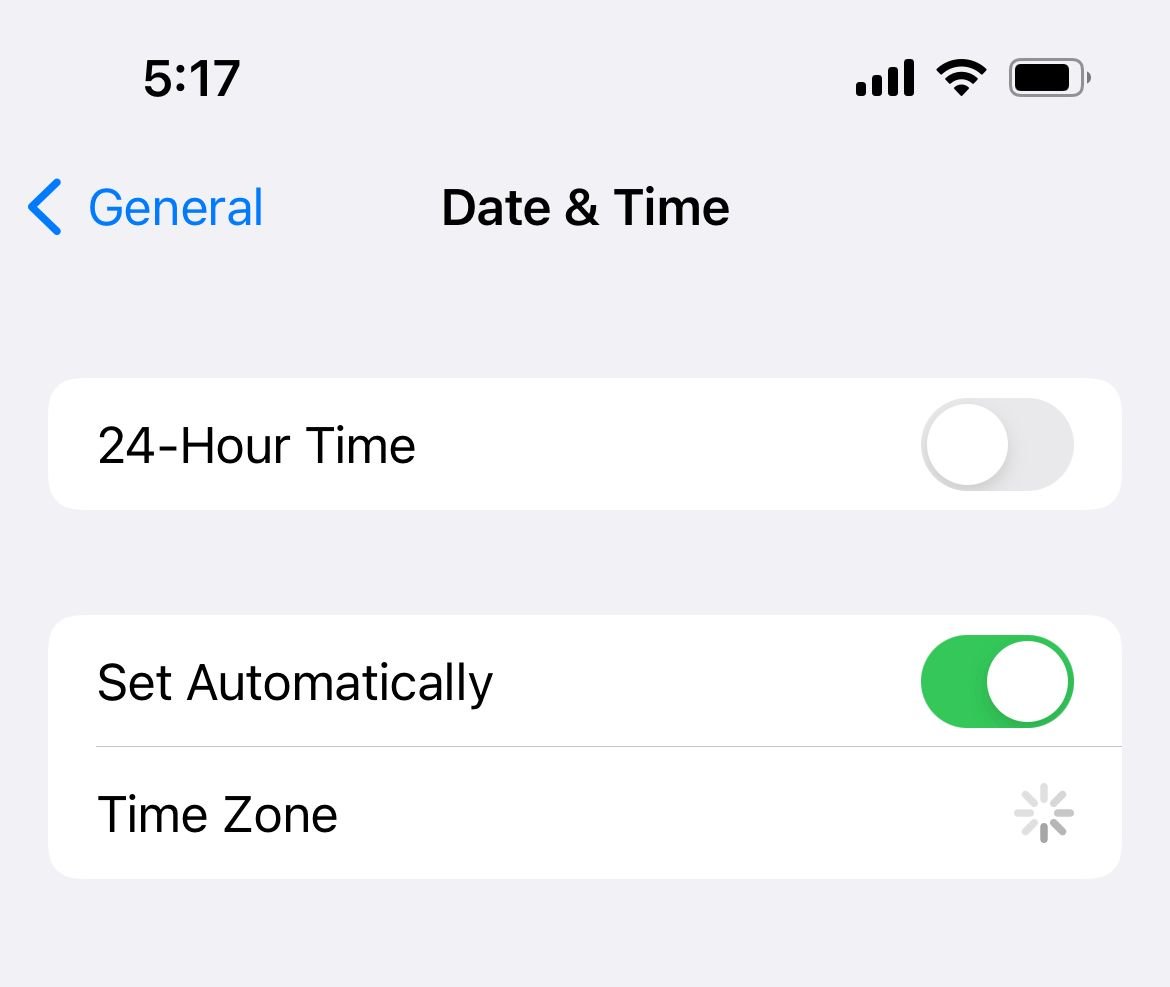
12. Update Date and Time Settings
An incorrect date or time can break the secure handshake your iPhone needs to register on the network. Letting iOS set it automatically fixes this.
Go to Settings > General > Date & Time.
Turn on Set Automatically.
13. Inspect or Reinsert Your SIM
A loose, dusty, or damaged physical SIM card can drop the connection mid-call. If your iPhone uses a nano-SIM, reseating it is worth a try.
Use the SIM ejector tool or a paper clip to open the SIM tray.
Remove the SIM, wipe it gently, and reinsert it firmly.
If you can, test the SIM in another phone to rule out a faulty card.
If your iPhone uses an eSIM, skip ahead to the next step instead.
14. Re-add Your eSIM
After a major iOS update, eSIM profiles can partially deactivate and cause Call Failed even with full signal bars. Confirm the line is active first.
Go to Settings > Cellular and check that your eSIM line is listed and turned on. If it shows as inactive or missing, your carrier can reactivate or reissue it.
To re-add an eSIM, contact your carrier or use their app to scan a new QR code, since the exact activation steps vary by carrier. Restart your iPhone afterward and test a call.
15. Reset Network Settings
This clears every saved network configuration and rebuilds them from scratch, which fixes corrupted settings that cause repeated call failures. It does not delete your photos, apps, or messages.
Go to Settings > General > Transfer or Reset iPhone.
Tap Reset > Reset Network Settings.
Enter your passcode to confirm.
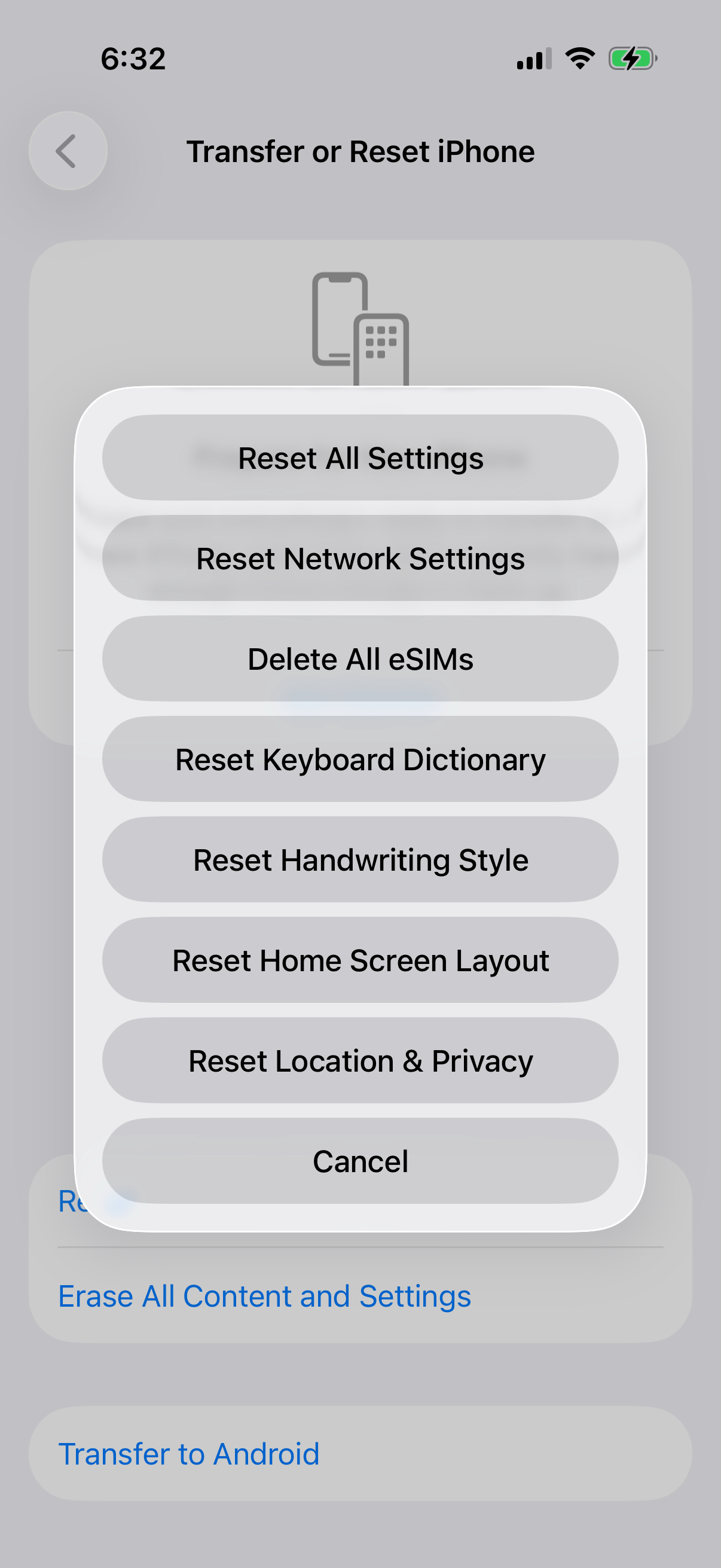
Note that this erases saved Wi-Fi passwords, VPN settings, and APN settings, so you will reconnect to Wi-Fi afterward. Once it restarts, test a call.
16. Update iOS or Contact Your Carrier
Apple releases minor updates that fix calling bugs tied to specific carriers, so installing the latest version often resolves Call Failed on its own.
Connect to Wi-Fi with at least 50 percent battery.
Go to Settings > General > Software Update and install anything available.
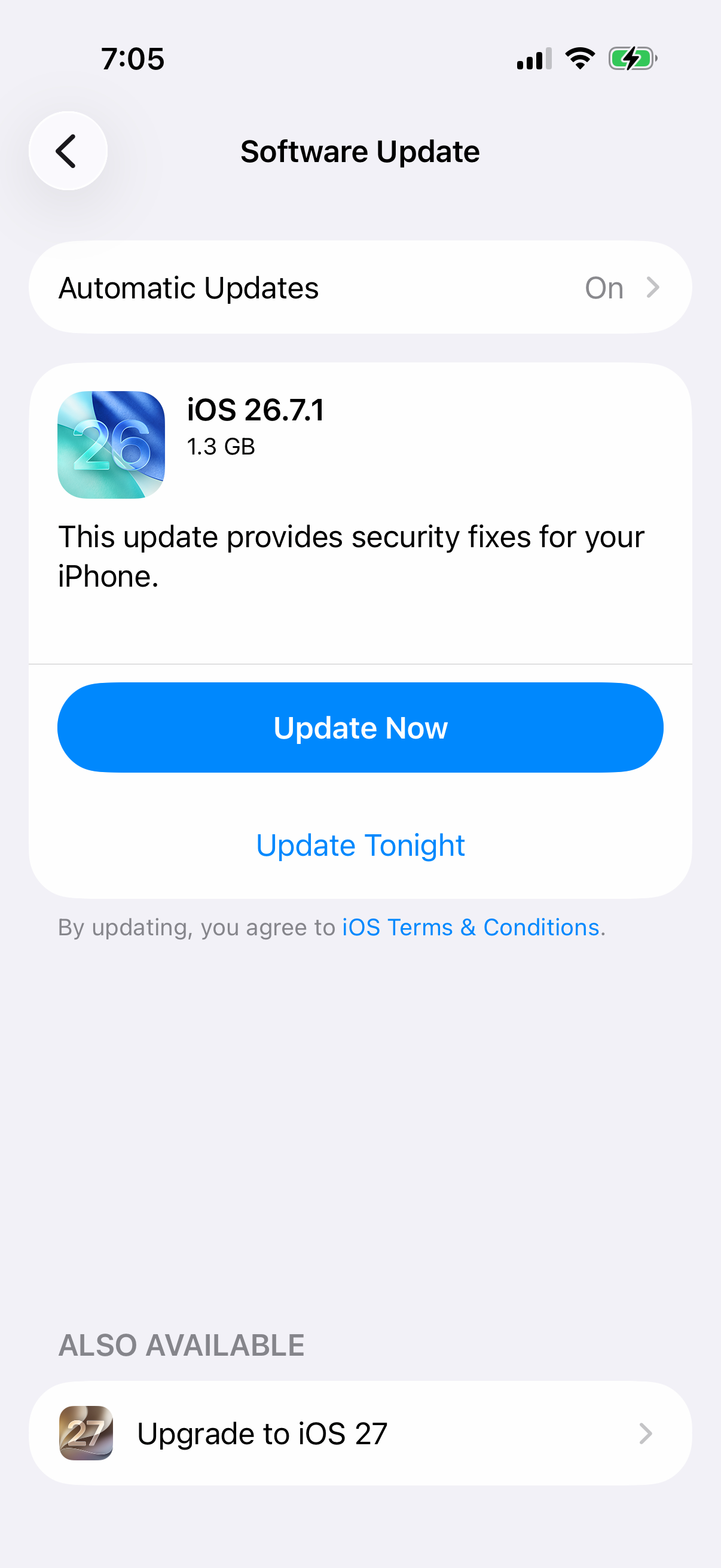
If calls still fail after all of this, the problem is likely on your carrier's side. Call their support, ask about outages, confirm your account and SIM are provisioned correctly, and request a replacement SIM if needed. For hardware doubts, an Apple Store or authorized service provider can test the phone.
Frequently Asked Questions
Why does my iPhone say Call Failed but I have signal
Full bars only mean your iPhone sees a tower, not that the voice path is working. A stale carrier profile, a VoLTE mismatch, or a network registration glitch can still block the call. Toggle Airplane Mode, update carrier settings, then test VoLTE under Voice and Data.
Does Call Failed mean I am blocked
No. Call Failed is a network error, not a block. A blocked or unavailable contact usually rings once or goes straight to voicemail rather than showing Call Failed. If only one number fails, the cause is more likely a setting or a carrier-side issue than a block.
Will resetting network settings fix Call Failed
It often does when the cause is a corrupted network configuration, especially after an iOS update. Reset Network Settings rebuilds your cellular, Wi-Fi, and VPN configs without touching personal data, though you will need to rejoin Wi-Fi networks afterward.
Why do my calls fail only at home or indoors
That points to weak cellular coverage in that spot. Turn on Wi-Fi Calling at Settings, Apps, Phone, Wi-Fi Calling so your iPhone routes calls over your internet connection instead of the tower.
Can a carrier outage cause Call Failed
Yes. If the network is down or your account has a billing hold or pending number transfer, calls will fail regardless of your settings. Check your carrier's app or website for outages before changing anything on your iPhone.
Why did calls start failing right after an iOS update
Updates can leave your carrier profile or eSIM out of sync with the new software. Update carrier settings, reset network settings, and confirm your eSIM line is active. If it persists, your carrier may need to reprovision the line.