
When you tap on that blurry photo or video in a message and it just spins forever, it's a classic iPhone 17e MMS download error. It usually means your phone can't fetch the multimedia file from your carrier's servers, which is a common hiccup with cellular data.
Since the 17e is brand new, running iOS 26, there's a chance it's a small software bug that a future update will squash. But you don't have to wait. Let's get your photos and videos downloading again.
Restart Your iPhone 17e
This is the universal fix for a reason. A quick restart clears out temporary glitches in the C1X cellular modem and the messaging app. Just press and release the Volume Up button, then press and release the Volume Down button. Finally, press and hold the Side button until you see the Apple logo appear.
Check Your Cellular Data Connection
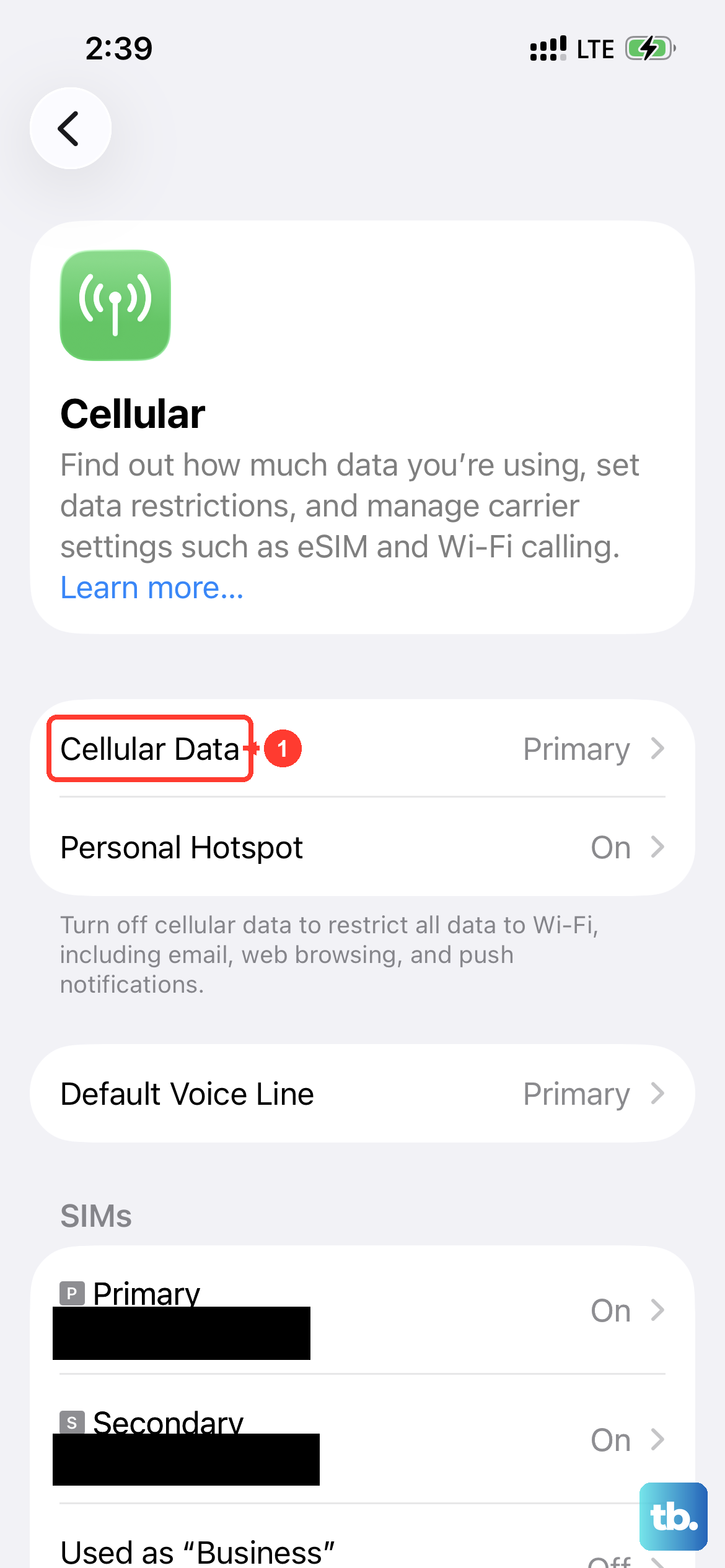
MMS doesn't use Wi-Fi. It requires an active cellular data connection to download. Swipe down from the top-right corner to open Control Center and make sure the cellular data icon is blue. If you're in a low-signal area, try moving to a window or stepping outside.
Also, ensure MMS messaging is enabled in your cellular settings. Go to Settings > Cellular > Cellular Data Options and make sure "Enable LTE" or "Data Mode" is turned on.
Force Close and Reopen the Messages App
Sometimes the Messages app just gets stuck. Swipe up from the bottom of your screen and pause in the middle to enter the app switcher. Find the Messages app card and swipe it all the way up to close it. Then, tap the Messages icon on your Home Screen to launch it fresh.
Enable MMS Messaging in Settings
It sounds basic, but this setting can sometimes get turned off, especially after a software update or if you've restored from a backup. You need to check it directly in your iPhone's settings.
Open Settings and scroll down to Messages. In the "SMS/MMS" section, make sure the switch for MMS Messaging is toggled on (green). If it was off, turn it on and try downloading the stuck message again.
Check Your Low Data Mode Setting
Low Data Mode is a great feature for saving your monthly allowance, but it can block MMS downloads. This setting can be active on either your cellular plan or your Wi-Fi, and since MMS uses cellular, that's the one to check.
Go to Settings > Cellular > Cellular Data Options. Look for Low Data Mode and make sure it is turned off. While you're there, also check under Settings > Wi-Fi, tap the info icon (i) next to your network, and ensure Low Data Mode is off there too, just to be thorough.
Reset Your Network Settings
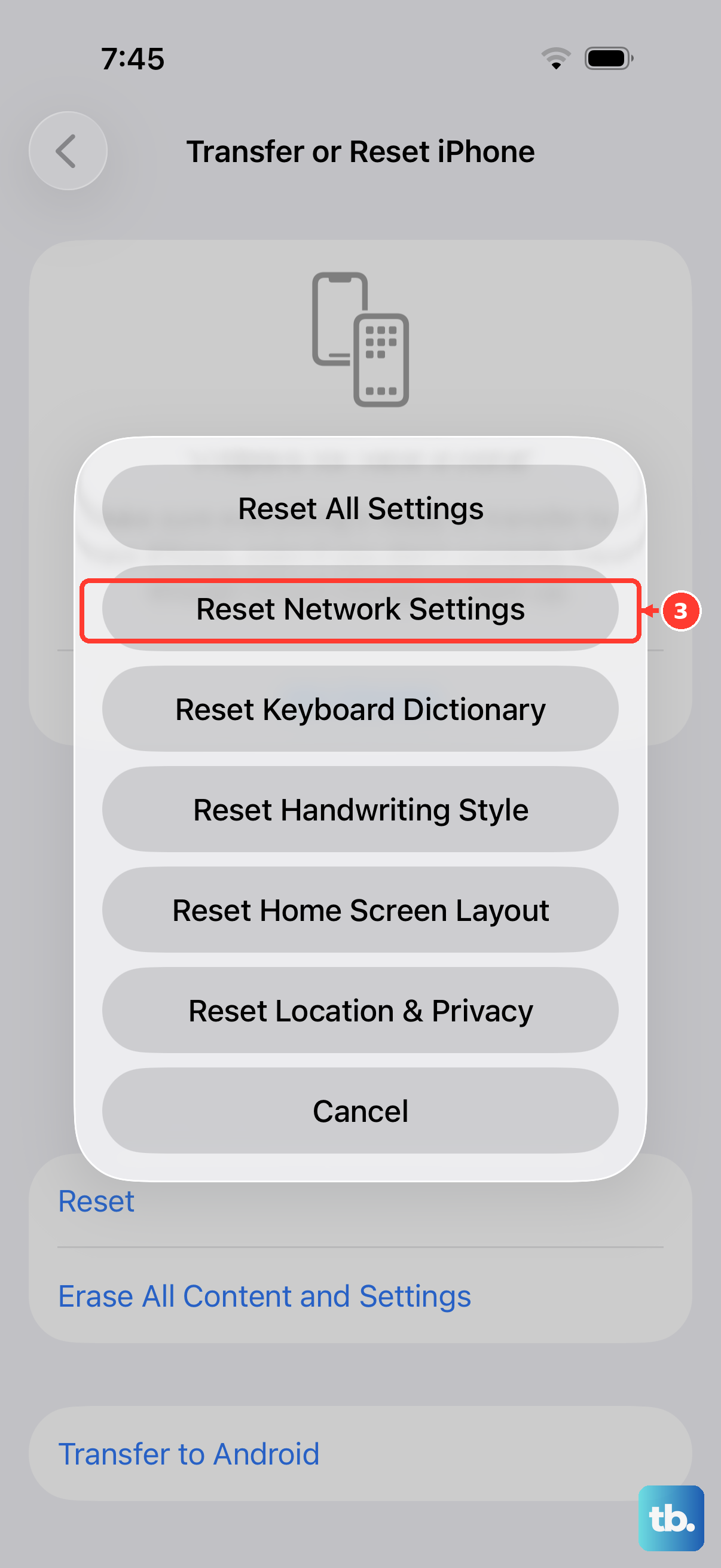
This is a powerful step that clears all your network configurations without touching your personal data. It will erase saved Wi-Fi passwords, Bluetooth pairings, and VPN settings, along with any incorrect cellular data configurations that could be blocking MMS.
Go to Settings > General > Transfer or Reset iPhone. Tap Reset and then choose Reset Network Settings. You'll need to enter your passcode and confirm. Your iPhone 17e will restart, and you'll need to reconnect to Wi-Fi and Bluetooth devices afterward.
Update Your Carrier Settings
Carrier updates are small files that help your iPhone 17e's new C1X modem work better with your specific network. These often install automatically, but it's worth checking manually.
Make sure you're connected to Wi-Fi. Go to Settings > General > About. If a carrier update is available, a pop-up notification will appear on this screen. Just follow the prompts to install it.
Update to the Latest iOS Version
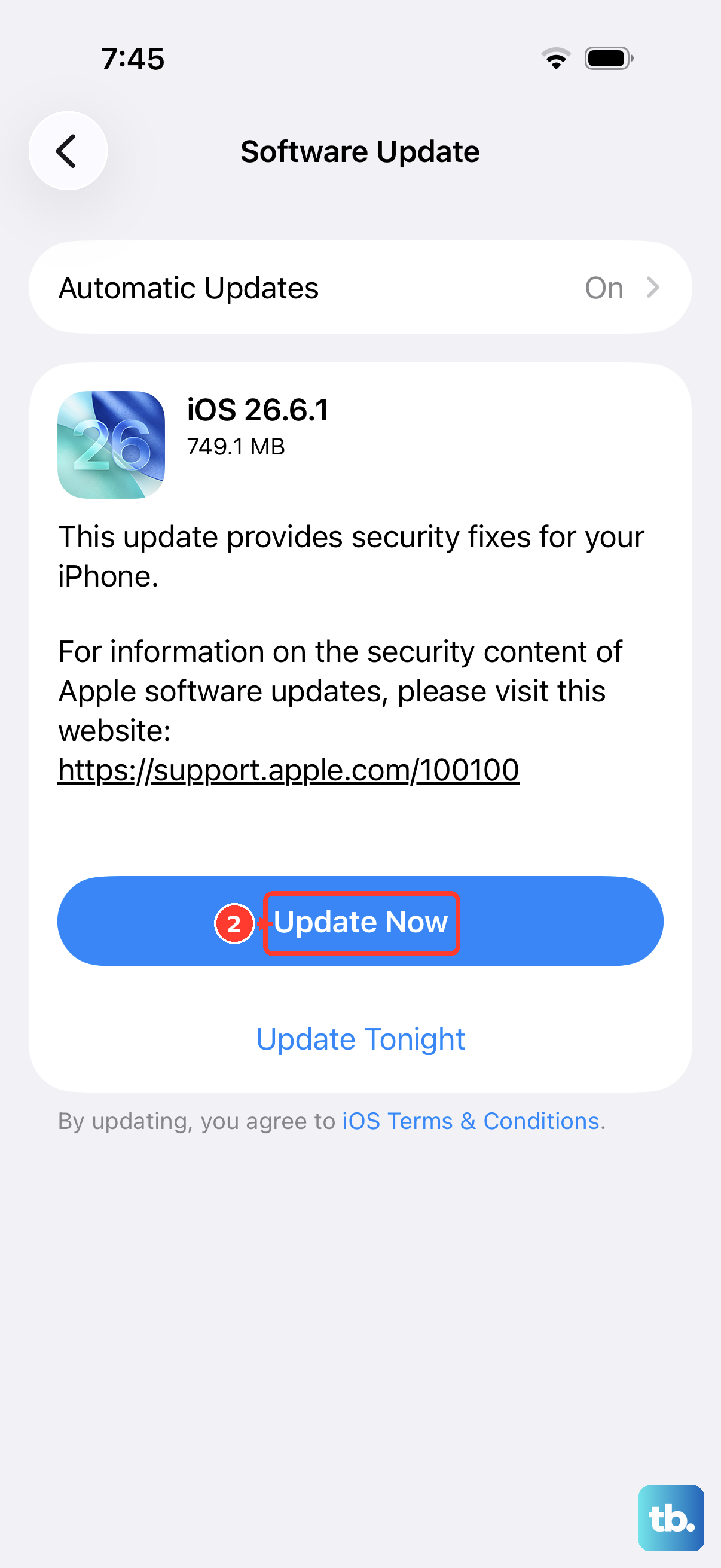
Given the iPhone 17e launched with iOS 26, Apple is likely releasing frequent updates to iron out early bugs. A software update is one of the most reliable fixes for persistent MMS issues.
Connect your phone to Wi-Fi and plug it into power using your USB-C cable. Go to Settings > General > Software Update. If an update is available, tap Download and Install.
Check Your Date & Time Settings
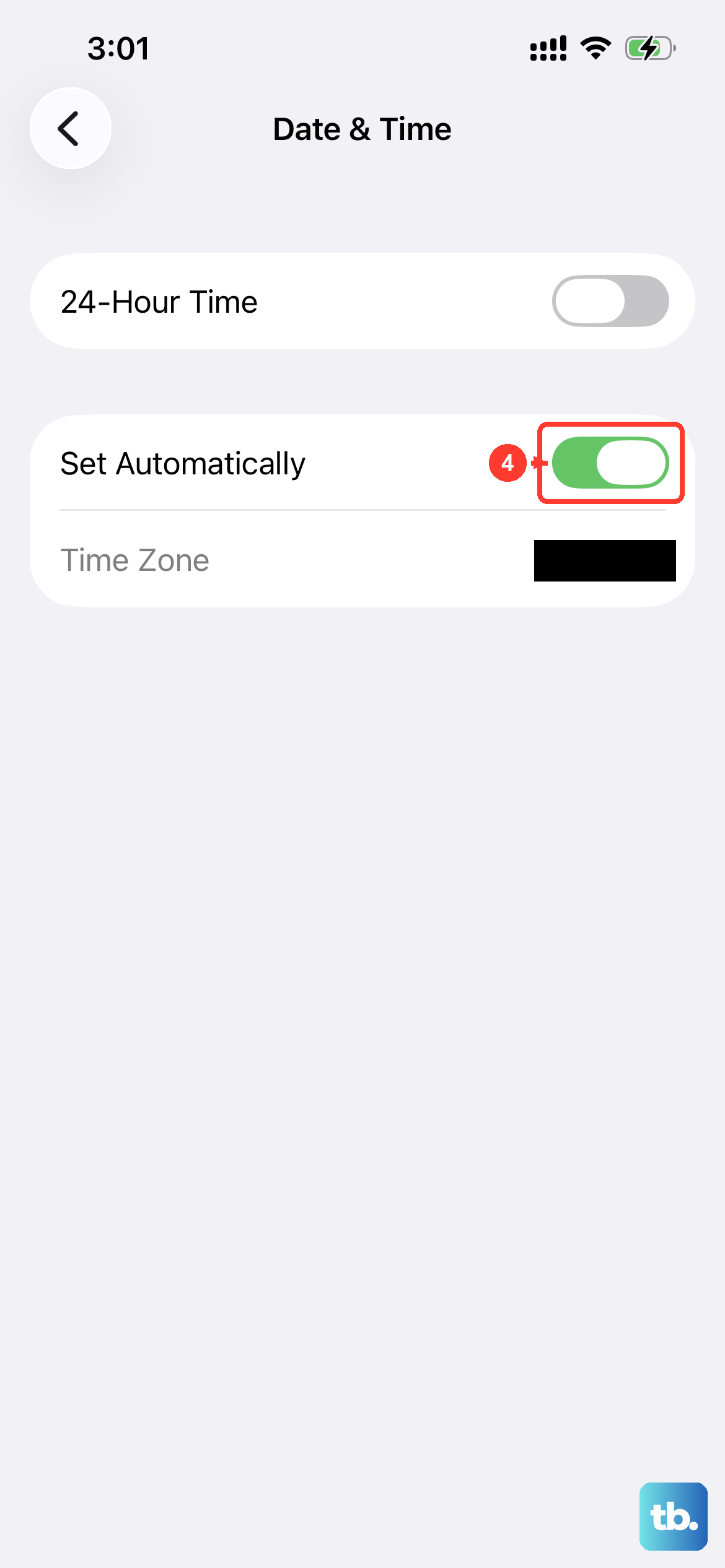
Incorrect date and time settings can interfere with cellular network authentication, which might block MMS. The easiest fix is to let your iPhone set it automatically.
Open Settings > General > Date & Time. Make sure the switch for Set Automatically is turned on. If it was off, turn it on and see if the MMS downloads.
Contact Your Mobile Carrier
If you've tried everything here, the problem might be on your carrier's end. They can check if MMS services are active on your line and if there are any account-level blocks. They can also push the correct APN (Access Point Name) settings directly to your iPhone 17e, which is often the final fix for stubborn MMS problems.
Before you call, try removing and reinserting your SIM card, or if you're using an eSIM, ask them to reprovision it. A fresh activation on their network can clear up provisioning errors.