
When your iPhone 17e's GPS stops locking on or gives you a spinning blue dot, it can leave you stranded, especially with that new C1X cellular modem you were excited about. Since the 17e is a brand new model running iOS 26, early software bugs can sometimes affect location services. The good news is, most GPS problems are quick software fixes you can handle yourself.
Refresh Your Location Services
The fastest way to jolt your GPS back to life is to toggle the main location switch. Swipe down from the top-right corner to open Control Center and tap the location arrow icon to turn it off. Wait about ten seconds, then tap it again to turn it back on. This simple reset clears the temporary connection to the satellites and often solves the issue immediately.
If that doesn't do it, try a force restart. This is a bit different on the iPhone 17e. Quickly press and release the Volume Up button, then quickly press and release the Volume Down button. Finally, press and hold the Side button. Keep holding it until you see the Apple logo appear, then let go.
Check Your App Permissions and Settings
Sometimes, the problem isn't with the GPS itself, but with the app you're using. Head to Settings > Privacy & Security > Location Services. First, make sure the main Location Services switch at the top is green. Then, scroll down and find the app that's having trouble, like Maps or Find My.
Tap on the app and ensure its permission is set to "While Using the App" or "Always." If it's set to "Never," that's your problem. Also, check that "Precise Location" is turned on for the best accuracy. I've seen this fix more GPS issues than you'd think, especially after a new iOS update.
Disable Low Power Mode and Check Cellular
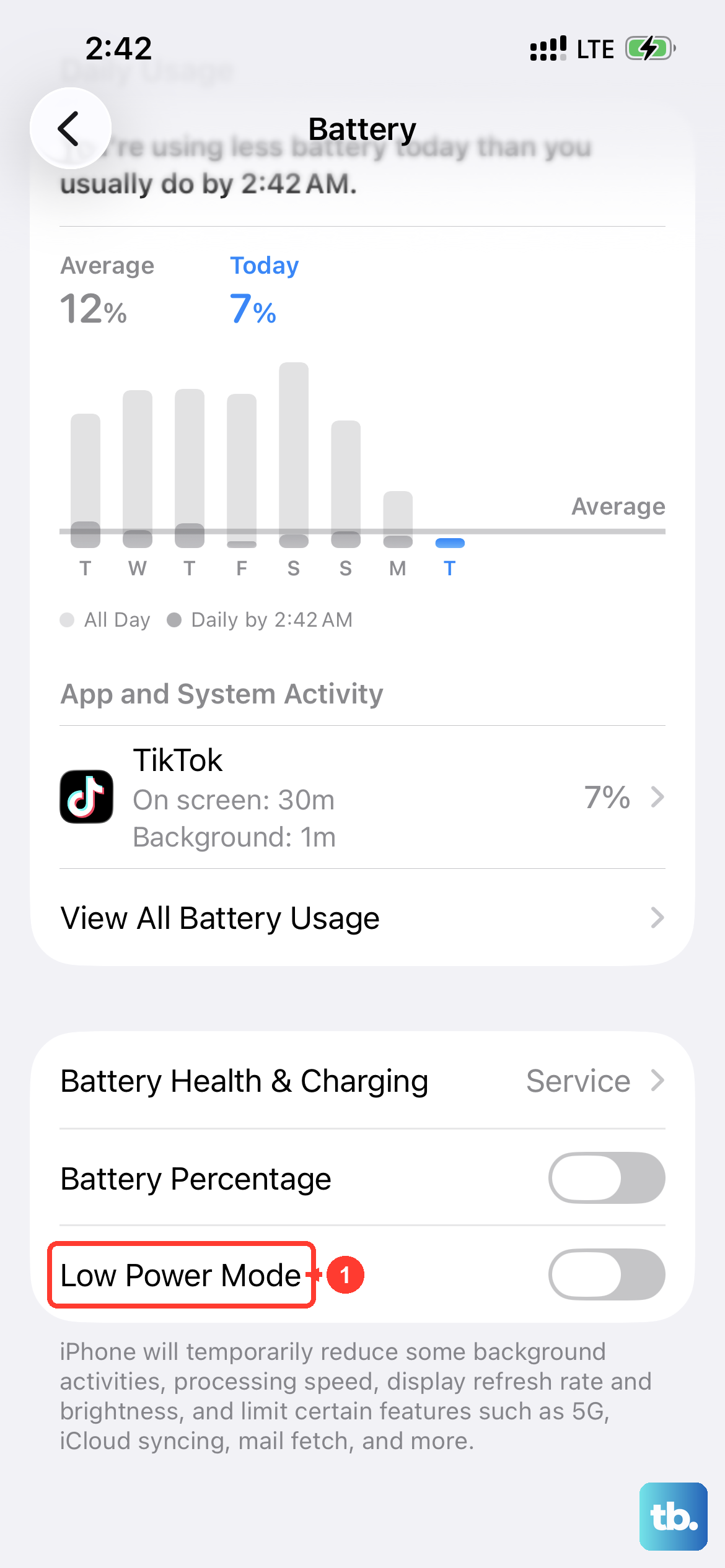
Low Power Mode is great for extending battery life, but it can limit background processes like constant GPS pinging. Go to Settings > Battery and make sure Low Power Mode is switched off. Try your navigation app again.
Your iPhone 17e uses both GPS satellites and cellular/Wi-Fi data to pinpoint your location quickly. Toggle Airplane Mode on from the Control Center, wait 15 seconds, and turn it off. This resets all the radios, including the new C1X modem, and can clear up any signal conflicts.
Update Your Software and Apps
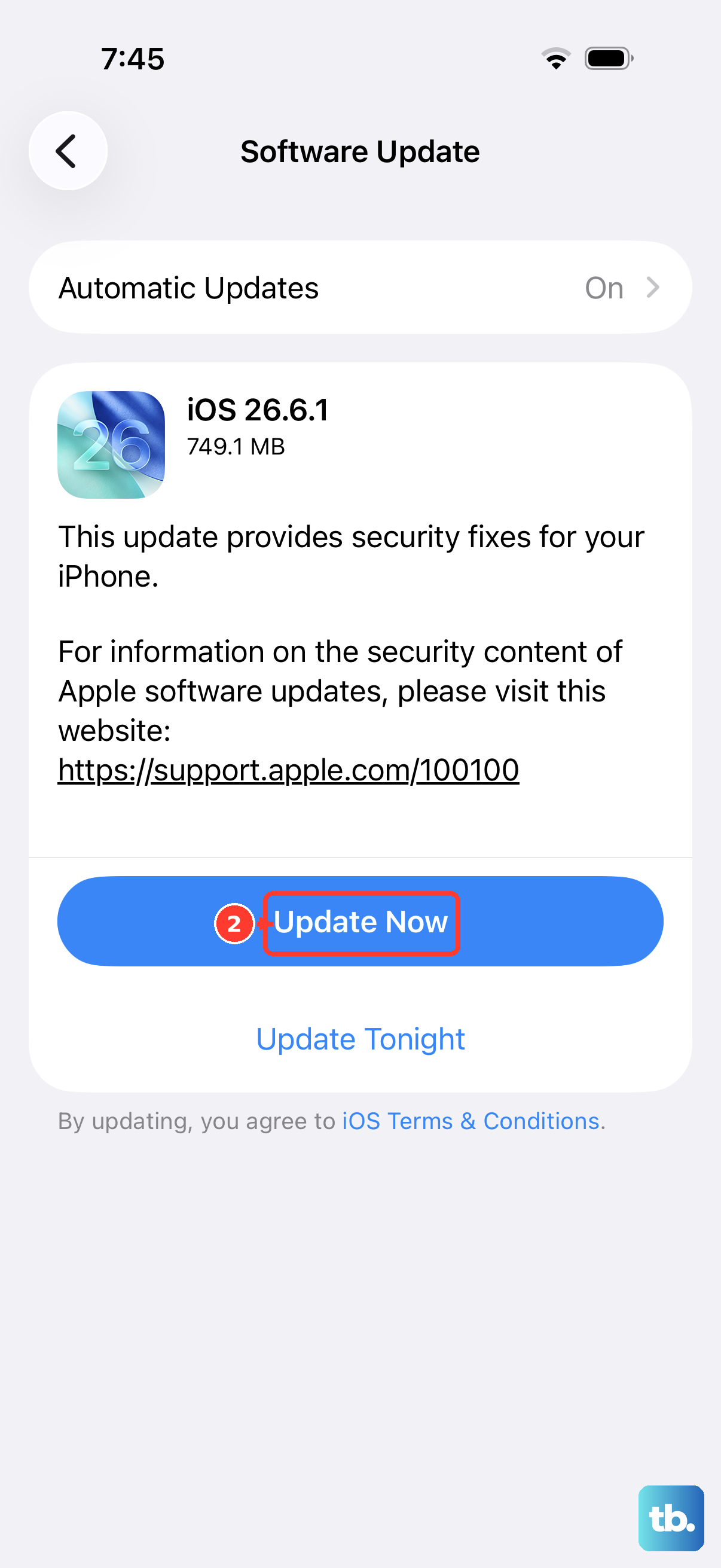
Given that the iPhone 17e and iOS 26 are so new, an early bug affecting location services is a real possibility. Apple is usually quick to patch these things. Go to Settings > General > Software Update and install any available updates.
Don't forget the apps themselves. Open the App Store, tap your profile icon in the top right, and scroll down to see pending updates. Make sure Google Maps, Apple Maps, or any other navigation app you use is fully up to date. Outdated app code can struggle with new iOS features.
Reset Your Location & Network Settings
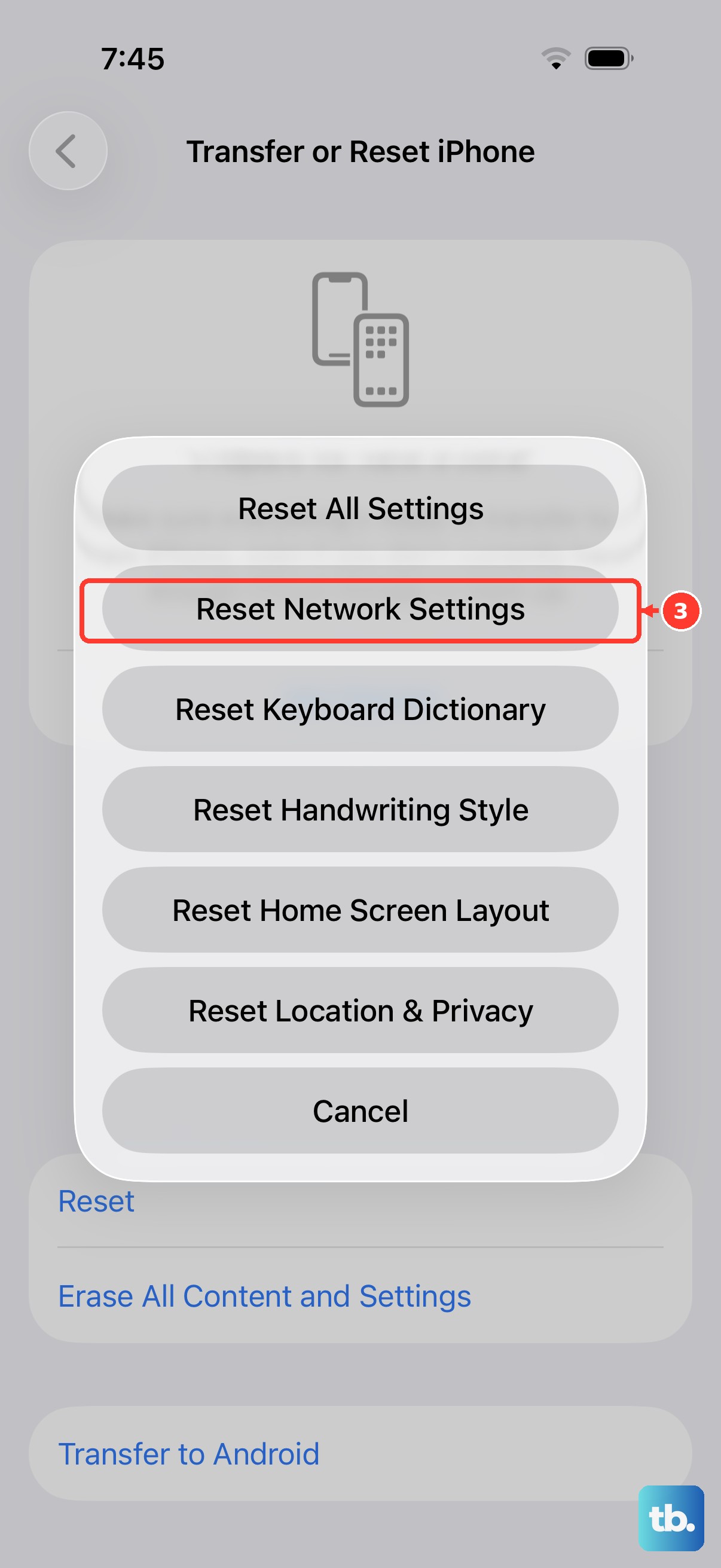
If you're still seeing issues, the next step is to reset your location and privacy settings. This will return all your app location permissions to their default state, so you'll have to grant access again, but it won't delete any personal data. Navigate to Settings > General > Transfer or Reset iPhone > Reset and choose "Reset Location & Privacy."
You can also try resetting your network settings. This will erase all saved Wi-Fi passwords, Bluetooth pairings, and cellular settings, but it can fix deep-seated radio glitches. From the same Reset menu, select "Reset Network Settings." Your iPhone will restart, and you'll need to reconnect to Wi-Fi and Bluetooth devices.
Test in Different Environments and with Different Apps
GPS signals are line-of-sight and can be blocked by physical obstacles. If you're indoors, in a dense urban area with tall buildings, or under heavy tree cover, your accuracy will suffer. Try stepping outside to an open area with a clear view of the sky and see if the GPS locks on.
It's also worth testing if the problem is with one specific app or with the GPS system-wide. Try opening a few different apps that use location, like Apple Maps, Google Maps, and the Camera app (for geotagging). If only one app is broken, the issue is with that app. If all of them fail, it's a system problem.
Check for Physical Interference
While less common, certain accessories can interfere with the GPS antenna. The iPhone 17e's antenna bands are built into the frame. Try removing your case, especially if it's a thick metal or heavily reinforced model, and test the GPS without it.
Also, avoid using magnetic mounts or accessories that aren't MagSafe-certified directly over the center-back of the phone, as the strong magnets could potentially disrupt the antenna signal. Using an official MagSafe charger is fine, as it's designed to work with the iPhone's internal layout.
Use a GPS Diagnostic Tool
If you've tried everything and the GPS is still dead, you can use a free app from the App Store like "GPS Status" or "GNSS View" to see what's happening under the hood. These apps show you a raw view of the satellites your phone can see.
Open the app in an open outdoor area. If it shows your phone connecting to multiple satellites (you'll see signal strength bars) but your location apps still don't work, it's almost certainly a software issue. If the app shows zero satellites after several minutes, it could point toward a hardware problem.
Consider a Full Restore
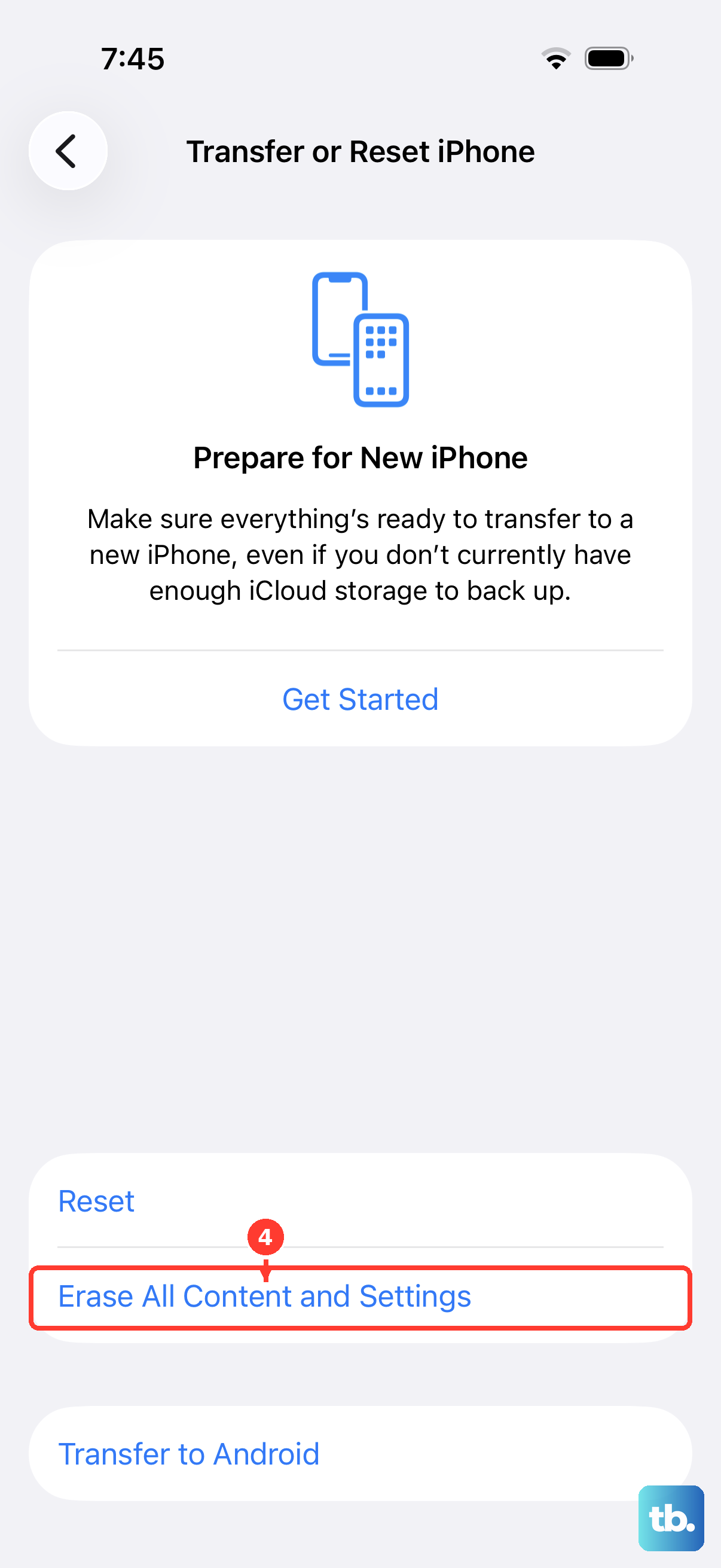
As an absolute last resort before thinking about hardware, you can try restoring your iPhone 17e. First, make a complete backup to iCloud or your computer. Then, go to Settings > General > Transfer or Reset iPhone > Erase All Content and Settings.
After the phone erases itself and restarts, you can set it up as new temporarily (don't restore from the backup yet). Test the GPS immediately. If it works perfectly on a fresh iOS install, the issue was with your previous software configuration. You can then choose to restore your backup, knowing the hardware is sound.