
A blurry camera on your iPhone 17e can ruin a perfect shot, especially frustrating on a brand new phone. The blur might be constant, only happen in low light, or affect just one of the lenses. Since this is an early 2026 model, a software hiccup is a real possibility, but let's start with the simple stuff.
Clean the Camera Lens
This is so obvious it's easy to miss. Just grab a soft microfiber cloth and gently wipe the camera lenses on the back of your iPhone 17e. Fingerprints and everyday smudges are the number one cause of hazy, soft-looking photos. I'd avoid using your shirt or a tissue, as they can leave tiny scratches on the lens coating over time.
Remove Your Phone Case
Take your case off for a moment and snap a test photo. Some cases, even well-reviewed ones, can have a camera cutout that's just a hair too small or sits too close to the lens. This can cause a slight shadow or even trap moisture against the glass, creating a permanent blur. Also, make sure you didn't accidentally leave a lens protector film on.
Tap to Focus and Hold
Open the Camera app and tap directly on your subject on the screen. You'll see a yellow square appear where you tapped. If your subject is off-center, the camera might be focusing on the background instead. For more control, press and hold on the screen where you want to focus to lock it, which you'll see as "AE/AF Lock" at the top.
Switch Between Camera Lenses
Your iPhone 17e has multiple lenses. Try tapping the 0.5x, 1x, and 2x buttons to switch between them. If only one lens is consistently blurry, the issue is isolated to that specific camera module. It could still just need a good cleaning, but it helps narrow down the problem.
Force Close the Camera App
Swipe up from the bottom of your screen and pause in the middle to enter the app switcher. Find the Camera app and swipe it up and off the top of the screen to close it completely. Then reopen it. A temporary software glitch in the app can cause the autofocus motors to freeze up.
Restart Your iPhone 17e
Give your phone a fresh start. Press and quickly release the Volume Up button, then press and quickly release the Volume Down button. Finally, press and hold the Side button until you see the Apple logo appear. This full reboot clears out any stuck processes that could be affecting the camera system.
Check for the Lens Cleaning Notification
One of the handy features in iOS 26 is the ability for your phone to detect a dirty lens. If there's a smudge blocking the sensor, you might see a small notification pop up in the Camera app suggesting you clean the lens. It's a simple alert that can save you from a whole album of blurry pictures.
Disable Automatic Macro Control
For close-up shots, your iPhone 17e might automatically switch to its macro mode, which uses a different lens. This automatic switch can sometimes cause a focus hunt or blur. Go to Settings > Camera and look for "Macro Control." Toggle it on so you get a manual macro button in the app instead.
Update to the Latest iOS
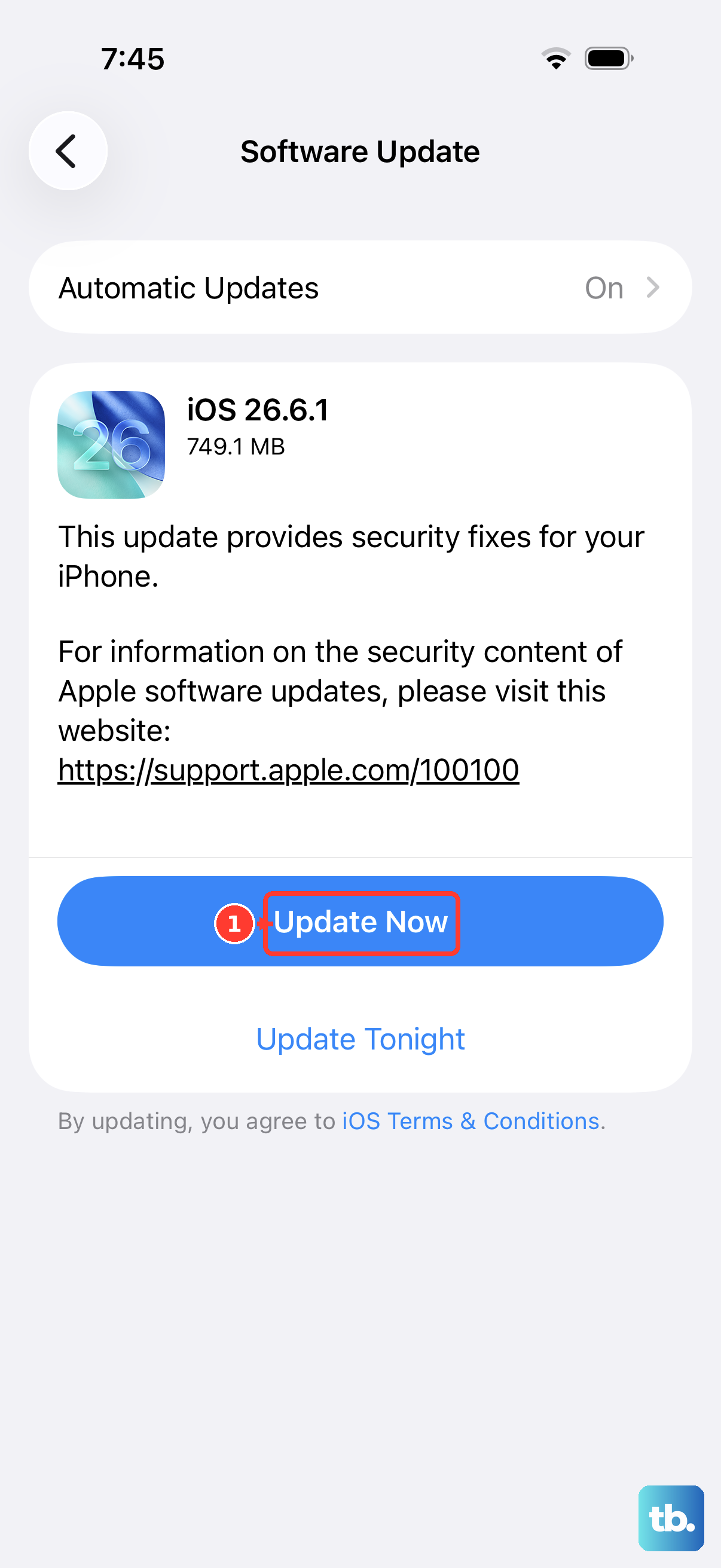
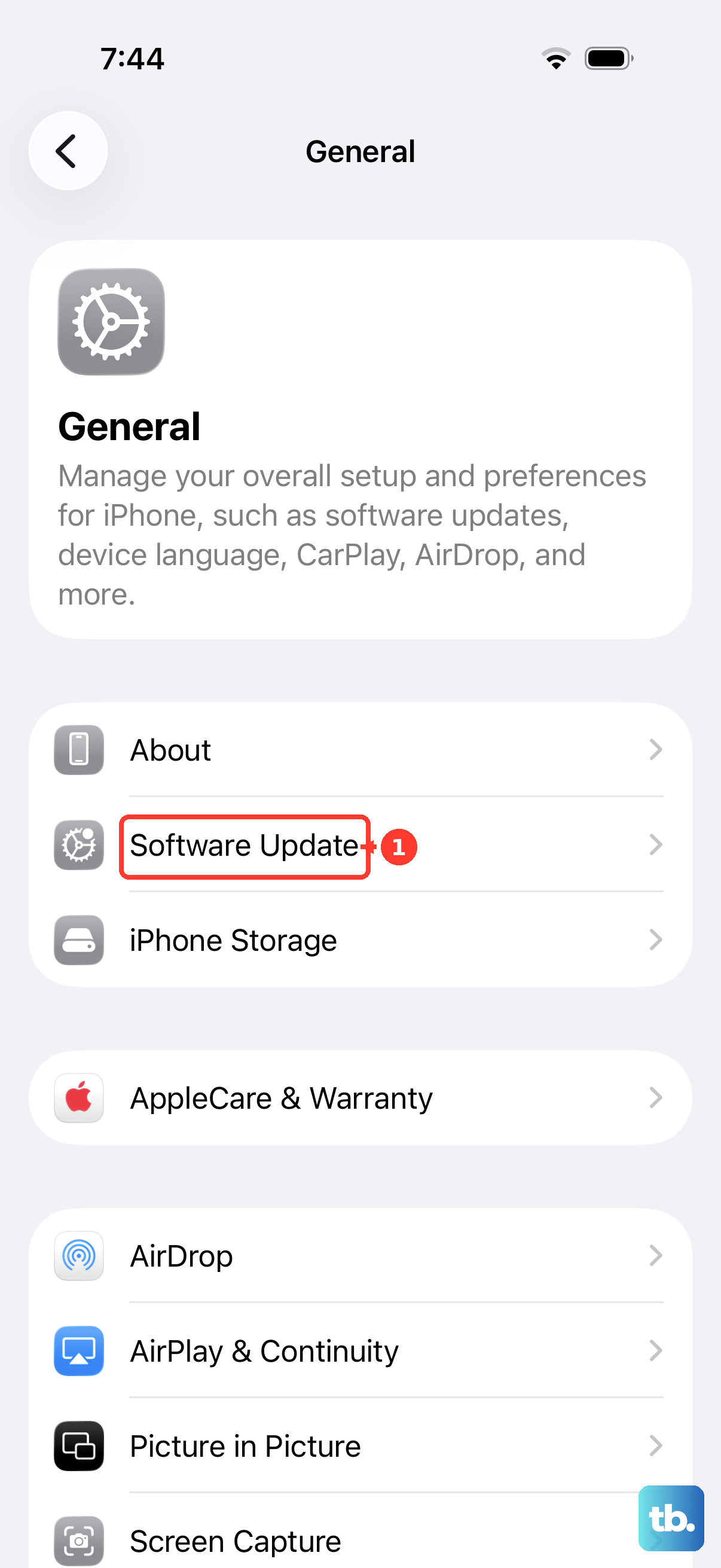
Head to Settings > General > Software Update. Since the iPhone 17e is so new, Apple is likely still issuing early software updates to fix bugs. Camera performance and autofocus algorithms are frequently improved in these patches, so installing the latest iOS 26 update is a great step.
Reset All Camera Settings
If you've tweaked a lot of settings, one of them might be interfering. Go to Settings > Camera > Preserve Settings and toggle everything off. This will reset the Camera app to its default state the next time you open it, eliminating any custom configuration as the cause.