
When you tap that download button on your iPhone 17e and nothing happens, it's a uniquely frustrating feeling. Apps are the lifeblood of your phone, and a download that's stuck or failing can bring everything to a halt. Since the 17e is a brand new model running iOS 26, there are a few specific things to check that might differ from older iPhones.
Let's get your App Store working again. I'd start with the quick fixes first, as they solve the majority of problems.
Check Your Internet Connection First
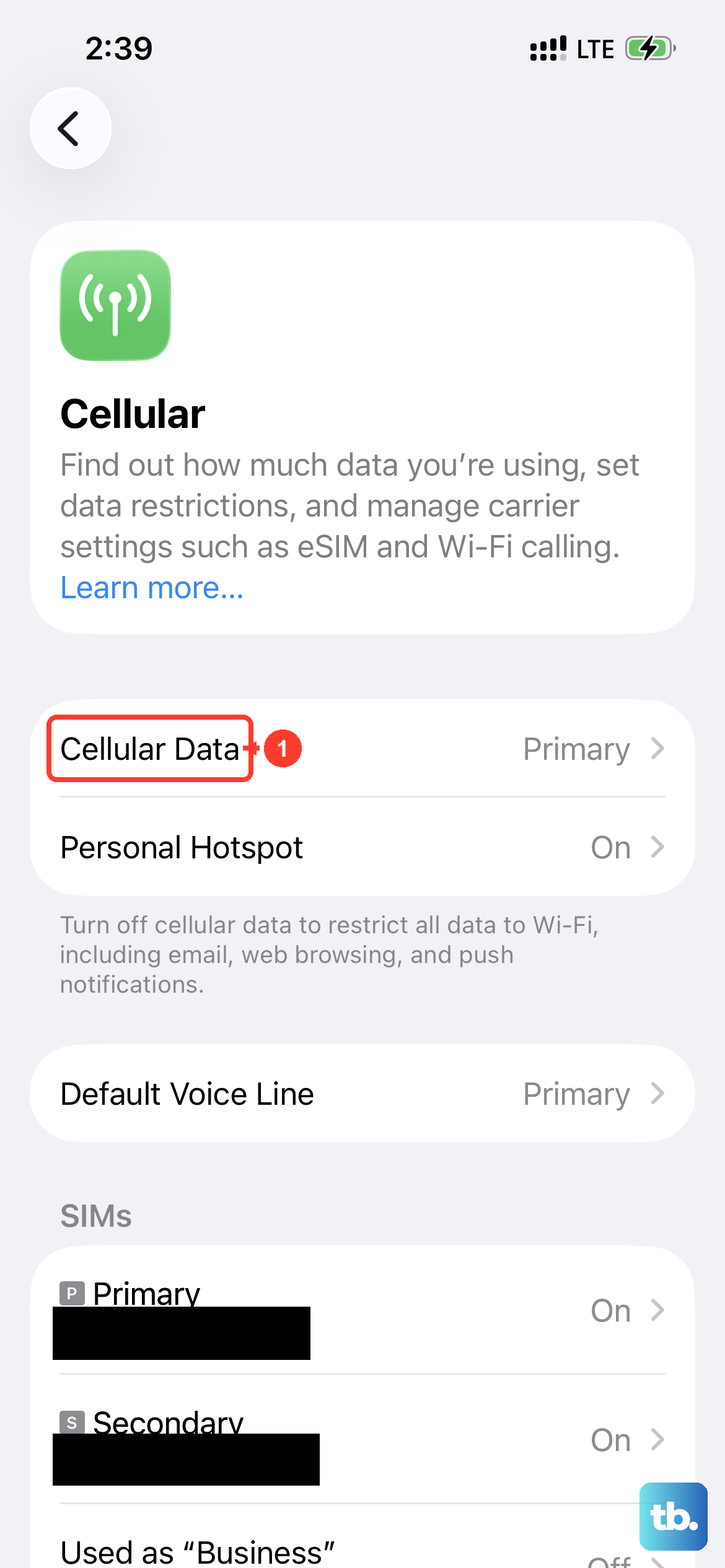
This sounds obvious, but it's the most common culprit. The App Store needs a solid, stable connection. If you're on Wi-Fi, try switching to your cellular data for a moment. The iPhone 17e uses the new C1X modem, which should provide a reliable data connection.
To quickly toggle, swipe down from the top-right corner to open Control Center. Tap the Wi-Fi icon to turn it off, then ensure your cellular bars are active. Try the download again. If it works on cellular, the issue is with your Wi-Fi network.
Force Restart Your iPhone 17e
A simple restart clears out temporary software glitches that can stall the App Store. For the iPhone 17e, the process is the same as recent models. Quickly press and release the Volume Up button, then quickly press and release the Volume Down button.
Finally, press and hold the Side button. Keep holding it until you see the Apple logo appear, then let go. This doesn't erase any data, it just gives the system a fresh start. Once it boots up, try your download again.
Sign Out and Back Into the App Store
Your Apple ID is the key to all downloads. Sometimes, the connection between your account and the App Store service gets a little out of sync. Fixing this is straightforward and only takes a minute.
Open the Settings app and tap your name at the very top. Scroll down and tap Media & Purchases. Tap Sign Out. Wait about 30 seconds, then go back and sign in again with your Apple ID password. This refreshes your account credentials on the device.
Check Your Date & Time Settings
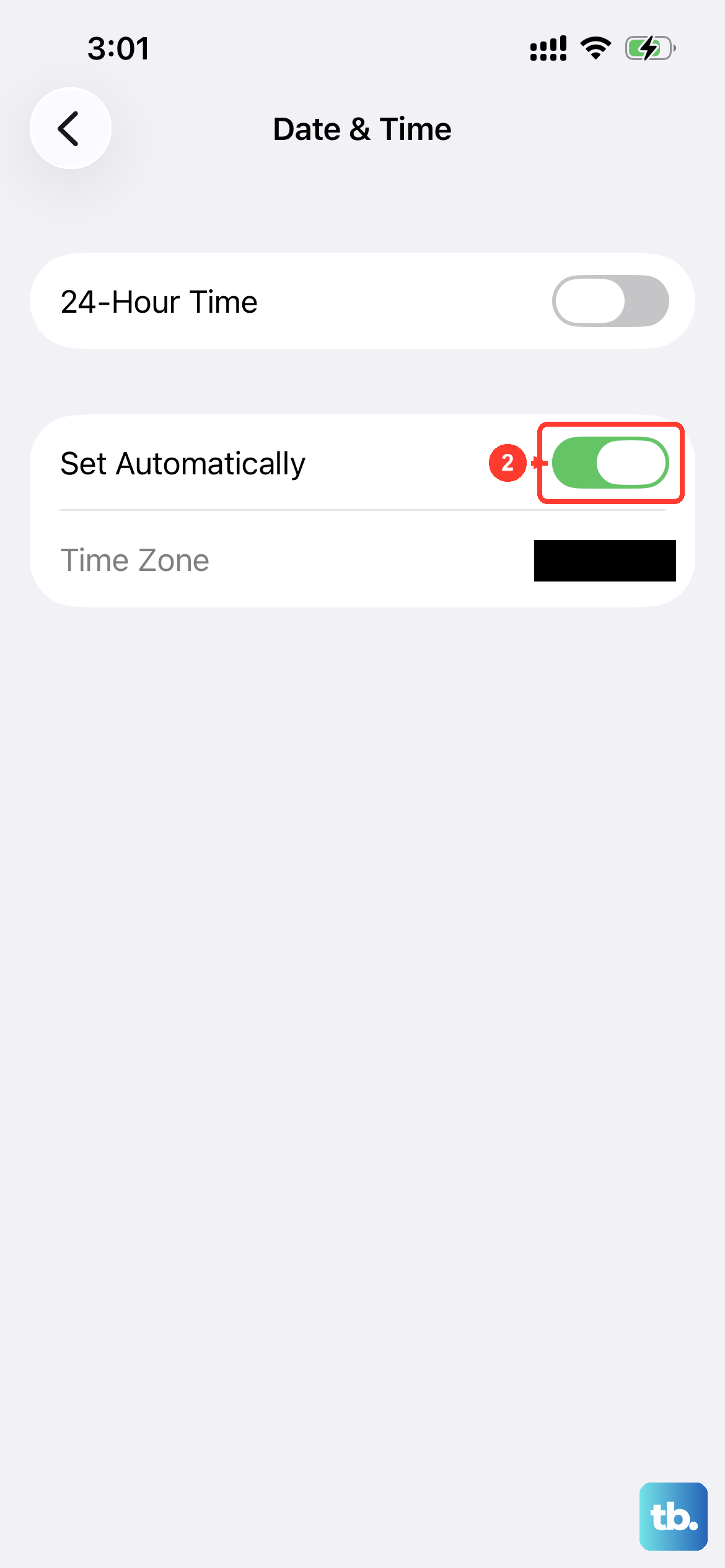
Apple's servers use your device's time to authenticate downloads. If your phone's clock is off, the servers might reject the download request. This is an easy one to overlook.
Go to Settings > General > Date & Time. Make sure the switch for Set Automatically is turned on (green). If it's already on and you're having issues, try turning it off for a second, then immediately turn it back on to force a refresh.
Review Your Screen Time & Content Restrictions
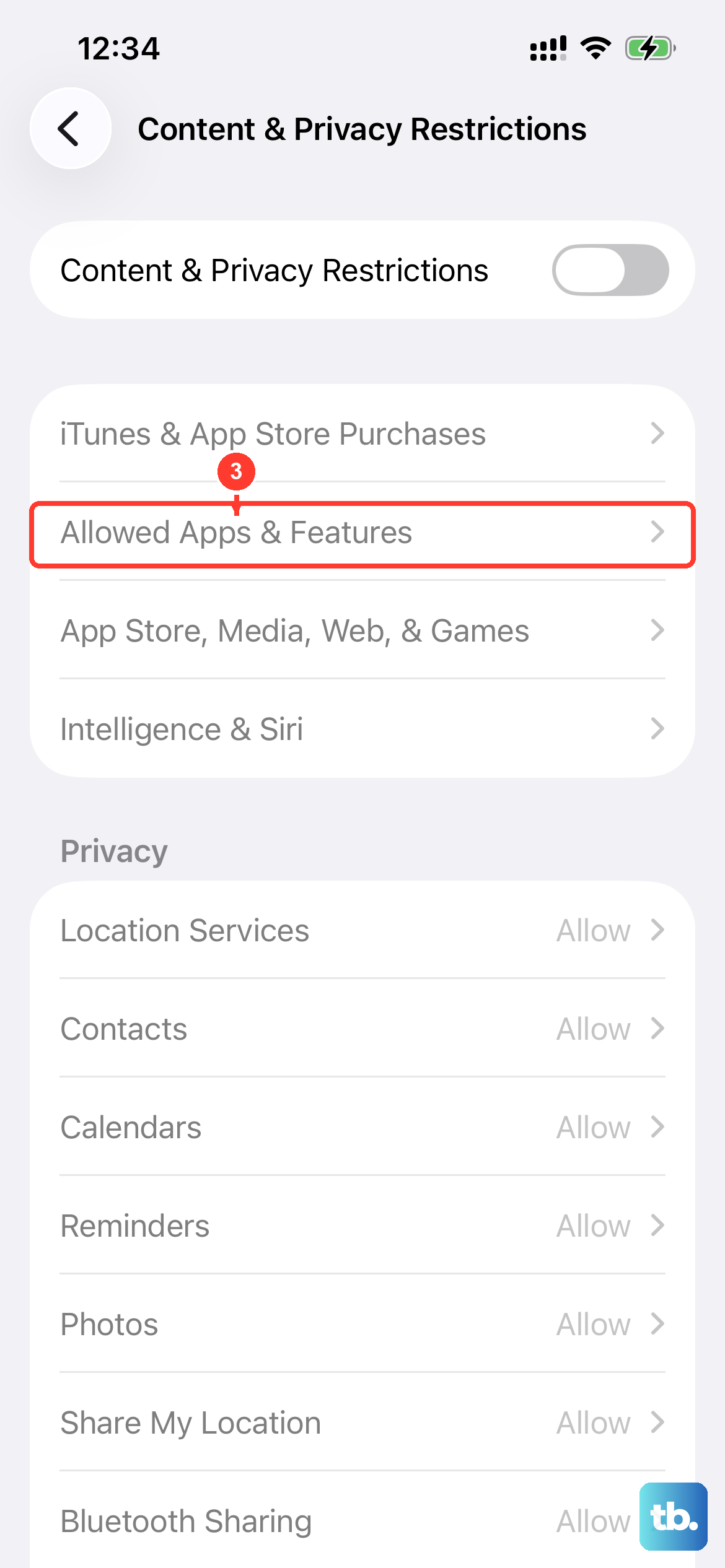
If you've set up Screen Time, especially if this is a family phone or you've restricted certain content, it could be blocking app downloads without a clear warning. It's worth a quick check.
Head to Settings > Screen Time. Tap Content & Privacy Restrictions and enter your Screen Time passcode if prompted. Tap iTunes & App Store Purchases.
Make sure Installing Apps is set to Allow. Also, check In-App Purchases isn't set to Don't Allow if you're trying to download a free app, as sometimes the settings can conflict.
Check Your Available Storage Space
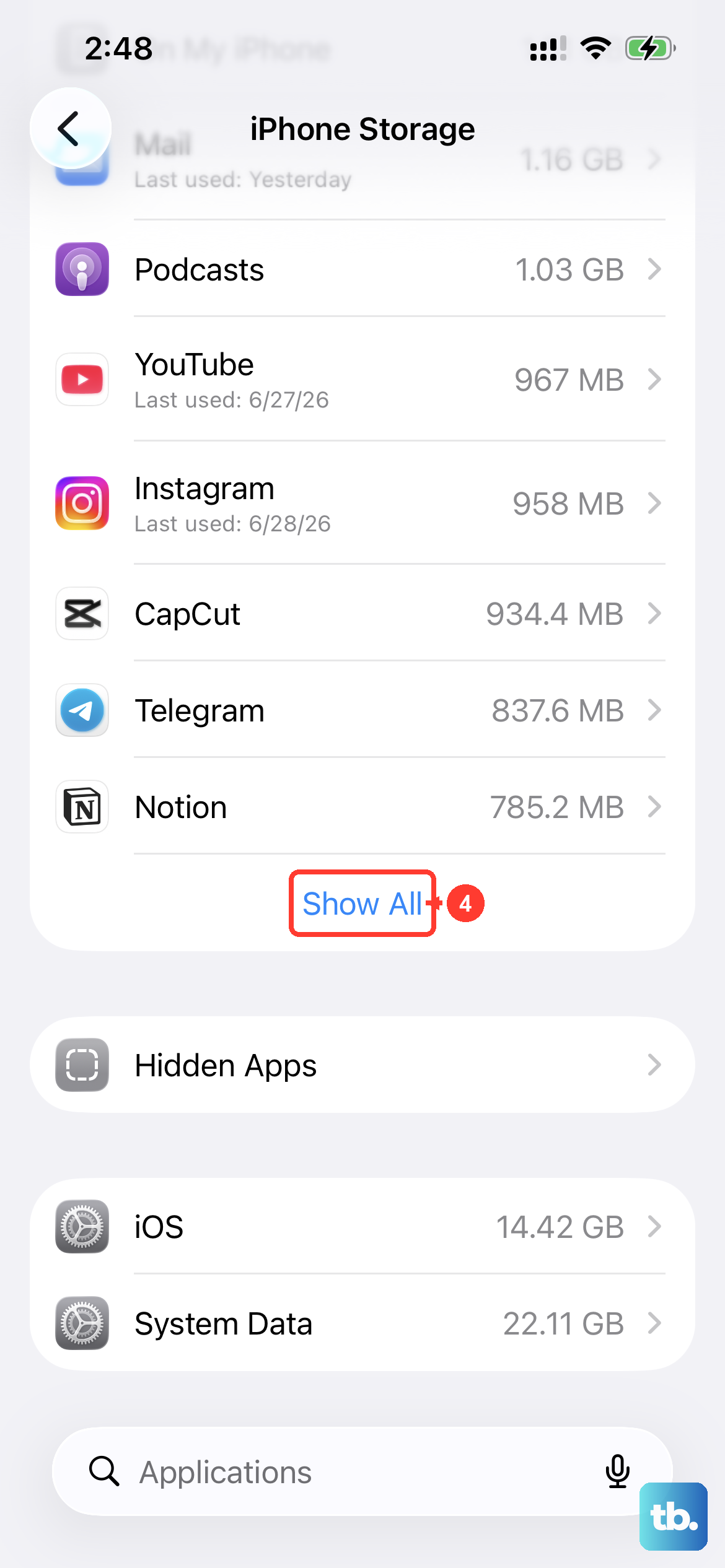
The iPhone 17e, being a budget model, might have come with a lower storage tier. Apps, especially games, are getting larger. If your storage is completely full, the phone has no room to download and unpack the app files.
Go to Settings > General > iPhone Storage. At the top, you'll see a bar showing how much space is free. If you're critically low, you'll need to free some up. You can offload unused apps (which removes the app but keeps its documents and data) or delete old videos and photos.
Update iOS to the Latest Version
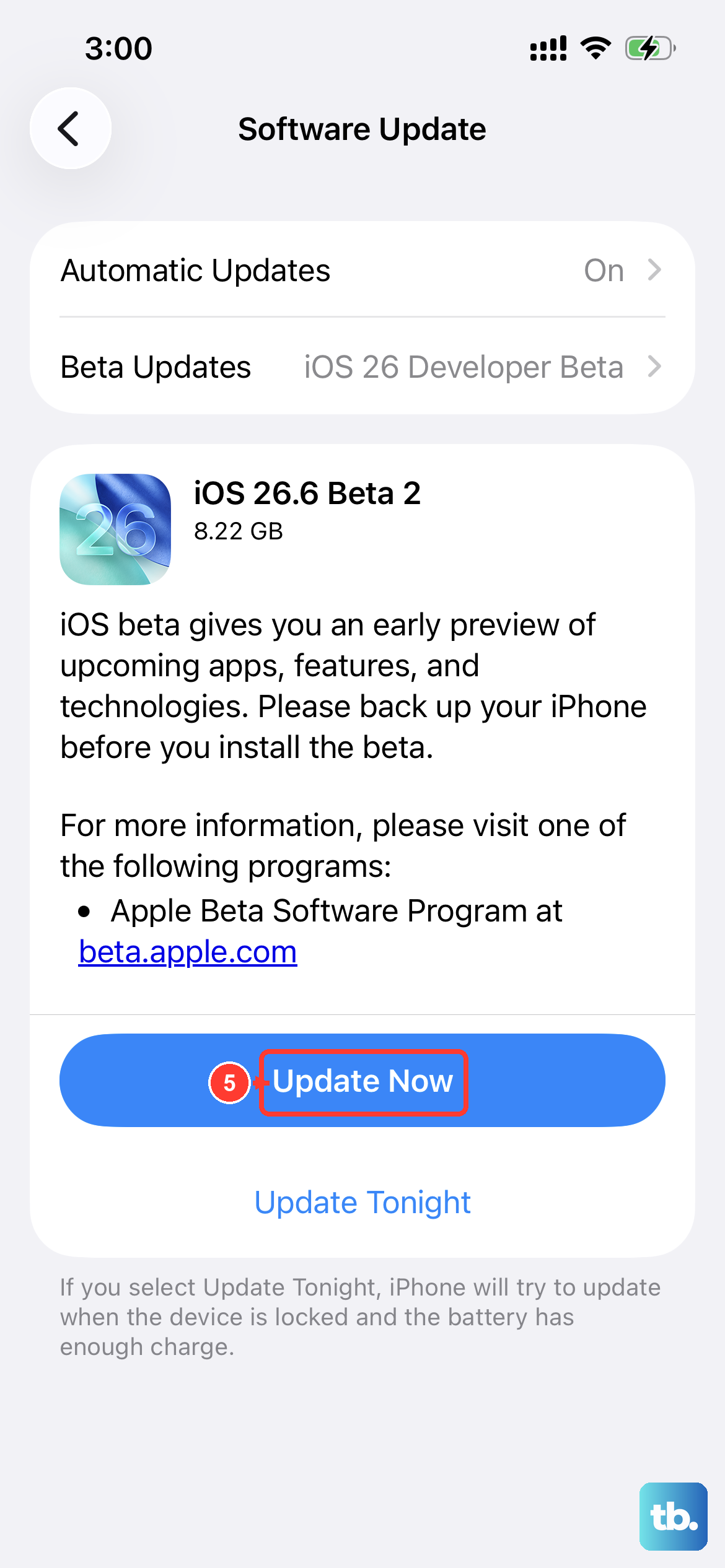
The iPhone 17e launched with iOS 26, and early software versions can sometimes have bugs that affect core services like the App Store. Apple is typically quick to release patches for new devices.
Open Settings > General > Software Update. Your phone will check for any available updates. If one is there, tap Download and Install. It's a good idea to be on Wi-Fi and have your phone plugged into its 20W USB-C charger for this process.
Reset Your Network Settings
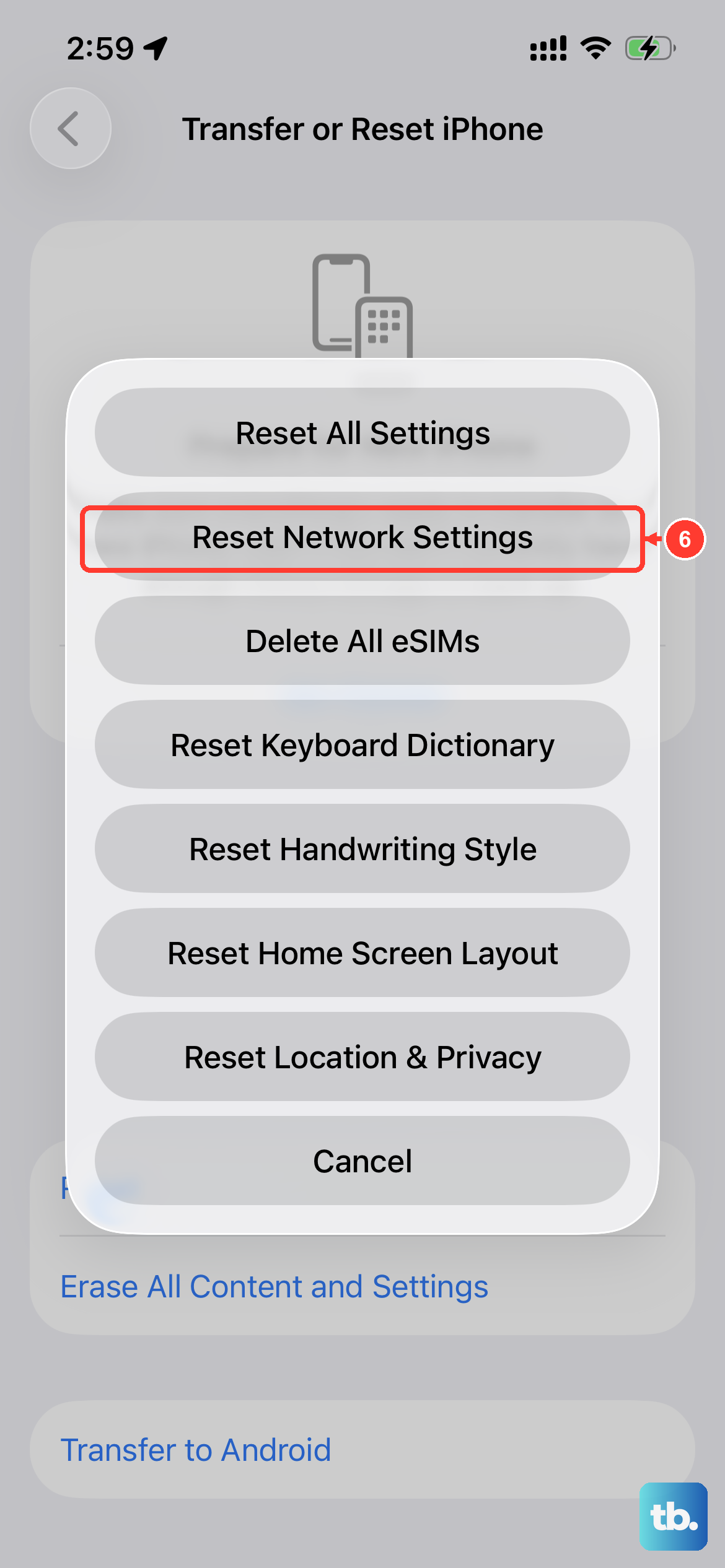
This step clears all your saved Wi-Fi passwords, cellular settings, and VPN configurations. It's a bit more involved but can fix persistent network-related download issues. You'll have to re-join your Wi-Fi networks afterward.
Go to Settings > General > Transfer or Reset iPhone. Tap Reset and then choose Reset Network Settings. Enter your passcode and confirm. Your phone will restart. Once it's back on, reconnect to Wi-Fi and try the App Store again.
Check for a Pending App Update
In some cases, a previous update for an app might have failed or gotten stuck. This can create a queue that blocks all new downloads. Open the App Store and tap your profile icon in the top right corner.
Scroll down to see if there are any updates pending. If you see an app stuck on "Waiting..." or "Loading...", try tapping the update button for that specific app. If that doesn't work, you can try updating all.
Update the App Store App Itself
While the App Store updates automatically, you can manually check. Go back to your profile in the App Store and pull down on the screen to refresh the page. This forces the store to check in with Apple's servers and can clear a temporary hiccup.
If you've tried all of the above and downloads are still failing, the issue might be on Apple's side. You can check Apple's System Status page (via a web search) to see if there's a known outage with the App Store. These are rare, but they do happen, especially around major iOS releases or new device launches like the 17e.